
Introduction
The Windows Printer Migration Wizard is a powerful tool that most people don’t even know exists. If you’re upgrading to a new computer, switching to a new Windows version, or managing multiple workstations, this tool can save you hours of frustration.
Think about it. Manually reinstalling every printer, reconfiguring all your settings, setting up ports, and getting drivers working again. That’s easily 2-3 hours of tedious work for just one computer. Multiply that by several machines, and you’re looking at a full day’s work.
The Windows Printer Migration Wizard changes everything. It exports all your printer configurations, drivers, ports, and settings into a single file. Then imports everything to your new system in minutes. No manual reinstallation. No lost settings.
In this guide, I’ll show you exactly how to use the Windows Printer Migration Wizard, step by step. You’ll learn what it does, how to export and import printer configurations, and how to troubleshoot common issues. Let’s make your printer setup transfer painless.
What Is the Windows Printer Migration Wizard?
The Windows Printer Migration Wizard is a built-in utility that transfers printer configurations between Windows computers. It’s part of the Windows Server Print Management console but works on regular Windows editions too.
What It Actually Does:
This tool creates a backup file containing all your printer data. That includes printer drivers, printer queues, printer ports, printer settings, and even printer processors. Everything needed to recreate your exact printing environment on another computer.
The wizard exports data to a .printerExport file (or .cab file in older versions). This file is portable—you can copy it to a USB drive, network share, or cloud storage. Then import it on any compatible Windows system.
Where It’s Available:
The Windows Printer Migration Wizard works on Windows 7, 8, 10, and 11—both client and server versions. However, the access method varies by Windows edition.
Windows Pro, Enterprise, and Education editions have the full Print Management console. Windows Home editions can still use the tool through command-line utilities, though it’s less user-friendly.
Why Use It Instead of Manual Setup:
Manual printer installation is time-consuming and error-prone. You might forget specific settings, download wrong drivers, or misconfigure ports. The migration wizard captures everything perfectly and reproduces it exactly.
For IT professionals managing dozens or hundreds of computers, this tool is essential. But even home users upgrading to a new PC benefit enormously.
How to Use the Windows Printer Migration Wizard: Step-by-Step Guide
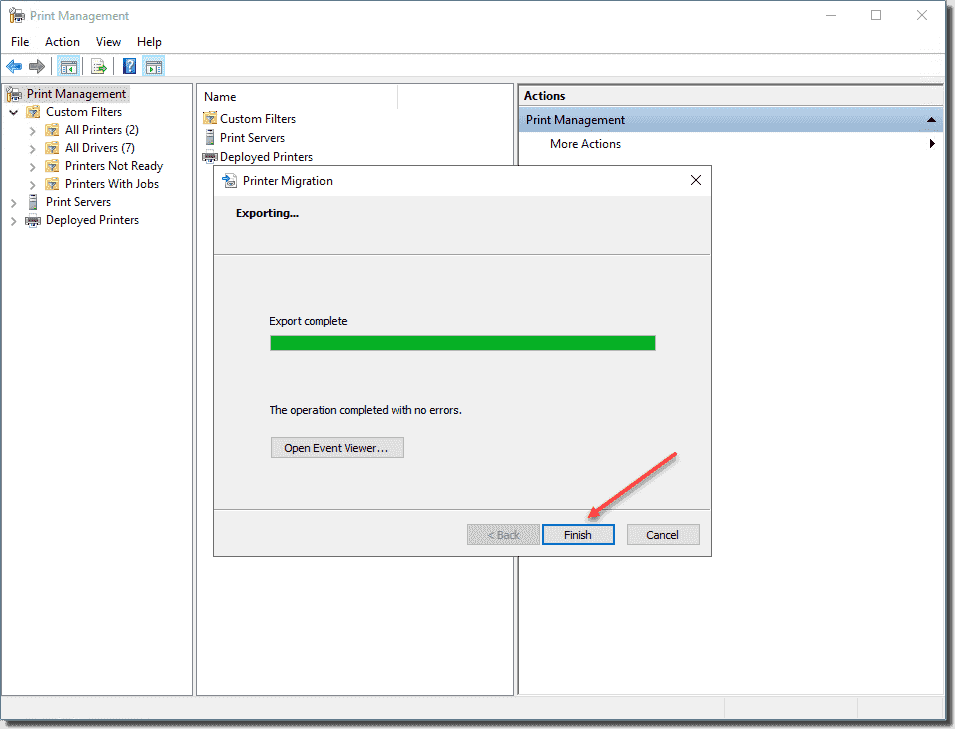
I’ll walk you through both the graphical interface and command-line methods. Most users should stick with the GUI method—it’s simpler and more visual.
Step 1: Access the Print Management Console
For Windows Pro/Enterprise/Education:
Press Windows key + R to open Run dialog. Type printmanagement.msc and press Enter. The Print Management console opens.
If you get an error saying it’s not found, you might be on Windows Home edition. Skip to the command-line method below.
For Windows Home Edition:
You’ll need to use PrintBrm.exe command-line tool instead. Don’t worry—I’ll explain that method shortly.
Step 2: Export Printer Configuration (GUI Method)
Once Print Management console is open, here’s what to do:
Right-click “Print Servers” in the left panel. Select “Migrate Printers” from the context menu. This launches the Windows Printer Migration Wizard.
Click “Next” on the welcome screen. Select “Export printer queues and printer drivers to a file.” Click Next.
Choose which printers to export. You can select “All printers on this server” or pick specific printers from the list. Most people should export all printers—it’s easier.
Select “Export mode.” Choose “Publish mode” if you want printers to be available to other users on the network. For personal computers, standard mode works fine.
Click Next and choose where to save the export file. Pick somewhere easy to access like your desktop or a USB drive. Name it something clear like “My_Printers_Backup.printerExport.”
Click Next, then Finish. The wizard exports everything. This takes 30 seconds to a few minutes depending on how many printers and drivers you have.
Step 3: Transfer the Export File
Now you need to get that .printerExport file to your new computer.
Copy it to a USB flash drive, upload to cloud storage (OneDrive, Google Drive, Dropbox), or transfer via network share. The file size varies but typically ranges from 50MB to 500MB depending on included drivers.
Make sure you have the file accessible on your destination computer before proceeding.
Step 4: Import Printer Configuration (GUI Method)
On your new computer, open Print Management console again (printmanagement.msc).
Right-click “Print Servers” and select “Migrate Printers.” The Windows Printer Migration Wizard opens.
This time, select “Import printer queues and printer drivers from a file.” Click Next.
Browse to your .printerExport file location and select it. Click Next.
Choose import mode. “Keep existing printers” maintains any printers already installed. “Overwrite existing printers” replaces them with imported versions. For a fresh computer, either option works.
Click Next. Review the summary showing which printers will be imported. Click Finish.
The wizard imports everything. You’ll see progress as it installs drivers, creates printer queues, and configures ports. This takes 2-5 minutes typically.
When complete, click Close. Your printers now appear in the Printers & Scanners list, fully configured with all settings preserved.
Step 5: Verify Imported Printers
Don’t assume everything worked perfectly. Always test.
Go to Settings > Devices > Printers & scanners. Check that all expected printers appear in the list.
Select each printer and click “Manage.” Then click “Print a test page.” This confirms the printer actually works, not just that it appears in the list.
Check printer preferences. Open “Printing preferences” for each printer and verify settings match your original configuration. Paper size, orientation, quality settings—everything should be identical.
If network printers don’t work immediately, you might need to reconnect network cables or verify network paths. Local USB printers should work instantly.
Alternative Method: Using PrintBrm.exe Command Line Tool
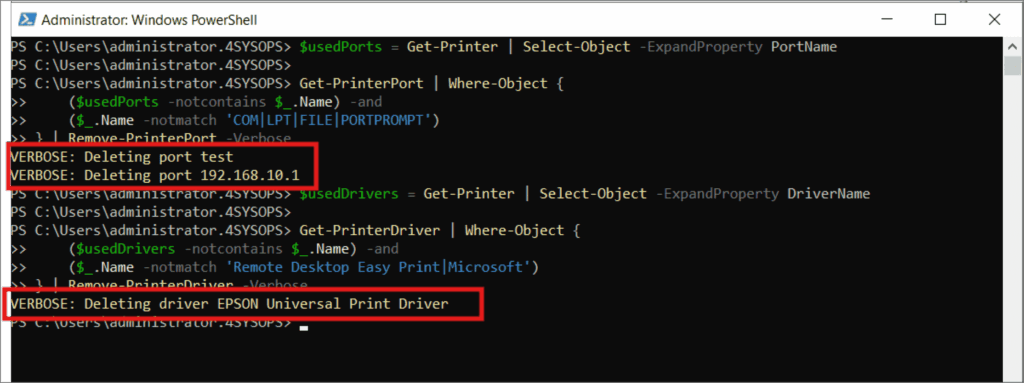
For Windows Home users or those who prefer command-line tools, PrintBrm.exe does everything the GUI wizard does.
To Export Printers:
Open Command Prompt as administrator. Right-click Start button, select “Windows Terminal (Admin)” or “Command Prompt (Admin).”
Type this command:
printbrm -b -f "C:\Users\YourName\Desktop\PrinterBackup.printerExport"Replace the file path with where you want to save the backup. The -b flag means backup (export).
Press Enter. PrintBrm exports all printer configurations to that file.
To Import Printers:
On your destination computer, open Command Prompt as administrator again.
Type this command:
printbrm -r -f "C:\Users\YourName\Desktop\PrinterBackup.printerExport"The -r flag means restore (import). Replace the file path with your actual backup location.
Press Enter. PrintBrm imports all printers. You’ll see status messages as it processes each printer and driver.
Additional PrintBrm Options:
Add -o FORCE to overwrite existing printers: printbrm -r -f "path" -o FORCE
Add -noacl to skip importing printer security settings if you’re getting permission errors.
The command-line method works identically to the Windows Printer Migration Wizard GUI. It just looks different. Same results, different interface.
Additional Tools for Printer Migration and Management

Beyond the Windows Printer Migration Wizard, these tools help with printer management.
Print Management Console Features:
The full Print Management console (printmanagement.msc) does more than just migration. You can monitor print queues, manage drivers centrally, deploy printers through Group Policy, and view detailed printer properties all from one interface.
For managing multiple computers, this is your central hub. You can even connect to remote computers and manage their printers without physically sitting at those machines.
Third-Party Migration Tools:
PrinterLogic and PaperCut offer commercial solutions with more features than the Windows Printer Migration Wizard. They’re overkill for home users but valuable for large organizations.
For free alternatives, Print Manager Plus provides enhanced printer management with better reporting and monitoring than built-in Windows tools.
PowerShell Printer Management:
PowerShell cmdlets like Get-Printer, Add-Printer, and Export-Printer offer scripting capabilities. Advanced users can automate printer deployments across dozens of computers with scripts.
For example: Get-Printer | Export-Clixml C:\PrinterBackup.xml exports printer data that you can later import with PowerShell. This is more flexible but requires scripting knowledge.
Driver Management Tips:
Always keep driver installers in a separate backup location. While the Windows Printer Migration Wizard includes drivers in its export file, having standalone driver installers provides a safety net if imports fail.
Download drivers from manufacturer websites rather than using Windows Update versions when possible. Manufacturer drivers often include additional software and configuration tools that Windows generic drivers lack.
For comprehensive Windows printer troubleshooting resources, Microsoft’s official Print and Scan documentation provides additional guidance.
Common Mistakes When Using the Windows Printer Migration Wizard
People often encounter these problems. Here’s how to avoid them.
Not Running as Administrator:
The most common error. The Windows Printer Migration Wizard needs administrator rights to access printer drivers and system folders. If you don’t run it as admin, exports fail or imports give “access denied” errors.
Always right-click Command Prompt, PowerShell, or any executable and select “Run as administrator.” Don’t skip this step.
Mismatched Windows Versions:
Exporting from Windows 11 and importing to Windows 7 might cause driver compatibility issues. The migration wizard works best when source and destination run similar Windows versions.
If you must migrate between different versions, expect to manually update some drivers after import. Most printers will still import, but drivers might need attention.
Forgetting Network Path Configuration:
Network printers use specific network paths (like \servername\printername). If the new computer can’t access those paths, imports succeed but printers don’t work.
Verify network connectivity and printer server accessibility before importing. Ping the print server. Make sure the new computer joins the same domain or workgroup.
Not Checking Port Configurations:
USB printers use specific port numbers (USB001, USB002, etc.). These might differ on the new computer. After import, you might need to reassign ports manually if printers don’t work.
Go to printer properties, Ports tab, and verify the correct port is selected. For network printers, ensure Standard TCP/IP ports use correct IP addresses.
Importing Corrupted Export Files:
If you interrupt the export process or the file gets corrupted during transfer, imports fail. Always let exports complete fully. Verify file size isn’t zero bytes before transferring.
If imports fail, try exporting again. Sometimes Windows update installations or driver conflicts cause export corruption.
Skipping Test Prints:
Just because a printer appears in your list doesn’t mean it works. Always print test pages after importing to verify full functionality.
Check that print quality, paper handling, and all features (duplex, color, stapling) work as expected. Settings might transfer but hardware features could need reactivation.
Troubleshooting Windows Printer Migration Wizard Issues
When things go wrong, try these solutions.
“Printer Already Exists” Errors:
If you’re re-importing printers that already exist, choose “Overwrite existing printers” during import. Or manually delete existing printers first, then import.
Missing Drivers After Import:
Some printer drivers don’t package properly in export files. If this happens, manually download and install drivers from the manufacturer’s website, then re-import the configuration file.
The Windows Printer Migration Wizard imports settings and queues even if drivers are already installed separately.
“Access Denied” or Permission Errors:
This means insufficient privileges. Close everything, right-click your Command Prompt or Print Management shortcut, select “Run as administrator,” and try again.
Also verify your user account has admin rights on both source and destination computers.
Slow Import Process:
Large driver packages take time. Be patient. If imports seem frozen, check Task Manager. You should see PrintBrm.exe or spoolsv.exe using CPU. That means it’s working, just slowly.
Imports can take 10-15 minutes for complex configurations with many large drivers.
Frequently Asked Questions About Windows Printer Migration Wizard
Q: Does the Windows Printer Migration Wizard work between different Windows versions?
Yes, but with limitations. Migration between Windows 10 and 11 works smoothly. Going from Windows 7 to 11 might require driver updates after import. The wizard transfers configurations successfully, but older drivers may not be compatible with newer Windows versions. Always check printer manufacturer websites for updated drivers compatible with your target Windows version.
Q: Can I use the Windows Printer Migration Wizard to back up just my printer settings without drivers?
Not directly through the GUI. However, using PrintBrm.exe command line with specific flags allows selective exports. For most users, exporting everything (drivers included) is simpler and ensures complete functionality. The export file size increase from including drivers is worth the convenience of having everything in one package.
Q: Will the Windows Printer Migration Wizard transfer my print history and job queue?
No. The wizard only transfers printer configurations, drivers, ports, and settings. Active print jobs and historical print logs aren’t included. If you need to preserve print jobs, complete or cancel them before exporting. Print history tracking requires separate logging software if that’s important for your needs.
Q: Can I migrate printers from a server to a regular workstation using this tool?
Yes. The Windows Printer Migration Wizard works for both server-to-server and server-to-workstation migrations. However, some server-specific features like printer pooling or advanced sharing settings might not transfer perfectly to workstations. Basic printer functionality, drivers, and user preferences transfer without issues in most cases.
Q: What happens if I import printers to a computer that already has some of the same printers installed?
You can choose during import. Select “Keep existing printers” to leave current printers unchanged and only add new ones. Or choose “Overwrite existing printers” to replace them with imported configurations. The wizard won’t duplicate printers—it intelligently merges or replaces based on your selection. For most scenarios, overwriting ensures your desired configuration applies.
Conclusion: Simplify Printer Setup with the Migration Wizard
The Windows Printer Migration Wizard transforms a complex, time-consuming process into a simple task. Instead of spending hours reinstalling printers and reconfiguring settings, you can migrate everything in under 10 minutes.
Whether you’re upgrading to a new computer, rebuilding after a system crash, or managing multiple workstations, this tool saves enormous time and prevents configuration errors.
The process is straightforward: export your printer configurations to a file, transfer that file to your new system, and import it. Your printers appear exactly as they were, with all drivers, settings, and preferences intact.
Start using the Windows Printer Migration Wizard today. Create a backup of your current printer setup even if you don’t need it right now. Having that backup ready saves you stress when you eventually upgrade or encounter system problems.
For home users, it’s a one-time setup that preserves your carefully configured printers. For IT professionals, it’s an essential tool that scales printer deployment across entire organizations.
Don’t manually reinstall printers ever again. Let the Windows Printer Migration Wizard handle the heavy lifting while you focus on more important tasks.
Your perfect printer setup is just an export and import away. Take 10 minutes today to master this tool—you’ll thank yourself next time you need it.
Why Do My Saved Print Settings Disappear on Reboot? Quick Fix Read More.


