
Introduction
Why do my saved print settings disappear on reboot? If you’ve asked yourself this frustrating question, you’re not alone. It’s one of the most annoying printer problems Windows users face.
You spend time setting up your perfect printer preferences. Double-sided printing, grayscale mode, specific paper size, your preferred quality settings. Everything works fine. Then you restart your computer, and boom—all your settings are gone. Back to defaults. Again.
The good news? This isn’t random. There are specific reasons why print settings reset after reboot, and better yet, there are proven fixes that actually work.
In this guide, I’ll show you exactly why this happens and walk you through multiple solutions, including registry fixes that permanently solve the problem. Let’s get your printer settings to stick once and for all.
What Causes Print Settings to Reset After Reboot?
Before jumping into fixes, let’s understand why do my saved print settings disappear on reboot in the first place.
Registry Permission Issues:
Windows stores printer settings in the registry. When your user account doesn’t have proper permissions to write to these registry keys, any changes you make disappear when you restart. The system simply can’t save your preferences permanently.
Corrupted Printer Drivers:
Outdated or damaged printer drivers often fail to save settings properly. The driver might accept your changes during the session but can’t write them to the registry correctly. After reboot, it loads default settings instead.
Group Policy Restrictions:
In work environments, IT departments sometimes implement group policies that reset printer settings on login. This is intentional security behavior, not a bug. If you’re on a work computer, check with IT before making registry changes.
Profile Corruption:
Your Windows user profile stores printer preferences. If the profile is corrupted, settings won’t save properly. This affects more than just printers—you might notice other settings resetting too.
Print Spooler Service Problems:
The Print Spooler service manages all printing tasks. If it’s not running properly or starts with the wrong permissions, it can’t maintain your settings between sessions.
Understanding the cause helps you pick the right fix. Most home users deal with registry permissions or driver issues. Let’s tackle those first.
5 Proven Methods to Fix Print Settings That Disappear on Reboot
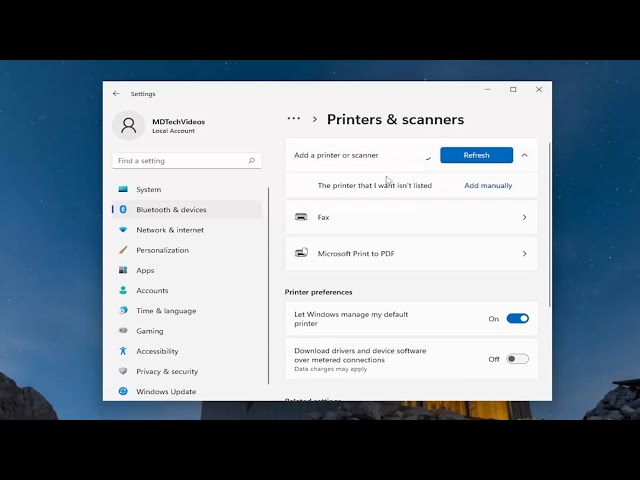
These solutions work for Windows 10 and Windows 11. I’ve arranged them from easiest to most technical. Try them in order.
Method 1: Update or Reinstall Printer Drivers
This fixes the problem about 40% of the time and takes just 5-10 minutes.
Step 1: Open Device Manager. Press Windows key + X, then select Device Manager from the menu.
Step 2: Expand the “Print queues” or “Printers” section. Find your printer in the list.
Step 3: Right-click your printer and select “Update driver.” Choose “Search automatically for drivers.” Let Windows find and install the latest version.
Step 4: If updating doesn’t help, uninstall the driver completely. Right-click the printer and choose “Uninstall device.” Check the box that says “Delete the driver software for this device.”
Step 5: Restart your computer. Windows will reinstall the driver automatically, or visit your printer manufacturer’s website to download the latest driver manually.
Fresh drivers often resolve why do my saved print settings disappear on reboot because they fix corrupted preference files and registry entries.
Method 2: Fix Registry Permissions (The Most Effective Solution)
This method has the highest success rate but requires editing the registry. Don’t worry—I’ll walk you through it carefully.
Step 1: Press Windows key + R to open Run dialog. Type regedit and press Enter. Click Yes if User Account Control prompts you.
Step 2: Navigate to this registry path:
HKEY_CURRENT_USER\Software\Microsoft\Windows NT\CurrentVersion\WindowsStep 3: Right-click the “Windows” folder and select “Permissions.”
Step 4: Click your username in the top section. In the bottom section, make sure “Full Control” is checked under “Allow.”
Step 5: Click “Advanced” button. Check “Replace all child object permission entries with inheritable permission entries from this object.” Click Apply, then OK.
Step 6: Now navigate to:
HKEY_CURRENT_USER\Printers\DevModePerUserStep 7: Repeat the permission process for this key. Right-click, Permissions, ensure Full Control is enabled for your user account.
Step 8: Restart your computer and test your printer settings.
This fix works because it gives your user account proper rights to save settings permanently. Many users report this completely solves the problem.
Method 3: Modify Print Spooler Service Settings
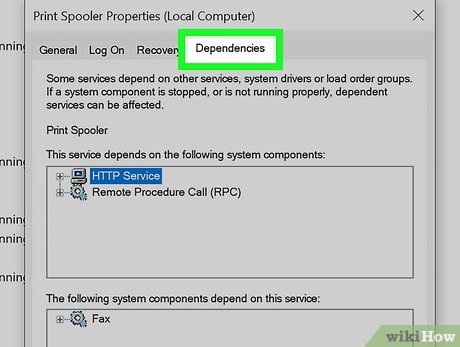
The Print Spooler service needs correct startup settings to maintain preferences.
Step 1: Press Windows key + R, type services.msc, and press Enter.
Step 2: Scroll down and find “Print Spooler” in the services list.
Step 3: Right-click Print Spooler and select “Properties.”
Step 4: Set “Startup type” to “Automatic” if it isn’t already. This ensures the service starts with Windows every time.
Step 5: Click the “Log On” tab. Make sure “Local System account” is selected. If “This account” is selected instead, that might be causing issues.
Step 6: Click Apply, then restart the Print Spooler service. You can do this by right-clicking the service and choosing “Restart.”
Step 7: Reboot your computer to test if settings now persist.
Method 4: Create a Default Printing Preferences Registry Key
This advanced method creates a permanent registry entry for your preferences.
Step 1: Set up your printer preferences exactly how you want them. Go to Settings > Devices > Printers & scanners, select your printer, click “Manage,” then “Printing preferences.”
Step 2: Configure all your settings (paper size, orientation, quality, etc.). Click OK to save.
Step 3: Open Registry Editor (Windows key + R, type regedit).
Step 4: Go to:
HKEY_CURRENT_USER\Software\Microsoft\Windows NT\CurrentVersion\PrinterPortsStep 5: Find your printer’s entry. Right-click it and select “Export.” Save this as a backup file.
Step 6: Navigate to:
HKEY_CURRENT_USER\Printers\SettingsStep 7: Locate your printer’s GUID (long string of numbers and letters). Right-click and export this key too.
Step 8: After every reboot, if settings reset, you can double-click these exported registry files to restore your preferences instantly.
This doesn’t prevent the reset but gives you a one-click solution to restore settings.
Method 5: Check for Group Policy Conflicts
If you’re on a work computer or using Windows Pro, group policies might override your settings.
Step 1: Press Windows key + R, type gpedit.msc, and press Enter. (Note: This only works on Windows Pro, Enterprise, or Education editions.)
Step 2: Navigate to: Computer Configuration > Administrative Templates > Printers.
Step 3: Look for any policies that are “Enabled.” Common culprits include “Point and Print Restrictions” or “Package Point and Print – Approved servers.”
Step 4: If you find enabled policies related to printer settings, you might need administrator rights to change them. Contact your IT department if on a work computer.
For home users with Windows Home edition, this won’t apply since gpedit.msc isn’t available.
Additional Tools and Registry Tweaks to Maintain Print Settings

Beyond the main fixes, these tools and tweaks help prevent future issues.
Print Management Console:
Windows has a built-in Print Management tool that offers more control. Press Windows key + R, type printmanagement.msc, and press Enter. Here you can manage printer properties, drivers, and ports from one interface. It’s especially useful if you manage multiple printers.
Third-Party Printer Management Software:
Some manufacturers provide utility software that maintains settings better than Windows defaults. HP Smart, Epson Print and Scan, and Canon IJ Printer Utility often include features to save and restore printer profiles. Check your manufacturer’s website.
Registry Backup Strategy:
After successfully configuring your settings, export your entire printer registry branch. Go to:
HKEY_CURRENT_USER\PrintersRight-click “Printers,” select “Export,” and save it with a descriptive name like “My_Printer_Settings_Backup.reg.” If issues return, double-click this file to restore everything.
Scheduled Task Solution:
Advanced users can create a scheduled task that runs on startup and imports your saved registry settings automatically. This essentially overrides any resets that occur during boot.
For most users, the registry permission fix from Method 2 eliminates the need for these workarounds. But it’s good to know your options.
Common Mistakes When Trying to Fix Printer Settings Issues

People often make these errors when troubleshooting why do my saved print settings disappear on reboot.
Not Running as Administrator:
Many registry fixes require administrator privileges. If you’re getting “access denied” errors, right-click Command Prompt or Registry Editor and select “Run as administrator.” Without admin rights, changes won’t save.
Editing the Wrong Registry Key:
The registry has similar-looking keys for current user and local machine. Make sure you’re editing:
HKEY_CURRENT_USERNot:
HKEY_LOCAL_MACHINEChanges to HKEY_LOCAL_MACHINE affect all users and require different permissions.
Skipping the Computer Restart:
Registry changes and driver updates need a reboot to take effect. Don’t skip this step. Logging out and back in isn’t enough—you need a full restart for changes to apply properly.
Ignoring Windows Updates:
Sometimes Microsoft patches fix printer-related bugs. Check for Windows updates (Settings > Update & Security > Windows Update) before diving into registry edits. Your issue might have an official fix already available.
Not Creating Registry Backups:
Before editing the registry, always create a system restore point. Press Windows key, type “create a restore point,” and follow the wizard. If something goes wrong, you can roll back changes safely.
Mixing Solutions:
Apply one fix at a time and test after each. If you try multiple registry edits simultaneously and something breaks, you won’t know which change caused the problem. Methodical troubleshooting saves time.
Forgetting About Network Printers:
Network printers have additional complexity. If your printer connects over the network, settings might be controlled by the print server, not your local computer. Check printer properties to see where it’s hosted.
Frequently Asked Questions About Print Settings Resetting
Q: Why do my saved print settings disappear on reboot only for some applications?
Some applications override system printer defaults with their own settings. Programs like Microsoft Word, Adobe Acrobat, and Chrome have independent printer preferences. You need to set defaults within each application separately. For Word, go to File > Print > Printer Properties and configure settings there. These app-specific settings are stored differently than Windows system settings.
Q: Will registry changes affect other users on my computer?
No. When you edit HKEY_CURRENT_USER registry keys, changes only affect your user account. Other users on the same computer keep their own settings. If you want system-wide changes, you’d need to edit HKEY_LOCAL_MACHINE instead, but that’s rarely necessary for printer settings.
Q: My printer settings save but reset only after Windows updates. Why?
Windows updates sometimes reset printer drivers to default configurations, especially during major feature updates. To prevent this, after an update, immediately check your printer settings and reconfigure them. You can also use the registry backup method to quickly restore your preferences after updates. Microsoft has acknowledged this is a known issue with certain updates.
Q: Can I save different printer profiles for different types of documents?
Yes, but not directly through Windows settings. Some printer drivers include preset profiles (draft, normal, high quality). Alternatively, you can create multiple “printers” that point to the same physical device with different default settings. Add your printer multiple times through “Add a printer” and configure each instance differently.
Q: Do I need antivirus software disabled to fix registry issues?
Usually not. However, some security software monitors registry changes and might block modifications. If you get errors when editing the registry, temporarily disable real-time protection, make your changes, then re-enable it. Just make sure you’re editing legitimate registry keys as outlined in this guide.
Conclusion: Keeping Your Print Settings Permanent
Now you know exactly why do my saved print settings disappear on reboot and how to fix it permanently.
The registry permission fix (Method 2) solves the problem for most users. It gives your account the proper rights to save printer settings to the Windows registry. Combined with updated drivers, this creates a stable configuration that survives reboots.
For stubborn cases, the Print Spooler service adjustment and registry backup methods provide additional solutions. One of these approaches will work for your situation.
The key is methodical troubleshooting. Start with the simplest solution (updating drivers), then progress to registry fixes if needed. Always create backups before editing the registry, and test after each change.
Your printer settings should save automatically and persist across reboots. That’s normal behavior. If they’re resetting, something’s wrong with permissions, drivers, or system configuration. Use this guide to identify and fix the root cause.
Take action today. Pick Method 1 or Method 2 and spend 15 minutes fixing this annoying issue. You’ll save hours of frustration reconfiguring settings every time you reboot.
Your perfect printer setup is just a few steps away. Make those settings stick for good.
For more detailed information about Windows registry editing best practices, check out Microsoft’s official Registry documentation.
How Long Should a Printer Last? Proven Ways to Extend Life Read More.


