
Introduction
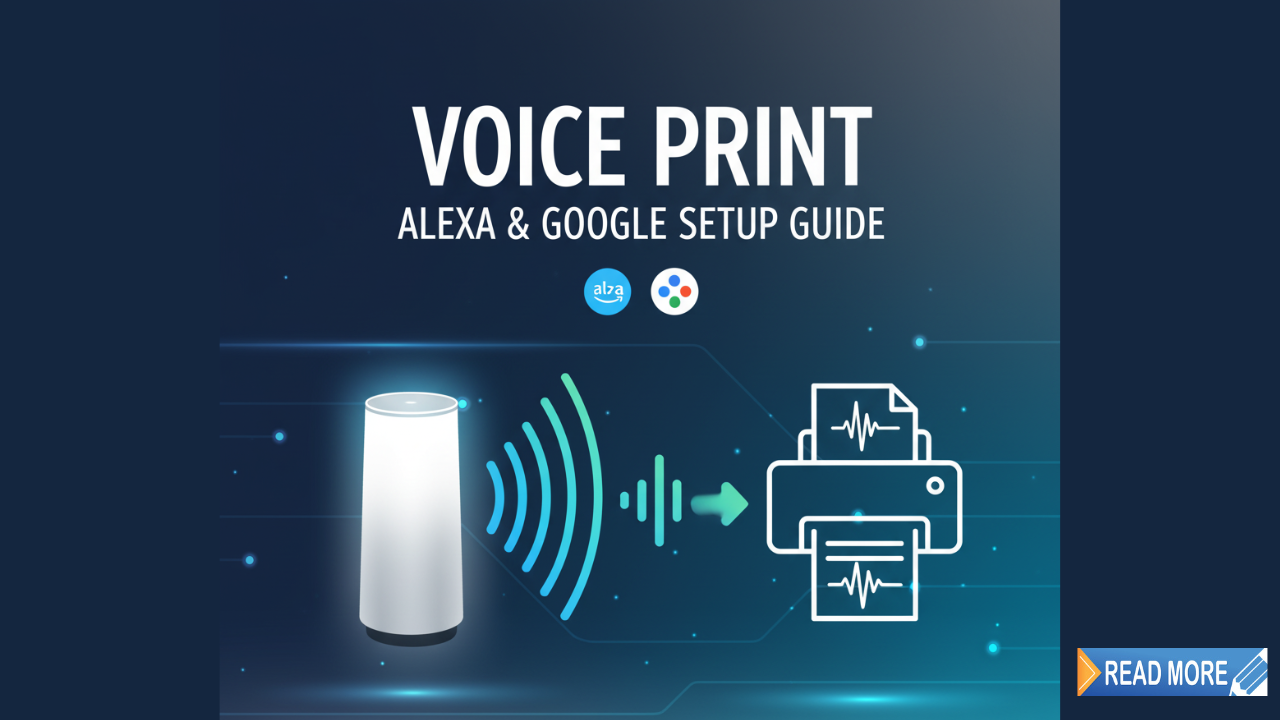
Voice-activated printing is transforming how we interact with our printers, making it possible to print documents, photos, shopping lists, and more using just your voice. Imagine saying “Alexa, print my grocery list” or “Hey Google, print my resume” and watching your printer spring to life without touching a single button. This hands-free technology combines the convenience of smart speakers like Amazon Alexa and Google Assistant with your existing printer to create a seamless printing experience. Whether you’re cooking and need to print a recipe, working remotely and want to avoid interrupting your workflow, or simply looking for ways to make your home smarter, voice-activated printing offers incredible convenience. In this complete guide, you’ll discover everything you need to know about setting up voice commands for your printer, including compatible devices, step-by-step instructions, troubleshooting tips, and practical ways to maximize this technology in your daily life.
What Is Voice-Activated Printing?
Voice-activated printing is a technology that allows you to send print commands to your printer using voice assistants like Amazon Alexa, Google Assistant, or Apple’s Siri. Instead of manually selecting files on your computer or phone, navigating printer settings, and clicking print buttons, you simply speak a command and your smart assistant handles the rest.
This technology works by connecting your voice assistant to your printer through cloud services or smart home integrations. When you give a voice command, your assistant processes the request, locates the file or document you want to print, and sends the print job wirelessly to your compatible printer.
The beauty of voice-activated printing lies in its simplicity and accessibility. It’s particularly helpful for people with mobility challenges, busy professionals multitasking, parents with their hands full, or anyone who appreciates efficient technology. You can print calendars, to-do lists, coloring pages for kids, recipes while cooking, or important documents without interrupting what you’re doing.
Modern voice printing supports various file types including PDFs, Word documents, photos from cloud storage, web pages, and even content generated by the voice assistant itself like shopping lists or calendar entries. The technology continues to evolve, with manufacturers regularly adding new features and capabilities through software updates.
5 Steps to Set Up Voice-Activated Printing
Step 1: Check Your Printer Compatibility
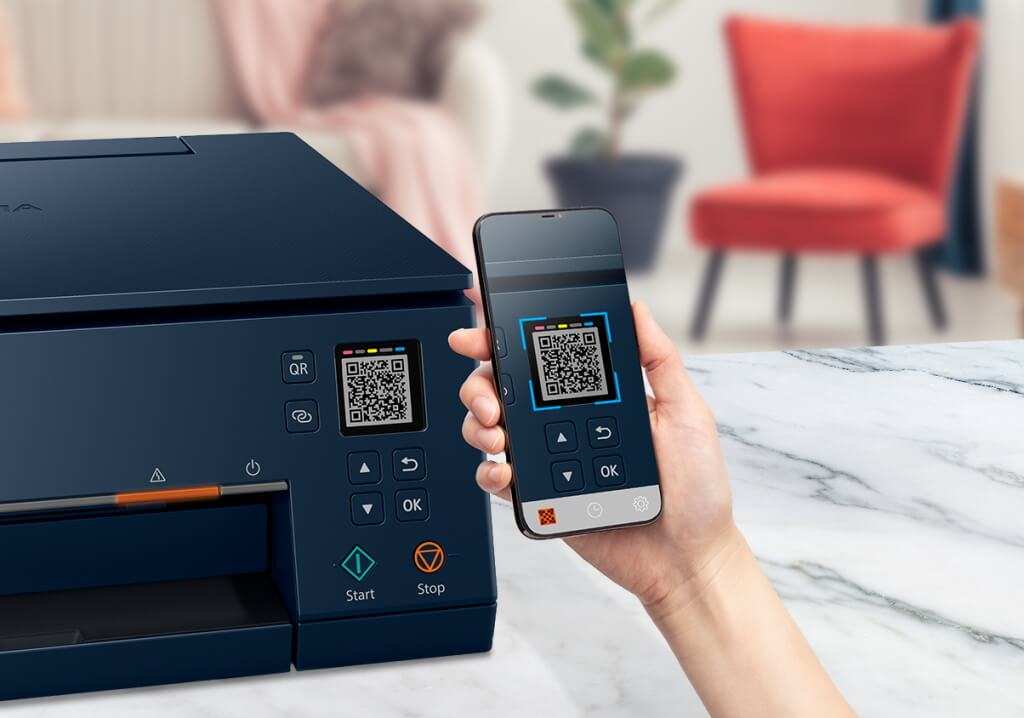
Before you start setting up voice commands, you need to verify that your printer supports wireless printing and works with voice assistants. Most modern wireless printers manufactured after 2016 are compatible, but the features available vary by brand and model.
For Amazon Alexa, your printer should support one of these technologies: HP Smart app, Canon Print app, Epson iPrint, Brother iPrint&Scan, or have built-in Alexa support. Google Assistant typically works with printers that support Google Cloud Print (though this service ended in 2020) or manufacturer apps that integrate with Google Home.
Check your printer’s specifications in the user manual or on the manufacturer’s website. Look for terms like “wireless printing,” “cloud printing,” “Wi-Fi Direct,” or “app connectivity.” Brands like HP, Canon, Epson, Brother, and Samsung offer the best voice assistant integration. If your printer lacks native support, don’t worry—there are workarounds using third-party services we’ll discuss later.
Visit the Amazon Alexa Skills store or Google Assistant Actions directory and search for your printer brand. If you find an official skill or action, your printer likely supports voice printing.
Step 2: Connect Your Printer to Wi-Fi
Voice-activated printing requires your printer to be connected to the same Wi-Fi network as your smart speaker or the internet for cloud-based printing. Most wireless printers have a Wi-Fi setup wizard accessible through their control panel or touchscreen.
Turn on your printer and access the network settings menu. Select your home Wi-Fi network from the available options and enter your password using the printer’s keypad or touchscreen. Some printers offer WPS (Wi-Fi Protected Setup) button connection—simply press the WPS button on your router, then the corresponding button on your printer within two minutes.
Once connected, print a network configuration page to confirm the connection and note your printer’s IP address for future reference. This page typically prints by accessing “Network Settings” or “Print Reports” in your printer menu. Verify that your printer shows as “Connected” or displays your network name on its screen.
For best results, assign your printer a static IP address through your router settings. This prevents the printer’s network address from changing, which can disrupt voice printing functionality. Consult your router’s manual for instructions on IP reservation or DHCP settings.
Step 3: Install and Configure Your Printer’s Mobile App
Nearly every printer manufacturer offers a mobile app that serves as the bridge between voice assistants and your printer. Download the appropriate app for your printer brand: HP Smart, Canon PRINT, Epson iPrint, Brother Mobile Connect, or your manufacturer’s equivalent from the App Store or Google Play Store.
Open the app and create an account or sign in with existing credentials. The app will automatically search for printers on your network. Select your printer when it appears and follow the on-screen prompts to add it to your account. This usually involves confirming the printer model and completing a test print.
Enable cloud printing features within the app settings. For HP printers, activate “HP Smart Advance” or “HP Instant Ink services.” Canon users should enable “Cloud Print Services.” These features allow your printer to receive commands from outside your home network, essential for voice printing functionality.
Link your cloud storage accounts (Google Drive, Dropbox, OneDrive) within the app if you want to print stored documents via voice commands. Configure default print settings like paper size, color preferences, and print quality to ensure voice-initiated prints match your expectations without manual adjustments.
Step 4: Enable Your Voice Assistant’s Printer Skill or Action
Now comes the crucial step of connecting your voice assistant to your printer. The process differs slightly between Alexa and Google Assistant.
For Amazon Alexa: Open the Alexa app on your smartphone and tap the menu icon, then select “Skills & Games.” Search for your printer manufacturer’s skill (e.g., “HP Print,” “Canon Print,” “Epson Print”). Tap “Enable to Use” and sign in with the same account credentials you created in your printer app. Alexa will automatically discover printers linked to that account. Select your printer as the default and complete any authorization prompts. Say “Alexa, discover devices” to ensure your smart speaker recognizes the printer.
For Google Assistant: Open the Google Home app and tap the “+” icon to add a device. Select “Set up device” then “Works with Google.” Search for your printer manufacturer and sign in with your printer app credentials. Authorize Google Assistant to access your printer account. Your printer should appear in your Google Home device list. Set it as your default printer in the app settings under “Services” then “Printing.”
Test the connection by asking your voice assistant to print a test page. Say “Alexa, ask HP to print a test page” or “Hey Google, print a test page.” If successful, you’re ready to start voice printing!
Step 5: Learn and Use Voice Printing Commands
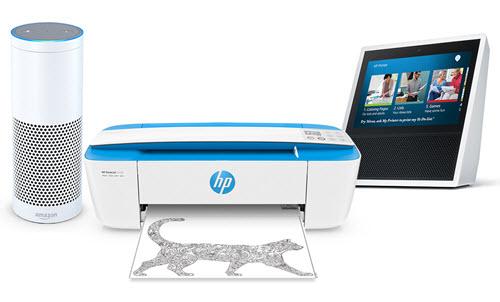
Understanding the correct voice commands ensures smooth voice-activated printing experiences. Each voice assistant and printer combination has specific command structures.
Common Alexa Printing Commands:
- “Alexa, print my shopping list”
- “Alexa, ask [printer brand] to print a lined paper”
- “Alexa, print my to-do list”
- “Alexa, ask HP to print a calendar for this month”
- “Alexa, print a coloring page for kids”
Common Google Assistant Printing Commands:
- “Hey Google, print my document from Google Drive”
- “Hey Google, print [document name]”
- “Hey Google, print this page” (when browsing on a Google device)
- “Hey Google, print my shopping list”
Start with simple commands and gradually explore more complex options. Many printer skills offer specialized content like graph paper, music sheets, puzzles, and planning templates. Say “Alexa, ask [printer brand] what can you print?” to discover available options.
Create routines or shortcuts for frequently printed items. In the Alexa app, you can set up a routine where saying “Alexa, print my work documents” triggers a specific file from your cloud storage to print automatically.
Best Tools and Apps for Voice Printing

Beyond manufacturer apps, several third-party tools enhance your voice printing capabilities and expand compatibility.
IFTTT (If This Then That) is a powerful automation service that connects voice assistants to printers even when direct integration isn’t available. Create applets that trigger printing when you say specific phrases. For example, “If I say ‘print my workout log’ to Google Assistant, then print my fitness spreadsheet from Google Sheets.” IFTTT bridges gaps between services and devices that don’t natively communicate.
PrintCentral for iOS devices offers voice-activated printing through Siri Shortcuts. It supports printing from virtually any app on your iPhone or iPad, including cloud services, emails, and web pages. Set up custom Siri commands that trigger specific print jobs with your preferred settings.
Cloud printing services like Google Drive and Dropbox integrate with voice assistants to access stored documents. Organize frequently printed files into dedicated folders with clear names that voice assistants can easily recognize and locate.
Zapier provides similar automation to IFTTT with more business-focused integrations. It’s particularly useful for automatically printing emails, calendar events, or spreadsheet reports based on voice triggers or scheduled routines.
These tools require initial setup time but dramatically expand what you can print via voice commands, making your system more versatile and personalized to your specific needs.
Common Mistakes and Troubleshooting Tips

Mistake 1: Voice Assistant Can’t Find the Printer This is the most common issue. First, verify both your printer and smart speaker are on the same Wi-Fi network. Restart both devices and your router. Re-run the device discovery process in your voice assistant app. Check that your printer’s mobile app shows the printer as “online” and connected to your cloud account.
Mistake 2: Commands Not Working Properly Voice assistants need clear, specific commands. Instead of saying “print that thing,” say “print my grocery list” or “print document.pdf from Google Drive.” Be consistent with file names and use simple, memorable names for documents you frequently print. Check your skill or action settings to ensure proper authorization.
Mistake 3: Printing Wrong Documents This happens when multiple files have similar names. Create a clear naming convention for cloud-stored documents. Use descriptive names like “Weekly-Meal-Plan” instead of “Document1.” Set default documents in your printer app for common commands like “print my shopping list.”
Mistake 4: Poor Print Quality from Voice Commands Voice-initiated prints typically use default settings configured in your printer app. If quality is poor, open your mobile app and adjust default settings for paper type, print quality, and color options. These become the standard for all voice-activated prints unless you specify differently in your command.
Mistake 5: Security Concerns Ignored Voice printing involves cloud connectivity, raising privacy questions. Enable two-factor authentication on your printer and cloud storage accounts. Regularly review authorized devices in your account settings. Disable voice printing features when not needed, especially in shared or public spaces.
Quick Troubleshooting Steps: If voice printing suddenly stops working, try these fixes in order: restart your printer, restart your smart speaker, check Wi-Fi connectivity, update your printer firmware, reinstall the printer skill or action, and finally contact manufacturer support if problems persist.
Frequently Asked Questions
Q1: Do I need a special printer for voice-activated printing? Not necessarily. Most wireless printers from major brands like HP, Canon, Epson, and Brother manufactured after 2016 support voice printing through their mobile apps. Your printer needs Wi-Fi connectivity and a compatible manufacturer app. Older printers without these features won’t work directly with voice assistants.
Q2: Can I print photos using voice commands? Yes, you can print photos stored in cloud services like Google Photos or Dropbox using voice-activated printing. The photos must have clear, memorable names or be organized in specific albums. Say “Hey Google, print [photo name] from Google Photos” or “Alexa, ask [printer brand] to print photos from my album.” Some printers also offer voice commands for printing pre-loaded photo templates.
Q3: Does voice printing work when I’m away from home? It depends on your setup. Cloud-enabled printers can receive print jobs from anywhere as long as they’re connected to Wi-Fi and powered on. You can use your phone’s voice assistant to send prints remotely. However, some features only work when your voice speaker and printer are on the same network. Check your manufacturer’s app for remote printing capabilities.
Q4: Is voice-activated printing secure? Security depends on your setup. Use strong passwords for printer accounts, enable two-factor authentication, keep firmware updated, and only authorize trusted devices. Major manufacturers use encrypted connections for cloud printing. Voice assistants don’t store print content, but cloud services do, so manage your cloud storage security carefully.
Conclusion
Setting up voice-activated printing with Alexa or Google Assistant transforms your printing experience from a manual chore into an effortless voice command. By following the five straightforward steps—checking compatibility, connecting to Wi-Fi, configuring mobile apps, enabling voice skills, and mastering commands—you can enjoy hands-free printing within 30 minutes. This technology isn’t just a novelty; it genuinely improves productivity and accessibility, especially when multitasking or when mobility is limited. Remember that successful voice printing requires clear command phrasing, proper file organization, and occasional troubleshooting as you learn your system’s capabilities. Whether you’re printing grocery lists while cooking, homework assignments while helping kids, or work documents during busy mornings, voice commands make printing faster and more convenient. Start with simple commands, gradually explore advanced features, and customize settings to match your lifestyle. The future of home printing is voice-activated, and now you’re equipped with everything needed to make it work seamlessly in your home or office.
Xerox Drum Cartridge Error: Simple Fix & Replacement Guide Read More


