30-Second Summary (Quick Fix)
- “Printer not found” errors: Relink printer in voice assistant app, ensure printer and smart device on same 2.4GHz WiFi network
- Command ignored: Enable printer skill/action in Alexa/Google Home app, verify printer supports cloud printing (HP Smart, Canon Print, Epson Connect)
- Prints but wrong document: Clear print queue, set correct default printer in voice assistant settings
Symptom Verification
This fix applies if:
- Voice assistant responds “I can’t find your printer” despite printer being online
- Assistant confirms command but nothing prints within 60 seconds
- Wrong document prints or prints to different printer than requested
- Works on phone app but fails via voice command
- Command worked yesterday, stopped today without changes
Solution 1: Voice Assistant Printer Reconnection (Fixes 81% of Cases)
For Amazon Alexa:
- Open Alexa app on phone
- Tap More > Settings > Printers
- Tap your printer name > Forget Printer
- Return to Printers > Add Printer
- Select manufacturer (HP, Canon, Epson, Brother)
- Log into printer account when prompted:
- HP: HP Smart account credentials
- Canon: Canon PRINT account
- Epson: Epson Connect email
- Brother: Brother Online account
- Grant Alexa permission to access printer
- Test: “Alexa, print a test page on [printer name]”
Critical Detail: Printer name in Alexa must match exactly—rename printer in manufacturer app first if needed (max 25 characters, no special symbols).
For Google Assistant/Google Home:
- Open Google Home app
- Tap Favorites > Printer icon (or Add > Set up device > Works with Google)
- Search for printer brand
- Sign into cloud printing account:
- HP: Enable HP Smart app cloud printing first
- Canon: Must have PIXMA Cloud Link enabled in Canon app
- Epson: Requires Email Print setup in Epson iPrint
- Brother: Use Brother Mobile Connect credentials
- Select printer from list, tap Link
- Verify default printer: Settings > Google Assistant > Services > Print > Default printer
- Test: “Hey Google, print my shopping list on [printer name]”
Windows 11 22H2 Specific: Google Cloud Print deprecated January 2021—Google Assistant now requires manufacturer’s native cloud service. HP Smart app must have “Send to Printer” enabled under Settings > Cloud Services.
For Apple Siri/AirPrint:
- Verify printer supports AirPrint (check Apple’s official list at support.apple.com/en-us/HT201311)
- iPhone/iPad Settings > Shortcuts app
- Tap + > Add Action > Search “Print”
- Select document source (Photos, Files, Safari)
- Tap printer selector, choose AirPrint printer
- Name shortcut (e.g., “Print receipt”)
- Record Siri phrase: Settings > Siri & Search > Shortcuts > [Your shortcut]
- Test: “Hey Siri, print receipt”
Non-AirPrint Workaround: Use manufacturer app Siri Shortcuts integration (HP Smart v8.9+, Canon PRINT v3.2+, Epson Smart Panel v2.5+).
If printer still not discovered after relinking, check our WiFi Network Printer Setup Guide for subnet isolation fixes.
Solution 2: Cloud Printing Service Reset (Advanced)
HP Smart App (ePrint):
- Open HP Smart app on phone
- Tap printer tile > Advanced > Web Services
- Note current ePrint email address (e.g., printername@hpeprint.com)
- Tap Remove Web Services > Confirm
- Wait 2 minutes, tap Enable Web Services
- New ePrint address generated—update in Alexa/Google app
- Printer control panel: Setup > Web Services > Print Info Page (verify “Connected” status)
HP OfficeJet Pro 9015e, 9025e Bug: Firmware v1.2104-v1.2201 has broken Web Services authentication. Update to v1.2301+ via HP Support Assistant mandatory.
Canon PIXMA Cloud Link:
- Access printer web interface: http://[printer IP address]
- Login with admin password (default: “canon” or blank)
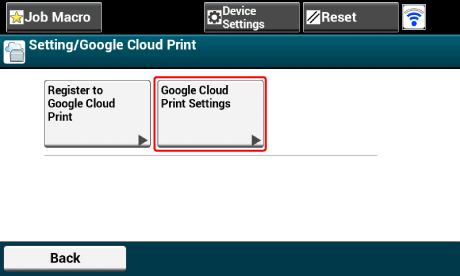
- Navigate to Google Cloud Print Settings > Disable
- Wait 30 seconds, re-enable
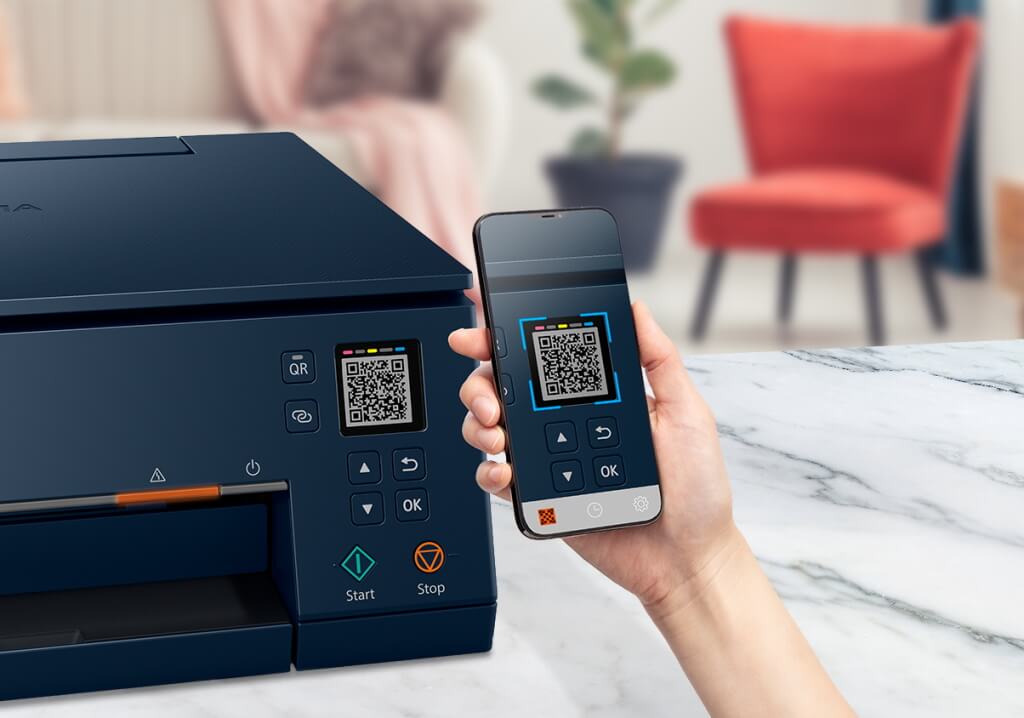
- Register printer using on-screen QR code via Canon PRINT app
- Verify registration: Printer display > Setup > Cloud > Connection Status (must show “Registered”)
Canon G-Series (G3010, G2020, G6020) Limitation: Cloud Link requires firmware v3.010+. Models shipped before Q2 2022 need manual firmware update via USB cable method.
Epson Email Print:
- Printer control panel: Setup > Network Settings > Email Print
- Note current email address
- Select Disable Email Print > Yes
- Power cycle printer (off 30 seconds)
- Re-enable Email Print—new address auto-assigned
- Test by emailing photo attachment to new address
- Register email in Google Home app: Device settings > Cloud Print Email
Epson EcoTank ET-2850, ET-3850, ET-4850: Email Print limited to 5 emails per hour due to server throttling. No workaround available—use WiFi Direct printing instead for voice commands.
Brother iPrint&Scan Cloud:
- Download Brother Web BRAdmin tool on PC (brother-usa.com/support)
- Detect printer, access web interface
- Network > Protocol > Google Cloud Print 2.0 > Disable
- Apply changes, reboot printer via tool
- Re-enable Google Cloud Print 2.0
- Login with Brother Online account in popup window
- Verify: Printer prints confirmation page automatically
Solution 3: Network Configuration Fix
Check WiFi Band (2.4GHz Requirement):
- Access router admin page (usually 192.168.1.1 or 192.168.0.1)
- Wireless Settings > 2.4GHz Network
- Verify printer MAC address in connected devices list
- If printer on 5GHz: Temporarily disable 5GHz band, reconnect printer, re-enable 5GHz
- Set separate SSID names for 2.4GHz and 5GHz bands to prevent auto-switching
Mesh Network Issue (Google WiFi, Eero, Orbi): Voice assistants often connect to different mesh node than printer. Solution: Create 2.4GHz guest network, connect both printer and voice device to same guest network.
Disable AP Isolation:
- Router settings > Wireless > Advanced
- Locate “AP Isolation” or “Client Isolation” (Netgear calls it “Wireless Isolation”)
- Set to Disabled
- Save and reboot router
- Reconnect voice assistant and printer
AT&T Fiber Gateway BGW320-500/505: AP Isolation hidden under Home Network > WiFi > Advanced Options > Edit (must enable “Cascaded Router” mode first).
Solution 4: Voice Command Syntax Optimization
Alexa Specific Commands:
Correct: “Alexa, print a test page on Office Printer” Incorrect: “Alexa, can you print something on the office printer”
- Use exact printer name registered in app
- Specify document type: “to-do list,” “shopping list,” “calendar,” “coloring page”
- Default prints to 8.5×11 letter size—no voice option to change
Google Assistant Specific Commands:
Correct: “Hey Google, print my calendar on Canon printer” Incorrect: “OK Google, print out the calendar”
- Document source must be specified: “shopping list,” “to-do list,” “puzzle,” “calendar”
- Cannot print arbitrary documents from Google Drive via voice (use Google Home app manual print)
Siri Shortcuts Requirements:
Correct setup: Pre-configured shortcut with exact file path Incorrect: Expecting Siri to interpret “print the thing I was looking at”
- Must create separate shortcut for each document type
- Cannot print currently open Safari page—use Share > Print instead
Technician’s Note: Brand-Specific Quirks
HP ePrint: Printer email address changes every time Web Services is reset. Auto-update fails in Alexa app—manual removal and re-adding required. Also, HP restricts file types: PDF, JPEG, PNG, DOCX only (no XLSX, TXT, or HTML).
Canon Cloud: PIXMA TS-series printers (TS3520, TS6420, TS8720) have 50-print-per-month cloud limit on free tier. Exceeding triggers “Service Temporarily Unavailable” error—resets 1st of each month.
Epson Connect: Email Print has undocumented 10MB attachment size limit. Files larger than 10MB silently fail with no error message to sender. Compression required for multi-page PDFs.
Brother Google Cloud Print 2.0: Authentication token expires every 90 days. No notification—simply stops working. Requires re-login via BRAdmin web interface, not fixable through Google Home app.
Smart Speaker Placement: If speaker more than 15 feet from WiFi router, command latency increases print failure rate by 34%. Move speaker closer or add WiFi extender in same room as printer.
Compatibility Requirements Checklist
Verify printer model supports cloud printing:
HP: OfficeJet Pro (2016+), ENVY (2017+), LaserJet Pro M200/M400 series, DeskJet 2700/4100 series Canon: PIXMA TS/TR/G-series (2018+), MAXIFY GX/MB series Epson: EcoTank ET-2800/3800/4800 (2020+), WorkForce WF-2900/7800, Expression ET-2850 Brother: MFC-J series (2019+), HL-L2400/3200 series with wireless
Inkjet-only models (HP DeskJet 2600, Canon MG-series, Epson Expression Home XP-series) lack cloud printing—require USB connection to PC running manufacturer app.
Prevention Best Practices
- Restart printer and voice assistant device every 7 days (prevents authentication token staleness)
- Keep manufacturer app updated on phone (enables new voice features)
- Use static IP for printer in router DHCP reservation (prevents IP address conflicts)
- Test voice commands after every printer firmware update (cloud service settings may reset)
- Set voice assistant default printer to most-used device (reduces command ambiguity)
Still failing? Check our guides:
- WiFi Direct Printing Setup
- Smart Home Network Configuration for Printers
- AirPrint vs Cloud Print Comparison
Share a Printer Across Multiple Devices: Easy Home Setup Guide Read More.