
Introduction
Slow first page printout issues are frustrating when you need documents quickly. You hit print, then wait… and wait… while your printer takes forever to produce that first page.
This delay happens when your printer needs 30 seconds to 2 minutes before the first page emerges. After that, subsequent pages print normally. It’s called First Page Out (FPO) time, and when it’s too long, productivity suffers.
The good news? Most slow first page printout issues have simple fixes that don’t require technical expertise or calling a repair person.
This guide walks you through proven solutions to speed up your printer’s FPO time. Whether you’re using a home inkjet or office laser printer, you’ll learn what causes delays and exactly how to fix them. Most solutions take less than 10 minutes to implement.
Let’s get your printer responding faster so you can get back to work.
What Are Slow First Page Printout Issues?
Slow first page printout issues occur when your printer takes an unusually long time to produce the first printed page after you send a print job.
Normal vs. problematic FPO times:
Different printer types have different typical speeds:
- Inkjet printers: 8-15 seconds for first page (normal)
- Laser printers: 6-10 seconds for first page (normal)
- Multifunction devices: 10-20 seconds for first page (normal)
If your printer consistently takes 30+ seconds, you’re experiencing slow first page printout issues.
What happens during this delay:
Your printer performs several tasks before printing:
- Wakes from sleep or standby mode
- Processes the print job data
- Warms up (especially laser printers)
- Loads printer driver settings
- Prepares the paper feed mechanism
- Initializes print head or drum
Why subsequent pages print faster:
Once the printer completes initialization, it’s warmed up and ready. The second, third, and remaining pages print at the printer’s rated speed because the warmup is complete.
Common causes of slow first page printout issues:
- Deep sleep mode settings
- Oversized or complex print drivers
- Network connection delays
- Outdated printer firmware
- Too many installed fonts
- Print spooler problems
- Memory constraints in the printer
Understanding the cause helps you choose the right fix. Let’s look at solutions.
8 Proven Ways to Fix Slow First Page Printout Issues
Try these solutions in order, starting with the quickest fixes first.
1. Adjust Power Saving and Sleep Mode Settings
The most common cause of slow first page printout issues is aggressive power saving settings.
How to fix on Windows:
- Go to Devices and Printers (Control Panel)
- Right-click your printer and select “Printer properties”
- Click the “Device Settings” or “Printer Settings” tab
- Look for “Sleep Mode Timer” or “Power Save Mode”
- Change from “Deep Sleep” to “Quick Sleep” or reduce the timer
- Apply changes and test
How to fix on Mac:
- Open System Preferences > Printers & Scanners
- Select your printer
- Click “Options & Supplies”
- Go to the “Driver” or “Utility” tab
- Adjust sleep mode settings
- Click OK to save
Why this works: Deep sleep mode saves energy but requires more time to wake up. Quick sleep or shorter timers keep your printer more responsive while still conserving power.
2. Update Printer Drivers to Lightweight Versions
Bloated printer drivers slow down print job processing significantly.
Steps to update drivers:
- Visit your printer manufacturer’s website
- Navigate to “Support” or “Downloads”
- Enter your printer model number
- Download the “Basic” or “Universal” driver instead of the full feature package
- Uninstall your current driver completely
- Install the new lightweight driver
- Restart your computer
Which driver to choose:
- Full driver package: 200-500 MB (includes all features)
- Basic driver: 20-50 MB (printing only, faster processing)
- Universal print driver: 30-80 MB (works across models)
Why this works: Smaller drivers process print jobs faster. Unless you need advanced features like booklet printing or watermarks, basic drivers eliminate unnecessary bloat that causes slow first page printout issues.
3. Switch from Wi-Fi to Wired Connection
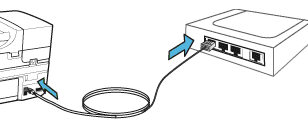
Network delays add significant time to first page printout.
Testing your connection:
- Print a test page and time it
- Note the delay before first page
- Connect printer via USB or ethernet cable
- Print again and compare timing
If wired connection is faster:
- Keep using the wired connection permanently, or
- Move printer closer to Wi-Fi router
- Upgrade to 5GHz Wi-Fi band (less interference)
- Update router firmware
Why this works: Wi-Fi introduces latency, especially on busy networks. Each millisecond of network delay adds to FPO time. Wired connections eliminate this variable.
According to HP’s support documentation, network-related delays account for approximately 40% of slow first page printout issues in office environments.
4. Reduce Installed Fonts in Your System
Excessive fonts slow down print job processing.
How many fonts is too many:
- Normal system: 200-400 fonts
- Design workstation: 500-1,000+ fonts
- If you have 1,000+ fonts, you’ll experience delays
How to check and reduce fonts (Windows):
- Open Control Panel > Fonts
- Review installed fonts
- Uninstall fonts you don’t use regularly
- Keep only essential system fonts and favorites
- Restart after removing fonts
How to check fonts (Mac):
- Open Font Book application
- Disable font collections you don’t use
- Remove duplicate fonts
- Validate fonts to find corrupted ones
Why this works: Printers load font information during print job processing. More fonts mean longer processing time, especially for documents using multiple typefaces.
5. Update Printer Firmware

Outdated firmware often contains bugs that cause slow first page printout issues.
How to update firmware:
- Visit manufacturer support site
- Find firmware updates for your model
- Download the firmware file
- Access your printer’s web interface (type IP address in browser)
- Navigate to “Firmware Update” or “Maintenance”
- Upload and install the new firmware
- Allow printer to restart
Alternative method: Many modern printers have automatic firmware update features:
- Access printer settings menu
- Look for “Update” or “Firmware”
- Select “Check for Updates”
- Follow on-screen prompts
Why this works: Manufacturers release firmware updates that optimize performance, fix bugs, and improve FPO times. Updates often include specific improvements for sleep mode recovery and network performance.
6. Clear Print Spooler and Reset Print Queue
A clogged print spooler causes processing delays.
Windows instructions:
- Press Windows + R
- Type “services.msc” and press Enter
- Find “Print Spooler” in the list
- Right-click and select “Stop”
- Navigate to C:\Windows\System32\spool\PRINTERS
- Delete all files in this folder
- Return to services and restart “Print Spooler”
Mac instructions:
- Open Terminal
- Type: sudo rm /var/spool/cups/c*
- Enter your password
- Type: sudo rm /var/spool/cups/tmp/*
- Restart the CUPS service
Why this works: Old or corrupted print jobs in the spooler slow down processing of new jobs. A fresh start eliminates this bottleneck.
7. Increase Printer Memory (For Laser Printers)
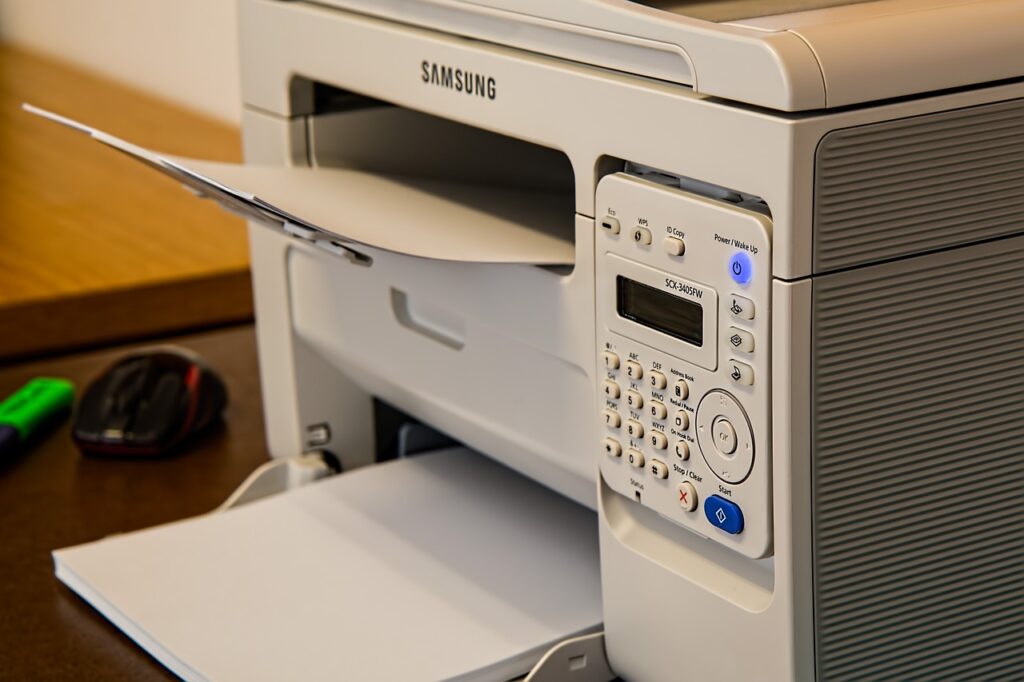
Insufficient memory forces slower processing, especially for complex documents.
Check current memory:
- Print configuration page (usually by holding a button during startup)
- Look for “Total Memory” or “Installed RAM”
- Compare to your printer’s maximum capacity
Standard memory levels:
- Budget laser printer: 64-128 MB
- Mid-range laser: 256-512 MB
- High-end laser: 1-2 GB
How to upgrade:
- Purchase compatible memory from manufacturer or third party
- Power off and unplug printer
- Open memory access panel (check manual)
- Insert memory module in available slot
- Close panel and restart
Why this works: More memory allows faster processing of complex documents, reducing slow first page printout issues dramatically for graphics-heavy files.
8. Disable Bidirectional Printing Support
This feature can slow down first page output.
How to disable (Windows):
- Open Devices and Printers
- Right-click your printer > Printer properties
- Click “Ports” tab
- Uncheck “Enable bidirectional support”
- Click Apply and OK
When to use this fix:
- If you don’t need real-time printer status updates
- When printing simple text documents
- For printers on slow networks
Why this works: Bidirectional communication requires the computer and printer to exchange status information before printing. Disabling this reduces handshake time and speeds up FPO.
Additional Tools and Insights for Faster Printing

Beyond the main fixes, these tools help optimize printer performance.
Print job monitoring software: Tools like Print Manager Plus or PaperCut help identify what’s slowing down your print jobs. They show processing time, queue status, and bottlenecks in real-time.
Network printer monitoring: For office environments, PRTG Network Monitor or HP Web Jetadmin provide detailed analytics on printer performance, helping diagnose slow first page printout issues across multiple devices.
PDF optimization: Before printing PDFs, use Adobe Acrobat’s “Optimize PDF” feature to reduce file complexity. Simpler files process faster, improving FPO time.
Print directly from applications: When possible, print directly from Word, Excel, or other applications rather than printing PDFs. Native files often process faster than converted formats.
Printer firmware rollback: If slow first page printout issues started after a firmware update, check if you can roll back to the previous version. Sometimes new firmware introduces bugs.
Regular maintenance: Keep your printer clean and well-maintained. Dust buildup, worn rollers, and depleted toner all contribute to slower performance, including longer FPO times.
Common Mistakes When Fixing Slow First Page Printout Issues

Avoid these errors that can make problems worse or waste time.
Mistake 1: Blaming the printer hardware when it’s a software issue
Most slow first page printout issues aren’t mechanical problems. People rush to replace perfectly good printers when driver or settings changes would fix the issue.
Solution: Always try software solutions first. Hardware replacement should be your last resort after exhausting all other options.
Mistake 2: Installing full driver packages unnecessarily
People install massive driver packages with features they’ll never use, then wonder why printing is slow.
Solution: Ask yourself if you really need scan-to-cloud, mobile printing, or advanced finishing options. If not, install the basic driver for faster performance.
Mistake 3: Not testing after each fix
Trying multiple fixes without testing makes it impossible to know what actually worked.
Solution: Make one change at a time. Print a test page and time the FPO delay. Only move to the next solution if the first didn’t help.
Mistake 4: Ignoring network infrastructure
Focusing entirely on printer settings while ignoring network issues wastes time when the real problem is your Wi-Fi or router.
Solution: Test with a direct USB connection first. If that fixes slow first page printout issues, you know the problem is network-related.
Mistake 5: Using old or damaged USB cables
Bad cables cause communication errors that add delays. People rarely suspect the cable.
Solution: Try a different, high-quality USB cable. USB 2.0 cables work fine for printers—you don’t need USB 3.0.
Mistake 6: Not considering print job complexity
A document with high-resolution images naturally takes longer than plain text. Some delays are normal based on what you’re printing.
Solution: Test with a simple text document. If that prints quickly but complex documents don’t, the delay might be acceptable given the job complexity.
Troubleshooting Persistent Slow First Page Printout Issues
When standard fixes don’t work, try these advanced troubleshooting steps.
Problem: Fixes work temporarily but slow printing returns
This suggests a process or service on your computer is interfering.
Solution: Check for background applications using print services. Antivirus software, especially, can scan print jobs and add delay. Add your printer folder to antivirus exclusions.
Problem: Only specific document types print slowly
PDFs or image-heavy files might have unique processing requirements.
Solution: Try printing as an image (select this option in print dialog). While not ideal for text, it can reveal if the printer struggles with specific file formats.
Problem: Wireless printer works fine on one computer but slow on another
This points to computer-specific settings or driver issues.
Solution: Compare driver versions between computers. Ensure both use the same driver type (not one with full package and one with basic). Check that both computers have similar font collections.
Problem: New printer exhibits slow first page printout issues
New printers should be fast. Out-of-box slowness suggests settings or compatibility issues.
Solution: Check if “Eco Mode” or “Quiet Mode” is enabled by default. These modes trade speed for energy savings or noise reduction. Disable them for normal FPO times.
Problem: Only the first print job of the day is slow
The printer goes into deep sleep overnight and takes time to fully wake up.
Solution: Either schedule a test print early each morning (some printers allow scheduled wake-up) or adjust sleep settings to never enter deep sleep mode if the energy cost is acceptable.
Frequently Asked Questions
Q: What is normal first page out time for a laser printer?
Most modern laser printers should produce the first page in 6-10 seconds from standby mode. From deep sleep, 15-20 seconds is typical. Anything over 30 seconds indicates slow first page printout issues that need fixing.
Q: Will fixing slow FPO affect my printer’s lifespan?
No, the fixes in this guide don’t harm your printer. Reducing sleep mode might slightly increase energy use, but the impact on printer longevity is negligible. Modern printers are designed to handle frequent wake cycles.
Q: Why does my printer’s first page print slowly only from certain applications?
Some applications send more complex print data than others. Microsoft Office applications generally print efficiently, while some PDF viewers or web browsers send less optimized data. Try printing from a different application to confirm.
Q: Can slow first page printout issues indicate a failing printer?
Usually no. Mechanical failures typically affect all pages equally or cause print quality issues, not just first page delays. Slow FPO is almost always software, settings, or network related rather than hardware failure.
Q: Should I disable sleep mode completely to fix slow printing?
Only if other solutions don’t work. Complete sleep mode disable increases energy costs. Try reducing sleep timer first (from 30 minutes to 5 minutes, for example) to balance responsiveness with energy efficiency.
Conclusion
Slow first page printout issues are annoying but usually fixable with simple adjustments. Most problems stem from aggressive power settings, bloated drivers, network delays, or outdated firmware rather than printer hardware failures.
Start with the easiest fixes first. Adjust your printer’s sleep mode settings and update to a lightweight driver. These two changes alone resolve slow first page printout issues for most users.
If those don’t help, work through the other solutions: improve network connection, reduce installed fonts, update firmware, and clear the print spooler. Test after each change to identify what works.
Remember that some FPO delay is normal, especially when printing complex documents or waking from deep sleep. The goal isn’t zero delay—it’s reasonable, consistent performance that doesn’t interrupt your workflow.
Take action today. Check your printer’s sleep mode settings right now. Update your driver this week. Most fixes take less than 10 minutes but provide lasting improvements to your printer’s responsiveness.
Your printer should work for you, not make you wait. Use these solutions to fix slow first page printout issues and get back to productive, frustration-free printing.
Disposing of Old Printers Responsibly: Secure & Eco-Friendly Guide 2025 Read More


