
Introduction
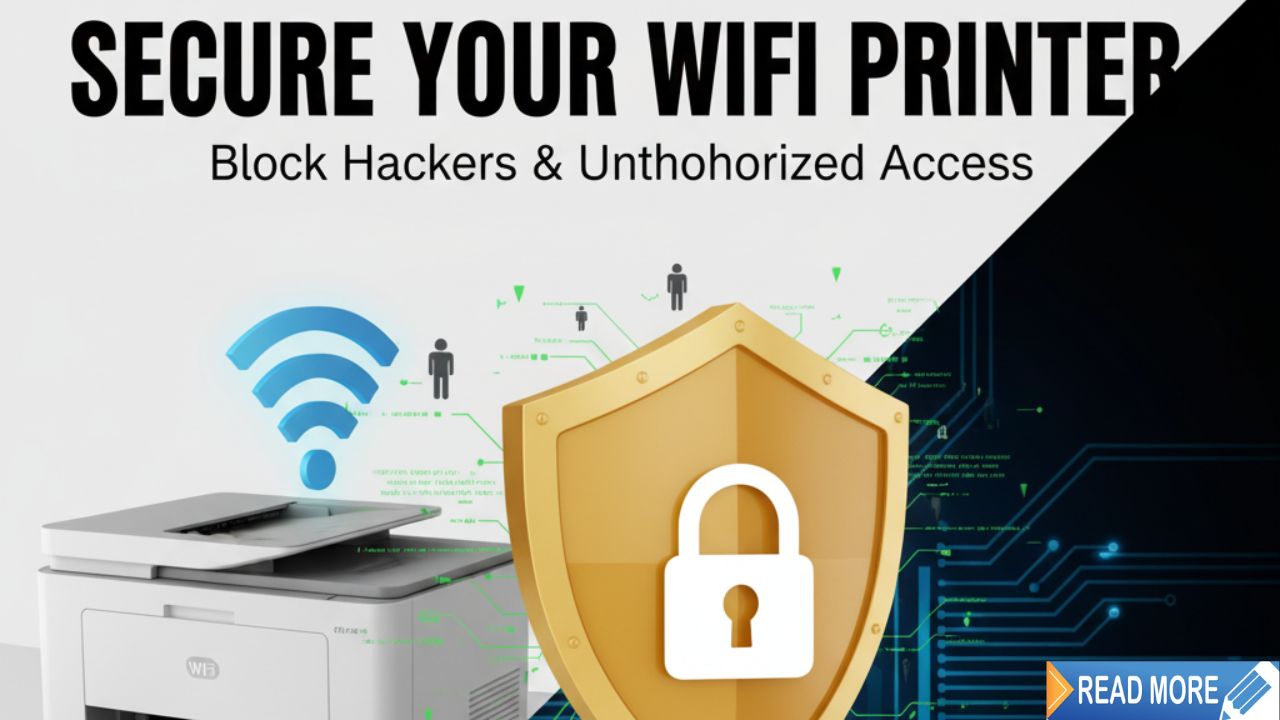
Learning how to secure WiFi printer connections is crucial in today’s connected world. Your wireless printer might seem harmless, but it’s actually a vulnerable entry point that hackers can exploit to access your entire network, steal sensitive documents, and compromise your personal information.
Most people never think about printer security until it’s too late. WiFi printers operate 24/7 on your network, often with outdated firmware and weak default passwords. Cybercriminals actively scan for unsecured printers because they’re easy targets that provide direct access to confidential data.
The good news? Securing your wireless printer takes less than an hour and doesn’t require technical expertise. This guide walks you through proven security measures that protect your printer, your network, and your privacy from unauthorized access.
Let’s make your WiFi printer a fortress instead of a weak link.
What Is WiFi Printer Security and Why Does It Matter?
WiFi printer security means protecting your wireless printer from unauthorized access, hacking attempts, and data breaches. A secure printer only allows approved users to print, scan, and access stored documents while blocking all malicious activity.
Unsecured printers create serious risks. Hackers can print malicious documents, intercept print jobs containing sensitive information, and use your printer as a gateway to attack other devices on your network. In business settings, compromised printers have led to major data breaches costing millions.
Your printer stores more data than you realize. Recent print jobs, scanned documents, network credentials, and email addresses often stay in printer memory for weeks. Without proper security, anyone who gains access can retrieve this information.
WiFi printers are especially vulnerable because they broadcast their presence to any nearby device. Unlike wired printers that require physical access, wireless printers can be attacked from parking lots, neighboring apartments, or anywhere within WiFi range. Some printers even have public IP addresses that make them visible to the entire internet.
The 2017 “Print Nightmare” vulnerability showed how serious printer security issues can be. Millions of printers worldwide became vulnerable to remote code execution. Regular security updates and proper configuration prevent these exploits from succeeding.
Understanding these risks is the first step to creating a secure printing environment.
8 Critical Steps to Secure WiFi Printer Networks
Step 1: Change All Default Passwords Immediately
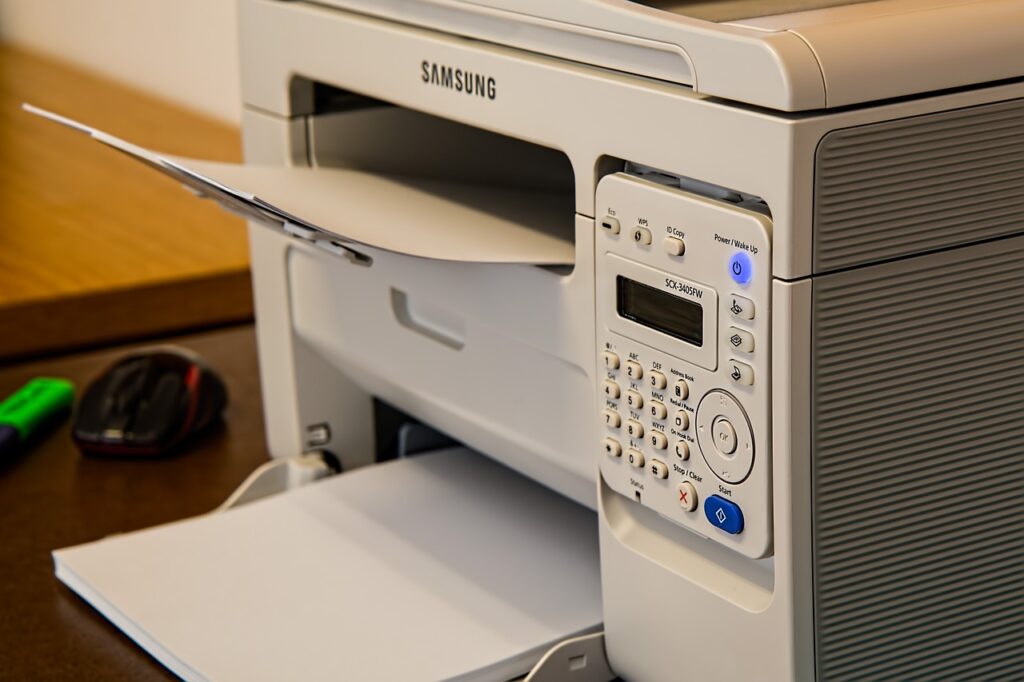
The most important action to secure WiFi printer systems is changing default passwords. Manufacturers use the same default credentials across thousands of devices, making them easy targets for hackers.
Access your printer’s web interface by typing its IP address into a browser. Find the IP address on your printer’s display screen or by printing a network configuration page. Most printers use addresses like 192.168.1.100 or similar.
Log in using the default credentials listed in your printer manual. Common defaults include “admin/admin” or “admin/password.” Change both the administrator password and any user passwords immediately.
Create strong passwords with at least 12 characters combining uppercase, lowercase, numbers, and symbols. Avoid dictionary words, personal information, or simple patterns. Use a password manager to generate and store complex passwords securely.
Change the WiFi password your printer uses to connect to your network. Don’t leave it on the default network password if you’ve used a temporary one during setup. Update this in your printer’s wireless settings menu.
Document your new passwords in a secure location. Losing admin access to your printer means resetting it to factory defaults, which erases all security settings you’ve configured.
Step 2: Update Firmware to the Latest Version
Outdated firmware is one of the biggest security holes in WiFi printers. Manufacturers regularly release updates that patch vulnerabilities hackers actively exploit.
Check your current firmware version in the printer’s settings menu. Usually found under “About,” “System,” or “Device Information.” Write down the version number.
Visit your printer manufacturer’s support website. Search for your exact printer model and navigate to the downloads or firmware section. Compare available versions to your current version.
Download the latest firmware file to your computer. Follow the manufacturer’s installation instructions exactly. Most printers allow firmware updates through their web interface or USB transfer.
Enable automatic firmware updates if your printer supports this feature. This ensures you receive security patches as soon as they’re available. Check the settings menu under “System Updates” or similar.
Schedule monthly manual checks if automatic updates aren’t available. Set a calendar reminder to verify you’re running the latest version. This small habit prevents major security problems.
Never interrupt a firmware update process. Power loss during updates can permanently damage your printer. Keep the printer plugged in and wait for completion confirmation before proceeding.
Step 3: Configure Network Encryption and Isolation

Network configuration is essential to secure WiFi printer access from external threats. Proper encryption and isolation create protective barriers around your printer.
Ensure your router uses WPA3 or at minimum WPA2 encryption. Older WEP or WPA encryption is easily cracked. Access your router settings and check the wireless security mode. Upgrade to WPA2-PSK (AES) or WPA3 if available.
Create a separate guest network for your printer if your router supports it. This isolates the printer from your main network containing computers and smartphones. Hackers who compromise the printer can’t reach your other devices.
Enable network segmentation through VLANs if you have a business network. Place printers on a separate VLAN with restricted access to other network segments. This advanced technique requires professional network knowledge but provides excellent security.
Disable WiFi Direct and Bluetooth features unless you actively use them. These protocols create additional connection points that bypass your router’s security. Find these options in your printer’s wireless settings menu and turn them off.
Change your printer’s network name (SSID) if it broadcasts its own network. Default names like “HP-LaserJet-XXXX” advertise your printer model to potential attackers. Use a generic name that doesn’t reveal the manufacturer or model.
Check the NIST Cybersecurity Framework for comprehensive guidance on network security best practices that apply to all connected devices including printers.
Step 4: Disable Unnecessary Services and Protocols
Most WiFi printers enable numerous services by default that you’ll never use. Each enabled service is a potential security vulnerability that hackers can exploit to secure WiFi printer access.
Disable cloud printing services unless you specifically need them. Services like Google Cloud Print (now discontinued) and manufacturer cloud features create internet-accessible connection points. Access these settings in your printer’s web interface under cloud or online services.
Turn off FTP and Telnet protocols. These outdated services transmit data without encryption. Check your printer’s network services menu and disable anything labeled FTP, Telnet, or “Remote Access.”
Disable SNMP (Simple Network Management Protocol) unless you’re managing multiple printers in a business environment. SNMP can leak information about your network and printer configuration. If you must use it, switch from SNMPv1/v2 to SNMPv3 which includes encryption.
Remove email-to-print functionality if unused. This feature allows anyone who knows your printer’s email address to send print jobs. It’s convenient but risky. Disable it in your printer’s email settings or change the email address to something obscure.
Turn off printer discovery protocols like Bonjour or mDNS on trusted networks only. These protocols announce your printer to all network devices. Disabling them requires manually adding the printer to devices but increases security significantly.
Review all enabled protocols monthly. Manufacturers sometimes re-enable features during firmware updates. Regular audits ensure nothing sneaks through that could compromise your secure WiFi printer setup.
Step 5: Implement Access Controls and Authentication
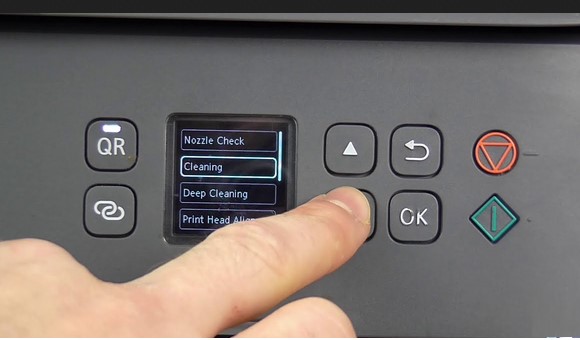
Access controls limit who can use your printer and what they can do. Strong authentication prevents unauthorized users from even connecting.
Enable user authentication if your printer supports it. This requires anyone who wants to print to enter credentials first. Configure this in your printer’s security settings under “User Management” or “Access Control.”
Create individual user accounts instead of sharing one admin account. Each person should have unique credentials. This creates an audit trail showing who printed what and when.
Implement PIN printing for sensitive documents. This feature holds print jobs in memory until you enter a PIN at the printer. It prevents confidential documents from sitting in the output tray where anyone can see them.
Set up IP address filtering to allow connections only from specific devices. Enter your computer and smartphone IP addresses in the printer’s allowed devices list. Block all other addresses from accessing the printer.
Configure MAC address filtering on your router. Add your printer’s MAC address to the allowed list and enable filtering. This prevents unauthorized devices from even seeing your printer on the network.
Enable print job logging to track all printing activity. Review logs monthly for suspicious activity like print jobs at odd hours or from unknown users. Most business-class printers include detailed logging features.
Step 6: Secure Physical Access to Your Printer
Physical security is often overlooked but critical to secure WiFi printer systems. Someone with physical access can bypass all your network security measures.
Place printers in secure locations away from public areas. Avoid lobbies, waiting rooms, or anywhere visitors can access them unsupervised. Locked offices or server rooms provide ideal security.
Enable security lock features if your printer has them. Many models include slots for Kensington locks similar to laptops. These prevent theft and unauthorized removal.
Disable USB ports if you don’t use them for printing. USB connections bypass network security completely. Find this option in your printer’s hardware settings and turn off external USB access.
Cover or disable the printer’s control panel when possible. Some printers allow you to password-protect the control panel. This prevents people from changing settings directly on the device.
Remove sensitive documents from the output tray immediately. Set up notifications on your phone when print jobs complete. Never leave confidential papers sitting unattended.
Implement security cables and mounting brackets in high-risk environments. Physically securing the printer prevents theft and tampering. This is especially important for small portable printers.
Step 7: Monitor and Audit Printer Activity
Active monitoring helps you detect security threats before they cause serious damage. Regular audits reveal suspicious patterns and unauthorized access attempts.
Check printer logs weekly for unusual activity. Look for failed login attempts, print jobs from unknown IP addresses, or configuration changes you didn’t make. Most printers store logs in their web interface under “System” or “Maintenance.”
Set up email alerts for security events if your printer supports them. Receive notifications when someone tries wrong passwords multiple times or when settings change. Configure alerts in your printer’s notification settings.
Review the list of recent print jobs monthly. Check dates, times, and user names. Investigate anything that seems out of place. This simple habit catches unauthorized usage quickly.
Monitor network traffic to and from your printer. Use your router’s traffic monitoring features or network monitoring software. Unusual data transfers might indicate hacking attempts or data exfiltration.
Perform quarterly security assessments. Test your own security by trying to access the printer without proper credentials. Attempt to print from unauthorized devices. Fix any weaknesses you discover.
Document all changes you make to printer settings. Keep a log of firmware updates, password changes, and configuration modifications. This helps you troubleshoot problems and maintains security accountability.
Step 8: Create Regular Backup and Recovery Plans
Security isn’t just about prevention—it’s also about recovery. Proper backups ensure you can restore your secure WiFi printer configuration after security incidents.
Export your printer’s configuration settings monthly. Save these files to a secure location separate from your network. Most business printers allow configuration export through their web interface.
Document all custom settings in a spreadsheet or document. Include passwords (stored securely), IP addresses, security configurations, and user accounts. This documentation speeds up recovery after incidents.
Test your backup by restoring settings to a second printer or after a factory reset. Backups are worthless if they don’t work when you need them. Schedule restoration tests quarterly.
Keep old firmware versions archived. Sometimes new updates introduce problems. Having previous versions lets you roll back if needed while maintaining security.
Create a disaster recovery checklist specifically for printer security. Include steps for resetting passwords, reconfiguring security settings, and verifying system integrity. Update this checklist whenever you change procedures.
Plan for printer replacement by documenting everything needed to secure a new device. When your current printer fails, you’ll be able to quickly secure the replacement following your established procedures.
Essential Security Tools and Resources

Several tools make it easier to secure WiFi printer networks and maintain ongoing protection.
Network scanning tools like Angry IP Scanner or Advanced IP Scanner help you identify all devices on your network. Run these tools monthly to verify no unauthorized printers or devices have appeared. Free versions work perfectly for home and small office networks.
Printer management software from manufacturers provides centralized security control. HP Web Jetadmin, Epson Network Utilities, and similar tools let you manage multiple printers’ security settings from one interface. These are essential for offices with several printers.
Password managers like Bitwarden, LastPass, or 1Password securely store your printer passwords. They generate strong random passwords and sync across devices. Never write printer passwords on sticky notes or in unsecured documents.
Firmware update checkers simplify staying current. Some printer manufacturers offer software that automatically checks for updates across all your printers. Install these utilities and run them monthly.
Network monitoring solutions like PRTG or Nagios provide advanced monitoring for business environments. These tools alert you immediately to suspicious printer activity. Free tiers handle small networks adequately.
Security audit checklists from SANS Institute or NIST provide frameworks for assessing printer security. Download these free resources and work through them quarterly to identify security gaps.
Common Security Mistakes That Leave Printers Vulnerable
Never Changing Default Settings
Most people plug in their WiFi printer and start using it immediately. Default settings are designed for convenience, not security. Default passwords, enabled services, and open protocols create massive vulnerabilities. Spend one hour securing your printer properly rather than dealing with security breaches later.
Connecting Printers Directly to the Internet
Some people forward printer ports through their router to access printers remotely. This exposes your printer to every hacker on the internet. Never make your printer publicly accessible. Use VPN connections if you need remote printing access.
Ignoring Firmware Updates
Firmware updates seem technical and scary, so many people skip them. Each missed update leaves known vulnerabilities unpatched. Hackers specifically target outdated firmware because exploits are published and easy to use. Set calendar reminders and update religiously.
Using Weak or Shared Passwords
“Password123” or “Printer2024” won’t stop anyone. Neither will sharing one password across all users. Weak passwords take seconds to crack with automated tools. Create unique, complex passwords for every printer and user account.
Trusting Guest Networks Blindly
Adding your printer to a guest network without proper configuration exposes it to everyone using that network. Guest networks need careful configuration with isolation enabled. Simply moving the printer to a guest network doesn’t automatically secure it.
Leaving WiFi Direct Enabled
WiFi Direct lets devices connect to your printer without joining your network. This convenience feature bypasses all your router security. Unless you actively use it daily, turn it off completely.
Neglecting Physical Security
All the digital security in the world doesn’t matter if someone walks up to your printer and presses the reset button. Physical access defeats every security measure. Secure the physical location and disable or password-protect control panels.
Frequently Asked Questions About Secure WiFi Printer Setup
How can I tell if my WiFi printer has been hacked?
Check for unusual print jobs you didn’t send, unexpected configuration changes, or slow network performance. Review printer logs for failed login attempts from unknown IP addresses. Strange files appearing in printer memory or unfamiliar devices in the authorized list indicate compromise. Run a full network scan and change all passwords immediately if you suspect hacking.
Do I really need to secure a home WiFi printer?
Absolutely. Home networks contain personal financial information, family photos, and identity documents. Hackers don’t just target businesses—they scan residential networks for easy targets. Your printer can provide access to everything on your network. The hour you spend securing it prevents potentially devastating identity theft or data breaches.
Will security settings slow down my printer or make it harder to use?
Properly configured security has minimal impact on printing speed or convenience. You’ll enter passwords occasionally and install updates periodically. These minor inconveniences are insignificant compared to recovering from a security breach. Most security features work silently in the background without affecting daily use.
Can public WiFi printers be secured safely?
Public printers in libraries, hotels, and coworking spaces present unique challenges. Never send sensitive documents to public printers. If you must use them, avoid printing confidential information and ensure you retrieve your documents immediately. For your own printer in a shared space, implement all security measures plus regular password changes and strict access controls.
Conclusion
Taking time to secure WiFi printer connections protects your entire network from hackers and unauthorized access. The eight steps—changing passwords, updating firmware, configuring encryption, disabling unnecessary services, implementing access controls, securing physical access, monitoring activity, and creating backups—create multiple layers of defense that stop threats before they succeed.
Start with the basics today. Change your default password, update firmware, and enable WPA2 encryption. These three actions eliminate 90% of printer security vulnerabilities within 30 minutes. Then implement the remaining steps over the next week to build comprehensive protection.
Your printer is either a security asset or a liability—there’s no middle ground. Take action now to secure your WiFi printer and gain peace of mind knowing your network and data are protected from cyber threats.
Paper Curl Fix: Stop Warped Sheets & Prevent Jams Before They Happen Read More


