
Introduction
Resolving printer issues caused by Windows Firewall conflicts is a common challenge that frustrates both home users and IT professionals. Your printer worked perfectly yesterday, but today it won’t connect or print. Windows shows the printer as offline, or print jobs simply disappear into a digital void.
The culprit is often Windows Firewall blocking communication between your computer and printer. This security feature protects your system but sometimes blocks legitimate printer connections, especially after Windows updates or new software installations.
This complete guide walks you through fixing firewall-related printer problems step by step. You’ll learn how to identify firewall conflicts, configure proper exceptions, and prevent future printing disruptions. Whether you use a USB, network, or wireless printer, these solutions will restore your printing capabilities quickly.
What Is Resolving Printer Issues Caused by Windows Firewall Conflicts?
Resolving printer issues caused by Windows Firewall conflicts means identifying and fixing problems where Windows security settings block printer communication. Windows Firewall monitors all network traffic and can mistakenly classify printer data as threats.
Windows Firewall works by controlling incoming and outgoing network connections. It uses rules to allow or block specific programs, ports, and services. When firewall rules are too restrictive, they prevent your computer from communicating with network printers.
Common symptoms include:
Printer shows as offline even though it’s powered on and connected.
Print jobs stuck in queue and never reach the printer.
“Windows cannot connect to the printer” error messages.
Printer installation fails during setup.
Intermittent printing that works sometimes but not others.
These problems occur most frequently with:
Network printers shared across multiple computers.
Wireless printers connecting through your home or office network.
Printers accessed through VPN connections.
Systems that recently received Windows security updates.
Understanding these conflicts is the first step in resolving printer issues caused by Windows Firewall conflicts effectively.
7 Proven Steps for Resolving Printer Issues Caused by Windows Firewall Conflicts
Step 1: Verify Windows Firewall Is Causing Printer Issues
Before resolving printer issues caused by Windows Firewall conflicts, confirm the firewall is actually the problem.
Quick test method:
Press Windows key + I to open Settings.
Go to “Update & Security” then “Windows Security.”
Click “Firewall & network protection.”
Click on your active network (Domain, Private, or Public).
Toggle Windows Defender Firewall to “Off” temporarily.
Try printing a test page immediately.
If printing works with the firewall disabled, you’ve confirmed the issue. Turn the firewall back on immediately after testing. Never leave your firewall disabled permanently.
Alternative verification:
Check Event Viewer for firewall-related errors. Press Windows key + X and select “Event Viewer.”
Navigate to “Windows Logs” then “System.”
Look for errors mentioning “Windows Firewall” or “Print Spooler” around the time printing failed.
This diagnostic step saves time by confirming you’re resolving printer issues caused by Windows Firewall conflicts rather than other problems.
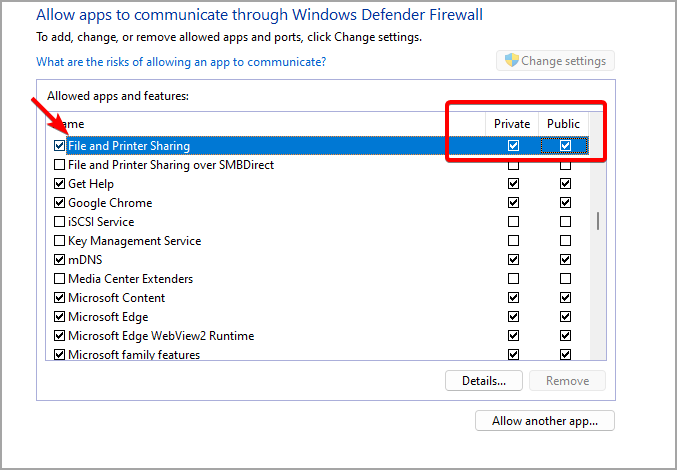
Step 2: Add Printer to Windows Firewall Exceptions
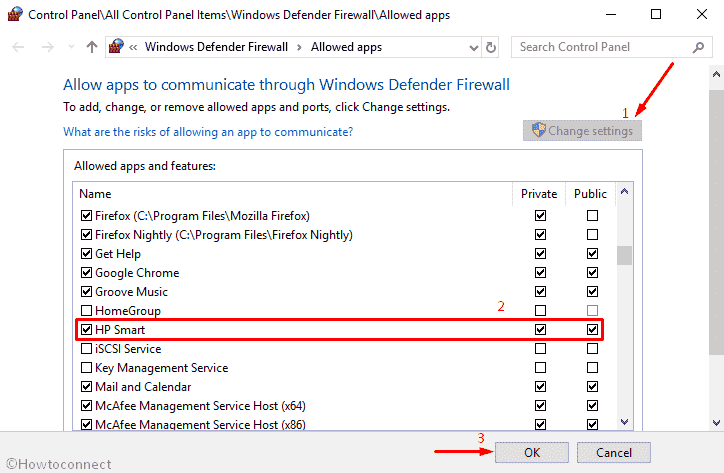
Creating firewall exceptions is essential for resolving printer issues caused by Windows Firewall conflicts permanently.
For program-based exceptions:
Open Windows Defender Firewall settings.
Click “Allow an app or feature through Windows Defender Firewall.”
Click “Change settings” (requires administrator access).
Click “Allow another app” button.
Browse to C:\Windows\System32\spool\drivers and add printer drivers.
Check both “Private” and “Public” boxes.
Click OK to save.
For port-based exceptions:
In Firewall settings, click “Advanced settings.”
Click “Inbound Rules” in the left panel.
Click “New Rule” in the right panel.
Select “Port” and click Next.
Choose “TCP” and enter common printer ports: 9100, 515, 631, 137-139.
Select “Allow the connection” and click Next.
Check all network types and name the rule “Printer Ports.”
These exceptions help in resolving printer issues caused by Windows Firewall conflicts while maintaining security.
Step 3: Configure File and Printer Sharing Settings
Proper sharing settings are crucial when resolving printer issues caused by Windows Firewall conflicts on networks.
Enable File and Printer Sharing:
Open Control Panel and go to “Network and Sharing Center.”
Click “Change advanced sharing settings.”
Expand your current network profile (Private or Public).
Turn on “File and printer sharing.”
Turn on “Network discovery.”
Click “Save changes.”
Configure Windows Firewall for sharing:
Open Windows Defender Firewall with Advanced Security.
Click “Inbound Rules.”
Find “File and Printer Sharing” rules.
Right-click each rule and select “Enable Rule.”
Ensure these rules apply to your network profile type.
Additional sharing configuration:
Go to Settings > Network & Internet > Status.
Click “Sharing options.”
Enable “Turn on network discovery.”
Enable “Turn on file and printer sharing.”
These settings are fundamental for resolving printer issues caused by Windows Firewall conflicts in networked environments.
Step 4: Reset Windows Firewall to Default Settings
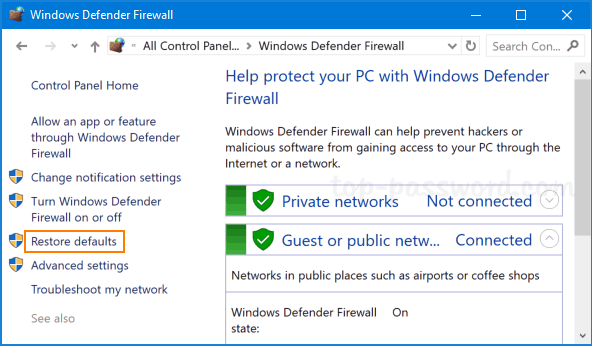
Sometimes resolving printer issues caused by Windows Firewall conflicts requires starting fresh with default settings.
Complete firewall reset:
Open Command Prompt as Administrator.
Type: netsh advfirewall reset
Press Enter and wait for confirmation.
Restart your computer.
Manual reset method:
Open Windows Defender Firewall settings.
Click “Restore defaults” in the left panel.
Click “Restore defaults” button.
Confirm when prompted.
Restart your computer.
After resetting:
Reconfigure printer exceptions using steps from earlier sections.
Add File and Printer Sharing rules back.
Test printing to verify functionality.
This clean-slate approach often succeeds in resolving printer issues caused by Windows Firewall conflicts when other methods fail.
Step 5: Update Printer Drivers and Windows

Outdated software contributes to resolving printer issues caused by Windows Firewall conflicts becoming necessary.
Update printer drivers:
Press Windows key + X and select “Device Manager.”
Expand “Print queues” or “Printers.”
Right-click your printer and select “Update driver.”
Choose “Search automatically for drivers.”
Restart after installation completes.
Alternative driver update:
Visit the printer manufacturer’s website directly.
Find support or downloads section.
Enter your printer model number.
Download the latest Windows driver package.
Run the installer and follow prompts.
Update Windows:
Go to Settings > Update & Security.
Click “Check for updates.”
Install all available updates.
Restart when prompted.
Microsoft regularly patches issues related to resolving printer issues caused by Windows Firewall conflicts through updates. Visit Microsoft Support for specific printer troubleshooting guidance.
Step 6: Configure Third-Party Security Software
Third-party antivirus and security software often complicate resolving printer issues caused by Windows Firewall conflicts.
Check for conflicts:
Open your antivirus software (Norton, McAfee, Avast, etc.).
Find firewall or network protection settings.
Look for blocked printer applications or services.
Add printer software to allowed/trusted programs list.
Disable temporarily for testing:
Locate your security software icon in the system tray.
Right-click and find disable or pause protection option.
Disable for 10 minutes.
Try printing immediately.
If printing works, configure permanent exceptions in your security software.
Create security software exceptions:
Access firewall settings in your security program.
Add printer IP addresses to trusted devices.
Allow printer ports (9100, 515, 631) through the firewall.
Whitelist printer-related executables and services.
Coordinating Windows Firewall with third-party security is vital for resolving printer issues caused by Windows Firewall conflicts completely.
Step 7: Use Windows Network Troubleshooter
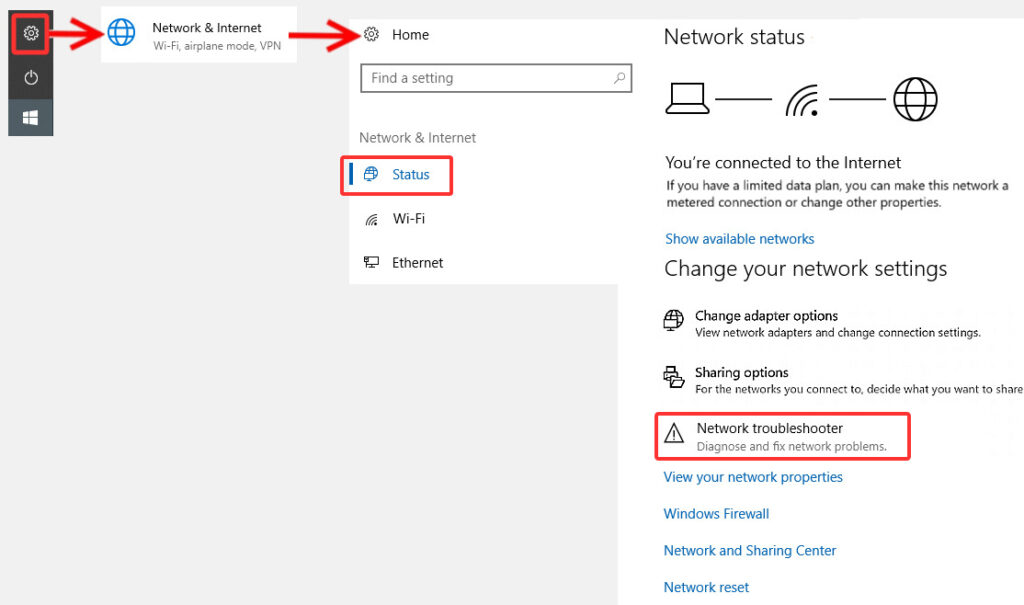
Windows includes automated tools helpful in resolving printer issues caused by Windows Firewall conflicts.
Run printer troubleshooter:
Go to Settings > Update & Security > Troubleshoot.
Click “Additional troubleshooters.”
Select “Printer” and click “Run the troubleshooter.”
Follow on-screen instructions.
Let Windows detect and fix issues automatically.
Run network troubleshooter:
In the same Troubleshoot menu, select “Network Adapter.”
Click “Run the troubleshooter.”
Allow Windows to diagnose network problems.
Apply recommended fixes.
Advanced network reset:
Go to Settings > Network & Internet > Status.
Scroll down and click “Network reset.”
Click “Reset now” and confirm.
Restart your computer.
Reinstall printer drivers after network reset.
These automated tools often succeed in resolving printer issues caused by Windows Firewall conflicts without manual configuration.
Additional Tools for Resolving Printer Issues Caused by Windows Firewall Conflicts

Several specialized tools assist in resolving printer issues caused by Windows Firewall conflicts more efficiently:
Windows Firewall Control is a free utility providing simplified firewall management. It offers easy rule creation and quick profile switching between different security levels.
Print Spooler Repair Tool automatically fixes print queue and service problems. It resets spooler settings that sometimes conflict with firewall rules.
Wireshark helps advanced users analyze network traffic. It identifies exactly which packets the firewall blocks between computer and printer.
Printer vendor utilities often include firewall configuration tools. HP Print and Scan Doctor, Epson Software Updater, and Canon Print Management automatically configure necessary firewall exceptions.
Network scanning tools like Advanced IP Scanner help verify printer connectivity. They confirm whether printers respond on the network before addressing firewall issues.
Remote Desktop Connection allows accessing printers through different network profiles. This helps isolate whether issues relate to specific firewall profiles.
These tools complement manual troubleshooting when resolving printer issues caused by Windows Firewall conflicts proves challenging.
Common Mistakes When Resolving Printer Issues Caused by Windows Firewall Conflicts
Avoid these errors that complicate resolving printer issues caused by Windows Firewall conflicts:
Disabling Windows Firewall permanently: Never leave your firewall off to fix printer problems. This exposes your computer to serious security risks. Instead, create proper exceptions that allow printing while maintaining protection.
Modifying wrong firewall profile: Windows uses three profiles: Domain, Private, and Public. Changes must apply to your active profile. Check which profile is active before configuring rules.
Blocking outbound connections: Some users mistakenly block outbound traffic while resolving printer issues caused by Windows Firewall conflicts. Printers need both inbound and outbound communication. Verify both directions are allowed.
Using incorrect port numbers: Different printer protocols use specific ports. IPP uses 631, LPR uses 515, and RAW printing uses 9100. Research your printer’s protocol before adding port exceptions.
Ignoring Windows updates: Some updates change firewall behavior. After major updates, verify firewall rules remain correctly configured. Re-create printer exceptions if necessary.
Overlooking printer IP address changes: DHCP networks assign changing IP addresses. If your printer’s IP changes, firewall rules based on specific addresses stop working. Use static IP addresses or DNS names instead.
Forgetting to restart services: After firewall changes, restart the Print Spooler service. Press Windows key + R, type services.msc, find Print Spooler, right-click, and select Restart.
FAQs: Resolving Printer Issues Caused by Windows Firewall Conflicts
How do I know if Windows Firewall is blocking my printer?
When resolving printer issues caused by Windows Firewall conflicts, temporarily disable the firewall and test printing. If printing works with firewall off but fails when on, the firewall is blocking communication. Check Event Viewer logs for specific firewall blocking messages under Windows Logs > System.
What firewall ports need to be open for printers?
For resolving printer issues caused by Windows Firewall conflicts, open these TCP ports: 9100 (RAW printing), 515 (LPR/LPD), 631 (IPP), and 137-139 (NetBIOS/SMB for shared printers). UDP ports 137-138 also support network printer discovery.
Can Windows updates cause new firewall printer problems?
Yes, Windows updates frequently reset or modify firewall rules. When resolving printer issues caused by Windows Firewall conflicts after updates, verify your printer exceptions still exist. Major feature updates often require recreating firewall rules for printers to function properly.
Should I use Public or Private network profile for printers?
For resolving printer issues caused by Windows Firewall conflicts, use Private network profile for home and trusted office networks. Private profiles allow more permissive firewall rules for printer sharing. Public networks restrict communication, often blocking printers for security.
Conclusion
Resolving printer issues caused by Windows Firewall conflicts doesn’t require advanced technical knowledge. By following the systematic steps in this guide, you can identify firewall-related printing problems and implement lasting solutions.
Remember the key strategies: verify firewall involvement through testing, create appropriate printer exceptions, enable File and Printer Sharing, keep drivers and Windows updated, coordinate third-party security software, and use built-in troubleshooting tools.
When resolving printer issues caused by Windows Firewall conflicts, balance security with functionality. Never disable your firewall permanently. Instead, create targeted exceptions that allow printer communication while maintaining system protection.
Start by confirming the firewall causes your specific problem. Then work through the solutions methodically, testing after each change. Document successful configurations for future reference.
With proper firewall configuration, you’ll eliminate printing disruptions while keeping your system secure. Most users successfully restore printing within 15-30 minutes using these methods for resolving printer issues caused by Windows Firewall conflicts.Retry
Print Barcodes and QR Codes Accurately: Master Settings Fast Read More


