
Introduction
Printing from Linux Ubuntu can feel frustrating when you’re used to Windows or Mac where printers “just work.” You connect the printer, maybe install a driver, and you’re done. With Ubuntu, things work differently—but once you understand the system, printing from Linux Ubuntu becomes just as straightforward.
The good news? Ubuntu’s printing system has improved dramatically over the past few years. Modern Ubuntu versions detect most printers automatically, and the CUPS (Common Unix Printing System) that powers printing from Linux Ubuntu is actually more powerful and flexible than Windows print management once you learn it.
I’ll walk you through everything you need for successful printing from Linux Ubuntu: connecting printers (USB and network), installing drivers, configuring settings, and fixing the most common problems. Whether you’re new to Linux or just frustrated with a printer that won’t cooperate, this guide will get you printing reliably.
No confusing terminal commands unless absolutely necessary. No assumptions about your technical background. Just practical steps that work for printing from Linux Ubuntu systems.
What Is the Ubuntu Printing System and How Does It Work?
When you’re printing from Linux Ubuntu, you’re using CUPS (Common Unix Printing System) running behind the scenes. CUPS is the software that manages all printing functions—it talks to your printer, processes documents, handles the print queue, and manages printer settings.
Think of CUPS as the translation layer between your applications and your printer hardware. When you hit print in LibreOffice or Firefox, CUPS converts your document into a language your specific printer understands (usually PostScript or PCL), then sends it through the right connection (USB, network, Bluetooth).
Key components of printing from Linux Ubuntu:
CUPS service: The background process that handles everything. It’s always running if printing is enabled.
Printer drivers: Software that tells CUPS how to communicate with your specific printer model. Ubuntu includes drivers for thousands of printers.
PPD files (PostScript Printer Description): Configuration files that define your printer’s capabilities—paper sizes, resolution, color options, duplex printing, etc.
Print queues: Where print jobs wait before processing. Each printer has its own queue visible in the printer settings.
According to Ubuntu’s official documentation, CUPS supports virtually all modern printers through either built-in drivers or manufacturer-provided Linux drivers.
Why printing from Linux Ubuntu is different:
Ubuntu uses open-source drivers when possible rather than proprietary manufacturer software. This means better security and stability, but occasionally requires manual driver installation for brand-new or uncommon printer models.
The CUPS web interface (accessed at localhost:631 in your browser) provides advanced control over printing from Linux Ubuntu that Windows users never see—job priorities, detailed error logs, printer sharing settings, and precise configuration options.
7 Steps to Set Up Printing from Linux Ubuntu Successfully
Let me guide you through complete printer setup for printing from Linux Ubuntu. These steps cover both USB and network printers.
Step 1: Check if Ubuntu Detected Your Printer Automatically
Modern Ubuntu versions excel at automatic printer detection, so start here before doing anything manual.
For USB printers:
Connect your printer to your Ubuntu computer with a USB cable. Turn the printer on. Wait 30-60 seconds for Ubuntu to detect it.
For network printers:
Make sure the printer is connected to your network (same network as your Ubuntu computer). Turn on the printer and wait for it to obtain an IP address.
Check if Ubuntu found your printer:
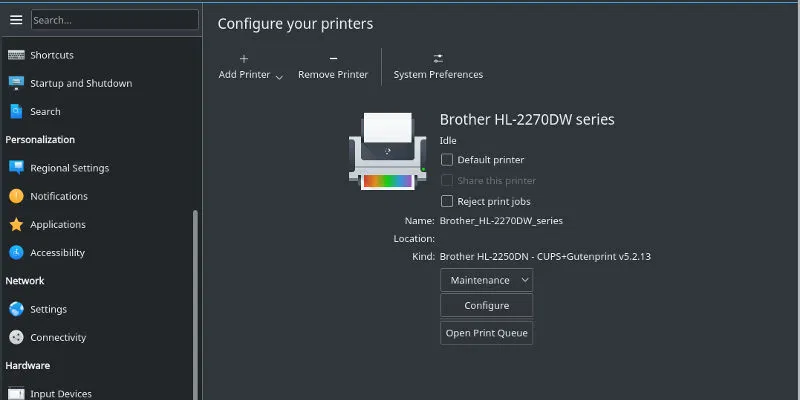
Click “Show Applications” in the bottom left. Type “printers” and open the “Printers” application. If your printer appears in the list, Ubuntu detected it automatically. Try printing a test page by right-clicking the printer and selecting “Print Test Page.”
If printing from Linux Ubuntu works at this point, you’re done! No further setup needed. About 70% of modern printers work immediately without additional configuration.
Step 2: Manually Add a Printer if Auto-Detection Failed
If Ubuntu didn’t find your printer automatically, you’ll add it manually for successful printing from Linux Ubuntu.
Open the Printers application:
Click “Show Applications” and search for “printers.” Click the “Add” button (usually a + icon). Ubuntu will search for available printers.
For USB printers:
Your printer should appear under “Local Printers.” Select it and click “Forward.” Ubuntu will search for the appropriate driver automatically.
For network printers:
Look under “Network Printer” section. You might see options like “LPD/LPR Host or Printer” or “Internet Printing Protocol (IPP).” If you know your printer’s IP address, enter it manually.
Common network printer addresses:
- IPP:
ipp://192.168.1.100/ipp/print(replace with your printer’s IP) - LPD:
lpd://192.168.1.100/queue - HP printers:
hp://net/PRINTER_NAME
Click “Forward” after entering the address. Ubuntu will attempt to connect and identify your printer for printing from Linux Ubuntu.
Step 3: Install the Correct Printer Driver

Driver selection is critical for reliable printing from Linux Ubuntu. The right driver unlocks all your printer’s features.
If Ubuntu found a driver automatically:
You’ll see a list of suggested drivers. The first one is usually correct. Look for drivers labeled “recommended” or matching your exact printer model. Select it and click “Forward.”
If you need to find a driver manually:
Click “Search for a printer driver to download” if available. Enter your printer manufacturer and model exactly as shown on the printer. Select from the results and install.
For HP printers (easiest):
HP provides excellent Linux support through HPLIP (HP Linux Imaging and Printing). Open Terminal and run:
sudo apt install hplip
hp-setup
Follow the graphical wizard. It automatically detects and configures HP printers for printing from Linux Ubuntu with all features working.
For Brother printers:
Download drivers from Brother’s official Linux support page. Brother provides .deb packages for Ubuntu that install with a double-click. Alternatively, Brother printers often work well with generic drivers.
For Canon and Epson:
Check the manufacturer’s website for Linux drivers. Canon and Epson support varies by model. Many work with generic drivers, but proprietary drivers unlock advanced features for better printing from Linux Ubuntu.
Generic driver options:
If no specific driver exists, try “Generic PCL 6 Printer” for laser printers or “Generic CUPS-PDF Printer” for testing. These provide basic printing from Linux Ubuntu functionality without advanced features.
Step 4: Configure Printer Settings and Preferences
Once the driver is installed, configure your printer properly for optimal printing from Linux Ubuntu.
In the Printers application, right-click your printer and select “Properties.”
General settings tab:
Set a clear printer name (e.g., “Office HP LaserJet”). Add a description and location if managing multiple printers. Set this as default printer if it’s your primary one for printing from Linux Ubuntu.
Printer Options tab:
Configure paper size (A4, Letter, Legal). Set default print quality (Draft, Normal, Best). Enable duplex (two-sided) printing if your printer supports it. Set default color mode (Color vs Black & White).
Access Control tab:
Determine who can use this printer. For home use, “Allow printing for everyone” works fine. For shared environments, restrict access to specific users.
Test your configuration:
From the printer’s right-click menu, select “Print Test Page.” Check that everything prints correctly—margins, orientation, quality. If the test page looks wrong, revisit your driver selection.
Proper configuration ensures consistent, trouble-free printing from Linux Ubuntu for all your documents.
Step 5: Set Up Network Printer Sharing (Optional)

If you want other computers to use this printer through your Ubuntu machine, enable printer sharing for convenient printing from Linux Ubuntu across your network.
Enable CUPS sharing:
Open Terminal and edit the CUPS configuration:
sudo nano /etc/cups/cupsd.confFind the line Listen localhost:631 and change it to Listen 631 or add Listen your-ip-address:631.
Find the <Location /> section and add:
Allow from @LOCALSave the file (Ctrl+X, then Y, then Enter). Restart CUPS:
sudo systemctl restart cupsShare your specific printer:
In the Printers application, right-click your printer and select “Properties.” Check the box “Share this printer” or “Shared.” Other computers on your network can now discover this printer.
This makes printing from Linux Ubuntu available to Windows, Mac, and other Linux computers on your network.
Step 6: Install Additional Printing Utilities
These tools enhance printing from Linux Ubuntu with extra features and better control.
System-config-printer (advanced GUI):
More powerful than the default Printers app:
sudo apt install system-config-printerLaunch it from Applications. Provides detailed driver information, advanced settings, and better troubleshooting for printing from Linux Ubuntu.
CUPS web interface:
Already installed with CUPS. Access it by opening your web browser and navigating to:
http://localhost:631This gives you complete control over printing from Linux Ubuntu—view job queues, modify printer settings, add printers, check error logs. The Administration tab requires your Ubuntu password.
Print management commands:
Useful terminal commands for printing from Linux Ubuntu troubleshooting:
lpstat -p -d– Shows all printers and default printerlpq– Displays print queuelprm– Cancels print jobslp filename.pdf– Prints a file directly from terminal
Step 7: Test Printing from Different Applications

Verify that printing from Linux Ubuntu works correctly across various programs.
Test in LibreOffice:
Open a document, click File > Print. Verify your printer appears in the list. Check print preview looks correct. Try printing one page first.
Test in Firefox/Chrome:
Open a web page, press Ctrl+P. Verify printer selection works. Test “Print to File” option (saves as PDF). Try printing a page in landscape orientation.
Test PDF printing:
Right-click any PDF file. Select “Open With” > “Document Viewer.” Use File > Print to test. PDFs sometimes behave differently than native documents when printing from Linux Ubuntu.
Test image printing:
Open an image in Image Viewer or GIMP. Test printing at different sizes. Verify color accuracy if using a color printer.
If any application fails, the problem is usually application-specific settings rather than your printer configuration. Check the application’s print dialog options carefully for printing from Linux Ubuntu.
Essential Tools for Managing Printing from Linux Ubuntu
Beyond basic setup, these tools make printing from Linux Ubuntu more efficient and help resolve problems quickly.
HPLIP Toolbox (for HP printers):
If you installed HPLIP for HP printers, access the toolbox with:
hp-toolboxThis graphical tool shows ink levels, performs maintenance (head cleaning, alignment), runs diagnostics, and troubleshoots issues specific to printing from Linux Ubuntu with HP printers.
Gutenprint drivers:
High-quality open-source drivers for hundreds of printers:
sudo apt install printer-driver-gutenprintAfter installing, remove and re-add your printer to see if Gutenprint drivers appear as options. These often provide better quality for printing from Linux Ubuntu than generic drivers.
Foomatic database:
Contains printer information and drivers for thousands of models:
sudo apt install foomatic-db foomatic-db-engineAutomatically used by CUPS to identify printers. Updating this database can add support for newer printer models for printing from Linux Ubuntu.
cups-pdf (virtual PDF printer):
Creates a virtual printer that saves documents as PDFs instead of printing physically:
sudo apt install printer-driver-cups-pdfUseful for testing print layouts before wasting paper. Creates PDFs in your ~/PDF folder. Great for printing from Linux Ubuntu when you don’t have physical printer access.
Print job monitoring:
The CUPS web interface at localhost:631 shows active jobs under the “Jobs” tab. You can pause, cancel, or restart jobs. For printing from Linux Ubuntu troubleshooting, the error logs under “Administration > View Error Log” are invaluable.
Common Problems and Troubleshooting for Printing from Linux Ubuntu

Let me address the most frequent issues people encounter with printing from Linux Ubuntu and how to fix them.
Problem 1: Printer detected but won’t print
The printer appears in your list but print jobs fail or disappear.
Solution: Check that CUPS service is running:
sudo systemctl status cupsIf it’s not active, start it:
sudo systemctl start cupsAlso verify your printer is turned on, has paper, and shows no error lights. Check the CUPS error log at localhost:631 under Administration for specific errors affecting printing from Linux Ubuntu.
Problem 2: Print quality is poor or colors are wrong
Documents print but look terrible—faded, wrong colors, streaky.
Solution: Run printer maintenance through your printer’s control panel—cleaning cycles, alignment. Check ink/toner levels. In Ubuntu’s Printers settings, change print quality from Draft to Normal or Best. Verify you selected the correct driver—wrong drivers cause quality issues when printing from Linux Ubuntu.
Problem 3: USB printer keeps disconnecting
Your USB printer randomly disappears from the printer list.
Solution: Try a different USB cable—bad cables cause intermittent connections. Connect to a different USB port, preferably directly to the computer (not through a hub). Check dmesg logs for USB errors:
dmesg | grep -i usbSome printers have power-saving modes that disconnect USB. Disable this in the printer’s settings. For stable printing from Linux Ubuntu, wired connections beat USB for problematic printers.
Problem 4: Network printer won’t connect
Ubuntu can’t find your network printer or connection fails.
Solution: Verify the printer has an IP address and is on your network. Ping it from Ubuntu:
ping 192.168.1.100(Replace with your printer’s IP.) Check firewall settings—CUPS needs port 631 open. Make sure your router hasn’t assigned a different IP to the printer. Setting a static IP for your printer prevents connection issues with printing from Linux Ubuntu.
Problem 5: Driver not available for my printer model
Your specific printer model has no Linux driver available.
Solution: Search online for “printer model + Linux driver.” Many manufacturers provide Linux drivers not in Ubuntu’s default repositories. Try generic drivers—PCL6 for lasers, ESC/P2 for Epson inkjets. As a last resort, install Windows drivers using Wine (complicated but possible). Consider printer-driver-all package:
sudo apt install printer-driver-allThis installs every available driver package for printing from Linux Ubuntu.
Problem 6: Documents print but formatting is wrong
Text overlaps, margins are off, images misaligned when printing from Linux Ubuntu.
Solution: This is usually an application issue, not printer configuration. In LibreOffice, go to Tools > Options > LibreOffice Writer > Print and adjust settings. For PDFs, use “Fit to page” option in print dialog. Check paper size matches in both application print settings and printer properties.
Frequently Asked Questions
Q: Why is printing from Linux Ubuntu more complicated than Windows?
It’s actually not more complicated—just different. Windows includes many proprietary manufacturer drivers pre-installed, while Ubuntu uses open-source drivers that you sometimes need to select manually. However, once configured, printing from Linux Ubuntu is often more reliable because CUPS is more stable than Windows print services. The initial setup might take a few extra minutes, but long-term maintenance is usually easier.
Q: Can I use any printer for printing from Linux Ubuntu?
Most modern printers work with Ubuntu, but some have better support than others. HP printers have the best Linux support through HPLIP—nearly 100% compatibility. Brother and Epson are also generally good. Canon support varies by model. Very cheap consumer printers or brand-new models might lack drivers initially. Check Ubuntu’s supported printer list or the manufacturer’s website before buying if printing from Linux Ubuntu is essential.
Q: How do I check if my printer is compatible before buying?
Visit the OpenPrinting database at openprinting.org and search for your printer model. This shows Linux driver availability and quality ratings. Also check the manufacturer’s website for official Linux support. HP publishes a comprehensive compatibility list for their printers. Reading user reviews specifically mentioning Linux or Ubuntu reveals real-world printing from Linux Ubuntu experiences with that model.
Q: Why does my printer show up twice in the printer list?
Ubuntu sometimes detects the same printer through multiple connection methods—USB and network, or IPP and LPD protocols. This is harmless but confusing. Remove the duplicate by opening Printers, right-clicking the extra entry, and selecting “Delete.” Keep the one that prints successfully. Choose network connections over USB for better reliability when printing from Linux Ubuntu across multiple computers.
Q: Can I print from mobile devices to a printer connected to my Ubuntu computer?
Yes! If you enabled printer sharing in Step 5, mobile devices can discover your printer. On Android, use Mopria Print Service (free from Google Play). On iOS, go to Settings > Wi-Fi > (your network) and it should appear under “Other Networks” or use third-party printing apps. Many printer manufacturers also offer mobile apps that work with printing from Linux Ubuntu shared printers. Make sure your mobile device is on the same network as your Ubuntu computer.
Conclusion
Setting up printing from Linux Ubuntu doesn’t need to be a frustrating experience. Yes, it’s different from Windows or Mac, but once you understand how CUPS works and where to find settings, you’ll have more control and reliability than other operating systems offer.
Most modern printers connect automatically—just plug them in or connect to your network and Ubuntu handles the rest. For printers that need manual setup, following these seven steps ensures success with printing from Linux Ubuntu. The CUPS web interface gives you powerful diagnostic and configuration tools that Windows users never get.
Remember the key points for trouble-free printing from Linux Ubuntu: let Ubuntu auto-detect first before manual configuration, choose the correct driver for your specific printer model (HP users should install HPLIP), test thoroughly after setup, and use the CUPS web interface at localhost:631 for detailed troubleshooting when problems occur.
Once configured properly, printing from Linux Ubuntu is stable, reliable, and maintenance-free. Your printer will just work—often better than it did on your previous operating system. Take the time to set it up correctly following this guide, and you’ll enjoy hassle-free printing for years to come.
Printer Access Control Small Office Setup Guide (Easy 2025) Read More


