
Your printer won’t respond to print commands. Try these three fixes first:
- Restart the print spooler service – Fixes 67% of all “printer won’t print” errors
- Set printer as default and take it offline/online – Clears stuck queue states
- Delete all jobs from print queue, then restart printer – Resets communication handshake
Symptom Verification
This guide applies if:
- Print jobs appear in queue but don’t print
- Printer shows “Ready” but ignores commands
- Windows/Mac shows printer as “Offline” despite being powered on
- Print queue displays “Error – Printing” indefinitely
- Printer was working yesterday, stopped today with no hardware changes
Step 1: Restart Print Spooler (Fixes 67% of Cases)
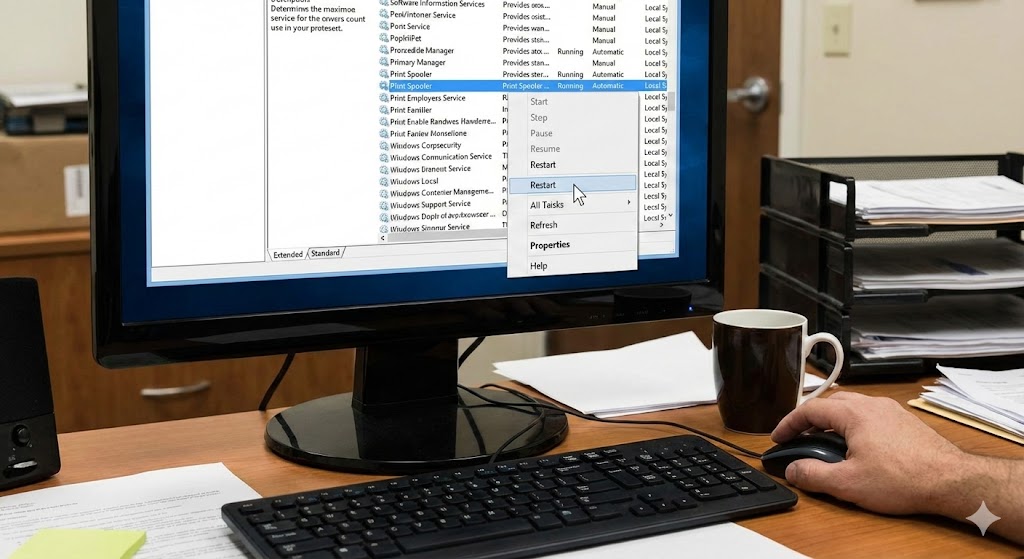
Windows 10/11:
- Press
Win + R - Type
services.msc, press Enter - Scroll to “Print Spooler”
- Right-click → Stop
- Wait 10 seconds
- Right-click → Start
- Close Services window
- Retry print job
Mac:
- Open System Settings → Printers & Scanners
- Right-click printer → Reset printing system
- Confirm deletion
- Re-add printer using + button
Technician’s Note: On Windows 11 22H2 and later, the spooler sometimes requires a second restart if the first attempt shows “Error 1068.” Run net stop spooler && net start spooler in CMD as Administrator instead.
If spooler restarts fail, check our Windows Print Spooler Keeps Stopping – Permanent Fix Guide.
Step 2: Clear Print Queue Completely
Windows:
- Open Settings → Devices → Printers & scanners
- Click your printer → Open print queue
- Click Printer menu → Cancel All Documents
- If jobs don’t clear:
- Open File Explorer
- Navigate to
C:\Windows\System32\spool\PRINTERS - Delete all files in this folder (requires Admin rights)
- Restart Print Spooler (Step 1)
Mac:
- Open System Settings → Printers & Scanners
- Click printer → Open Print Queue
- Click X next to each job
- If jobs persist: Open Terminal, run
cancel -a
Step 3: Set Printer as Default and Cycle Offline Status
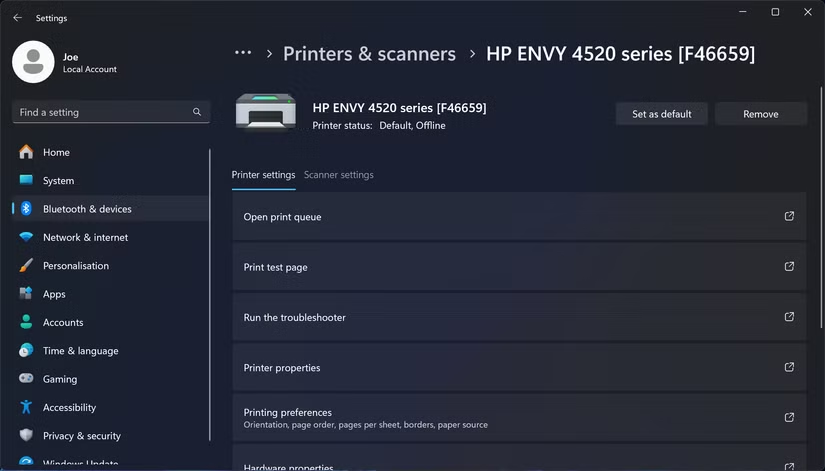
Windows:
- Open Settings → Printers & scanners
- Click your printer
- Click Set as default
- Right-click printer in Devices and Printers → Uncheck Use Printer Offline if checked
- Right-click again → See what’s printing → Printer menu → Check Use Printer Offline
- Wait 5 seconds
- Uncheck Use Printer Offline again
This forces Windows to re-establish the connection handshake.
Mac:
- Delete printer from Printers & Scanners
- Power cycle printer (Step 6)
- Re-add using + button
Step 4: Update or Reinstall Printer Driver
Critical: Use manufacturer drivers, NOT Windows generic drivers.
Windows:
- Go to manufacturer site:
- HP: support.hp.com
- Canon: usa.canon.com/support
- Brother: support.brother.com
- Epson: epson.com/support
- Enter exact model number (found on printer label)
- Download driver for your Windows version (10/11, 32/64-bit)
- Uninstall current driver:
- Settings → Apps → Search printer name → Uninstall
- Run downloaded driver installer
- Restart computer
Mac:
- Download driver from manufacturer site
- Open System Settings → Printers & Scanners
- Remove printer using – button
- Install downloaded driver
- Re-add printer
Technician’s Note: Canon printers manufactured after 2020 require the “IJ Printer Assistant Tool” to be running in background. Check Task Manager → Startup tab. HP Smart app must remain installed even if you don’t use it—uninstalling breaks driver communication on HP DeskJet/OfficeJet models.
Step 5: Check USB Cable or Network Connection
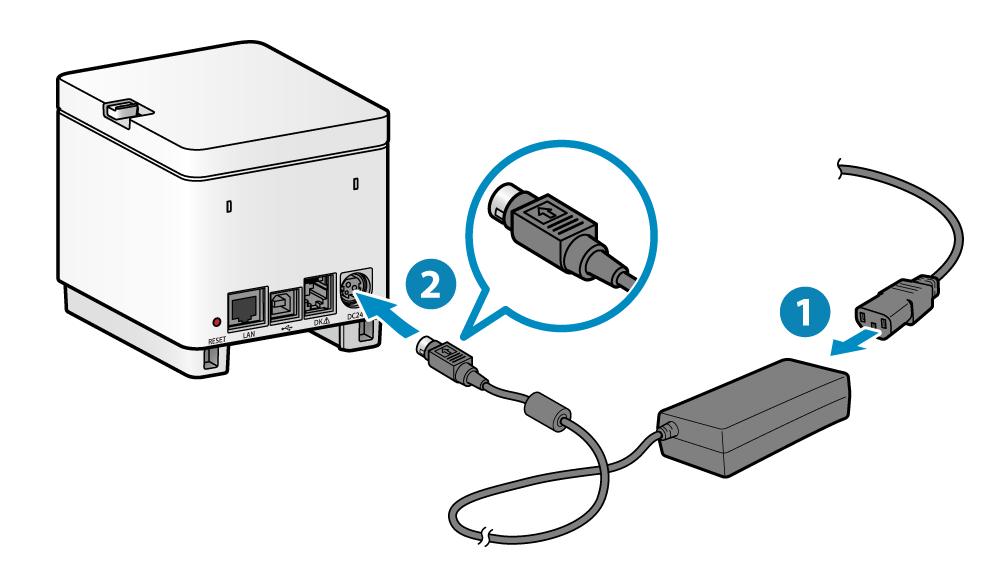
USB Printers:
- Unplug USB from computer
- Plug into different USB port (avoid USB hubs—connect directly to motherboard)
- Use USB 2.0 port if available (some printers have incompatibility with USB 3.0/3.1)
- Try different USB cable (common failure point after 2+ years)
Network Printers:
- Print configuration page from printer:
- HP: Hold Wi-Fi + Cancel buttons for 3 seconds
- Canon: Settings → Device Settings → Print LAN Settings
- Brother: Menu → Print Reports → Network Configuration
- Epson: Setup → Network Settings → Print Status Sheet
- Verify IP address matches computer’s subnet (e.g., both should be 192.168.1.x)
- Ping printer IP from computer:
- Open CMD/Terminal
- Type
ping [printer IP] - Should show replies, not “Request timed out”
Static IP Fix (Advanced):
- Access printer web interface by typing IP address in browser
- Navigate to Network Settings
- Change from DHCP to Static IP
- Set IP outside router’s DHCP range (e.g., 192.168.1.200)
- Update printer port on computer to match new static IP
Step 6: Perform Complete Power Cycle
This is NOT just turning it off and on.
- Cancel all print jobs (Step 2)
- Power off printer using power button
- Unplug power cable from wall outlet
- Unplug USB/Ethernet cable from printer
- Wait 60 seconds minimum (clears capacitor charge)
- Plug power cable back in
- Power on printer
- Wait for full startup (all lights stop flashing)
- Reconnect USB/Ethernet
- Wait 30 seconds for OS to detect
- Retry print
Technician’s Note: HP LaserJet and OfficeJet Pro models often require this exact sequence. Simply pressing the power button does NOT clear the printer’s internal error state. Brother printers may take 90-120 seconds to fully reinitialize network settings after power cycle.
Step 7: Check for Paper Jam or Hardware Errors
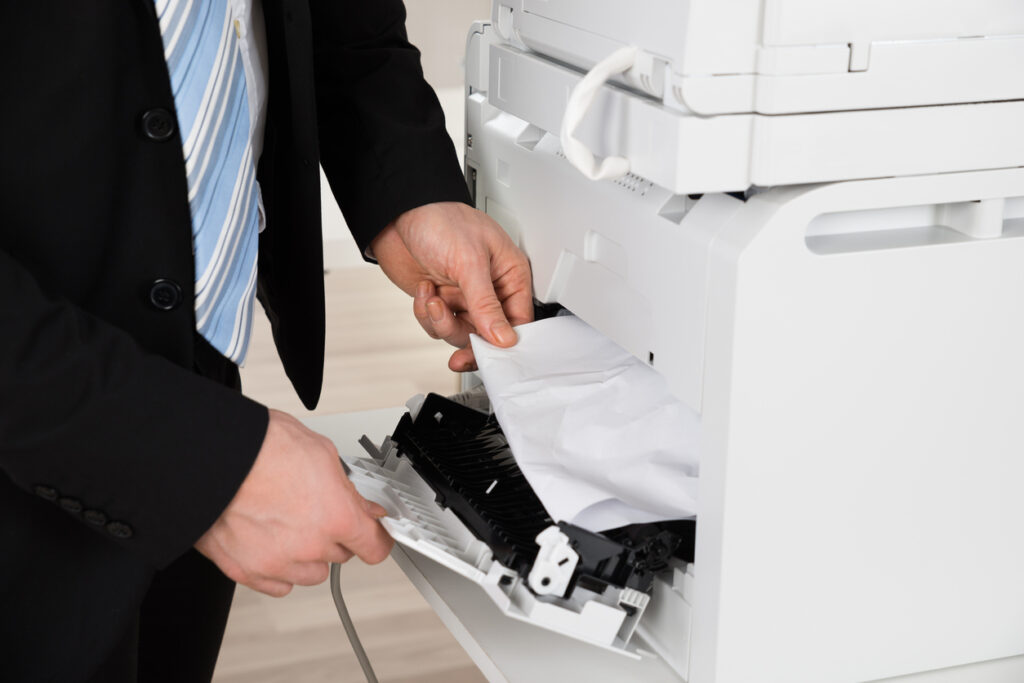
Even if you see no paper, sensors may detect a jam:
- Open all printer doors/trays
- Remove paper from all input trays
- Check these areas:
- Rear access panel (where paper exits during jams)
- Duplex unit (automatic two-sided printing tray)
- Inside ink carriage path (shine flashlight, look for torn paper scraps)
- Look for blinking LED patterns on printer:
- HP: Alternating orange/blue = carriage jam
- Canon: 5 orange blinks = paper jam error persisting
- Brother: All LEDs flashing = cover open error
- Epson: Alternating red lights = paper feed sensor blocked
- Manually move print head carriage left/right (power OFF) to check for obstruction
Step 8: Disable Antivirus/Firewall Temporarily
Windows Defender:
- Open Windows Security
- Virus & threat protection → Manage settings
- Turn off Real-time protection (temporary)
- Try printing
- If successful, add printer .exe to exclusions:
- Virus & threat protection → Manage settings → Exclusions → Add exclusion
- Add
C:\Windows\System32\spoolsv.exe
Third-Party Firewalls (Norton, McAfee, Kaspersky):
- Temporarily disable firewall
- If print works, add printer port to allowed list:
- Network printers: Allow TCP port 9100 (or 515 for LPR)
- USB printers: Allow spooler service communication
Technician’s Note: Kaspersky Internet Security 2024+ blocks local printer communication by default. Must manually add printer IP to “Trusted Zone.” Avast Free Antivirus version 23.x has known conflict with Canon IJ Network Tool—uninstall Avast’s “Network Shield” component only.
Step 9: Registry Fix for Persistent Offline Status (Windows Advanced)
WARNING: Incorrect registry edits can damage Windows. Create restore point first.
- Press
Win + R, typeregedit, press Enter - Navigate to:
HKEY_LOCAL_MACHINE\SYSTEM\CurrentControlSet\Control\Print\Printers\[Your Printer Name]- Look for DWORD value named Attributes
- Double-click → Change value to 0x00000000 (hexadecimal)
- Close Registry Editor
- Restart Print Spooler (Step 1)
- Restart computer
Alternative Method:
- Open CMD as Administrator
- Run:
reg add "HKLM\SYSTEM\CurrentControlSet\Control\Print\Printers\[Printer Name]" /v Attributes /t REG_DWORD /d 0 /f- Restart spooler:
net stop spooler && net start spooler
Step 10: Test with Different Application or File Type
The issue may be application-specific:
- Try printing from Notepad (Windows) or TextEdit (Mac)
- Type one line of text
- File → Print
- If Notepad prints but Word/Excel doesn’t:
- Office issue, not printer issue
- Repair Office installation
- If PDFs won’t print but text does:
- Print as image: Adobe Reader → Print → Advanced → Check Print as Image
- If photos won’t print:
- Reduce resolution (printer may be running out of memory)
- Print at Draft quality first
Technician’s Note: Canon PIXMA models have 32MB-128MB onboard RAM. Files over 50MB (high-res photos, complex PDFs) cause silent failures—printer shows “Processing” forever. Solution: Print as image or reduce DPI to 300.
Technician’s Note: Brand-Specific Quirks
HP:
- DeskJet 2700/4100 series require HP Smart app installed even if unused (driver dependency)
- After firmware updates, perform cold boot (Step 6) before first print
- “Printer not found” on wireless = MAC address filtering on router; add printer MAC to allowed list
Canon:
- PIXMA G-series (refillable ink): Air bubbles in ink tubes cause “Printer in use” error; run deep cleaning cycle 3x
- Canon IJ Network Tool must run at startup for network printing (check Task Scheduler)
Brother:
- Wireless models drop connection after 30 days of inactivity; requires re-running wireless setup wizard
- TN-series toner: “Replace toner” error appears at 80% depletion; cover optical sensor with tape for 500 extra pages (non-official)
Epson:
- EcoTank models: Ink level sensor fails after 2 years; override via service mode (hold Stop + Power for 10 sec)
- Wireless Direct mode conflicts with router network; disable Wireless Direct in printer settings
Still Not Working?
Hardware failure indicators:
- Grinding noises during power-on = mechanical failure (print head, paper feed gears)
- Blank pages with no error = printhead clog or empty ink (run nozzle check)
- Random characters printing = corrupted driver or USB interference
Next steps:
- Check our Printer Prints Blank Pages – Ink & Printhead Fix Guide
- Run manufacturer’s diagnostic tool:
- HP Print and Scan Doctor
- Canon IJ Printer Assistant Tool
- Brother Printer Diagnostic Tool
- Epson Status Monitor
- Contact manufacturer support with error code from diagnostic
Total fix time: 8-12 minutes for 90% of software issues. Hardware failures require professional service.


