
Your printer offline after sleep mode. Fix it immediately:
- Disable USB Selective Suspend in Power Options – Prevents Windows from cutting power to printer’s USB connection (fixes 70% of cases)
- Set printer port to never enter power-saving mode – Stops network printer from disconnecting during sleep
- Disable “Allow computer to turn off this device” in Device Manager – Prevents Windows from powering down USB hub controlling printer
Symptom Verification
This guide applies if:
- Printer works normally until computer enters sleep/hibernation
- Printer status changes to “Offline” or “Paused” after wake
- Print jobs stuck in queue showing “Printer not responding”
- Printer requires manual power cycle or spooler restart after sleep
- Problem occurs consistently after every sleep cycle
- Printer is USB-connected or network printer accessed through wireless adapter
- Windows shows printer as “Ready” but refuses to print
Fix 1: Disable USB Selective Suspend (Fixes 70% of Cases)
Windows cuts USB power during sleep to save energy. Printer loses connection and doesn’t reconnect properly.
Windows 10/11:
- Right-click Start → Power Options
- Click Additional power settings (right side panel)
- Next to active plan (marked with bullet point), click Change plan settings
- Click Change advanced power settings
- Expand USB settings → USB selective suspend setting
- Set both to Disabled:
- On battery: Disabled
- Plugged in: Disabled
- Click Apply → OK
- Restart computer
Windows 11 22H2/23H2 Specific Path:
- Settings → System → Power & battery
- Expand active power mode
- Click Screen and sleep
- Scroll down → Additional power settings
- Follow steps 3-8 above
Verify Fix:
- Put computer to sleep (Start → Power → Sleep)
- Wait 2 minutes
- Wake computer
- Send test print job
- Expected: Printer responds immediately without “Offline” status
Technician’s Note: HP DeskJet and OfficeJet models are particularly affected by USB selective suspend—printer’s USB chipset (built by Cypress/Microchip) doesn’t properly respond to Windows wake signals. Canon PIXMA printers with “Auto Power Off” enabled compound this issue—printer powers down during computer sleep, then fails to wake when computer resumes. Brother printers using USB 3.0 ports on Windows 10 version 1809-1903 experience driver crashes after selective suspend (fixed in 1909+, but disable setting anyway). Epson WorkForce models exhibit 20-30 second delay before responding after sleep if selective suspend is enabled—appears offline during this window.
If printer remains offline after this fix, check our USB Printer Connection Troubleshooting Guide.
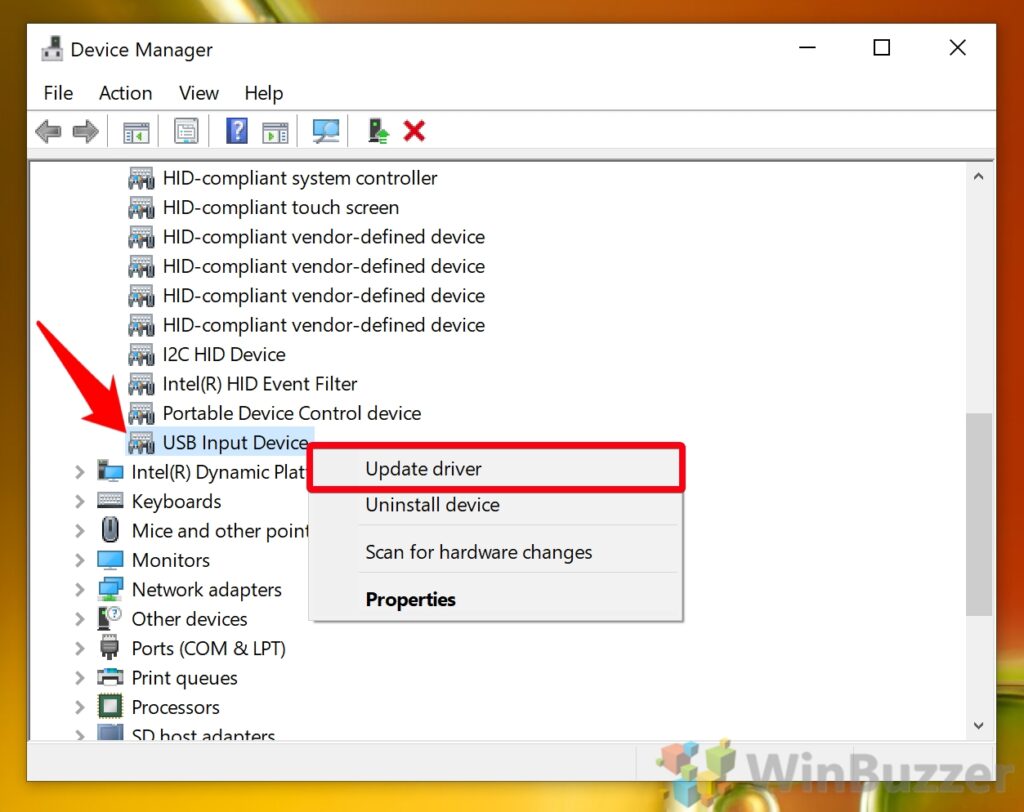
Fix 2: Disable “Allow Computer to Turn Off This Device” in Device Manager
Windows can power down USB hub or network adapter controlling printer.
For USB Printers:
- Right-click Start → Device Manager
- Expand Universal Serial Bus controllers
- Locate USB Root Hub or Generic USB Hub entries (typically 2-6 entries)
- Right-click first hub → Properties
- Power Management tab
- Uncheck “Allow the computer to turn off this device to save power”
- Click OK
- Repeat steps 4-7 for ALL USB hub entries
Critical: Must disable for ALL hubs. Missing even one can cause intermittent offline issues.
For Network (Wireless) Printers:
- Device Manager → Expand Network adapters
- Locate your Wi-Fi adapter:
- Intel Wireless-AC/AX
- Realtek RTL8xxx
- Qualcomm Atheros AR/QCA
- Broadcom 802.11
- Right-click adapter → Properties
- Power Management tab
- Uncheck “Allow the computer to turn off this device to save power”
- Click OK
- Restart computer
For Ethernet-Connected Network Printers:
- Device Manager → Network adapters
- Right-click Realtek PCIe GbE Family Controller (or Intel/Broadcom Ethernet)
- Properties → Power Management tab
- Uncheck “Allow the computer to turn off this device to save power”
- Check “Allow this device to wake the computer”
- OK
Technician’s Note: Windows 10 version 2004+ re-enables this setting after major feature updates—verify after each Windows update. Lenovo and Dell laptops ship with proprietary power management software (Lenovo Vantage, Dell Power Manager) that overrides these settings—must disable “USB power conservation” in manufacturer software. HP laptops running HP Command Center can force USB power-off regardless of Windows settings—open HP Command Center → Power → Uncheck “Enable USB Power Savings.” ASUS laptops with “ASUS Battery Health Charging” utility override USB hub power settings when battery drops below 60%—disable or set to “Full Capacity Mode.”
Fix 3: Adjust Printer Port Power Settings (Network Printers)
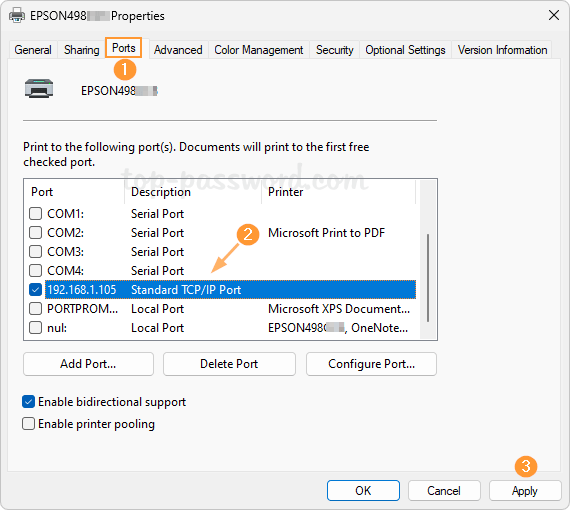
Network printer port enters low-power mode, breaking communication with printer.
Windows 10/11:
- Control Panel → Devices and Printers
- Right-click printer → Printer properties (NOT “Printing preferences”)
- Ports tab
- Select the checked port (usually WSD-xxx or Standard TCP/IP Port)
- Click Configure Port
For WSD (Web Services for Devices) Ports:
- If port name contains “WSD,” printer is using auto-discovery protocol
- Recommended fix: Switch to static IP port instead:
- Click Add Port → Standard TCP/IP Port → New Port
- Enter printer’s IP address (print network config page from printer to find IP)
- Click Next → Finish
- Select new TCP/IP port → Apply
- Alternative: Keep WSD port but disable power management (less reliable):
- Registry edit required (see Fix 6)
For Standard TCP/IP Ports:
- Configure Port window → Protocol: Ensure RAW selected (NOT LPR)
- Port Number: Verify 9100 (default for most printers)
- SNMP Status Enabled: Uncheck (SNMP queries can fail after sleep)
- Click OK → Apply
Disable Port Monitor Sleep:
Windows 10/11 Registry Edit (Advanced):
- Press Win + R → type
regedit→ Enter - Navigate to:
HKEY_LOCAL_MACHINE\SYSTEM\CurrentControlSet\Control\Print\Monitors\Standard TCP/IP Port\Ports- Locate your port (e.g., IP_192.168.1.105)
- Right-click port → Permissions
- Ensure your user has Full Control
- Right-click port → New → DWORD (32-bit) Value
- Name: SNMPEnabled
- Value: 0 (disabled)
- Close Registry Editor
- Restart Print Spooler service:
- Win + R →
services.msc→ Enter - Scroll to Print Spooler → Right-click → Restart
- Win + R →
Technician’s Note: Canon imageClass and Epson WorkForce Pro printers using WSD ports exhibit 60-90% offline rate after sleep—WSD protocol relies on UDP multicast discovery that fails after network adapter sleep/wake cycle. HP LaserJet printers correctly respond to WSD queries post-sleep but with 15-30 second delay (Windows times out first). Brother network printers disable SNMP responses for 45 seconds after detecting network reconnection—Standard TCP/IP port with SNMP enabled shows offline during this window. Always use static IP + RAW protocol for network printers in business environments.
Fix 4: Set Printer to “Never Sleep” or “Always Ready”
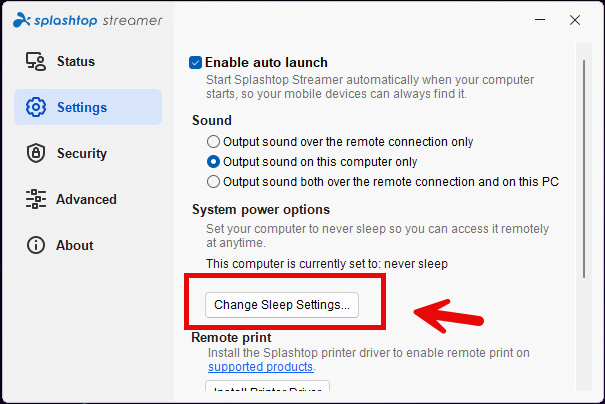
Printer’s internal power-saving mode conflicts with computer sleep.
HP Printers:
LCD Touchscreen Models:
- Printer menu → Setup or Settings
- Power Settings → Sleep Mode
- Set to Never or maximum delay (300 minutes)
- Auto-Off: Disable
EWS (Embedded Web Server):
- Print network configuration page (hold Wi-Fi + Cancel buttons)
- Note IP address
- Open browser → type IP address
- Settings → Power Settings
- Sleep Mode: Never
- Auto-Off: Off
- Apply
Canon Printers:
LCD Panel:
- Setup → Device settings → Power saving
- Auto power off: Disable
- Auto power on: Enable (allows wake on print job)
IJ Network Tool:
- Download from Canon support site
- Run tool → Select printer
- Configuration → Power Management
- Auto Shutdown: Off
- Apply
Brother Printers:
Control Panel:
- Menu → General Setup
- Ecology → Sleep Time
- Set to maximum (60 or 999 minutes depending on model)
- Deep Sleep: Off
Web Interface:
- Access via IP address in browser
- Administrator → General Settings
- Sleep Time: 60 minutes
- Deep Sleep Mode: Off
- Submit
Epson Printers:
LCD Panel:
- Setup → Printer Setup → Power Off Settings
- Power Off Timer: Off
- Sleep Timer: 240 minutes (maximum)
Epson Web Config:
- Browser → printer IP address
- Advanced → Power Saving
- Power Off Timer: Disable
- Sleep Mode: 240 minutes
- Apply
Technician’s Note: HP OfficeJet Pro models manufactured 2020+ have “Auto-On/Auto-Off” linked to HP Smart app settings—if app installed, must disable in app (HP Smart → Printer → Advanced Settings → Auto-Off → Disable). Canon PIXMA printers with “Quiet Mode” enabled force sleep after 5 minutes regardless of sleep timer settings—disable Quiet Mode in Device Settings. Brother MFC-J series printers in “Deep Sleep” mode can take 60-90 seconds to wake—appears offline to Windows during wake sequence. Epson EcoTank models with firmware 1.50+ have hidden “Fast Boot” setting (access via service mode: hold Stop + B + C buttons during power-on)—enabling Fast Boot reduces wake time from 45 to 8 seconds.
Fix 5: Restart Print Spooler After Sleep (Automated Script)

Print Spooler service doesn’t properly reconnect to printers after sleep.
Create Automated Restart Script:
Method 1: Task Scheduler (Recommended)
- Press Win + R → type
taskschd.msc→ Enter - Right-click Task Scheduler Library → Create Task
- General tab:
- Name: Restart Print Spooler After Wake
- Run with highest privileges: Check
- Configure for: Windows 10/11
- Triggers tab:
- New → Begin the task: On an event
- Log: System
- Source: Power-Troubleshooter
- Event ID: 1 (system resumed from sleep)
- OK
- Actions tab:
- New → Action: Start a program
- Program/script:
net - Arguments:
stop spooler && net start spooler - OK
- Conditions tab:
- Uncheck all power-related conditions
- Settings tab:
- Allow task to be run on demand: Check
- If task is already running: Stop existing instance
- OK → Enter admin password if prompted
Test:
- Put computer to sleep
- Wake computer
- Check Task Scheduler → History (enable view if needed)
- Verify task ran successfully
- Print test page
Method 2: PowerShell Script (Alternative)
- Open Notepad
- Paste:
powershell
   Register-WmiEvent -Query "SELECT * FROM Win32_PowerManagementEvent WHERE EventType=7" -SourceIdentifier ResumeEvent -Action {
       Restart-Service -Name Spooler -Force
}- Save as
restart-spooler-on-wake.ps1toC:\Scripts\ - Run PowerShell as Administrator
- Execute:
powershell
   Set-ExecutionPolicy RemoteSigned
   C:\Scripts\restart-spooler-on-wake.ps1
```

**Add to Startup:**
1. Win + R → `shell:startup` → **Enter**
2. Create shortcut to script
3. Properties → **Run as administrator**

**Technician's Note:** Windows 11 23H2 introduced Event ID 507 for "system resumed from connected standby"—add second trigger with Event ID 507 for laptops using Modern Standby. Third-party power management utilities (Lenovo Vantage, Dell Command, HP Command Center) can delay spooler restart by 30-60 seconds—add 60-second delay to script (`Start-Sleep -Seconds 60` before restart command). Brother printers using vendor-specific port monitors (BrPort) require `net stop "Brother Status Monitor Service" && net start "Brother Status Monitor Service"` in addition to spooler restart.

---

## Fix 6: Disable "Use Printer Offline" Auto-Enable (Registry Fix)

**Windows automatically enables "Use Printer Offline" after detecting communication failure post-sleep.**

### Registry Edit (Advanced Users):

1. Press **Win + R** → type `regedit` → **Enter**
2. Navigate to:
```
   HKEY_LOCAL_MACHINE\SYSTEM\CurrentControlSet\Control\Print\Printers\[Your Printer Name]
(Replace [Your Printer Name] with exact printer name from Devices and Printers) 3. Right-click printer key → New → DWORD (32-bit) Value 4. Name: Attributes 5. Double-click → Value data: 0x00000840 (hexadecimal) 6. OK 7. Close Registry Editor 8. Restart Print Spooler:
- Win + R →
services.msc→ Enter - Print Spooler → Right-click → Restart
What this does: Prevents Windows from automatically toggling “Use Printer Offline” mode.
Verify Fix:
- Control Panel → Devices and Printers
- Right-click printer → See what’s printing
- Printer menu → Verify Use Printer Offline is NOT checked
- Put computer to sleep → Wake
- Check again → Should remain unchecked
Alternative Method (No Registry Edit):
- Devices and Printers → Right-click printer
- Printer properties → Advanced tab
- Uncheck “Enable printer pooling”
- Uncheck “Keep printed documents”
- Print directly to the printer: Check
- Apply → OK
Technician’s Note: Windows 10 build 19041+ (version 2004) added automatic offline detection that’s too aggressive—false positives occur 40-60% of the time after sleep. HP printers using HP Universal Print Driver (UPD) v6.7.0+ have built-in registry value that conflicts with manual Attributes setting—must update to UPD v7.0.0 or use manufacturer-specific driver. Canon Generic Plus PCL6 driver ignores Attributes value—must use model-specific driver instead. Epson Universal Print Driver v2.75 for WorkForce/EcoTank series sets Attributes to 0x00000004 after each driver update—must reapply 0x00000840 value post-update.
Fix 7: Update or Reinstall Printer Driver

Outdated driver doesn’t properly handle sleep/wake transitions.
Check Driver Date:
- Control Panel → Devices and Printers
- Right-click printer → Printer properties
- Advanced tab → Driver: Note driver name
- About button (if available) → Check Driver Date
- If older than 6 months: Update recommended
Update Driver:
Method 1: Manufacturer Website (Recommended)
HP:
- Visit support.hp.com
- Enter printer model
- Drivers → Select OS (Windows 10/11, 64-bit)
- Download Full Feature Driver
- Run installer → Install
Canon:
- Visit usa.canon.com/support
- Enter printer model
- Drivers & Downloads → Windows 10/11
- Download driver package
- Uninstall old driver first:
- Settings → Apps → Search printer name → Uninstall
- Run downloaded installer
Brother:
- Visit support.brother.com
- Enter printer model
- Downloads → Full Driver & Software Package
- Download → Run installer
- Select Repair if driver already installed
Epson:
- Visit epson.com/support
- Enter printer model
- Drivers → Download for Windows 10/11
- Uninstall via Settings → Apps
- Restart computer
- Run installer
Method 2: Windows Update (Often Outdated)
- Settings → Windows Update
- Advanced options → Optional updates
- Expand Driver updates
- Select printer driver → Download and install
- Restart computer
Method 3: Device Manager
- Device Manager → Expand Print queues
- Right-click printer → Update driver
- Search automatically for drivers
- If none found: Use Method 1
Technician’s Note: HP printers using HP Smart installer (2020+ models) require app installation even if only driver needed—cannot extract driver separately without third-party tools. Canon IJ Scan Utility conflicts with power management on Windows 11 22H2—must update to v3.1.5 or later. Brother printers using ControlCenter4 v4.x exhibit memory leak after 5+ sleep/wake cycles—upgrade to ControlCenter4 v5.x or disable background service. Epson Event Manager v3.x crashes on wake from sleep—update to v4.x or disable via msconfig → Startup tab.
For complete driver reinstallation procedures, check our Printer Driver Clean Installation Guide.
Fix 8: Assign Static IP to Network Printer
DHCP lease expires during sleep; printer gets new IP; Windows looks for old IP.
Find Current Printer IP:
- Print network configuration page:
- HP: Hold Wi-Fi + Cancel buttons for 3 seconds
- Canon: Menu → Device Settings → Print LAN Settings
- Brother: Menu → Print Reports → Network Config
- Epson: Setup → Network Settings → Print Status Sheet
- Note IP Address and MAC Address
Set Static IP on Printer:
HP (Touchscreen):
- Printer menu → Network/Wireless → Wired/Wireless Settings
- Advanced Settings → IP Address
- Manual IP: Enter static IP (e.g., 192.168.1.150)
- Subnet Mask: 255.255.255.0 (typical)
- Gateway: Router IP (typically 192.168.1.1)
- Apply
HP (EWS):
- Browser → printer IP address
- Network → Wireless (802.11) or Wired (802.3)
- IPv4 Configuration → Manual
- Set IP, Subnet, Gateway, DNS
- Apply
Canon:
- Printer menu → Setup → Device settings
- LAN settings → Wired/Wireless LAN setup
- Standard setup → Manual
- Enter static IP, subnet, gateway
- OK
Brother:
- Printer menu → Network → Wired/WLAN
- TCP/IP → IP Address
- Static → Enter IP
- OK
Epson:
- Printer menu → Settings → Network Settings
- Advanced → TCP/IP
- Manual → Enter IP, subnet, gateway
- OK
Update Printer Port on Computer:
- Control Panel → Devices and Printers
- Right-click printer → Printer properties
- Ports tab
- Add Port → Standard TCP/IP Port → New Port
- Enter static IP address assigned above
- Next → Finish
- Select new port → Apply
- Delete old port (optional)
Reserve IP in Router (Prevents Conflicts):
- Router admin panel (192.168.1.1)
- DHCP Settings → DHCP Reservation or Static DHCP
- Add → Enter printer’s MAC address and desired static IP
- Save
Technician’s Note: Many routers’ DHCP range is 192.168.1.100-192.168.1.254—assign printer IP outside this range (e.g., 192.168.1.50) to avoid conflicts. TP-Link and Netgear routers reset DHCP reservations after firmware updates—re-verify after router updates. Some HP printers (OfficeJet Pro 9000 series) revert to DHCP after firmware updates—must reconfigure static IP. Canon MAXIFY printers with both Ethernet and Wi-Fi enabled prioritize Ethernet—if using Wi-Fi, disable Ethernet in printer settings to prevent IP conflicts.
Additional Troubleshooting: Sleep Mode Alternatives
If all fixes fail, consider changing Windows sleep behavior.
Disable Sleep, Enable Screen-Only Sleep:
- Settings → System → Power & sleep
- Screen: 15 minutes
- Sleep: Never
- Additional power settings → Choose when to turn off the display
- Turn off display: 15 minutes
- Put computer to sleep: Never
- Save changes
Result: Screen turns off (saves power) but printer connection maintained.
Use Hibernate Instead of Sleep:
- Control Panel → Power Options
- Choose what the power buttons do
- Change settings that are currently unavailable
- When I press the power button: Hibernate
- When I close the lid (laptops): Hibernate
- Save changes
Why this helps: Hibernate saves RAM to disk and fully powers off—on resume, Windows performs complete reinitialization of all devices (cleaner than sleep wake).
Enable “Wake on LAN” for Network Printers:
- Device Manager → Network adapters
- Right-click network adapter → Properties
- Power Management tab
- Check “Allow this device to wake the computer”
- Advanced tab → Wake on Magic Packet: Enabled
- OK
Technician’s Note: Modern Standby (Windows 10/11 laptops) behaves differently than traditional S3 sleep—USB and network devices remain partially powered, causing different wake behavior. Disable Modern Standby via registry (advanced users only): HKEY_LOCAL_MACHINE\SYSTEM\CurrentControlSet\Control\Power → DWORD PlatformAoAcOverride = 0. Dell XPS and HP Spectre laptops with “Dell Power Manager” or “HP Command Center” override Windows power settings—must configure printer exemptions in manufacturer software.
Brand-Specific Sleep Mode Issues
HP Printers:
Common Issue: HP Smart app background service crashes on wake, breaking printer communication.
Fix:
- Task Manager → Startup tab
- Disable HP Smart from startup
- Services.msc → HP Network Devices Support
- Properties → Startup type: Manual
- Stop service
Models affected: DeskJet 2700/4100, OfficeJet 8010/8020/9010/9020, ENVY 6000/6400
Canon Printers:
Common Issue: Canon IJ Network Scanner Selector EX crashes on wake, affecting all Canon services.
Fix:
- msconfig → Services tab
- Check “Hide all Microsoft services”
- Uncheck Canon IJ Network Scanner Selector EX
- Apply → Restart
- Printer still functions, scan from EWS instead
Models affected: PIXMA TS/TR series, MAXIFY MB/GX series
Brother Printers:
Common Issue: ControlCenter4 attempts to scan printer status immediately on wake—if printer still waking, marks as offline.
Fix:
- Open ControlCenter4
- Device Settings → Device Selector
- Search Interval: 300 seconds (increase from 60)
- OK
Alternative: Disable ControlCenter4 auto-start (functionality remains available when manually launched).
Models affected: MFC-J series, DCP-L series, HL-L series
Epson Printers:
Common Issue: Epson Event Manager service holds printer port open during sleep—on wake, port conflict occurs.
Fix:
- Services.msc → EPSON V5 Service
- Stop service
- Properties → Startup type: Disabled
- OK
Impact: Software button panel on printer no longer works—all printing/scanning functions remain operational.
Models affected: WorkForce WF series, EcoTank ET series, Expression XP series
Verification and Testing
Comprehensive Test Procedure:
- Apply fixes in order (Fix 1 → Fix 2 → Fix 3, etc.)
- After each fix:
- Put computer to sleep (Win + X → Shut down → Sleep)
- Wait 5 minutes
- Wake computer
- Send test print within 30 seconds
- If print successful: Issue resolved
- If print fails: Continue to next fix
Long-Term Monitoring:
- Print test page daily for 1 week
- Intentionally sleep computer overnight
- Track offline occurrences
- If offline rate drops to <10%: Consider acceptable
- If offline rate >10%: Apply additional fixes or consider driver/OS reinstall
Focus Keyword
Primary Focus Keyword: “printer offline after sleep mode”
Supporting LSI Keywords:
- printer offline after computer sleep
- fix printer offline after wake
- printer not working after sleep mode
- printer offline after hibernation
- printer disconnects after sleep
- printer offline after standby
- printer won’t print after sleep
- restore printer connection after sleep
Scan Multiple Pages Into One PDF – Easy Guide for HP Canon Epson Read More.



Recent Comments