
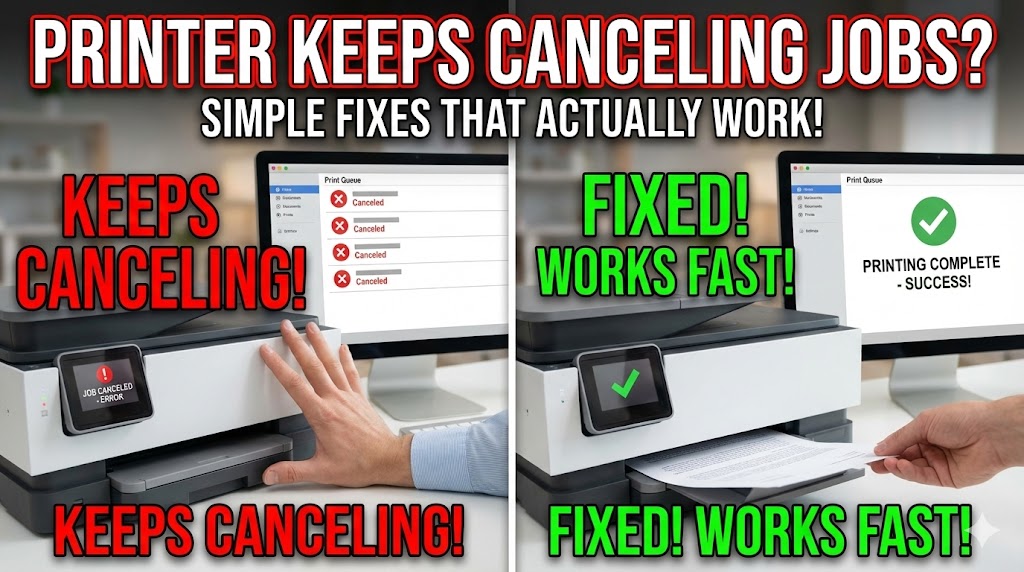
Does your printer keeps canceling jobs right when you need to print something important? You’re not alone in this frustrating battle. Thousands of users face the same annoying problem every day. Your document sits in the queue, starts printing, then suddenly disappears without explanation. This wastes time, paper, and your patience.
The good news? Most printer canceling print jobs issues have simple solutions. You don’t need to be a tech expert to fix these problems. In this guide, you’ll discover exactly why your printer keeps stopping your jobs and learn step-by-step fixes that actually work. Whether you’re dealing with a home printer or office equipment, these solutions will get you printing again fast.
Let’s dive into the real reasons behind these cancellations and fix your printer once and for all. No more mysterious errors or wasted time troubleshooting.
What Causes a Printer to Keep Canceling Jobs?
When your printer keeps canceling jobs, several issues could be at play. Understanding the root cause helps you fix the problem quickly instead of guessing randomly.
Communication problems between your computer and printer are the most common culprit. Your device sends print data through cables or wireless connections. If this connection drops or slows down, your printer gives up and cancels the job automatically.
Driver conflicts create another major issue. Your printer driver acts as a translator between your computer’s language and your printer’s language. When this translator malfunctions or becomes outdated, messages get confused. The printer receives garbled instructions and cancels the job for safety.
System resources matter too. Printing large files requires memory and processing power. If your computer runs too many programs simultaneously, it might not supply print data fast enough. The printer waits, times out, and cancels.
Print spooler problems cause chaos in your print queue. This Windows service manages all print jobs. When it crashes or gets corrupted, your printer canceling print jobs becomes a constant headache. The spooler fails to communicate properly with your printer, leading to automatic cancellations.
Hardware issues occasionally trigger cancellations. Low ink levels, paper jams, or sensor errors make your printer stop jobs to protect itself. These physical problems need attention before your printer will work reliably again.
8 Proven Solutions When Your Printer Keeps Canceling Jobs
Solution 1: Restart Your Print Spooler Service
The print spooler manages your print queue and communication with your printer. When it crashes, your printer keeps canceling jobs without warning. Restarting this service fixes most random cancellation problems instantly.
Press Windows Key + R to open the Run dialog. Type “services.msc” and hit Enter. Scroll down to find “Print Spooler” in the services list. Right-click on it and select “Restart.” Wait for the service to stop and start again.
If restarting doesn’t work, try clearing the spooler folder. Open File Explorer and navigate to C:\Windows\System32\spool\PRINTERS. Delete all files in this folder. These are stuck print jobs that might be causing conflicts.
After clearing the folder, restart the print spooler service again. This fresh start removes corrupted data and gives your printer a clean slate. Test your printer with a simple document to verify the fix worked.
Solution 2: Update Your Printer Drivers
Outdated drivers are a leading cause of printer canceling print jobs. Manufacturers release updates to fix bugs and improve compatibility. Your current driver might not work well with recent Windows updates.
Visit your printer manufacturer’s website directly. Look for the support or downloads section. Enter your exact printer model number to find the latest driver. Download the correct version for your operating system.
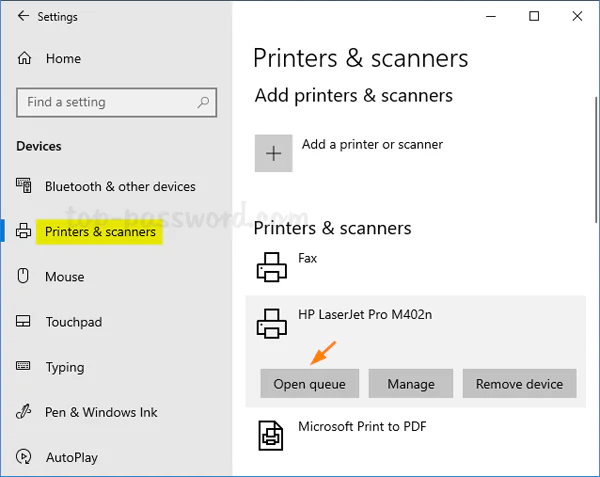
Before installing the new driver, uninstall your current one completely. Go to Settings > Devices > Printers & Scanners. Select your printer and click “Remove device.” Then go to Device Manager, find your printer under “Print queues,” right-click it, and select “Uninstall device.”
Install the fresh driver you downloaded. Restart your computer after installation completes. This clean installation eliminates conflicts from old driver files. Your printer should now process jobs without random cancellations.
Solution 3: Check Your USB Cable or Network Connection
Connection problems cause your printer keeps canceling jobs more often than you’d think. A loose USB cable or weak Wi-Fi signal interrupts data transfer. Your printer loses patience and cancels the job.
For USB printers, try a different cable first. Many USB cables look fine but have internal wire damage. Use a high-quality USB cable rated for data transfer, not just charging. Connect the cable directly to your computer, not through a USB hub.
Test different USB ports on your computer. Some ports provide more stable connections than others. Rear ports on desktop computers often work better than front panel ports.
For wireless printers, check your signal strength. Move your printer closer to your router for testing. Walls and electronic devices interfere with Wi-Fi signals. Even microwaves can disrupt printer communication when running.
Consider switching to a wired connection if possible. Ethernet cables provide rock-solid connections that eliminate wireless interference. This simple change might permanently solve your printer canceling print jobs problem.
Solution 4: Clear Your Print Queue Completely
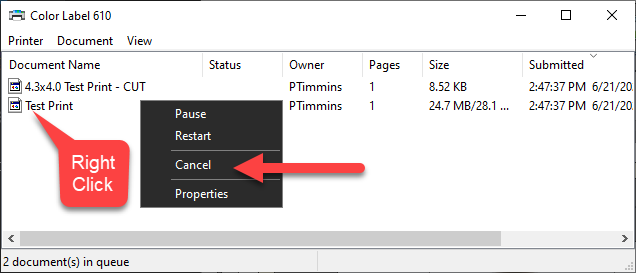
A corrupted job stuck in your print queue can block all future jobs. Your printer keeps canceling jobs because it can’t get past this stuck document. Clearing the entire queue removes these obstacles.
Open Control Panel and navigate to “Devices and Printers.” Right-click your printer and select “See what’s printing.” In the queue window, click “Printer” in the menu bar and select “Cancel All Documents.”
If documents won’t delete normally, stop the print spooler service first. Open Command Prompt as administrator. Type “net stop spooler” and press Enter. Then manually delete files from C:\Windows\System32\spool\PRINTERS folder. Finally, type “net start spooler” to restart the service.
This nuclear option clears everything and gives you a fresh start. Your next print job should process without interference from corrupted queue data.
Solution 5: Adjust Power Management Settings
Your computer might be putting your printer to sleep too aggressively. When your printer tries to wake up for a job, communication fails and the job gets canceled. Changing power settings prevents this issue.
Open Device Manager and find your printer under “Print queues” or “Universal Serial Bus controllers.” Right-click your printer and select “Properties.” Navigate to the “Power Management” tab.
Uncheck “Allow the computer to turn off this device to save power.” This keeps your printer always ready to receive jobs. Click “Apply” and “OK” to save changes.
For wireless printers, also check your Wi-Fi adapter settings. Find your network adapter in Device Manager, open Properties, and disable power saving for that device too. This ensures your wireless connection stays active.
These changes use slightly more power but eliminate connection-related cancellations. The trade-off is worth it for reliable printing.
Solution 6: Disable Bidirectional Support Temporarily
Bidirectional support allows your printer to send information back to your computer. While useful for monitoring ink levels and status, this feature sometimes causes communication conflicts that lead to cancellations.
Open “Devices and Printers” from Control Panel. Right-click your printer and select “Printer properties” (not just “Properties”). Click the “Ports” tab in the properties window.
Look for the checkbox labeled “Enable bidirectional support” and uncheck it. Click “Apply” and “OK.” This forces one-way communication from your computer to your printer.
Test printing after making this change. If your printer keeps canceling jobs stops happening, you’ve found your solution. You’ll lose automatic ink level monitoring, but you can check levels manually on your printer’s display.
If this fix works, your printer’s firmware might need updating. Check the manufacturer’s website for firmware updates that fix bidirectional communication bugs.
Solution 7: Increase Printer Timeout Settings
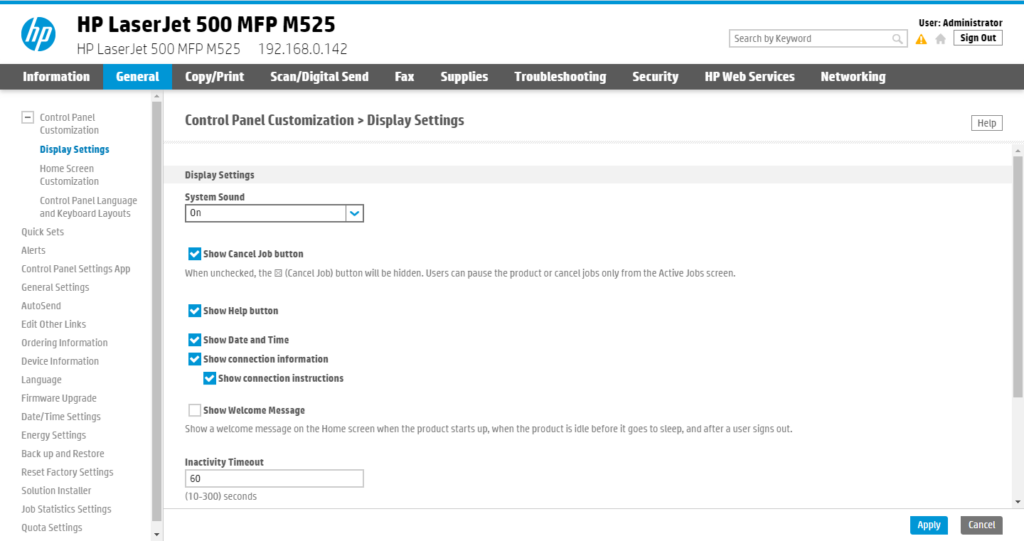
Your printer might be canceling jobs because it’s not receiving data fast enough. Timeout settings determine how long your printer waits before giving up. Increasing these values gives slow connections more time to work.
Open Registry Editor by pressing Windows Key + R, typing “regedit,” and pressing Enter. Navigate to HKEY_LOCAL_MACHINE\SYSTEM\CurrentControlSet\Control\Print. Look for “TransmissionRetryTimeout” value.
If you don’t see this value, create it. Right-click in the right pane, select “New” then “DWORD (32-bit) Value.” Name it “TransmissionRetryTimeout” and set its value to 900 (decimal). This gives your printer 900 seconds instead of the default 90.
Restart your computer after making registry changes. This modification helps with large files or slow network connections. Your printer will wait longer before deciding a job has failed.
Be careful when editing the registry. Make a backup first by clicking “File” and “Export” in Registry Editor. This lets you restore settings if something goes wrong.
Solution 8: Run Windows Printer Troubleshooter
Windows includes built-in diagnostics that automatically detect and fix common printer problems. This tool often catches issues you might miss manually.
Open Settings and go to “Update & Security.” Click “Troubleshoot” in the left sidebar, then “Additional troubleshooters.” Select “Printer” from the list and click “Run the troubleshooter.”
The tool scans your system for printer-related problems. It checks driver status, spooler service, connection issues, and more. Follow any recommendations the troubleshooter provides. It might reset services, fix registry entries, or update configurations automatically.
This solution works surprisingly well for mysterious problems. Let Windows handle the technical details while you wait for results. The troubleshooter often fixes issues in minutes that would take hours to diagnose manually.
Additional Tools and Software for Printer Management

Beyond basic fixes, specialized tools help prevent your printer keeps canceling jobs problems from returning. These utilities provide better control over your printing environment.
Print Management Console: Windows Pro versions include an advanced print management tool. Access it by typing “printmanagement.msc” in the Run dialog. This console lets you monitor all printers, manage drivers centrally, and deploy printer settings across multiple computers.
Manufacturer Utilities: Companies like HP, Epson, and Canon offer dedicated printer management software. HP Smart app, Epson Connect, and Canon Print Service provide diagnostic tools, automatic driver updates, and enhanced printer control. These free utilities often identify problems faster than generic Windows tools.
Driver Booster Software: Programs like Driver Booster or Snappy Driver Installer automatically find and install the latest printer drivers. They monitor for updates and notify you when new versions are available. This automation prevents outdated driver issues before they cause cancellations.
Network Monitoring Tools: For office environments with network printers, tools like PRTG Network Monitor or Spiceworks track printer connectivity and performance. They alert you to network issues before users experience problems.
Common Mistakes That Make Printer Cancellation Worse
Installing Multiple Drivers: Many people install drivers from different sources hoping one works. This creates conflicts that guarantee your printer canceling print jobs will continue. Always uninstall old drivers completely before installing new ones.
Ignoring Windows Updates: Skipping updates causes compatibility problems between your operating system and printer drivers. Microsoft releases patches that fix printing bugs. Keeping Windows updated prevents many cancellation issues.
Using Generic Drivers: The “Microsoft PS Class Driver” or generic options work in a pinch but lack features and stability. Always use manufacturer-specific drivers for reliable performance. Generic drivers often timeout or fail with complex print jobs.
Sharing USB Hubs: Connecting your printer through a USB hub creates data bottlenecks. Hubs split bandwidth between multiple devices, slowing printer communication. This leads to timeouts and cancellations. Connect printers directly to your computer’s USB ports.
Overloading the Print Queue: Sending dozens of jobs simultaneously overwhelms your print spooler. The service crashes under the load, canceling everything. Send print jobs in smaller batches, especially large documents or photos.
Forgetting Firmware Updates: Printer firmware updates fix bugs just like driver updates do. Check your manufacturer’s website quarterly for firmware updates. These updates often solve communication problems that cause job cancellations.
Weak Wireless Passwords: Insecure Wi-Fi networks get congested with unauthorized devices competing for bandwidth. This interference causes printer connection drops. Use strong WPA3 encryption and change your network password regularly.
Frequently Asked Questions
Why does my printer cancel jobs only for certain documents?
Large or complex documents require more processing power and memory. Your printer might cancel these jobs if they exceed its memory capacity or if your computer can’t send data fast enough. Try printing these documents at lower quality settings or splitting them into smaller sections. PDF files with many images often cause this problem. Converting to a simpler format sometimes helps.
Can antivirus software cause my printer to cancel jobs?
Yes, overly aggressive antivirus programs sometimes block printer communication thinking it’s suspicious activity. They might intercept data packets sent to your printer, causing timeouts. Add your printer’s IP address or printer software to your antivirus exception list. Many security suites have specific settings for allowing printer traffic through their firewall.
How do I know if my printer hardware is causing cancellations?
Check your printer’s display panel for error messages. Run a self-test print from your printer’s built-in menu without using your computer. If this test fails or shows errors, your printer has hardware issues. Low ink, paper sensor problems, or mechanical failures trigger cancellations. Most printers have diagnostic modes that print status reports showing hardware problems.
Will resetting my printer to factory settings fix cancellation problems?
Factory reset helps with firmware glitches and corrupted printer settings. However, it won’t fix computer-side issues like driver problems or spooler errors. Reset your printer only after trying software fixes. You’ll need to reconfigure network settings and preferences after a reset. Check your printer’s manual for specific reset instructions for your model.
Conclusion
Dealing with a printer keeps canceling jobs is frustrating, but now you have the knowledge to fix it. Most cancellation problems stem from driver issues, connection problems, or spooler errors. These solutions work for virtually any printer brand and model.
Start with simple fixes like restarting your print spooler and updating drivers. These solve most issues within minutes. If basic solutions don’t work, move to connection checks and timeout adjustments. One of these eight solutions will get your printer working reliably again.
Remember to maintain your printing system regularly. Update drivers quarterly, clear your print queue weekly, and monitor your network connection. Prevention saves you from future headaches. Your printer should serve you faithfully without mysterious cancellations interrupting your work. Take action today and enjoy stress-free printing tomorrow.
Fix Printer Printing with Color Cast: Quick Photo Workflow Solutions Read More.


