
Introduction
Seeing your printer in error state can ruin your day, especially when you need to print something urgent. The error appears out of nowhere. Your printer was working fine yesterday. Now it refuses to print anything.
Don’t panic. This is one of the most common printer problems. The good news? You can fix it yourself in most cases. No technician needed.
This guide walks you through every solution step by step. We start with the quickest fixes and move to advanced options. Most people solve their problem within the first three steps. By the end of this article, your printer will be working perfectly again.
What Does “Printer in Error State” Mean?
A printer in error state message means your computer can’t communicate properly with your printer. Something is blocking the connection or causing a malfunction. Your computer knows the printer exists but can’t use it.
This error has many possible causes. Hardware issues like paper jams or empty ink cartridges trigger it. Software problems like driver conflicts or corrupted settings cause it too. Sometimes it’s as simple as a loose cable or turned-off printer.
Windows shows this error in different ways. You might see “Printer in error state” in the devices menu. Sometimes it appears when you try to print. Other times, the printer icon has a warning symbol.
The error doesn’t mean your printer is broken. It just means something needs attention. Think of it like a “check engine” light in your car. It signals a problem but doesn’t tell you exactly what’s wrong.
Understanding this helps you stay calm and methodical. The solution is usually simpler than you think. Let’s start fixing it.
8 Proven Steps to Fix Printer in Error State
Step 1: Check Physical Connections and Power
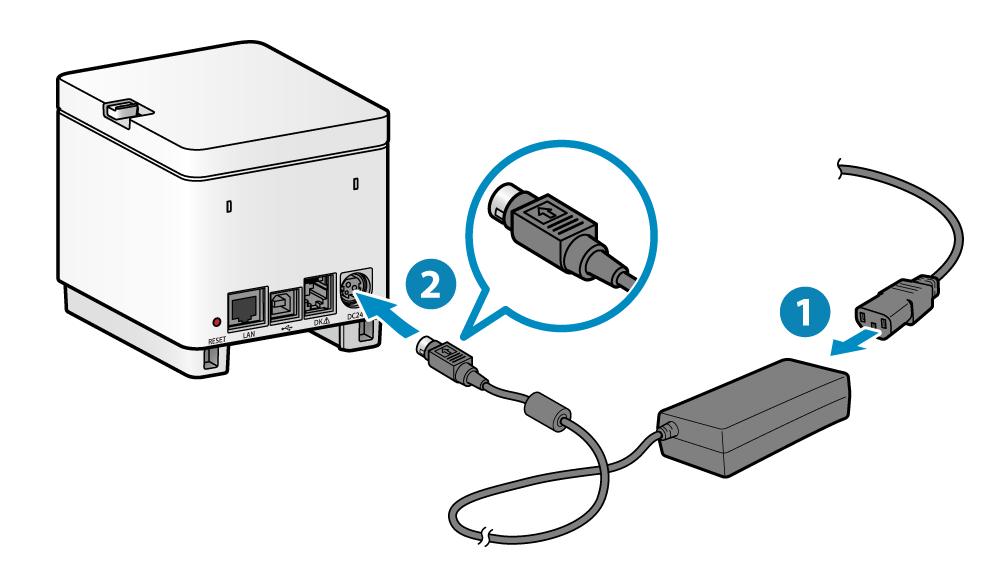
Start with the basics. Many printer error state issues come from simple physical problems.
What to check:
- Make sure the printer is turned on
- Look for the power light
- Check if the power cable is firmly plugged in
- Inspect the USB or network cable connection
- Try a different USB port if using wired connection
- Ensure the printer isn’t in sleep mode
Press the power button to wake the printer if it’s sleeping. Some printers go into deep sleep and need a full restart. Turn it off, wait 30 seconds, then turn it back on.
For wireless printers, check the WiFi connection. Look at the WiFi icon on the printer display. If it’s not connected, run the wireless setup again from the printer’s menu.
Loose cables cause countless error messages. Unplug and firmly reconnect both ends of your USB cable. For network printers, check the ethernet cable clicks securely into place.
Step 2: Clear Paper Jams and Check Paper Tray
Paper jams are the number one cause of printer in error state messages. Even small pieces of torn paper can trigger this error.
How to check thoroughly:
- Open all printer doors and trays
- Look inside with a flashlight
- Remove the paper tray completely
- Check the rear access panel
- Look under the ink cartridge area
- Remove any visible paper scraps
Don’t just glance inside. Really look carefully. Tiny paper bits hide in corners. They’re hard to see but cause major problems.
When removing jammed paper, pull gently in the direction it feeds. Never yank or pull backward. This can damage internal rollers and sensors.
After removing jams, check your paper quality. Cheap or damp paper causes frequent jams. Make sure paper is loaded correctly in the tray. It shouldn’t be overfilled or crooked.
Step 3: Check Ink or Toner Levels
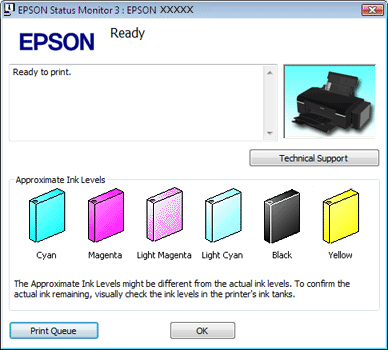
Low or empty cartridges trigger error states on many printers. The printer protects itself from damage by refusing to print.
Checking ink levels:
- Look at the printer’s display screen
- Check ink levels in printer software on your computer
- Open the cartridge access door and visually inspect
- Try printing a status page from the printer menu
Some printers show false low-ink warnings. If cartridges are actually full, remove and reinstall them. Make sure they click into place properly.
Clean the cartridge contacts if you see ink buildup. Use a lint-free cloth slightly dampened with distilled water. Let everything dry before reinstalling.
For refilled or third-party cartridges, the printer might show errors even when they’re full. This is a chip issue, not an actual problem. Some printers have a “continue” option to override these warnings.
Step 4: Restart Print Spooler Service
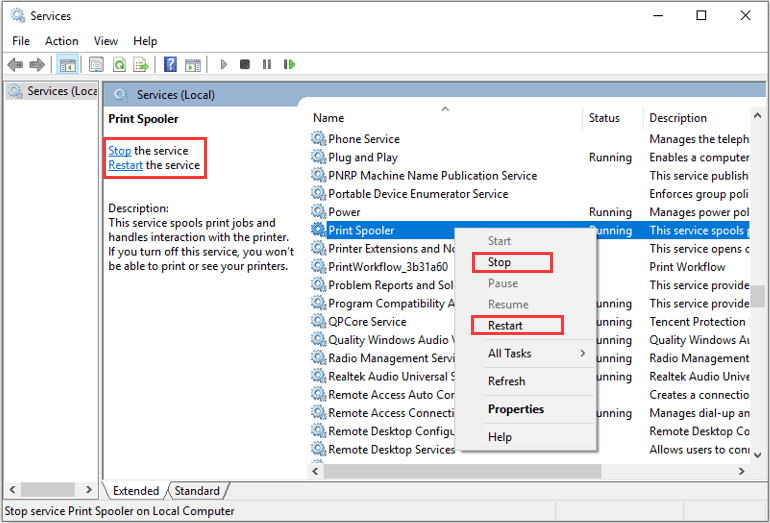
The print spooler manages all print jobs. When it crashes or freezes, you get a printer in error state message.
Restarting the spooler on Windows:
- Press Windows + R keys
- Type “services.msc” and press Enter
- Scroll down to “Print Spooler”
- Right-click and select “Restart”
- If that’s grayed out, click “Start”
- Close the window and try printing
For Mac users:
- Open System Preferences
- Click “Printers & Scanners”
- Select your printer
- Click the minus (-) button to remove it
- Click the plus (+) button to add it back
- Try printing a test page
This fix works surprisingly often. The spooler service handles communication between your computer and printer. Restarting it clears temporary glitches that cause error states.
Step 5: Set Your Printer as Default and Online
Sometimes Windows doesn’t recognize which printer to use. Or it thinks your printer is offline when it’s actually on.
Making your printer default:
- Open Control Panel
- Go to “Devices and Printers”
- Right-click your printer
- Select “Set as default printer”
- Look for a checkmark next to the printer name
Setting printer online:
- In “Devices and Printers,” right-click your printer
- Hover over “See what’s printing”
- Click “Printer” in the menu bar
- Uncheck “Use Printer Offline” if it’s selected
- Also uncheck “Pause Printing” if checked
The offline status causes many printer error state windows problems. Your printer works fine, but Windows thinks it’s disconnected. This simple setting change fixes it instantly.
Step 6: Update or Reinstall Printer Drivers

Outdated or corrupted drivers are major causes of printer errors. Your operating system updates might have broken compatibility with old drivers.
Updating drivers:
- Press Windows + X
- Select “Device Manager”
- Expand “Print queues” or “Printers”
- Right-click your printer
- Choose “Update driver”
- Select “Search automatically for drivers”
Windows will search for the latest driver. If it doesn’t find anything, visit the manufacturer’s website. HP, Canon, Epson, and Brother all have driver download sections.
Completely reinstalling drivers:
- In Device Manager, right-click your printer
- Select “Uninstall device”
- Check the box to delete driver software
- Restart your computer
- Reconnect your printer
- Let Windows install fresh drivers
This clean installation removes corrupted files that cause error states. Fresh drivers often solve persistent problems that other fixes can’t touch. You can find official drivers at Microsoft’s printer support page or your printer manufacturer’s website.
Step 7: Run Windows Printer Troubleshooter
Windows has a built-in tool specifically for fixing printer in error state problems. It automatically detects and fixes common issues.
Running the troubleshooter:
- Open Settings (Windows + I)
- Click “Update & Security”
- Select “Troubleshoot”
- Click “Additional troubleshooters”
- Select “Printer”
- Click “Run the troubleshooter”
The tool takes 2-5 minutes to complete. It checks printer connections, driver issues, spooler problems, and settings. Follow any recommendations it provides.
The troubleshooter often finds problems you wouldn’t think to check. It can reset settings, clear queues, and restart services automatically. Let it finish completely before trying other solutions.
If the troubleshooter fixes something, test print immediately. Don’t assume it worked without verification. Print a test page to confirm the error is actually gone.
Step 8: Check Firewall and Antivirus Settings
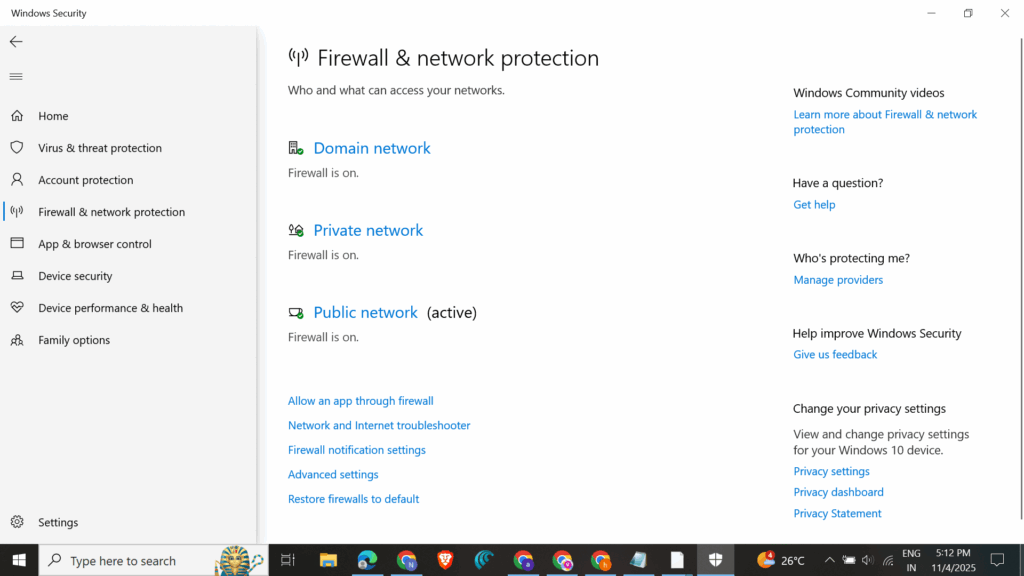
Security software sometimes blocks printer communications. This creates printer showing error state messages even when everything else is correct.
Checking firewall settings:
- Open Windows Security
- Click “Firewall & network protection”
- Select “Allow an app through firewall”
- Look for your printer software
- Make sure both “Private” and “Public” are checked
- If not listed, click “Change settings” then “Allow another app”
Antivirus exceptions:
- Open your antivirus program
- Find settings or options
- Look for “Exclusions” or “Exceptions”
- Add your printer’s IP address or software folder
- Save changes and restart the printer
Network printers especially suffer from firewall blocks. Your computer can’t reach the printer across the network because security software stops the traffic.
Temporarily disable your firewall and antivirus to test. If printing works with them off, you know they’re the problem. Then create proper exceptions instead of leaving security disabled.
Additional Tools and Advanced Solutions
Printer Troubleshooting Apps from manufacturers help diagnose specific issues. HP Print and Scan Doctor is excellent for HP printers. Canon, Epson, and Brother offer similar utilities.
These tools run deep diagnostics. They check hardware status, network connectivity, driver integrity, and settings. Download them from the manufacturer’s support website.
Registry fixes sometimes help with persistent errors. Be careful here. Wrong registry changes can damage Windows. Always backup before making changes.
Reset printer to factory settings if nothing else works. This erases all custom settings and returns the printer to its original state. Check your printer manual for reset instructions.
Firmware updates can fix bugs causing error states. Check the manufacturer’s website for your printer model. Download and install the latest firmware following their instructions carefully.
Network printer tools help troubleshoot wireless connection issues. Programs like Angry IP Scanner show all devices on your network. This helps confirm your printer is actually connected.
For persistent problems, consider creating a new user account on Windows. Sometimes user profiles get corrupted. A fresh account with default settings can bypass profile-specific issues.
Common Mistakes When Fixing Printer in Error State
Mistake 1: Not Restarting Devices
People skip the simplest fix. Always restart both your computer and printer before trying complex solutions. This clears temporary glitches that cause 50% of error states.
Mistake 2: Ignoring Error Codes
Some printers display specific error codes along with the error state message. Write these down. Search online for the exact code. It leads to targeted solutions instead of guessing.
Mistake 3: Using Wrong Drivers
Windows generic drivers don’t work well with all printers. Always use the manufacturer’s official driver for your exact model number. Check the model number on the printer, not just the series name.
Mistake 4: Forgetting to Check Cables
Everyone assumes cables are fine. But they loosen over time. USB cables especially wear out internally. Try a different cable if you’ve had yours for years.
Mistake 5: Not Clearing Print Queue
Old stuck print jobs block new ones. This causes error states even after fixing the original problem. Always clear the entire print queue before testing fixes.
Mistake 6: Skipping Windows Updates
Windows updates include printer compatibility fixes. An outdated system might lack necessary patches. Update Windows fully before assuming the printer is the problem.
Mistake 7: Mixing Fix Attempts
People try multiple fixes simultaneously. This makes it impossible to know what actually worked. Do one fix at a time. Test after each one. This also helps prevent creating new problems.
Troubleshooting Specific Printer in Error State Scenarios
Wireless Printer Error State
Wireless connectivity adds complexity. Check that your router is working properly. Verify the printer shows connected to your WiFi network. Try moving the printer closer to the router.
Reset the wireless connection on the printer. Run the WiFi setup wizard again. Make sure you’re entering the correct network password. Case matters for passwords.
Network Printer Error State
Check that your computer and printer are on the same network. Corporate networks sometimes separate devices for security. Contact IT if you’re in an office environment.
Verify the printer’s IP address hasn’t changed. Network printers need static IPs or DHCP reservations. If the IP changed, remove and re-add the printer with the new address.
USB Printer Error State
Try different USB ports on your computer. Front USB ports sometimes provide less power than rear ports. The printer might not function properly with insufficient power.
Update your USB drivers in Device Manager. Old USB drivers cause communication problems. Let Windows search for and install the latest versions.
Error State After Windows Update
Windows updates occasionally break printer drivers. Roll back the update if possible. Or wait for a patch. Check the manufacturer’s website for updated drivers compatible with the new Windows version.
Frequently Asked Questions About Printer in Error State
Q: Why does my printer keep going into error state?
Recurring error states usually mean a hardware problem. Check for paper feed issues, dirty sensors, or failing components. It could also be a driver conflict that needs a clean reinstall. If it happens only after long idle periods, the printer might be entering deep sleep incorrectly.
Q: Can I fix printer in error state without restarting my computer?
Yes, often you can. Restart just the printer and print spooler service first. This works for most cases. Only restart your computer if simpler fixes don’t work. However, restarting both ensures a clean state for testing.
Q: How do I clear printer error state on Windows 10?
The printer error state fix process is the same for Windows 10, 11, and earlier versions. Start with checking connections, then restart the spooler, set the printer online, and update drivers. The steps in this guide work for all Windows versions.
Q: Does printer in error state mean it’s broken?
No, rarely. This error almost always comes from software, settings, or temporary issues. Actual hardware failure is uncommon. Follow the troubleshooting steps before assuming physical damage. Most people fix it without any repairs.
Q: Why does my printer show error state but prints anyway?
This happens when the error clears itself but Windows doesn’t update the status. Cancel any stuck print jobs. Restart the spooler service. The status should refresh and show correctly. It’s a display glitch, not a real problem.
Q: Can outdated Windows cause printer error state?
Yes. Windows updates include printer support fixes and security patches. An outdated system might lack drivers or patches your printer needs. Always update Windows before troubleshooting printer issues.
Conclusion
Fixing a printer in error state is usually straightforward. Most problems come from simple issues like loose cables, paper jams, or paused print queues. The complex-sounding error message doesn’t mean a complex problem.
Start with the basic fixes. Check connections, clear jams, and restart the spooler. These solve the majority of cases in under five minutes. Only move to driver updates and advanced troubleshooting if simple steps fail.
Remember to work through solutions one at a time. Test after each fix. This helps you understand what actually solved the problem. It also prevents you from making unnecessary changes that might create new issues.
Save this guide for future reference. Printer in error state problems happen to everyone eventually. With these steps, you’ll fix it quickly every time. No more frustration, no expensive repair calls. Just working prints whenever you need them.
VPN for Printer Setup: Secure Your Network Printing in Minutes (2025 Guide) Read More


