
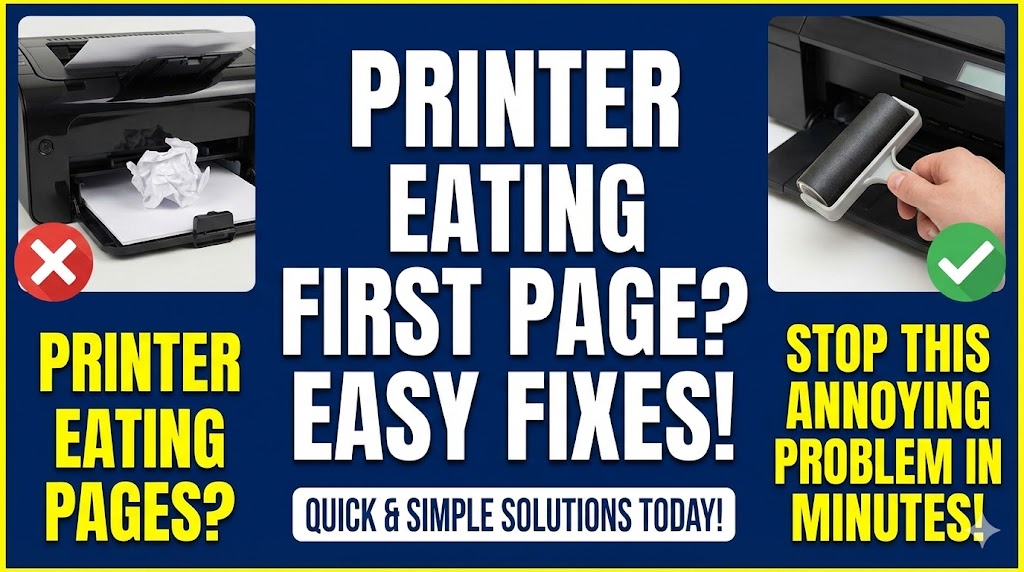
Does your printer eats first page every single time you try to print? This frustrating problem ruins documents and wastes paper constantly. You hit print, hear the rollers engage, and then chaos. Your first page crumples, jams, or disappears into your printer’s depths. Meanwhile, subsequent pages print perfectly fine.
This issue isn’t random bad luck. Specific mechanical problems cause your printer eating paper on that critical first sheet. The good news? You can fix most of these issues yourself in just minutes. No expensive repairs or technician visits needed.
In this guide, you’ll discover exactly why printers develop this annoying habit. You’ll learn seven proven solutions that stop the problem permanently. Whether you own an HP, Canon, Epson, or Brother printer, these fixes work across all brands. Let’s end this paper-eating nightmare once and for all.
What Causes a Printer to Eat the First Page?
When your printer eats first page repeatedly, mechanical feed issues are usually to blame. Your printer uses rubber rollers to grab and pull paper through the print path. These rollers wear down over time, becoming smooth and slippery. The first page suffers most because the rollers need grip to start the feeding process.
Dirt and paper dust accumulate on these rollers too. Every sheet that passes through leaves microscopic paper fibers behind. After printing hundreds of pages, these deposits create a slippery coating. Your rollers can’t grab the first sheet properly, causing it to skew, wrinkle, or jam.
Paper alignment problems contribute to printer feeding problems significantly. If paper sits crooked in the tray, the printer grabs it at an angle. This misalignment causes the sheet to crumple as it enters the feed mechanism. The first page bears the brunt because there’s no momentum from previous sheets.
Sensor malfunctions confuse your printer about paper position. Modern printers use tiny sensors to detect paper location and size. When these sensors get dirty or misaligned, your printer miscalculates where the page is. It tries to grab paper that’s slightly off-center, resulting in jams.
Paper quality and condition matter more than most people realize. Cheap paper, humid paper, or sheets with bent corners feed poorly. The first page often has the worst corner damage from handling. This damaged edge catches inside your printer instead of feeding smoothly.
7 Solutions to Stop Your Printer Eating Paper
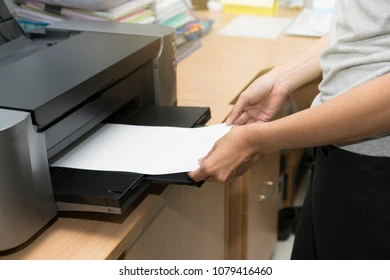
Solution 1: Clean Your Printer Rollers Thoroughly
Dirty rollers are the number one cause of printer eats first page problems. Cleaning them takes five minutes and fixes most feeding issues immediately. You need distilled water, lint-free cloths, and isopropyl alcohol.
Turn off and unplug your printer first for safety. Open all access doors and locate the rubber rollers. You’ll see several cylindrical rubber pieces near the paper tray area. These are your feed rollers that need cleaning.
Dampen your lint-free cloth with distilled water. Wipe each roller firmly while rotating it with your other hand. You’ll see black residue coming off. This is paper dust and debris causing your feeding problems.
For stubborn buildup, use isopropyl alcohol on your cloth. Alcohol dissolves sticky residue that water can’t remove. Rotate each roller completely to clean its entire surface. Let rollers dry for ten minutes before testing.
After cleaning, run three blank test pages through. The first might still jam as remaining debris clears out. By the third page, your printer should feed perfectly. Repeat this cleaning monthly for best results.
Solution 2: Replace Worn Pickup Rollers
Even with cleaning, old rollers eventually lose their grip. Rubber degrades over time, becoming hard and slippery. If your printer has printed thousands of pages, worn rollers likely cause your printer eating paper issue.
Check your roller condition by feeling the rubber. Fresh rollers feel slightly tacky and soft. Worn rollers feel smooth, hard, or even glazed. This hardening means they can’t grip paper effectively anymore.
Replacement rollers cost between $10-30 depending on your printer model. Order genuine manufacturer parts for best results. Generic rollers sometimes use inferior rubber that wears out quickly.
Installing new rollers is usually simple. Most printers allow roller replacement without tools. Check YouTube for your specific printer model. Video guides show exact replacement steps for your device.
After installing new rollers, your printer feeding problems should vanish completely. New rollers provide excellent grip that prevents first-page jams. Many users report years of perfect operation after this simple fix.
Solution 3: Adjust Paper Tray Guides Properly
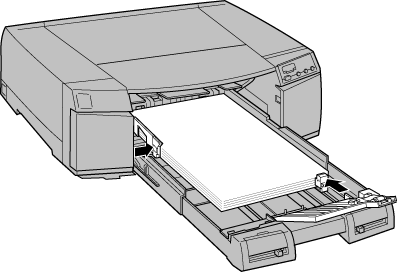
Incorrect paper guide positioning causes endless feeding problems. Those adjustable plastic guides on your paper tray aren’t decorative. They must sit snug against your paper stack without being too tight.
Remove all paper from your tray first. Examine the guide rails on both sides. They should move smoothly without sticking. Clean any debris from the guide tracks.
Place your paper stack back in the tray. Adjust the side guides until they just touch the paper edges. You want firm contact but not so tight that the guides bend the paper. Paper should sit flat and straight.
Check the length guide at the back of the tray too. This guide often gets overlooked but it’s equally important. It should rest gently against the paper’s trailing edge without pushing the stack forward.
Test your adjustments with a single sheet first. If it feeds perfectly, add more paper. Proper guide adjustment prevents the skewing that makes your printer eats first page repeatedly.
Solution 4: Fan Your Paper Stack Before Loading
This simple trick solves many feeding issues instantly. Paper sheets stick together from static electricity and atmospheric pressure. The first sheet can’t separate cleanly from the second, causing double feeds or crumpling.
Remove your paper stack from the tray. Hold it firmly and bend it slightly to create an arc. Release and let the sheets spring back. This flexing separates the sheets slightly.
Next, hold the stack vertically and tap the bottom edge on your desk. This aligns all sheets perfectly. Then fan through the stack like a deck of cards. This creates tiny air gaps between sheets.
Load the fanned paper immediately before sheets settle together again. The air gaps help your printer grab just one sheet cleanly. This prevents the grabbing issues that cause printer feeding problems.
Repeat this fanning process each time you refill your paper tray. It takes ten seconds but prevents countless jams. Many professional print shops use this technique for reliable feeding.
Solution 5: Check and Clean Paper Sensors
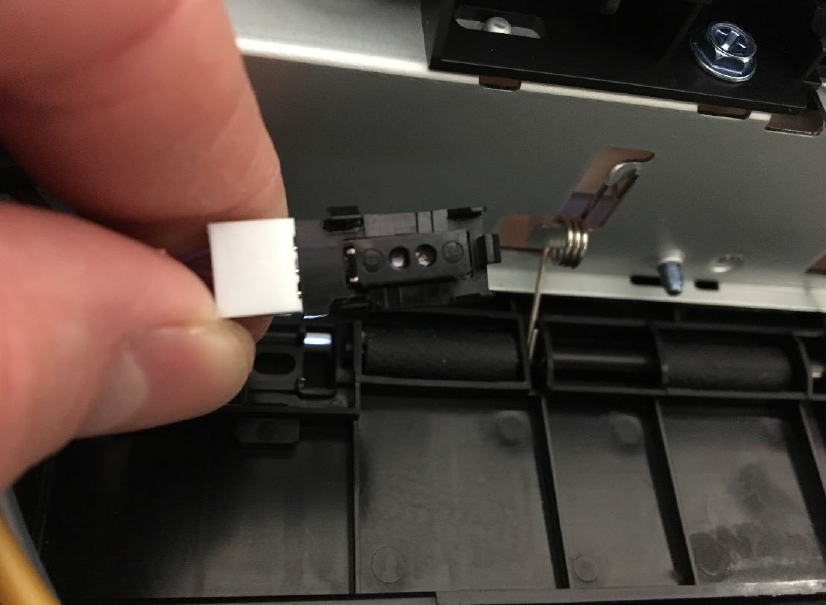
Paper sensors tell your printer where paper is located. Dirty sensors give false readings that cause feeding errors. Your printer thinks paper is in a different position than it actually is.
Locate your printer’s paper sensors by checking your manual. These are usually small plastic tabs or optical sensors near the paper path. They often sit at the tray entrance and along the feed path.
Use compressed air to blow dust away from sensor areas. Don’t touch sensors directly as they’re delicate. A few short bursts of air usually clears accumulated dust.
For optical sensors that use light beams, wipe the sensor windows gently. Use a cotton swab slightly dampened with isopropyl alcohol. Clean both the emitter and receiver sides of optical sensors.
After cleaning sensors, run your printer’s alignment routine from the maintenance menu. This recalibrates sensor readings. Many users find their printer eats first page problem disappears after sensor cleaning.
Solution 6: Use Better Quality Paper
Cheap paper causes more feeding problems than most people realize. Low-quality paper has inconsistent thickness, rough edges, and excessive dust. These factors combine to create the perfect jam conditions.
Check your paper weight specifications. Most printers work best with 20-24 lb (75-90 gsm) paper. Lighter paper flutters and jams easily. Heavier paper might exceed your printer’s feed capacity.
Store paper in a cool, dry place. Humidity makes paper swell and stick together. This moisture causes terrible feeding problems. Keep unopened reams sealed until needed.
Avoid using paper with bent corners or damaged edges. That damaged first sheet in your stack will jam almost guaranteed. Remove and recycle damaged sheets instead of loading them.
Brand-name papers like HP, Hammermeier, or Georgia-Pacific feed more reliably than generic options. The price difference is small but the feeding reliability difference is huge.
Solution 7: Reset Your Printer’s Paper Settings
Sometimes your printer’s internal settings don’t match your actual paper. This mismatch confuses the feeding mechanism. The printer applies wrong feeding pressure or speed, causing jams.
Access your printer’s control panel or settings menu. Navigate to paper settings or tray configuration. Verify that the selected paper size matches what’s actually loaded.
Check the paper type setting too. Options usually include plain, photo, cardstock, or envelope. Make sure “plain” is selected for regular paper. Wrong type settings adjust roller pressure incorrectly.
Many printers have a “reset paper settings” option in maintenance menus. Use this to return all paper settings to factory defaults. Then reconfigure settings to match your actual paper.
After resetting, print a configuration page to verify settings saved correctly. This page shows current paper size, type, and tray configurations. Confirm everything matches your loaded paper.
Advanced Tools for Printer Maintenance

Roller Rejuvenator Solutions: Products like Platen Cleaner or Rubber Rejuvenator restore grip to aging rollers. These solutions soften hardened rubber temporarily. They’re not permanent fixes but they extend roller life between replacements.
Paper Humidity Meters: These inexpensive tools measure paper moisture content. Ideal paper moisture sits between 4-6%. Higher moisture causes feeding problems. Store paper with humidity-absorbing silica packets if you live in humid climates.
Printer Maintenance Kits: Manufacturers sell maintenance kits containing replacement rollers, cleaning cloths, and tools. HP, Canon, and Epson kits provide everything needed for complete feeding system restoration. These kits cost $40-80 but include multiple wear parts.
Calibration Software: Some printers offer calibration utilities that adjust sensor sensitivity. Download these from your manufacturer’s support website. Running calibration often fixes mysterious feeding problems without physical repairs.
Common Mistakes That Make Paper Feeding Worse
Overfilling Paper Trays: Loading paper above the maximum line stresses feed mechanisms. The weight compresses the bottom sheets excessively. Your printer can’t grab the first page cleanly. Never exceed your tray’s capacity markings.
Mixing Paper Types: Combining different paper weights or brands in one tray causes inconsistent feeding. Each paper type feeds slightly differently. Stick to one paper type per tray for reliable operation.
Ignoring Jam Fragments: Small paper pieces left inside after clearing jams cause new jams. These fragments interfere with sensors and rollers. Always check thoroughly for leftover paper scraps after clearing any jam.
Using Dusty or Old Paper: Paper sitting unused for years accumulates dust and loses moisture unevenly. The edges dry out and curl. This old paper feeds terribly. Use fresh paper stored properly for best results.
Forcing Jammed Paper: Yanking jammed paper damages delicate feed mechanisms. Sensors bend, roller mounts crack, and alignment shifts. Always remove jammed paper gently following your printer’s recommended direction.
Skipping Regular Maintenance: Waiting until problems occur before cleaning means damage already happened. Regular monthly cleaning prevents issues before they start. Prevention is easier than fixing established problems.
Mixing Manufacturer and Generic Parts: Generic rollers might not match exact specifications. Slight size differences cause feeding problems. Using genuine parts ensures proper fit and performance.
Frequently Asked Questions
Why does only the first page jam while others print fine?
The first page requires maximum roller grip to overcome static friction and start movement. Worn or dirty rollers can’t provide this initial grab force. Once motion starts, momentum helps subsequent pages feed more easily. This is why your printer eats first page but handles later pages perfectly. Clean or replace rollers to restore that critical initial grip.
How often should I replace my printer’s pickup rollers?
Replace pickup rollers every 50,000-100,000 pages depending on your printer model. Home users typically reach this after 3-5 years. Heavy office use might require annual replacement. If cleaning doesn’t fix feeding problems, assume rollers need replacement. Check your printer’s page counter in the settings menu to track usage.
Can I use household cleaners on printer rollers?
Never use household cleaners, oils, or solvents on printer rollers. These products damage rubber and leave residue that attracts more dust. Use only distilled water and isopropyl alcohol. Distilled water prevents mineral deposits. Isopropyl alcohol evaporates cleanly without residue. These are the only safe cleaning agents for printer rollers.
Will switching to heavier paper solve feeding problems?
Heavier paper sometimes compensates for weak rollers temporarily but doesn’t fix the underlying problem. While heavier stock gives rollers more to grab, it also requires more feeding force. If your rollers are worn, heavy paper might actually make problems worse. Fix the root cause by cleaning or replacing rollers rather than compensating with different paper.
Conclusion
Fixing your printer eats first page problem is easier than you thought. Most cases need simple roller cleaning or proper paper loading techniques. These solutions cost nothing and take just minutes. Even replacing worn rollers is inexpensive and straightforward.
Start with the easiest fixes first: clean your rollers, fan your paper, and adjust tray guides properly. These three steps solve most printer feeding problems immediately. If issues persist, move on to roller replacement or sensor cleaning.
Regular maintenance prevents these frustrating jams from developing. Clean rollers monthly, use quality paper, and store paper properly. Your printer will reward you with years of reliable, jam-free operation. No more wasted first pages or interrupted print jobs. Take action today using these proven solutions and enjoy smooth printing every single time.
10-Second Printer Reset: Magic Fix for Stubborn Printer Errors Fast Read More.


