
Introduction
Setting up printer access control small office networks need doesn’t have to be complicated or expensive. If you’re running a small business and worried about who can print what, when, and how much, you’re in the right place.
Without proper printer access control small office environments face real problems. Employees accidentally printing confidential documents to the wrong printer. Excessive personal printing driving up costs. Sensitive client information sitting in the output tray for anyone to see. These aren’t just inconveniences—they’re security risks and budget drains.
The good news? You don’t need enterprise-level IT expertise or thousands of dollars in software to implement effective printer access control small office setups can rely on. With the right approach and about an hour of setup time, you can secure your printers, track usage, and ensure only authorized people print sensitive documents.
I’ll walk you through everything from basic Windows permissions to advanced tracking solutions, all designed specifically for small offices with 5-50 employees and limited IT resources.
What Is Printer Access Control in Small Office Settings?
Printer access control small office systems use is essentially a way to manage who can use your printers, what they can print, and how you track printing activities across your office network.
Think of it like having different keys for different rooms in your building. Not everyone needs access to every printer, and some printers (especially those handling confidential documents) should only be available to specific people or departments.
Core components of printer access control:
User authentication—verifying who’s printing before allowing the job. Permission levels—deciding which users can access which printers. Print tracking—monitoring what’s being printed, by whom, and when. Quota management—setting limits on how much people can print. Secure release—requiring users to authenticate at the printer before documents print.
For small offices, printer access control small office teams implement typically focuses on three main goals:
Security: Preventing unauthorized access to sensitive documents and ensuring confidential information doesn’t end up in the wrong hands.
Cost control: Reducing waste from excessive personal printing, accidental duplicate jobs, and unnecessary color printing.
Accountability: Knowing who printed what so you can address issues and allocate costs accurately to departments or clients.
According to Microsoft’s security documentation, proper access control is essential for protecting sensitive business information in networked environments.
Unlike large enterprises with dedicated IT teams, small offices need printer access control solutions that are simple to set up, affordable, and don’t require constant maintenance.
8 Steps to Set Up Printer Access Control Small Office Networks Need
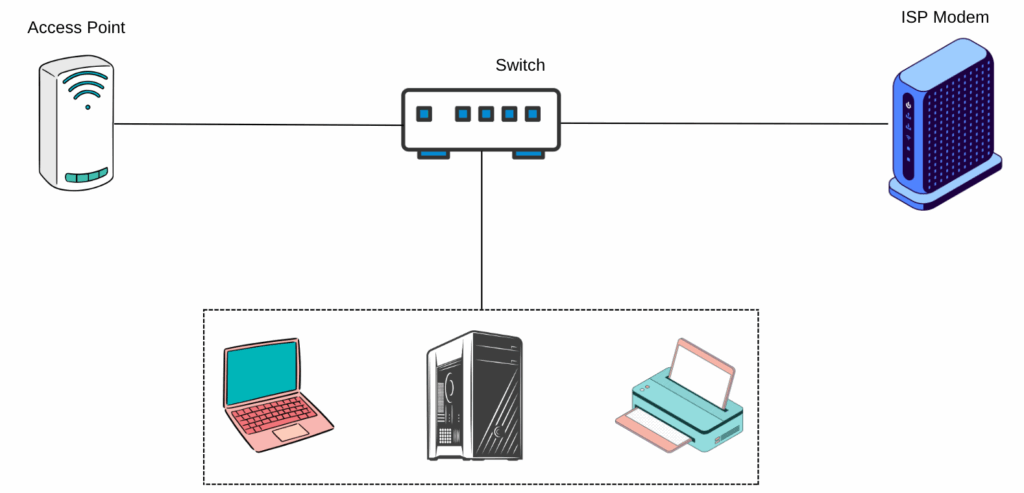
Let me walk you through implementing printer access control small office environments can maintain easily. These steps build on each other, so start from the beginning.
Step 1: Assess Your Current Printer Setup and Security Needs
Before changing anything, understand what you’re working with and what you actually need.
Document your current situation:
How many printers do you have and where are they located? Who currently has access to each printer? What types of documents get printed (financial, client data, general office)? Are there any printers handling particularly sensitive information? What’s your monthly printing volume and cost?
Identify your priorities:
Do you need to prevent unauthorized access to specific printers? Is cost control your main concern? Are you handling regulated information (healthcare, legal, financial)? Do you need audit trails for compliance?
This assessment takes about 30 minutes but saves you from implementing printer access control small office setups don’t actually need. You might discover you only need tight controls on one printer, not all of them.
Step 2: Create a Printer Access Policy Document
This sounds formal, but it’s just writing down the rules everyone should follow.
Your policy should cover:
Which printers are available to all staff versus restricted. What types of documents require secure printing. Whether personal printing is allowed and any associated limits. Who approves printer access for new employees. How to request access to restricted printers.
Keep it simple. One page is plenty for most small offices. The goal is clarity so everyone knows the expectations around printer access control small office teams have implemented.
Example policy snippet:
“The color laser printer in the accounting office is restricted to accounting staff only for printing client reports and financial documents. All other staff should use the general office printer in the break room. Personal printing is limited to 20 pages per month per employee.”
Step 3: Configure Windows User Groups for Printer Access
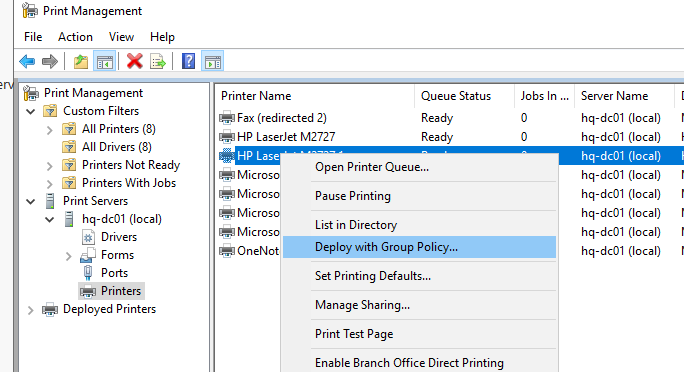
Windows lets you create user groups to manage printer access control small office needs efficiently without setting permissions individually for every person.
On your Windows Server or the computer hosting shared printers:
Open Computer Management (right-click “This PC” and select “Manage”). Navigate to “Local Users and Groups” > “Groups”. Create new groups like “Accounting Printers,” “General Office Printers,” “Management Printers.” Add relevant user accounts to each group.
If you don’t have a server:
You can still create groups on the computer that’s sharing printers. The process is identical. Just remember that if this computer goes offline, printing stops.
Why use groups for printer access control small office setups?
When you hire someone new, just add them to the appropriate group. They automatically get access to the right printers. When someone leaves or changes roles, remove them from one group and add to another. No need to adjust individual printer permissions repeatedly.
Step 4: Set Up Printer Permissions Using Security Groups
Now connect those groups to actual printers with proper printer access control small office security requires.
On the computer hosting the shared printer:
Go to Settings > Devices > Printers & scanners. Right-click your printer and select “Printer properties”. Click the “Security” tab. Remove “Everyone” if it’s listed (this gives unrestricted access). Click “Add” and enter the group names you created. For each group, set appropriate permissions:
Print permission: For regular users who just need to print. Manage printer permission: For IT staff who configure settings. Manage documents permission: For supervisors who can delete others’ print jobs.
For a restricted accounting printer, you’d only add the “Accounting Printers” group with Print permission. For the general office printer, add “General Office Printers” with Print permission.
This granular control is the foundation of effective printer access control small office environments depend on.
Step 5: Enable Printer Auditing for Activity Tracking
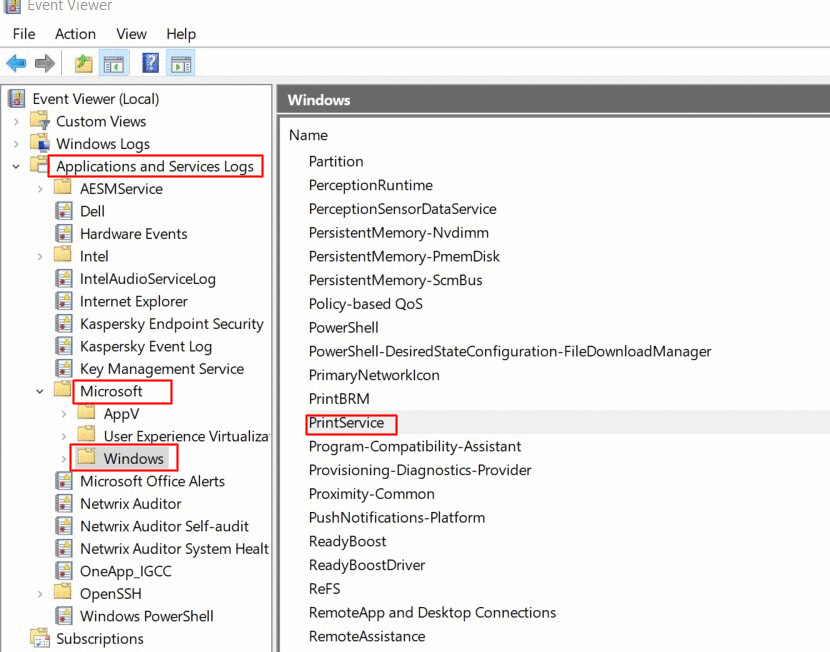
Tracking who prints what is crucial for both security and cost management in printer access control small office systems.
Enable audit logging:
In Printer Properties, go to the “Security” tab. Click “Advanced” at the bottom. Select the “Auditing” tab. Click “Add” then “Select a principal”. Type “Everyone” and click “OK”. Check “Success” and “Fail” for both “Print” and “Manage documents”. Apply the changes.
View the audit logs:
Open Event Viewer (type “eventvwr” in the Windows search). Navigate to Windows Logs > Security. Look for Event ID 4624 (successful prints) and 4625 (failed attempts).
Be warned—these logs get technical quickly. For easier printer access control small office tracking, consider the software solutions I’ll cover in Step 7.
Step 6: Implement Secure Print Release
Secure print release prevents sensitive documents from sitting in the output tray. Users must authenticate at the printer before their job prints.
For printers with built-in secure print:
Many modern business printers (HP, Canon, Xerox) have secure print features. In the printer driver settings on each computer, enable “Secure Print” or “PIN printing”. Users enter a 4-digit PIN when printing. The job waits in the printer’s memory. At the printer, they enter their PIN on the control panel to release it.
This simple addition dramatically improves printer access control small office security because confidential documents don’t sit exposed.
For printers without built-in features:
Third-party print management software (discussed in Step 7) adds secure release functionality to any printer.
Step 7: Install Print Management Software for Advanced Control
Free Windows tools work for basic printer access control small office setups, but dedicated software makes everything easier.
Free/built-in options:
Windows Print Management console (printmanagement.msc)—tracks jobs, manages multiple printers centrally. Printer vendor software—HP, Canon, Epson offer free management tools for their printers. Windows Server Print Services—if you have a server, this adds powerful controls.
Affordable paid options for small offices:
PaperCut MF ($5-10 per user)—tracks printing, sets quotas, requires authentication, shows exactly who prints what. Great for cost control.
PrinterLogic (pricing varies)—eliminates print servers, simplifies deployment, adds secure release to any printer.
ThinPrint (subscription-based)—excellent for remote workers, compresses print jobs, includes security features.
For most small offices implementing printer access control, PaperCut MF offers the best balance of features, ease of use, and affordability. The free version supports up to 40 users and includes basic tracking.
Step 8: Train Your Team and Monitor Usage
The best printer access control small office systems fail if nobody understands them.
Host a 15-minute training session covering:
How to print to different printers based on their role. How secure print release works if you implemented it. The new printing policy and why it matters. Who to contact if they need access to a restricted printer. Any quota limits and what happens if they exceed them.
Send a follow-up email with simple instructions and screenshots. Make someone (office manager, IT person, or yourself) the go-to for printer access questions.
Monitor for the first month:
Check audit logs or your print management software weekly. Look for access attempts to restricted printers by unauthorized users. Review printing volumes—are quotas set appropriately? Ask for feedback from staff about any issues.
Adjust your printer access control small office setup based on real usage patterns, not just what you thought would work.
Essential Tools for Managing Printer Access Control Small Office Setups

Beyond basic Windows settings, these tools make printer access control small office teams implement more effective and easier to maintain.
Print Management Console (Windows built-in):
Access it by typing “printmanagement.msc” in the Run dialog (Windows + R). This gives you a centralized view of all network printers, their status, queued jobs, and basic permissions. You can deploy printers to multiple computers at once and manage driver updates centrally. It’s free and incredibly useful for printer access control small office networks with multiple printers.
Active Directory (if you have Windows Server):
AD lets you manage users and groups more powerfully than local accounts. Create organizational units (OUs) for departments, apply Group Policy for printer deployments, and control printer access control small office environments need through centralized security policies. Overkill for tiny offices but perfect for 20+ employees.
Print server (physical or virtual):
A dedicated computer (or virtual machine) that handles all print jobs. This centralizes printer access control small office administration, improves reliability (printers work even if user computers are off), and provides better logging and monitoring. An old desktop PC running Windows works fine for small offices.
Mobile printing solutions:
Tools like Google Cloud Print (being replaced by manufacturer solutions), HP Smart, Canon PRINT, or Mopria enable smartphone printing. Make sure your printer access control small office setup includes these if employees print from mobile devices. Most print management software includes mobile printing with authentication built in.
Badge readers for printer authentication:
Physical badge readers at printers (~$100-300 each) let employees tap their ID badge to release print jobs. Much more convenient than entering PINs and provides stronger printer access control small office security. Works best when integrated with software like PaperCut.
Common Mistakes When Setting Up Printer Access Control
I’ve seen these mistakes repeatedly when helping small businesses implement printer access control small office systems. Avoid them to save time and frustration.
Mistake 1: Making it too complicated
Small offices don’t need enterprise-level security. Overly complex printer access control small office setups frustrate employees and create support headaches. Start simple—maybe just restrict one or two sensitive printers initially. You can always add more controls later.
Mistake 2: Not testing before rollout
Always test your printer access control small office configuration with a few users before deploying company-wide. Make sure people can actually print what they need to print. I’ve seen rollouts where accounting suddenly couldn’t print invoices because someone misconfigured permissions.
Mistake 3: Forgetting about guests and temporary workers
Your printer access control small office policy should address how visitors, contractors, and temps print. Create a “Guest Printing” group with access to one non-sensitive printer, or require they email documents to staff for printing.
Mistake 4: Ignoring mobile and remote printing
More employees print from phones and tablets now. If your printer access control small office setup only considers desktop computers, you’ve left a huge security hole. Extend your policies and authentication to mobile printing apps.
Mistake 5: Setting quotas too restrictively
If you implement print quotas, be realistic. Setting a 50-page monthly limit might sound reasonable until sales needs to print 30-page proposals. Monitor actual usage first, then set quotas 20-30% above normal levels. The goal is preventing abuse, not frustrating legitimate work.
Mistake 6: Not documenting your setup
Six months from now when something breaks or you hire a new office manager, you’ll forget how you configured everything. Document which printers have what restrictions, which groups have access, where audit logs are stored, and admin passwords for print management software.
Mistake 7: Failing to maintain the system
Printer access control small office setups need ongoing maintenance. When employees leave, remove their accounts. When roles change, update group memberships. Review audit logs quarterly. Update printer firmware and management software. Schedule 30 minutes monthly for maintenance.
Frequently Asked Questions
Q: How much does setting up printer access control small office networks need typically cost?
Basic printer access control using built-in Windows features costs nothing except your time—plan on 2-4 hours for initial setup. If you want print management software, expect $5-15 per user annually (PaperCut MF, PrinterLogic) or $200-500 for one-time purchases of simpler tools. Hardware like badge readers adds $100-300 per printer. For a 10-person office using free Windows tools, total cost might be zero. Adding PaperCut software would be around $100-150 yearly.
Q: Can I set up printer access control small office systems without a Windows Server?
Absolutely. You don’t need a server for basic printer access control small office environments need. Share printers from any Windows 10 or 11 computer, create local user groups on that computer, and set printer permissions the same way. The computer hosting shared printers needs to stay on during business hours. For 5-15 employees, this works perfectly fine. Above 20 employees, a server (or cloud print management) makes more sense.
Q: What’s the easiest way to track who’s printing what in a small office?
For printer access control small office tracking, Windows Event Viewer logs all print jobs but requires technical knowledge to interpret. Much easier: install PaperCut MF (free for under 40 users) or your printer manufacturer’s tracking software. These show simple dashboards of who printed what, when, how many pages, and whether it was color or black-and-white. Perfect for printer access control small office cost monitoring without the complexity.
Q: How do I prevent employees from printing personal documents on office printers?
Complete prevention is nearly impossible without monitoring every document, which raises privacy concerns. Better approach for printer access control small office policies: allow reasonable personal printing (10-20 pages monthly) but track it. Use print management software to set per-user quotas. Make the policy clear—some personal printing is okay, but abuse will be addressed. This balances control with employee morale better than outright bans.
Q: Should different departments have separate printers for better access control?
It depends on your security needs and office layout. For printer access control small office security, having accounting and HR on separate, restricted printers makes sense—they handle confidential information. But forcing every department onto separate printers when one good networked printer could serve everyone wastes money. Use printer permissions and secure print release rather than buying unnecessary hardware. One quality printer with proper access control beats three cheap printers with no security.
Conclusion
Setting up printer access control small office environments need is one of those tasks that seems daunting but becomes straightforward once you break it down into steps. You don’t need fancy equipment or extensive IT knowledge—just a clear understanding of who needs to print what and about an hour to configure Windows permissions properly.
Start with the basics: create user groups, set printer permissions, and document your policy. From there, add features like audit logging, secure print release, or print management software based on your specific needs. Remember that printer access control small office setups should serve your business, not complicate it.
The payoff is worth the effort. You’ll reduce printing costs through better tracking and accountability. You’ll improve security by ensuring sensitive documents only print for authorized people. And you’ll gain visibility into printing patterns that help you make smarter decisions about equipment and supplies.
Most importantly, you’ll have peace of mind knowing that your office printing isn’t a security vulnerability or budget drain. Take it step by step, test before you fully deploy, and don’t hesitate to start simple and build up. Your printer access control small office system doesn’t need to be perfect from day one—it just needs to be better than what you have now.
Fix User Permission Errors Shared Network Printer (Solved 2025) Read More.


