
Introduction
Want to print from Google Drive without downloading your files first? You’re not alone.
Downloading files just to print them wastes time and clogs up your device storage. Plus, it creates duplicate files you’ll need to delete later.
The good news is you can print directly from Google Drive, Dropbox, and other cloud storage services without saving anything to your computer or phone. It’s faster, cleaner, and way more convenient.
In this guide, I’ll show you exactly how to print documents, PDFs, photos, and spreadsheets straight from the cloud. Whether you’re using a computer, phone, or tablet, you’ll learn simple methods that work every time.
Let’s jump in and make cloud printing easy.
What Is Cloud Printing?
Cloud printing means sending documents from cloud storage (like Google Drive or Dropbox) directly to your printer without downloading them to your device first.
Think of it like this: instead of downloading a file to your computer and then printing it, you’re telling your printer to grab the file straight from the cloud.
Why Print from Google Drive Without Downloading?
There are several good reasons:
Saves Storage Space: No need to clutter your device with files you only need to print once.
Faster Workflow: Skip the download step entirely. Click, print, done.
Access Anywhere: Print files from any device that can access your cloud storage.
No File Management: You don’t have to remember to delete downloaded files later.
Better Organization: Your files stay in the cloud where they’re already organized.
This method works great for:
- Printing documents for meetings
- Getting physical copies of receipts or invoices
- Printing photos stored in the cloud
- Quick access to shared files
- Remote printing when you’re away from your desk
5 Easy Ways to Print from Google Drive Without Downloading
Let me walk you through the simplest methods. Pick the one that fits your setup best.
Method 1: Print Directly from Google Drive (Desktop)
This is the easiest way if you’re on a computer.
Step 1: Open your web browser and go to Google Drive
Step 2: Find the file you want to print
Step 3: Right-click on the file
Step 4: Select “Open with” and choose the appropriate app:
- For PDFs: Choose “Google Drive PDF Viewer”
- For Docs: Choose “Google Docs”
- For Sheets: Choose “Google Sheets”
- For images: Choose “Google Drive image viewer”
Step 5: Once the file opens, click the printer icon (or press Ctrl+P on Windows, Command+P on Mac)
Step 6: Choose your printer from the dropdown menu
Step 7: Adjust print settings if needed (pages, color, copies)
Step 8: Click “Print”
That’s it. The file prints directly without ever being downloaded to your computer.
Method 2: Use Google Chrome’s Built-in Cloud Print Feature
Google Chrome makes cloud printing super simple.
Step 1: Open Google Drive in Chrome
Step 2: Click on the file you want to print (single click, not double)
Step 3: Look for the three-dot menu icon at the top right of the preview pane
Step 4: Click it and select “Print”
Step 5: Chrome’s print dialog opens automatically
Step 6: Select your printer
Step 7: Click “Print”
This method is even faster because you don’t need to fully open the file. The preview is enough.
Method 3: Print from Google Drive Mobile App
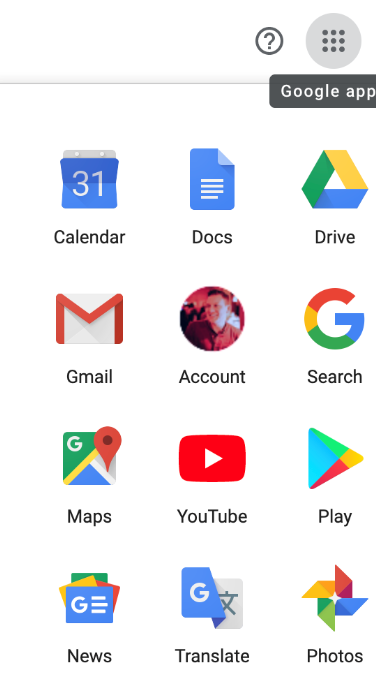
Yes, you can print from your phone too.
For Android:
Step 1: Open the Google Drive app on your phone
Step 2: Find your file and tap it to open
Step 3: Tap the three-dot menu icon (top right)
Step 4: Select “Print”
Step 5: Choose your printer (make sure it’s connected to the same WiFi network)
Step 6: Adjust settings and tap the blue print button
For iPhone/iPad:
Step 1: Open Google Drive app
Step 2: Tap the file to open it
Step 3: Tap the three-dot menu
Step 4: Select “Send a copy”
Step 5: Choose “Print”
Step 6: Select your AirPrint-enabled printer
Step 7: Tap “Print”
Your phone sends the file straight to the printer. No downloading required.
Method 4: Print from Dropbox Without Downloading
Dropbox works similarly to Google Drive.
On Desktop:
Step 1: Go to Dropbox.com and sign in
Step 2: Navigate to your file
Step 3: Click on the file to preview it
Step 4: Look for the three-dot menu or “Open” button
Step 5: Click the printer icon that appears in the preview
Step 6: Select your printer and print settings
Step 7: Click “Print”
On Mobile:
Step 1: Open the Dropbox app
Step 2: Find and tap your file
Step 3: Tap the three-dot menu
Step 4: Select “Export” or “Share”
Step 5: Choose “Print”
Step 6: Select your printer and print
Dropbox’s interface is straightforward. Most file types can be printed directly from the preview.
Method 5: Use Third-Party Cloud Printing Services
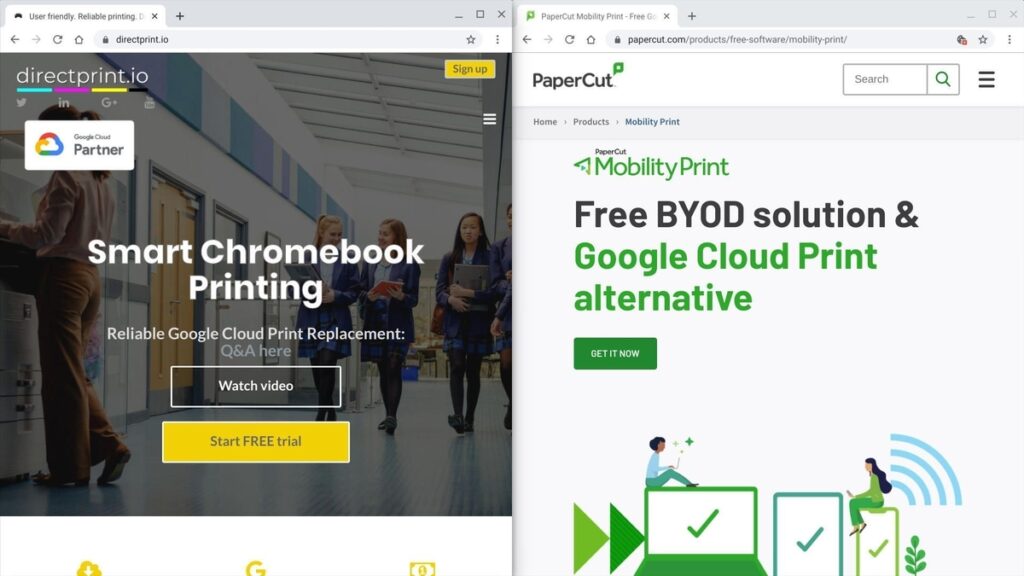
If you need more advanced features, consider these options:
HP Smart App: Works with HP printers and supports Google Drive integration. You can link your cloud accounts and print directly from the app.
Canon PRINT App: Similar functionality for Canon printers. Connect to Google Drive and Dropbox within the app.
PrinterOn: A universal cloud printing service that works with most printer brands. It lets you print from email, cloud storage, and more.
These apps often provide better control over print quality, page selection, and other settings.
Additional Tools and Features for Cloud Printing
Google Workspace Integration
If you use Google Workspace (formerly G Suite), you have extra printing options.
You can set up shared printers that anyone in your organization can access. This is perfect for offices where multiple people need to print from shared Google Drive folders.
Printer Requirements
Not all printers support cloud printing out of the box. Here’s what you need:
Network-Connected Printers: Your printer must be connected to WiFi or ethernet.
Cloud-Ready Printers: Modern printers often have built-in cloud printing support. Look for features like:
- Google Cloud Print (legacy)
- AirPrint (for Apple devices)
- Mopria Print Service (for Android)
- WiFi Direct
Print Server Software: If your printer is older, you might need to install software on a computer that stays connected to both the printer and the internet.
Browser Extensions
Several Chrome extensions can enhance your cloud printing experience:
- PrintFriendly: Removes ads and formats web pages for better printing
- Save to Google Drive: Lets you save printed PDFs back to Drive
- Cloud Print: Simplifies the printing process with one-click access
These are optional but can make your workflow smoother.
Troubleshooting Common Cloud Printing Issue
Problem 1: Printer Doesn’t Appear in the List
This is the most common issue.
Solutions:
- Make sure your printer is turned on and connected to WiFi
- Verify your device is on the same network as your printer
- Restart both your printer and your device
- Update your printer’s firmware from the manufacturer’s website
- Check if your printer supports cloud printing features
Sometimes simply unplugging your printer for 30 seconds fixes connectivity issues.
Problem 2: File Won’t Open for Printing
Certain file types can be tricky.
Solutions:
- Try opening the file in its native app first (Docs for .docx, Sheets for .xlsx)
- For unsupported files, download them once, then use Method 5 with a print app
- Convert the file to PDF format within Google Drive (Right-click → Download as → PDF)
- Make sure you have permission to view the file (shared files need proper access)
PDF files generally print more reliably than other formats.
Problem 3: Print Quality Is Poor
Cloud printing sometimes reduces quality to save bandwidth.
Solutions:
- Check your print quality settings in the print dialog
- Select “High Quality” or “Best” instead of “Draft”
- For photos, make sure you’re printing at 300 DPI or higher
- Close the preview and open the file fully before printing
- Try printing from the mobile app instead of the browser (or vice versa)
Higher quality settings take longer but produce better results.
Problem 4: Slow Printing or Timeouts
Large files can cause delays.
Solutions:
- Print smaller page ranges instead of the entire document
- Reduce file size by compressing images before uploading
- Use a wired connection instead of WiFi if possible
- Close other apps or browser tabs using bandwidth
- Wait for off-peak hours if you’re on a shared network
Patience helps with large files. They need time to transfer from the cloud to your printer.
Problem 5: Can’t Print from Mobile Device
Mobile printing can be finicky.
Solutions:
- Install your printer manufacturer’s app (HP Smart, Canon PRINT, etc.)
- Enable Bluetooth on your phone (some printers use it for setup)
- Make sure your printer supports mobile printing (check the manual)
- Try printing from the Google Drive website in mobile Chrome instead of the app
- Restart your phone and printer
Mobile printing works best when you use the official printer app.
FAQs About Printing from Cloud Storage
Q: Do I need a special printer to print from Google Drive without downloading?
No, you don’t need a special printer. However, your printer must be connected to your network (WiFi or ethernet). Most printers made after 2015 support network printing. Just make sure your printer and device are on the same WiFi network.
Q: Can I print from Google Drive on my phone without the app?
Yes. Open Google Drive in your mobile browser (Chrome or Safari), find your file, and use the browser’s print function. However, the Google Drive app usually provides a better experience with more reliable printing options.
Q: Is printing from the cloud secure?
Generally, yes. When you print from Google Drive without downloading, the file travels over encrypted connections. However, be cautious on public WiFi networks. For sensitive documents, use a VPN or wait until you’re on a secure network.
Q: Why does my file look different when printed from the cloud versus downloading first?
This can happen due to formatting differences or quality settings. Cloud printing sometimes uses compressed versions of files to save bandwidth. To get the best results, open the file fully (not just the preview) before printing, and choose high-quality print settings.
Conclusion: Print Smarter from the Cloud
Learning how to print from Google Drive without downloading saves you time, storage space, and hassle.
You now have five proven methods that work on computers, phones, and tablets. Whether you’re using Google Drive, Dropbox, or printer-specific apps, you can print documents directly from the cloud with just a few clicks.
Start with Method 1 or 2 if you’re on a computer—they’re the simplest. For mobile printing, install your printer’s official app for the best results.
Remember the key requirements: a network-connected printer, the same WiFi network, and the right permissions for your files. Follow the troubleshooting tips if you run into issues.
Now you can access files from anywhere and print them instantly without cluttering your device. No more downloading, printing, and deleting. Just print and move on with your day.
Try it out with your next document and see how much easier cloud printing makes your workflow.
How to Fix Printer Memory Overrun Error Fast | Step-by-Step Solutions Read More


