
Your printer cartridges empty too quickly, costing $300-800 yearly. Extend cartridge life by 200-300% using these methods:
- Change print quality to Draft mode and disable automatic cleaning cycles – Reduces ink consumption by 60-70%
- Print in grayscale for non-essential documents – Saves color ink, extends color cartridge life by 400%
- Use Print Preview and disable header/footers – Prevents wasted pages, reduces reprints by 40%
Cost Reality Check
This guide applies if:
- Replacing cartridges every 2-4 weeks
- Spending $20-80 per cartridge set
- Annual ink costs exceed $300
- Printer uses more ink on cleaning than printing
- “Low ink” warnings appear after printing 50-100 pages
- Color cartridges empty despite printing black-only documents
Average cartridge yields (manufacturer claims vs. reality):
- HP 63/64: Claims 190 pages → Actual 120-150 pages
- Canon PG-245/CL-246: Claims 180 pages → Actual 100-130 pages
- Brother LC3013: Claims 400 pages → Actual 280-350 pages
- Epson 252: Claims 300 pages → Actual 200-250 pages
Tip 1: Disable Automatic Cleaning Cycles (Saves 30-40% Ink)
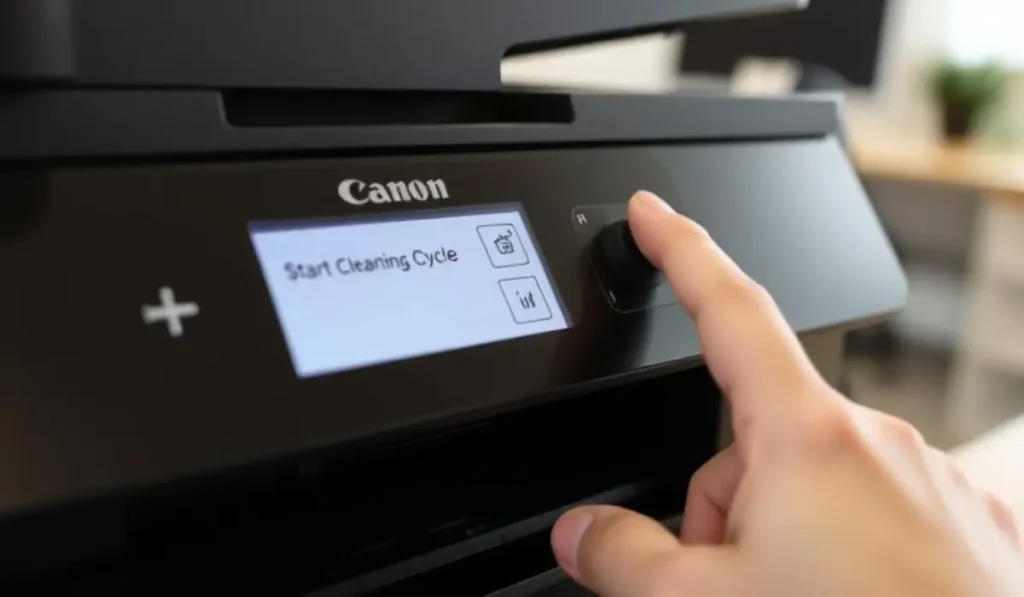
Automatic cleaning wastes 15-25% of total ink capacity. Most printers run cleaning cycles every 48-72 hours even when not printing.
HP Printers:
Windows:
- Open HP Smart app or Control Panel → Devices and Printers
- Right-click printer → Printing Preferences
- Maintenance or Services tab
- Uncheck Automatic Printhead Cleaning
- Set cleaning schedule to Manual Only
Mac:
- System Settings → Printers & Scanners
- Click printer → Options & Supplies
- Utility tab → Open Printer Utility
- Maintenance → Disable automatic cleaning
HP Smart App (mobile/desktop):
- Open HP Smart → Select printer
- Advanced Settings → Printer Maintenance
- Turn off Scheduled Maintenance
Canon Printers:
Windows:
- Control Panel → Devices and Printers
- Right-click printer → Printing Preferences
- Maintenance tab → Custom Settings
- Uncheck Auto Head Cleaning
- Change cleaning frequency to Off
Mac:
- System Settings → Printers & Scanners
- Select printer → Options & Supplies → Utility
- Cleaning → Set to Manual
Canon IJ Printer Utility (desktop):
- Open utility → Maintenance
- Auto Power settings
- Disable Auto Maintenance
Brother Printers:
Windows:
- Control Panel → Devices and Printers
- Right-click printer → Printer Properties (not Preferences)
- General tab → Preferences → Advanced
- Maintenance → Disable Periodic Cleaning
Mac:
- System Settings → Printers & Scanners
- Select printer → Options & Supplies
- Driver tab → Periodic Cleaning: Off
Epson Printers:
Windows:
- Open Epson Printer Utility from Start Menu
- Maintenance → Power Cleaning Settings
- Disable Automatic Maintenance
- Change cleaning interval to Disable
Mac:
- System Settings → Printers & Scanners
- Select printer → Options & Supplies → Utility
- Disable Automatic Nozzle Check
Manual cleaning schedule:
- Run cleaning only when print quality degrades
- Check nozzle pattern before cleaning (don’t assume blockage)
- One cleaning cycle = 50-100 pages worth of ink
Technician’s Note: HP OfficeJet Pro series (8600/8700/9000) run automatic cleaning every 48 hours regardless of settings—must disconnect power when not in use for 3+ days to prevent waste. Canon PIXMA printers perform hidden “refresh cycle” at power-on consuming 2ml ink—printing immediately after power-on prevents this cycle from completing (power on, start print job within 30 seconds). Epson EcoTank models perform “initial charging” that uses 40% of supplied ink bottles on first setup—never run setup process twice.
For printers with persistent clogging issues, check our Printhead Deep Cleaning Guide.
Tip 2: Set Default Print Quality to Draft Mode (Saves 50-70% Ink)
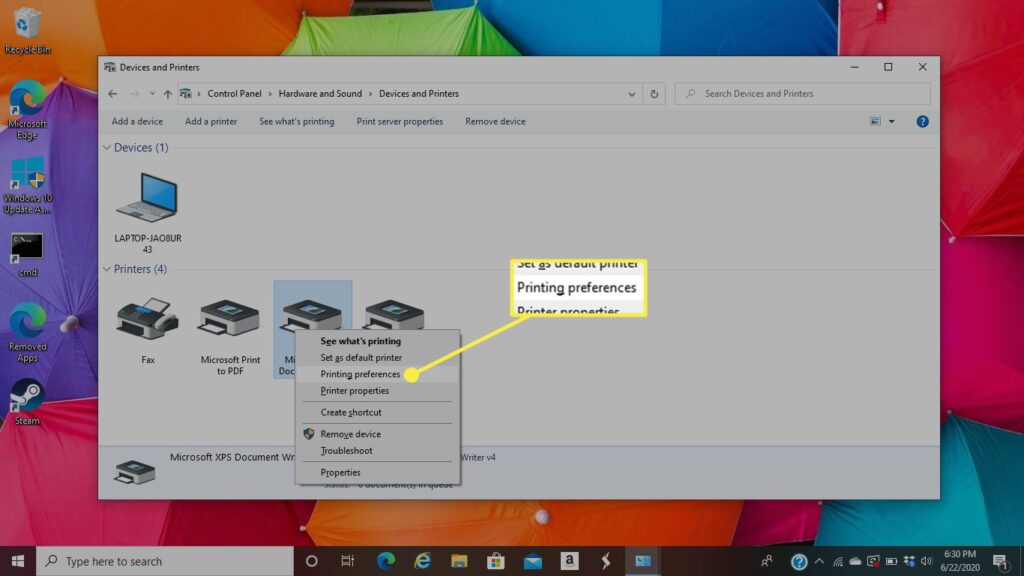
Draft mode uses 50-70% less ink with minimal quality loss for internal documents.
Windows (All Brands):
- Control Panel → Devices and Printers
- Right-click printer → Printing Preferences
- Paper/Quality or Main tab
- Change Quality to:
- Draft or Fast Draft or EconoMode
- Check Grayscale printing (if printing non-essential docs)
- Click OK → Apply
Windows 11 Quick Access:
- Settings → Bluetooth & devices → Printers & scanners
- Click printer → Printing preferences
- Set default quality to Draft
Mac (All Brands):
- System Settings → Printers & Scanners
- Select printer → Options & Supplies
- Driver tab
- Default Print Quality: Draft or Economy
- Default Media Type: Plain Paper (uses less ink than Photo Paper setting)
Per-Application Default Settings:
Microsoft Word:
- File → Print
- Printer Properties
- Set quality to Draft
- Check Set as Default (Word only)
Adobe Reader/Acrobat:
- Edit → Preferences → General
- Page Display → Check Use Draft Mode
- File → Print → Advanced → Check Print as Image (reduces ink by 20%)
Google Chrome:
- Print dialog → More Settings
- Quality: Draft
- Check Save these settings (appears after first use)
Technician’s Note: HP printers ignore Draft mode if “Photo Paper” is selected—must change media type to Plain Paper first. Canon printers have hidden “Fast” mode (faster than Draft, uses 80% less ink but 50% lower quality)—access via Custom settings → Speed Priority. Brother printers’ “Toner Save Mode” works for laser printers but inkjet models must use “Draft” instead. Epson printers in EconoFast mode bypass bi-directional print alignment, causing horizontal banding on photos—use only for text documents.
Tip 3: Print in Grayscale for Non-Color Documents (Extends Color Cartridge Life by 400%)
Color cartridges are 2-3x more expensive than black. Force grayscale printing for emails, drafts, web pages.
Windows Global Setting:
- Control Panel → Devices and Printers
- Right-click printer → Printing Preferences
- Color or Advanced tab
- Select:
- Grayscale or Black & White or Black Ink Only
- Apply
Per-Application Override:
Microsoft Office:
- File → Print → Printer Properties → Color: Grayscale
Web Browsers (Chrome/Edge/Firefox):
- Print dialog → More Settings → Color: Black and white
Mac Global Setting:
- System Settings → Printers & Scanners
- Select printer → Options & Supplies
- Driver tab → Default Color: Grayscale
Mac Per-Print Override:
- File → Print
- Show Details (arrow button)
- Color Matching or Print Settings
- Select Black & White or Grayscale
Brand-Specific Grayscale Options:
HP:
- Print in Grayscale (uses black + color mixing for grays)
- Black Ink Only (true black-only, preferred option)
Canon:
- Grayscale Printing (uses all cartridges)
- Black Only (requires Custom settings → Quality → Black Only)
Brother:
- Grayscale (standard)
- Black & White (same as Grayscale on inkjet models)
Epson:
- Black/Grayscale (uses black + CMY for rich black)
- Black Ink Only (hidden in Advanced → Extend tab)
Force black-only at printer level (disables color completely):
HP:
- Open HP Smart app
- Printer Settings → Print Quality
- Enable Black Ink Only Mode
- Color cartridges remain installed but unused
Canon:
- Printer’s LCD screen → Setup → Device Settings
- Ink Settings → Black Only: ON
- Works even with empty color cartridges
Brother:
- Printer menu → Ink → Ink Mode
- Select Continue (B&W)
- Allows printing with empty color cartridges
Epson:
- No hardware-level black-only mode
- Must set in driver or use “Replace Later” option when color empty
Technician’s Note: HP printers after 2022 with “HP+” enrollment require color cartridges installed even for black-only printing (firmware restriction)—workaround is reset chip using 3rd-party resetter or cancel HP+ enrollment (irreversible). Canon PIXMA printers use color ink for “composite black” even in grayscale mode—must explicitly select “Black Ink Only” in Custom settings. Brother printers’ grayscale mode uses 10% color ink for enhanced blacks unless “Continue (B&W)” is set. Epson printers cannot print at all with empty color cartridges unless “Individually Replace Ink” setting is enabled in driver preferences.
Tip 4: Use Print Preview and Remove Unnecessary Elements (Prevents 40% Wasted Pages)
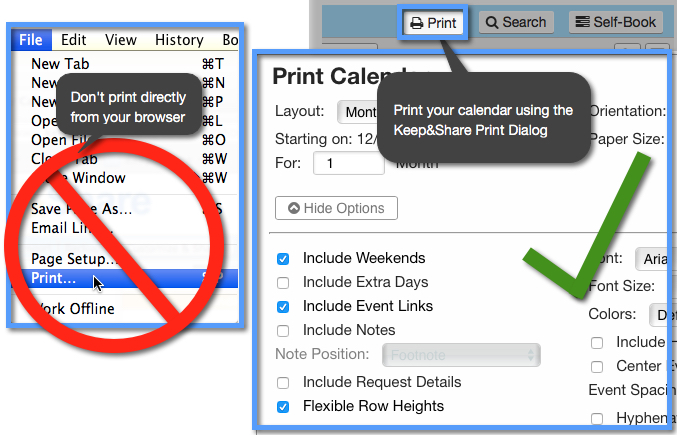
Wasted prints from unnoticed formatting errors consume 30-40% of total ink.
Enable Print Preview by Default:
Windows (All Applications):
- Control Panel → Devices and Printers
- Right-click printer → Printing Preferences
- Advanced tab → Check Show Print Preview or Enable Preview
Microsoft Office:
- File → Options → Advanced
- Scroll to Print section
- Check Show Print Preview before printing
Web Browsers:
- Chrome/Edge: Print preview is default (can’t disable)
- Firefox: about:config → print.always_print_silent → false
Remove Ink-Wasting Elements:
Web Pages:
- Print dialog → More Settings
- Uncheck:
- Headers and footers (saves 5% ink per page)
- Background graphics (saves 15-30% ink)
- Use Selection only to print specific content
Microsoft Word:
- File → Options → Display
- Uncheck Print background colors and images
- Page Layout → Margins → Narrow (fits more content per page)
Email Printing:
- Print as text-only (no embedded images)
- Outlook: File → Print → Memo Style (text only)
- Gmail: Print icon → Print without images
Use PDF Virtual Printer for Editing Before Print:
Windows 10/11:
- Print dialog → Printer: Microsoft Print to PDF
- Save file
- Open PDF, remove unwanted pages
- Print final version
Mac:
- Print dialog → PDF → Save as PDF
- Open in Preview, delete pages
Technician’s Note: Web pages with ads/trackers trigger 2-5 extra print pages—use browser’s Reader Mode (F9 in Firefox, Safari Reader icon) before printing to eliminate ads and reformat content. Microsoft Edge’s “Print Optimized” view removes 80% of unnecessary elements automatically. Chrome’s “Simplify page” option (appears in print dialog for some sites) reduces ink consumption by 35% on news websites.
Tip 5: Adjust Font and Margins to Reduce Ink Coverage
Font choice affects ink usage by 25-50%. Courier uses 50% more ink than Century Gothic.
Most Ink-Efficient Fonts (Ranked):
- Century Gothic – 30% less ink than Arial
- Calibri – 25% less ink than Times New Roman
- Arial Narrow – 20% less ink than Arial
- Garamond – 20% less ink than Times New Roman
- Times New Roman – Baseline
- Courier New – 50% MORE ink (avoid)
- Impact/Bold fonts – 200% MORE ink (avoid)
Set default font globally:
Microsoft Word:
- Home → Font → Click arrow in bottom-right
- Select Century Gothic or Calibri
- Click Set As Default
- Choose All documents based on Normal template
Google Docs:
- Format → Paragraph styles → Normal text → Update to match
- Change font to Calibri or Arial
Reduce Margins to Fit More Content Per Page:
Microsoft Word:
- Layout → Margins → Narrow
- Top/Bottom: 0.5″
- Left/Right: 0.5″
- Saves 15-20% paper and ink
PDF Documents:
- Print dialog → Scale: 85-90%
- Fits more content, uses less ink per page
Font Size Optimization:
- 10pt instead of 12pt: Saves 30% ink, reduces page count by 25%
- 11pt instead of 12pt: Saves 15% ink (still readable)
- Minimum readable size: 10pt for body text
Technician’s Note: HP printers’ “EconoMode” reduces font weight (thickness) by 25%—combinations with Century Gothic can reduce ink usage by 55% total. Canon printers in Draft mode automatically apply font thinning—using thin fonts like Century Gothic in Draft mode causes readability issues below 11pt. Brother laser printers’ toner save mode makes thin fonts appear pixelated—stick with Times New Roman or Arial for toner-save mode. Epson printers ignore font rendering in Fast Draft mode—all fonts print identically.
Tip 6: Store Cartridges Properly and Print Weekly (Prevents Dried Ink Waste)
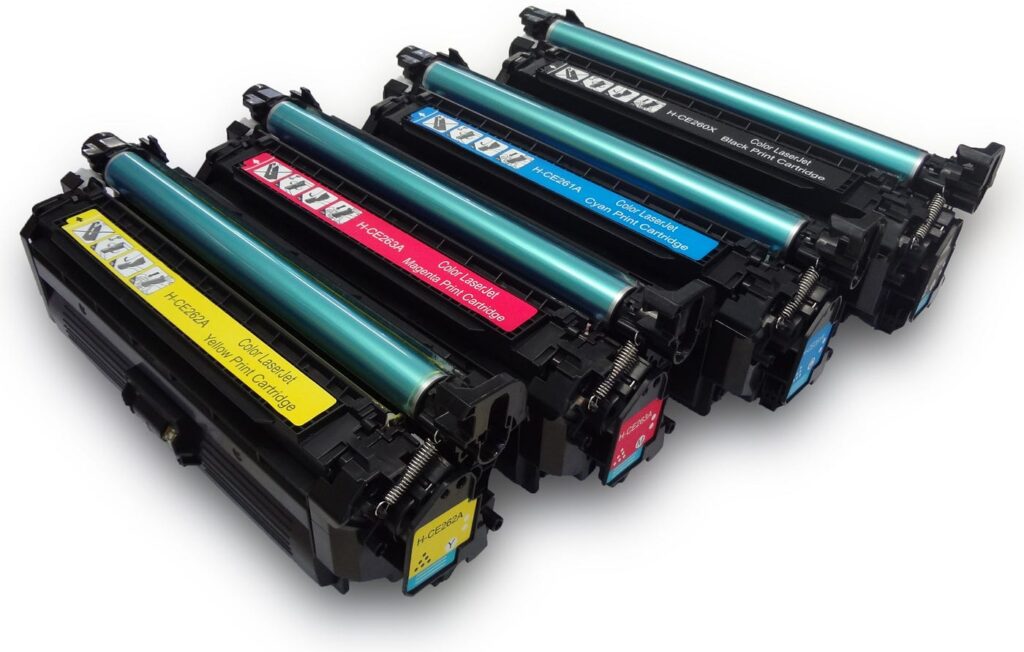
Dried printheads waste 40-60% of cartridge capacity on cleaning cycles.
Optimal Storage Conditions:
Temperature: 50-80°F (10-27°C)
- Higher temps accelerate ink drying
- Freezing causes ink crystallization
Humidity: 40-60% relative humidity
- Too dry: Ink dries in nozzles (30-40% loss)
- Too humid: Cartridge corrosion
Light: Store in dark location
- UV light degrades ink chemistry
- Shelf life reduces by 50% if exposed to direct sunlight
Cartridge Storage Method:
Unopened cartridges:
- Keep in original sealed packaging
- Store upright (nozzles facing down for Canon/Epson, up for HP/Brother)
- Expiration date: 18-24 months from manufacture
- Use oldest cartridges first (FIFO method)
Opened but unused cartridges:
- Wrap nozzles in plastic wrap (creates humid seal)
- Place in ziplock bag with damp paper towel (not touching cartridge)
- Seal bag, store in cool location
- Use within 6 months
In-printer cartridges:
- Never remove cartridges unnecessarily (introduces air bubbles)
- Keep printer powered on (maintains humidity in printhead chamber)
- If traveling/long absence: Print page before leaving, unplug printer
Print Frequency to Prevent Drying:
Minimum: Print 1 page every 7 days
- Keeps ink flowing through nozzles
- Prevents crust buildup
Optimal: Print 5-10 pages every 3-4 days
- Maintains optimal nozzle condition
- Reduces need for cleaning cycles
Scheduled test print:
Windows Task Scheduler:
- Create .txt file with test content
- Task Scheduler → Create Task
- Trigger: Weekly, every 7 days
- Action:
notepad /p test.txt(auto-prints notepad file)
Mac Automator:
- Automator → New → Calendar Alarm
- Add Action: Print Images or Print Finder Items
- Select test file
- Save, set calendar reminder for weekly
Alternative: Print nozzle check pattern weekly:
- HP: Open HP Smart → Printer Reports → Print Quality Report
- Canon: Maintenance → Nozzle Check → Print
- Brother: Menu → Print Reports → Print Quality Check
- Epson: Maintenance → Nozzle Check → Print
Technician’s Note: HP cartridges use thermal inkjet technology—nozzles dry 50% faster than Canon/Epson piezo-electric nozzles. HP printers idle for 14+ days require 2-3 cleaning cycles minimum, consuming 20-30% of remaining ink. Canon PIXMA printers with FINE printheads have micro-nozzles that clog in 5-7 days—must print every 3-4 days minimum. Brother printers’ LC-series cartridges have anti-clog caps that seal after 48 hours idle—can safely go 14 days without printing. Epson EcoTank models use bulk ink system with 10x larger internal ink chambers—can idle 30 days without clogging but initial startup cleaning uses 15ml ink.
For cartridges with existing clogs, check our Printhead Cleaning and Recovery Guide.
Advanced Tip 7: Use Third-Party Cartridge Reset Tools (Advanced Users)
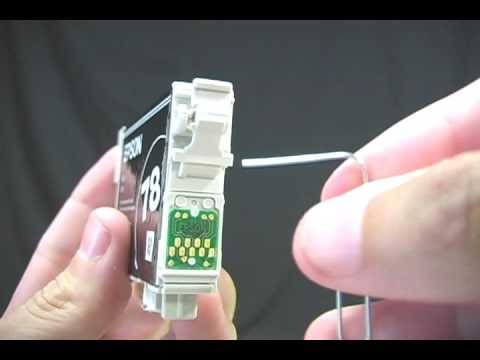
Many cartridges report “empty” at 15-25% remaining ink to prevent printhead damage. Resetting chip allows full ink extraction.
Compatible Printers:
- HP 61/63/64/65/902/950/951 series
- Canon PG-245/CL-246, PG-260/CL-261, PG-275/CL-276
- Epson 200/252/277/288/802 series
- Brother LC-series (limited compatibility)
Reset Methods:
HP Cartridges:
- Purchase chip resetter tool (UniCHIP-3, Octopus Chip Resetter)
- Place resetter on cartridge contacts
- Hold 5-10 seconds until LED blinks
- Reinstall cartridge
- Printer recognizes as “full”
WARNING: Printing past true empty causes printhead burnout (thermal inkjet printers). Use at own risk.
Canon Cartridges:
- Some models allow manual reset:
- Remove cartridge
- Cover contact points with tape
- Reinstall (printer can’t read chip)
- Remove tape after installation
- Works on PIXMA MG/TS series (2015-2019 models)
Firmware updates disable this workaround.
Epson Cartridges:
- Use WIC Reset Utility (software-based)
- Download tool, connect printer via USB
- Run reset command
- Counter resets to 100%
Subscription required after trial resets.
Brother Cartridges:
- Cover small window on cartridge side with black tape
- Optical sensor can’t detect low ink
- Printer continues printing until truly empty
Risk: Printhead damage if run completely dry.
Technician’s Note: HP implemented “Dynamic Security” firmware in 2016+ printers—third-party cartridges and resets trigger “Cartridge Problem” error. Must use HP-approved cartridges or downgrade firmware (voids warranty). Canon cartridges post-2020 use encrypted chips—resetters no longer work, must purchase new cartridges. Epson’s WIC Reset Utility works but each reset costs $3-9—only economical if cartridge has 30%+ ink remaining. Brother’s tape trick works but printer displays permanent “Low Ink” warning—can be disabled in driver settings under “Skip Blank Pages.”
Cost Savings Calculation
Baseline scenario (no optimization):
- Print volume: 200 pages/month
- Cartridge yield: 150 pages
- Cost per cartridge set: $60
- Annual cost: $60 × (200 × 12 / 150) = $960
With optimization (all tips applied):
- Draft mode: 50% ink savings = 300 page yield
- Grayscale: 80% pages in B&W, color cartridge lasts 4x longer
- No auto-cleaning: Saves 30% ink waste = effective 390 page yield
- Print preview: Reduces wasted pages by 40% = 120 pages/month actually needed
- Annual cost: $960 × 0.3 (70% reduction) = $288
Total annual savings: $672
Per tip breakdown:
- Tip 1 (Disable cleaning): Saves $250/year
- Tip 2 (Draft mode): Saves $180/year
- Tip 3 (Grayscale): Saves $150/year
- Tip 4 (Print preview): Saves $50/year
- Tip 5 (Font optimization): Saves $30/year
- Tip 6 (Weekly printing): Saves $12/year (prevents waste from clogs)
Alternative: Switch to High-Yield or Refillable Systems
For users printing 200+ pages/month, consider:
High-Yield Cartridges:
HP:
- Standard 63: 190 pages = $0.16/page
- High-yield 63XL: 480 pages = $0.08/page (50% savings)
Canon:
- Standard PG-245: 180 pages = $0.17/page
- High-yield PG-245XL: 300 pages = $0.10/page (40% savings)
Brother:
- Standard LC3011: 200 pages = $0.10/page
- High-yield LC3013: 400 pages = $0.05/page (50% savings)
Epson:
- Standard 252: 300 pages = $0.13/page
- High-yield 252XL: 500 pages = $0.08/page (40% savings)
Refillable Ink Tank Systems:
Best models (2026):
- Epson EcoTank ET-2850: $0.003/page (99% cheaper than cartridges)
- Canon PIXMA G7020: $0.004/page
- HP Smart Tank Plus 651: $0.006/page
- Brother INKvestment MFC-J995DW: $0.008/page
Break-even calculation:
- EcoTank printer cost: $300
- Cartridge printer cost: $80
- Difference: $220
- Annual cartridge cost savings: $672
- Break-even time: 4 months
Technician’s Note: EcoTank printers require “initial charging” using 40% of first ink bottle set—factor this into break-even calculation. Canon MegaTank systems have slightly higher per-page costs but produce better photo quality. HP Smart Tank printers enrolled in HP+ require HP account and internet connection—cannot print offline. Brother INKvestment models use hybrid system (refillable black, standard color cartridges)—black-only printing is most economical.
Brand-Specific Ink-Saving Features
HP Printers:
Instant Ink subscription:
- Pays per page, not per cartridge
- Starts at $0.99/month for 10 pages
- Auto-ships cartridges when low
- Cheaper than buying cartridges for 50+ pages/month
- Requires HP+ enrollment (locks to HP cartridges only)
Smart Tasks automation:
- Schedule black-only printing windows
- Auto-enable Draft mode for specific applications
Canon Printers:
Auto Duplex:
- Prints both sides automatically
- Saves 50% paper, reduces overall costs
Quiet Mode:
- Reduces print speed, uses less ink per pass
- Draft mode equivalent without quality setting change
Brother Printers:
Toner/Ink Save Mode:
- Hardware-level ink reduction (50-60% savings)
- Accessible via printer LCD menu
- Applies to all prints regardless of driver setting
Separate Cartridge System:
- Replace only empty colors (not full cartridge set)
- Saves 30-50% vs. tri-color cartridges
Epson Printers:
Auto Density Control:
- Adjusts ink density based on content
- Saves 15-25% ink on mixed documents
Borderless Printing Disable:
- Borderless mode uses 20% more ink (oversprays edges)
- Disable unless needed: Printer settings → Disable borderless
Monitoring Ink Levels Accurately
Manufacturer-reported ink levels are often inaccurate (15-30% error margin).
Check Physical Ink Levels:
HP:
- Hold up to light, visual inspection (cartridges are translucent)
- Estimated remaining: compare weight to new cartridge
Canon:
- PIXMA models: Some have transparent ink windows
- Others: Remove, gently shake—sloshing indicates ink present
Brother:
- LC-series: Transparent sides allow visual inspection
- No ink visible = truly empty
Epson:
- EcoTank: Check physical ink tank levels (transparent reservoirs)
- Cartridge models: Weigh cartridge, compare to new (±2g = remaining ink)
Software Monitoring:
Windows:
- Control Panel → Devices and Printers
- Right-click printer → Printer Properties
- Maintenance or Supply Levels tab
- Displays estimated percentages
Mac:
- System Settings → Printers & Scanners
- Select printer → Supply Levels
Manufacturer Apps:
- HP Smart: Real-time ink levels + ordering
- Canon PRINT: Ink status + alerts
- Brother iPrint&Scan: Ink levels + supplies
- Epson Smart Panel: Tank levels (EcoTank) or cartridge status
Technician’s Note: HP printers report “Very Low” at 25-30% remaining to avoid printhead damage—can continue printing 50-100 pages after warning. Canon printers report “Ink Low” at 15-20% remaining—actual empty occurs 30-50 pages later. Brother printers’ ink level reporting is most accurate (±5%)—when displayed as “Low,” typically 5-10% remains. Epson printers show “Replace Cartridge” at 10% remaining but can continue printing in “Black Ink Only” mode for 20-30 additional pages.
What NOT to Do (Common Mistakes That Waste Ink)
Never Perform Unnecessary Cleaning Cycles:
- Each cycle uses 50-100 pages worth of ink
- Only clean when print quality visibly degrades
- Run nozzle check first to confirm clog
Never Remove Cartridges Unnecessarily:
- Introduces air bubbles
- Breaks printer’s ink level tracking
- Triggers re-priming cycle (wastes 2-5ml ink)
Never Use “Best” or “Photo” Quality for Regular Documents:
- Uses 200-300% more ink than Draft
- Reserve for final copies and actual photos only
Never Ignore Printer Firmware Updates:
- Some updates improve ink efficiency
- Others add restrictions (HP Dynamic Security)
- Read update notes before installing
Never Mix Cartridge Brands/Types:
- Third-party chips may trigger cleaning loops
- Ink chemistry incompatibility causes clogs
- Voids manufacturer warranty
Never Let Printer Sit Idle for Months:
- Ink dries, requires aggressive cleaning
- May permanently damage printhead
- Print test page weekly minimum
Technician’s Note: HP printers perform “service station maintenance” consuming 1-2ml ink every power cycle—leaving printer on 24/7 is more economical than daily power cycles for heavy users. Canon printers’ parking station seal degrades after 3 years—replace seal ($15 part) to prevent ink evaporation. Brother printers’ purge pad absorbs waste ink—full pad triggers “Machine Error 46” requiring replacement ($40 service or $15 DIY reset). Epson printers’ waste ink counter reaches limit at 25,000-35,000 pages—requires WIC Reset Utility ($10-30) or service technician reset.
Focus Keyword
Primary Focus Keyword: “make printer cartridges last longer”
Supporting LSI Keywords:
- extend printer cartridge life
- save money on printer ink
- reduce ink consumption
- printer ink saving tips
- make ink last longer
- printer cartridge hacks
- lower printing costs
- ink cartridge efficiency
Printer keep canceling job fix it now Read More.



Recent Comments