
Introduction
Finding your hp printer not printing anything can be incredibly frustrating. You press print, hear the printer whir to life, but nothing comes out. Or worse, completely blank pages emerge from the tray. This common problem affects thousands of HP printer users every day.
The good news is that most printing issues have simple solutions. You don’t need to be a tech expert to fix them. Usually, the problem is something minor like a driver issue, paper jam, or empty ink cartridge. Sometimes it’s just a wrong setting that stops your documents from printing.
This guide shows you exactly how to fix an hp printer not printing anything. You’ll learn the most common causes, step-by-step solutions, and prevention tips. Whether your printer won’t print at all, prints blank pages, or jobs get stuck in the queue, we’ve got the answers you need.
What Causes HP Printer Not Printing Anything?
When your hp printer not printing anything issue occurs, several factors could be the culprit. Understanding these causes helps you find the right solution faster.
Driver and software problems are the most common reason. Your printer driver acts as a translator between your computer and printer. When drivers become outdated or corrupted, communication breaks down. Your computer sends print jobs, but the printer can’t understand them.
Connection issues stop print jobs from reaching your printer. This happens with both wired and wireless connections. USB cables can become loose or damaged. WiFi connections drop when the printer moves out of range or network settings change.
Hardware problems include empty or clogged ink cartridges, paper jams, and mechanical failures. Even if you can’t see a paper jam, small pieces of torn paper can hide inside the printer. Dried ink in the print heads blocks cartridges from releasing ink onto paper.
Queue and spooler errors cause print jobs to get stuck. Windows uses a print spooler service to manage printing tasks. When this service crashes or hangs, all print jobs stop. They pile up in the queue waiting for a service that isn’t working.
Wrong settings are easy to overlook. Setting your printer to offline mode, selecting the wrong printer as default, or choosing “print to file” instead of your actual printer all prevent printing. These settings can change accidentally after system updates.
8 Proven Solutions to Fix HP Printer Not Printing Anything
Solution 1: Check Basic Connections and Power
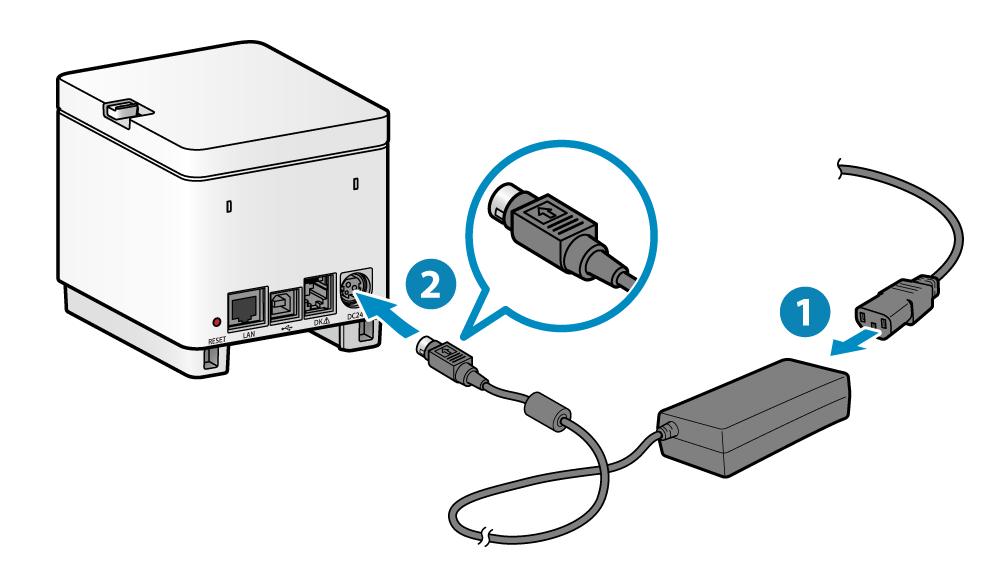
Start with the simplest checks first. Make sure your printer is turned on and the power cable is firmly plugged in. Look for any error messages or warning lights on the printer’s display panel.
For USB-connected printers, unplug the cable from both the printer and computer. Wait 30 seconds, then reconnect it firmly. Try a different USB port on your computer. USB 3.0 ports sometimes cause issues—try a USB 2.0 port instead.
For wireless printers, verify the WiFi connection is working. Print a network configuration page from your printer’s menu. This shows if the printer is connected to your network. If not, reconnect it using the wireless setup wizard.
Check your printer’s status lights. A flashing or red light usually indicates a problem. Consult your printer manual to understand what each light pattern means.
Solution 2: Clear the Print Queue
A stuck print queue is a common reason for hp printer not printing anything. Open your computer’s print queue to see if jobs are piling up. On Windows, go to Settings > Devices > Printers & Scanners. Click your HP printer and select “Open queue.”
If you see multiple documents waiting, cancel them all. Right-click on each document and select “Cancel.” Sometimes one corrupted print job blocks everything behind it.
If documents won’t cancel, restart the print spooler service. Press Windows + R, type “services.msc” and press Enter. Find “Print Spooler” in the list, right-click it, and select “Restart.” This clears stuck jobs and resets the printing system.
On Mac computers, go to System Preferences > Printers & Scanners. Select your printer and click “Open Print Queue.” Delete all pending jobs, then try printing a test page.
Solution 3: Set Your HP Printer as Default
Your computer might be sending print jobs to the wrong printer. This happens when you have multiple printers installed, including virtual PDF printers. Setting your HP printer as the default fixes this issue.
On Windows 10/11, go to Settings > Devices > Printers & Scanners. Find your HP printer in the list and click it. Click “Manage” then “Set as default.” Uncheck “Let Windows manage my default printer” to prevent automatic changes.
On Mac, go to System Preferences > Printers & Scanners. Right-click your HP printer and select “Set as Default Printer.” Your Mac will now send all print jobs to this printer unless you choose otherwise.
Print a test page to confirm the default printer setting works. If the test page prints successfully, the problem is solved.
Solution 4: Update or Reinstall Printer Drivers

Outdated or corrupted drivers cause many printing problems. Visit the official HP support website at https://support.hp.com to download the latest drivers. Enter your printer model number to find the correct drivers for your operating system.
Download the full driver package, not just the basic driver. The full package includes all necessary software and utilities. Run the installer and follow the on-screen instructions.
For a clean installation, first uninstall the existing driver. Go to Settings > Apps > Apps & Features. Find your HP printer software, click it, and select “Uninstall.” Restart your computer, then install the new driver.
The HP Print and Scan Doctor tool automatically fixes driver issues. Download this free tool from HP’s website. Run it and select your printer. The tool diagnoses problems and installs correct drivers if needed.
Solution 5: Check and Replace Ink Cartridges
An hp printer not printing anything often means empty or clogged cartridges. Open your printer’s cartridge access door. Check each cartridge’s ink level indicators. Replace any empty cartridges with new ones.
Even if cartridges show ink remaining, they might be clogged. Remove each cartridge and gently wipe the copper contacts with a lint-free cloth. Also clean the contacts inside the printer where cartridges sit.
For dried or clogged print heads, run the cleaning cycle. Access this through your printer’s maintenance menu or the HP software on your computer. Select “Clean Printhead” and follow the prompts. You may need to run this 2-3 times for severely clogged heads.
Print a test page after cleaning. If colors are missing or text looks faded, run the cleaning cycle again. If problems persist after three cleaning cycles, the cartridges may need replacement.
Solution 6: Remove Paper Jams and Debris
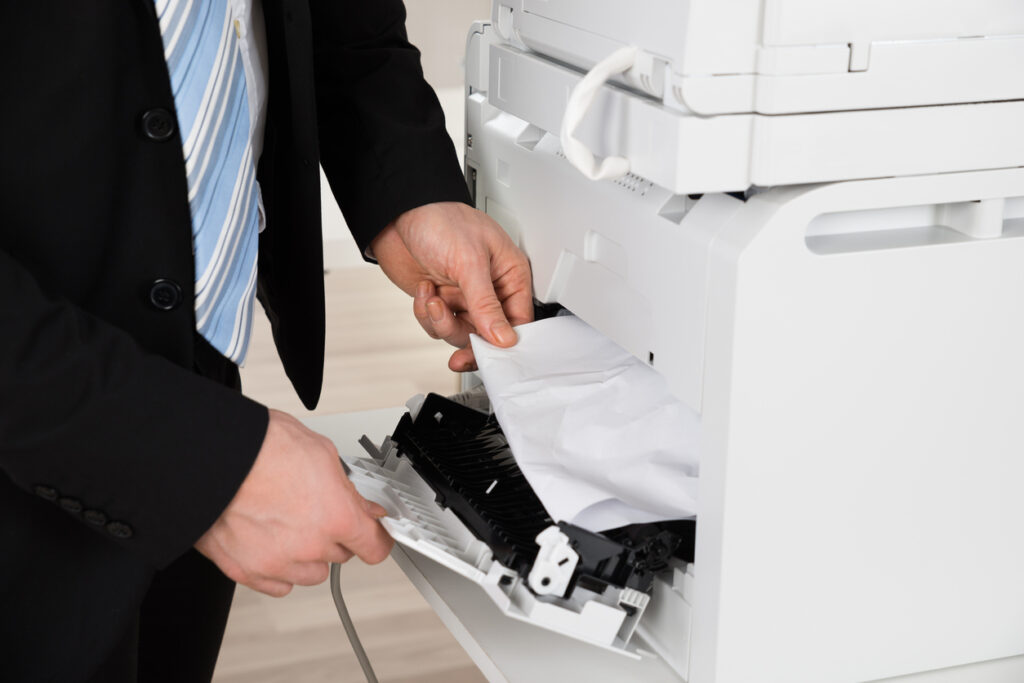
Hidden paper jams prevent printing even when you can’t see stuck paper. Turn off your printer and unplug it. Open all accessible panels—front, back, and top. Look carefully inside for torn paper pieces.
Use a flashlight to see into dark areas. Gently pull out any stuck paper, always pulling in the direction of the paper path. Never pull backward, as this can damage internal mechanisms.
Check the paper tray and output tray for obstructions. Remove the paper stack and look for small bits of torn paper or foreign objects. Also check the rear access panel if your printer has one.
After removing all jams, close all panels and reload paper properly. Make sure the paper stack isn’t too thick and the guides fit snugly against the paper edges. Plug in and turn on your printer.
Solution 7: Disable Offline Mode
Sometimes printers get stuck in offline mode, causing an hp printer not printing anything situation. This happens after network changes or system updates. The printer appears in your device list but won’t accept print jobs.
On Windows, go to Settings > Devices > Printers & Scanners. Click your HP printer and select “Open queue.” If you see “Use Printer Offline” with a checkmark, click it to disable offline mode.
You can also access this through Control Panel. Go to Control Panel > Hardware and Sound > Devices and Printers. Right-click your HP printer and ensure “Use Printer Offline” is unchecked.
On Mac, open Printers & Scanners in System Preferences. If your printer shows as “Offline,” click it and select “Resume.” This reconnects the printer and allows it to accept jobs.
Solution 8: Reset Your HP Printer
A factory reset clears all settings and often fixes persistent printing problems. This should be your last resort after trying other solutions. Note that you’ll need to reconfigure WiFi and other settings afterward.
Turn off your printer. Unplug the power cable from both the printer and the wall outlet. Wait 60 seconds—this is important for clearing the printer’s memory.
While unplugged, press and hold the power button for 15 seconds. This drains residual power. Release the button, wait another 15 seconds, then plug everything back in.
Turn on your printer and let it fully start up. This can take 2-3 minutes. The printer will initialize and may perform automatic calibration. After the startup completes, try printing a test page.
Additional Tools and Resources for Printing Issues

The HP Print and Scan Doctor is a free diagnostic tool that automatically fixes most printing problems. It checks connections, drivers, and settings. Download it from HP’s official website and run it whenever you encounter issues.
Windows Troubleshooter has a built-in printer troubleshooter. Go to Settings > Update & Security > Troubleshoot > Additional troubleshooters > Printer. Run this tool to automatically detect and fix common problems.
HP Smart app provides mobile access to printer settings and diagnostics. Download it on your phone or computer. The app shows ink levels, runs maintenance tasks, and helps troubleshoot the hp printer not printing anything issue remotely.
The HP Support Assistant comes pre-installed on many HP computers. It provides automatic updates, health checks, and optimization for all HP devices including printers. Keep this software updated for the best performance.
For persistent hardware problems, HP’s online chat support connects you with technical experts. They can run remote diagnostics and guide you through advanced troubleshooting steps. Visit HP’s support website to start a chat session.
Common Mistakes That Cause Printing Problems
Using Incompatible or Refilled Cartridges
Third-party or refilled cartridges often cause printing failures. While they cost less, they may not work properly with your HP printer. The printer might not recognize them or they might leak and clog print heads.
HP printers are designed to work best with genuine HP cartridges. These cartridges have chips that communicate with your printer. Generic cartridges sometimes lack these chips or use incorrect chip programming.
If you must use third-party cartridges, choose reputable brands with good reviews. Cheap, no-name cartridges rarely work well. They cause more problems than they’re worth, often costing you more in troubleshooting time.
Ignoring Firmware Updates
Printer firmware is like the printer’s operating system. HP releases updates to fix bugs and improve performance. When you skip these updates, you miss important fixes that prevent printing problems.
Check for firmware updates monthly through the HP Smart app or your printer’s menu. Most modern HP printers can update automatically if connected to the internet. Enable automatic updates to stay current.
Old firmware can cause compatibility issues with new operating systems. If you recently updated Windows or macOS and your hp printer not printing anything started happening, a firmware update likely fixes it.
Poor WiFi Signal Strength
Wireless printers need a strong, stable WiFi connection. When the signal is weak, print jobs fail to reach the printer. This creates the appearance that the printer isn’t working when it’s actually just not receiving data.
Place your printer within reasonable range of your router. Thick walls, metal objects, and other electronics interfere with WiFi signals. If you can’t move the printer closer, consider using a WiFi extender.
Check your printer’s WiFi signal strength through its network configuration page. If it shows one or two bars, the signal is too weak. Move the printer or router to improve the connection.
Not Running Regular Maintenance
Print heads dry out when not used regularly. Ink cartridges expire and lose quality over time. Without regular maintenance, these issues compound until your printer stops working properly.
Print at least one page per week to keep ink flowing. Run the print head cleaning cycle monthly even if printing looks fine. This prevents clogs before they happen.
Check and update drivers every few months. Old drivers cause more problems as operating systems evolve. Staying current prevents most software-related printing issues.
Frequently Asked Questions (FAQs)
Q1: Why is my HP printer not printing anything but has ink?
Full ink cartridges don’t guarantee printing will work. Clogged print heads, outdated drivers, or connection problems can prevent printing even with full ink. Run the print head cleaning cycle and check your printer connections. Update drivers if the problem persists.
Q2: How do I fix an HP printer that prints blank pages?
Blank pages usually mean clogged print heads or empty cartridges. Remove the cartridges and check ink levels. Run the print head cleaning function 2-3 times. If blanks pages continue, the cartridges may need replacement even if they show ink remaining.
Q3: What does it mean when my printer is connected but not printing?
A connected printer that won’t print typically has driver issues, queue problems, or is set to offline mode. Clear the print queue, ensure the printer is set as default, and disable offline mode. Update drivers if these steps don’t work.
Q4: How do I reset my HP printer to fix printing issues?
Turn off the printer, unplug it, and press and hold the power button for 15 seconds. Wait one minute, then plug it back in and turn it on. This clears the memory and resets internal settings. You’ll need to reconfigure WiFi afterward.
Q5: Why does my HP printer show ready but not printing?
A “ready” status means the printer is on and connected but something prevents job processing. Check if print jobs are stuck in the queue. Restart the print spooler service on your computer. Ensure you’re printing to the correct printer and not a virtual PDF printer.
Conclusion
Dealing with an hp printer not printing anything doesn’t have to be a nightmare. Most issues come from simple problems like driver errors, connection issues, or empty cartridges. With the solutions in this guide, you can identify and fix these problems quickly without technical expertise.
Start with basic checks—power, connections, and ink levels. Clear the print queue and make sure your printer is set as default. Update drivers regularly and run maintenance tasks to prevent future problems. These simple steps resolve 90% of printing issues.
Remember that prevention is easier than troubleshooting. Print regularly to keep ink flowing, update firmware and drivers, and use quality paper and cartridges. When problems do occur, work through the solutions systematically. Your hp printer not printing anything issue will be resolved before you know it, and you’ll be back to printing smoothly.
How to Connect HP Printer to WiFi : Ultimate Wireless Setup Guide Read More


