
Introduction
The hp printer app has changed how we print from our phones and tablets. Gone are the days when you needed a computer to print documents or photos. Now, with just a few taps on your smartphone, you can print, scan, and manage your HP printer from anywhere.
The HP Smart app is the official hp printer app that works with most HP printers made after 2010. It’s free to download and packed with useful features. You can print photos from your gallery, scan documents with your phone’s camera, check ink levels, and even order new cartridges directly through the app.
This guide shows you everything about the hp printer app. You’ll learn how to download it, set up your printer, use advanced features, and fix common problems. Whether you’re a first-time user or want to explore more features, this guide has you covered.
What Is the HP Printer App?
The hp printer app, officially called HP Smart, is a mobile application developed by HP Inc. It connects your smartphone or tablet to your HP printer wirelessly. The app is available for both iOS and Android devices, and there’s also a desktop version for Windows and Mac computers.
HP Smart replaces the older HP ePrint and HP All-in-One Printer Remote apps. It combines all printing functions into one easy-to-use interface. You don’t need multiple apps anymore—everything happens in HP Smart.
The app works with most HP DeskJet, OfficeJet, Envy, LaserJet, and Tango printers. If your printer has wireless capability, it can probably connect to the hp printer app. Some older models may have limited features, but basic printing and scanning work on most devices.
What makes this app special is its simplicity. The interface is clean and straightforward. Even if you’re not tech-savvy, you can start printing within minutes. The app also offers cloud printing, which lets you print documents from Google Drive, Dropbox, and other cloud services.
HP Smart also helps you maintain your printer. It shows ink or toner levels in real-time. When supplies run low, the app can automatically order new cartridges through HP Instant Ink service. This prevents you from running out of ink at the worst possible time.
8 Easy Steps to Set Up and Use the HP Printer App
Step 1: Download the HP Smart App
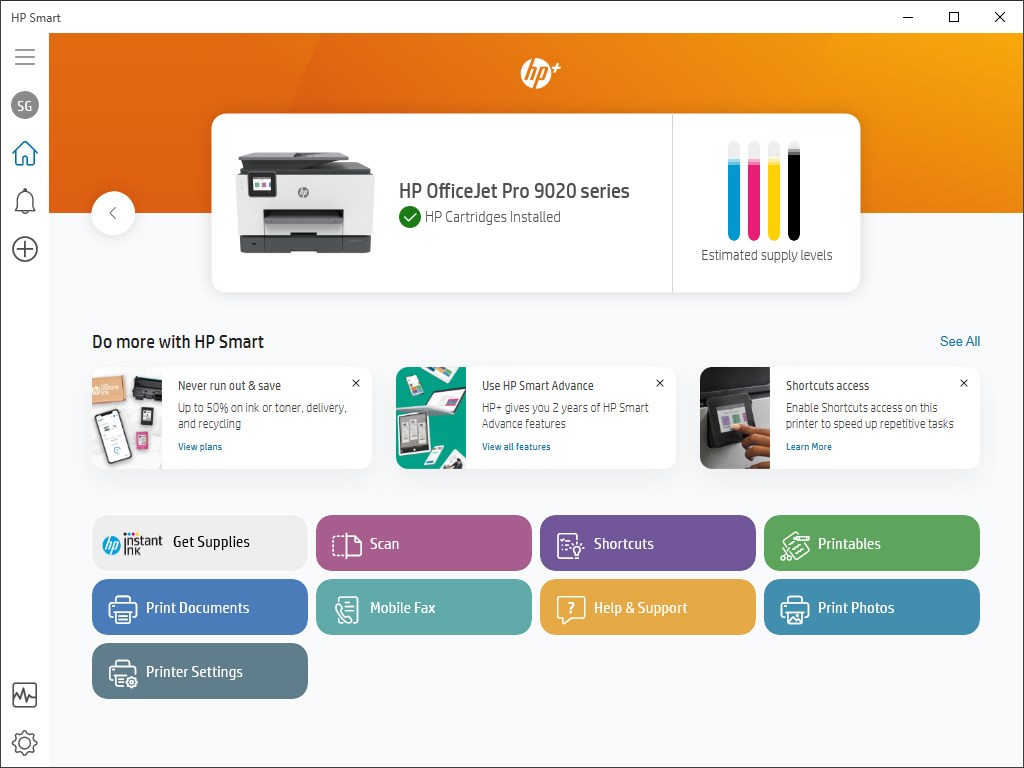
Open the App Store on your iPhone or iPad, or Google Play Store on your Android device. Search for “HP Smart” and look for the app with HP’s official logo. Tap “Install” or “Get” to download it.
The app is completely free. It doesn’t require any subscription to use basic features. Wait for the download to complete, then tap “Open” to launch the app.
For desktop users, visit the official HP website at https://www.hp.com/smart and download the version for your operating system. The desktop hp printer app works similarly to the mobile version.
Step 2: Create an HP Account
When you first open the hp printer app, it will ask you to sign in or create an account. Tap “Create Account” if you’re new. Enter your email address and create a password.
You’ll receive a verification email. Open it and click the verification link. This activates your HP account. An account lets you access advanced features like cloud printing and remote printing.
If you already have an HP account, simply sign in with your existing credentials. Your account syncs across all devices, so your settings and preferences stay consistent.
Step 3: Connect Your Printer to Wi-Fi
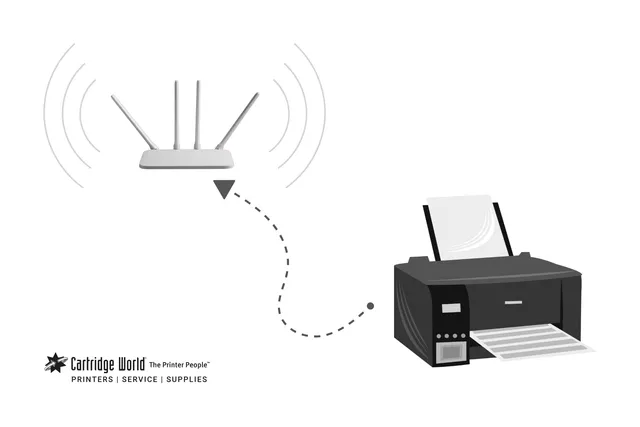
Before adding your printer to the app, make sure it’s connected to your Wi-Fi network. On your printer’s control panel, find the wireless icon or settings menu. Select “Wireless Setup Wizard” and choose your network from the list.
Enter your Wi-Fi password when prompted. The printer will connect to your network. A confirmation message appears when the connection succeeds. Make sure your phone and printer are on the same Wi-Fi network.
If your printer doesn’t have a display screen, press and hold the wireless button for a few seconds. This activates Wi-Fi Direct mode, which the hp printer app can detect automatically.
Step 4: Add Your Printer to the App
Open the HP Smart app and tap the plus (+) icon or “Add Printer” button. The app will scan your network for available HP printers. Wait a few seconds for your printer to appear in the list.
Tap on your printer’s name when it shows up. The app will establish a connection. This process takes about 30 seconds. Once connected, your printer appears on the app’s home screen.
If your printer doesn’t appear automatically, tap “Setup a New Printer” and follow the guided setup. The app will walk you through connecting via USB, Wi-Fi Direct, or Bluetooth depending on your printer model.
Step 5: Print Your First Document
Tap the “Print” tile on the app’s home screen. You’ll see options to print photos, documents, or from cloud storage. Select “Photos” to print from your gallery or “Documents” to choose a PDF or Word file.
Browse and select the file you want to print. The preview screen shows how your document will look. You can adjust settings like paper size, color or black-and-white, and number of copies.
Tap “Print” when ready. The hp printer app sends your document to the printer wirelessly. You’ll see a confirmation message when printing starts. Your document comes out within seconds.
Step 6: Use the Mobile Scan Feature
Tap “Scan” on the app’s home screen. Point your phone’s camera at the document you want to scan. The app automatically detects document edges and captures the image.
You can scan to PDF or JPEG format. The app enhances the scan by adjusting brightness and removing shadows. After scanning, you can crop, rotate, or add multiple pages to create a multi-page PDF.
Save the scan to your phone, email it, or upload it to cloud storage. The hp printer app makes scanning faster than using a traditional scanner. You can scan documents anywhere, anytime.
Step 7: Check Ink Levels and Order Supplies
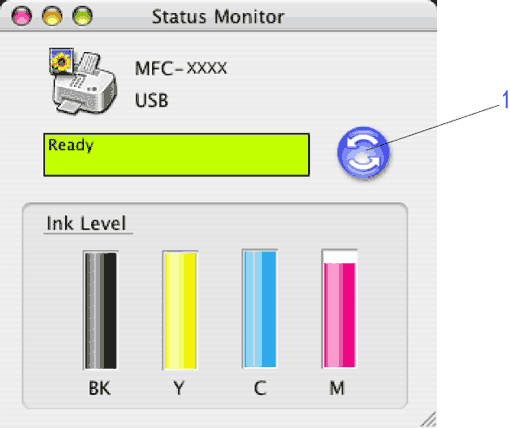
Tap on your printer’s icon on the home screen. Scroll down to find the “Supplies Status” or “Estimated Ink Levels” section. The app shows how much ink remains in each cartridge with color-coded bars.
When ink runs low, a notification appears. Tap “Order Supplies” to buy new cartridges directly through HP. You can also enroll in HP Instant Ink, which automatically ships cartridges before you run out.
The hp printer app tracks your printing habits. It predicts when you’ll need new ink based on your usage patterns. This helps you avoid emergency trips to buy cartridges.
Step 8: Explore Advanced Features
The hp printer app offers shortcuts for common tasks. Tap “Shortcuts” to create custom printing workflows. For example, you can create a shortcut that scans documents and emails them automatically.
Smart Tasks let you automate repetitive jobs. You can set up tasks like “scan and save to Dropbox” or “print weekly reports.” Once configured, these tasks run with a single tap.
The app also supports voice printing. If you have Amazon Alexa or Google Assistant, you can print by voice command. Say “Alexa, ask HP to print my shopping list” and it happens automatically.
Additional Tools and Features of the HP Printer App

The HP Smart Advance is a premium subscription within the hp printer app. It adds advanced editing tools, additional cloud storage, and priority support. However, most users find the free version sufficient for everyday needs.
Mobile Fax is available in the app for select printer models. You can send and receive faxes directly from your phone without a phone line. This feature requires credits, which you purchase through the app.
Print Anywhere lets you print remotely. If your printer is connected to the internet, you can send print jobs from anywhere in the world. This is perfect for printing documents before you arrive home or at the office.
The HP Printables feature offers free content you can print. This includes coloring pages for kids, greeting cards, calendars, and planners. Browse the library and print items with one tap.
Document Camera uses your phone’s camera as a scanner. It’s great for capturing receipts, whiteboards, or notes. The app stitches multiple shots together to create high-quality scans.
Troubleshooting Common HP Printer App Issues
Printer Not Found
If the hp printer app can’t find your printer, first verify both devices are on the same Wi-Fi network. Many people accidentally connect their phone to a guest network while the printer is on the main network.
Restart your printer, phone, and Wi-Fi router. Turn them off, wait 30 seconds, then turn them back on. This clears temporary connection glitches. After rebooting, open the app and try adding the printer again.
Check if your printer’s wireless feature is enabled. Look for a lit Wi-Fi indicator light. If it’s off or blinking, your printer isn’t connected to Wi-Fi. Re-run the wireless setup on your printer.
Print Jobs Stuck in Queue
When documents won’t print and pile up in the queue, open the app and tap on the printer icon. Select “Print Queue” and cancel all pending jobs. Then try printing a new test page.
Sometimes outdated app versions cause printing problems. Go to your app store and check for HP Smart updates. Install any available updates and restart the app.
If problems continue, remove the printer from the app and add it again. Tap the settings icon next to your printer name, select “Remove Printer,” then add it back using the setup wizard.
Poor Print or Scan Quality
For blurry prints, check your print quality settings in the app. Before printing, tap “More Options” and select “Best” quality instead of “Draft.” Higher quality settings use more ink but produce better results.
If scans look fuzzy, hold your phone steady when using the document camera. Make sure there’s good lighting on the document. The app works best in bright, even light without harsh shadows.
Clean your printer heads through the app. Go to printer settings, find “Tools” or “Maintenance,” and select “Clean Printhead.” Run this process 2-3 times if print quality doesn’t improve immediately.
App Crashes or Freezes
If the hp printer app keeps closing unexpectedly, clear the app cache. On Android, go to Settings > Apps > HP Smart > Storage > Clear Cache. On iOS, uninstall and reinstall the app.
Make sure your phone’s operating system is updated. Old OS versions sometimes conflict with new app updates. Check for system updates in your phone’s settings.
Free up storage space on your phone. The app needs temporary space to process documents and photos. Delete unused apps or files to improve performance.
Frequently Asked Questions (FAQs)
Q1: Is the hp printer app free to use?
Yes, the HP Smart app is completely free to download and use. All basic features like printing, scanning, and checking ink levels cost nothing. Only optional services like HP Instant Ink or HP Smart Advance require payment.
Q2: Which printers work with the hp printer app?
Most HP printers made after 2010 work with HP Smart. This includes DeskJet, OfficeJet, Envy, Tango, and many LaserJet models. Your printer needs Wi-Fi or Bluetooth capability. Check HP’s website for your specific model compatibility.
Q3: Can I use the hp printer app without Wi-Fi?
Yes, you can use Wi-Fi Direct or Bluetooth for direct connections. Enable Wi-Fi Direct on your printer, and your phone can connect even without a wireless network. However, cloud features require internet access.
Q4: How do I print from my iPhone using the hp printer app?
Download HP Smart from the App Store, add your printer, then tap “Print.” Select photos from your camera roll or documents from your files. The app handles the rest. You can also use Apple AirPrint with most HP wireless printers.
Q5: Does the hp printer app work with non-HP printers?
No, HP Smart only works with HP-brand printers. For other printer brands, you’ll need their specific apps. Canon has Canon PRINT, Epson has iPrint, and Brother has Brother iPrint&Scan.
Conclusion

The hp printer app makes mobile printing incredibly simple and convenient. With HP Smart, you can print documents and photos directly from your smartphone without needing a computer. The app offers powerful features like mobile scanning, ink monitoring, and cloud printing—all in one free application.
Setting up the hp printer app takes just a few minutes. Download the app, create an account, connect your printer to Wi-Fi, and you’re ready to print. The intuitive interface makes every feature easy to find and use, even for beginners.
Whether you’re printing homework, scanning receipts, or checking ink levels remotely, the hp printer app simplifies your printing tasks. Download HP Smart today and discover how easy wireless printing can be. Your HP printer becomes smarter and more versatile with this essential mobile tool.
Easy Canon Printer Setup: Quick Guide to Install Your Device Read More.


