

Introduction
Struggling with getting your new printer to work? You’re not alone. Knowing how to install printer drivers is the key to making your printer function properly with your computer. Whether you’ve just unboxed a brand-new printer or you’re troubleshooting an old one that suddenly stopped working, installing the right drivers is your first step to success.
Printer drivers act as translators between your computer and printer. Without them, your devices can’t communicate. The good news? Installing printer drivers is easier than you think, even if you’re not tech-savvy.
In this guide, we’ll walk you through everything you need to know. You’ll learn multiple methods to install printer drivers, avoid common mistakes, and fix issues when things don’t go as planned. Let’s get your printer up and running.
What Are Printer Drivers and Why Do You Need Them?
Before we dive into how to install printer drivers, let’s understand what they actually are.
A printer driver is a small software program that lets your computer talk to your printer. Think of it as a translator. Your computer speaks one language, your printer speaks another, and the driver makes sure they understand each other.
Without the correct driver, your computer won’t know how to send print jobs to your printer. You might see error messages like “printer not found” or “driver unavailable.” Even if your printer is physically connected, it won’t work without the right software.
Different printer models need different drivers. A Canon driver won’t work for an HP printer. Even different models from the same brand often need their own specific drivers. That’s why getting the exact right driver for your printer model is crucial.
Modern operating systems like Windows 10, Windows 11, and macOS come with built-in drivers for many popular printers. These generic drivers work for basic printing. However, manufacturer-specific drivers unlock advanced features like double-sided printing, color management, and scanning functions.
7 Simple Ways to Install Printer Drivers Successfully
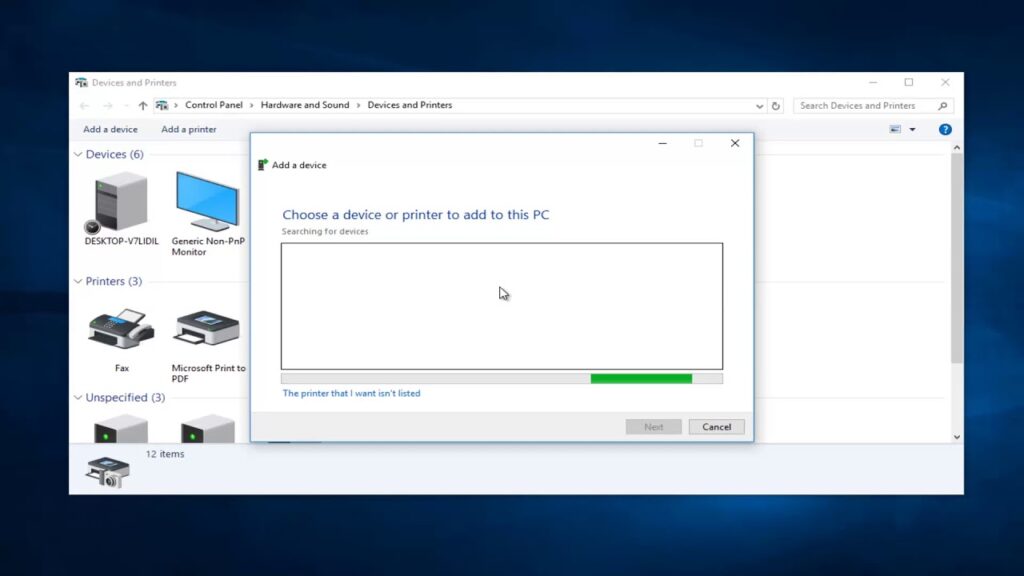
Method 1: Automatic Installation via USB Connection (Easiest Method)
This is the simplest way to install printer drivers, especially for beginners.
Step 1: Turn on your printer and connect it to your computer using a USB cable.
Step 2: Wait for your computer to detect the new hardware. On Windows, you’ll see a notification saying “Installing device driver software.” On Mac, the system will automatically search for the driver.
Step 3: Let your operating system find and install the driver automatically. This usually takes 2-5 minutes.
Step 4: Once complete, go to your printer settings to verify. On Windows, check Settings > Devices > Printers & Scanners. On Mac, check System Preferences > Printers & Scanners.
Step 5: Print a test page to confirm everything works properly.
This method works great for newer printers and updated operating systems. If it doesn’t work automatically, move to the next method.
Method 2: Download Drivers from Manufacturer’s Website
When automatic installation fails, downloading directly from the manufacturer gives you the most up-to-date drivers.
Step 1: Find your printer’s exact model number. It’s usually on the front or back of the printer.
Step 2: Visit the manufacturer’s official website. For example:
- HP printers: support.hp.com
- Canon: canon.com/support
- Epson: epson.com/support
- Brother: brother.com/support
Step 3: Navigate to the support or downloads section. Enter your printer model number in the search box.
Step 4: Select your operating system from the dropdown menu. Make sure you choose the correct version (Windows 10, Windows 11, macOS Monterey, etc.).
Step 5: Download the full driver package. This is usually labeled “Full Driver” or “Complete Driver Package.”
Step 6: Locate the downloaded file (usually in your Downloads folder). Double-click to run the installer.
Step 7: Follow the on-screen instructions. The installer will guide you through the setup process.
Step 8: Restart your computer when prompted to complete the installation.
This method ensures you get official, verified drivers directly from the manufacturer. It’s the most reliable approach when you know how to install printer drivers properly.
Method 3: Use Windows Update to Install Printer Drivers
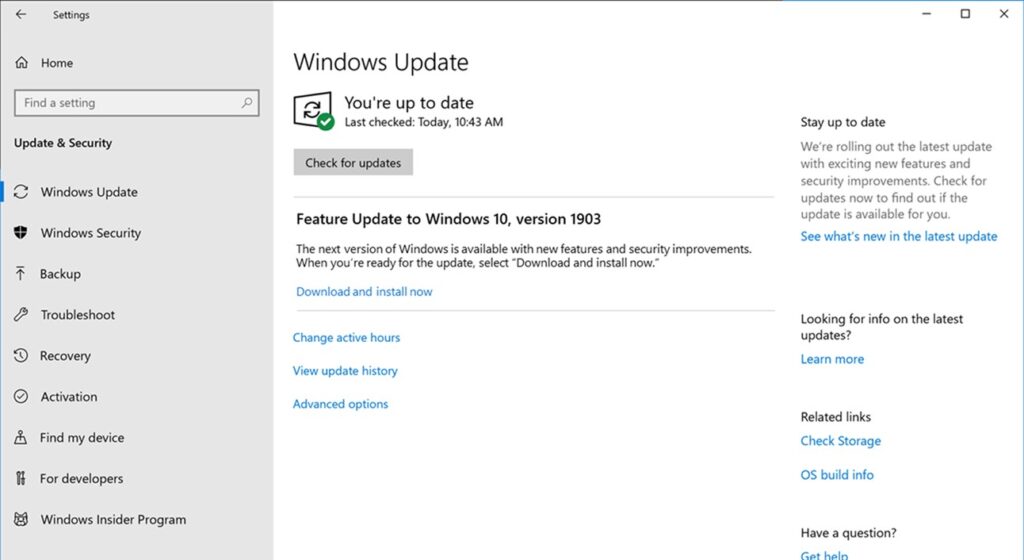
Windows Update often includes printer drivers for common models.
Step 1: Click the Start button and go to Settings.
Step 2: Select “Update & Security” (Windows 10) or “Windows Update” (Windows 11).
Step 3: Click “Check for updates.” Windows will search for available updates, including printer drivers.
Step 4: If a printer driver update is available, it will download and install automatically.
Step 5: Connect your printer after the update completes. Windows should recognize it immediately.
Step 6: Add the printer manually if needed. Go to Settings > Devices > Printers & Scanners > Add a printer.
This method is convenient because it happens in the background. However, Windows Update drivers might not be the latest version.
Method 4: Install Wireless Printer Drivers
Setting up wireless printers requires a slightly different approach to install printer drivers.
Step 1: Make sure your printer is connected to the same Wi-Fi network as your computer. Use your printer’s control panel to connect it to Wi-Fi.
Step 2: Download the wireless driver package from the manufacturer’s website. Look for “wireless” or “network” drivers.
Step 3: Run the installer. When asked how the printer is connected, select “Wireless” or “Network.”
Step 4: The installer will search for printers on your network. Select your printer when it appears.
Step 5: Complete the installation wizard. Enter your Wi-Fi password if prompted.
Step 6: Print a test page to confirm the wireless connection works.
Wireless setup gives you freedom to print from anywhere in your home or office without cables.
Method 5: Use the Installation CD (If Available)
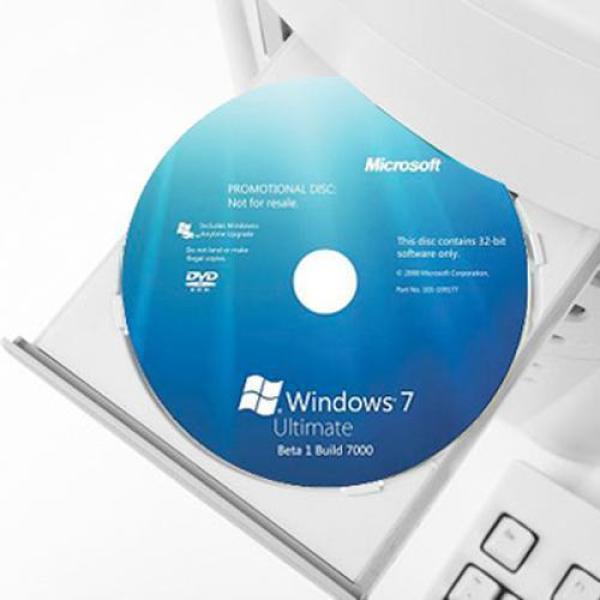
Many printers still come with installation CDs, though they’re becoming less common.
Step 1: Insert the CD into your computer’s CD/DVD drive.
Step 2: The installation program should start automatically. If it doesn’t, open File Explorer (Windows) or Finder (Mac) and double-click the CD drive.
Step 3: Look for a file named “Setup.exe” (Windows) or “Install” (Mac). Double-click to run it.
Step 4: Follow the setup wizard instructions. Connect your printer when prompted.
Step 5: Restart your computer after installation completes.
Note: CD drivers are often outdated. After installing from the CD, visit the manufacturer’s website to download the latest driver updates.
Method 6: Install Drivers Using Device Manager (Windows)
Device Manager gives you manual control over how to install printer drivers.
Step 1: Right-click the Start button and select “Device Manager.”
Step 2: Look for your printer under “Print queues” or “Other devices.” If you see a yellow exclamation mark, the driver isn’t installed properly.
Step 3: Right-click the printer and select “Update driver.”
Step 4: Choose “Search automatically for updated driver software.” Windows will search online for the driver.
Step 5: Alternatively, select “Browse my computer for driver software” if you’ve already downloaded the driver file.
Step 6: Navigate to the folder containing the driver and click “Next.”
Device Manager is useful for troubleshooting driver issues and forcing manual updates.
Method 7: Use Third-Party Driver Update Tools (Use with Caution)
Several programs claim to automatically find and install printer drivers for you.
Popular tools include Driver Booster, Driver Easy, and Snappy Driver Installer. However, be extremely careful with these programs.
Why use them: They can quickly scan your system and identify missing drivers.
Why to be cautious: Some third-party tools bundle unwanted software, contain malware, or install incorrect drivers that cause more problems.
Best practice: Only use well-known, reputable driver update tools. Read reviews first. Never download from unknown websites.
I personally recommend sticking with official manufacturer websites and Windows Update. Third-party tools should be your last resort when learning how to install printer drivers.
Additional Tools and Resources for Printer Driver Installation

Beyond the basic installation methods, several tools can make your life easier.
Manufacturer’s Printer Assistant Apps: Many brands offer dedicated apps that automatically manage drivers and updates. HP Smart App, Canon Print App, and Epson Connect are examples. These apps simplify the installation process and provide easy access to printer features.
Universal Print Drivers: Some manufacturers offer universal drivers that work with multiple printer models from their brand. These are useful in office environments with many printers. Microsoft also provides a Universal Print Driver for basic printing needs.
Command Line Installation (Advanced): Tech-savvy users can install printer drivers using Command Prompt or PowerShell. This method is useful for IT professionals managing multiple computers. However, it’s not necessary for average users learning how to install printer drivers.
Online Support Communities: Forums like Reddit’s r/printers, Tom’s Hardware, and manufacturer support forums have thousands of users who’ve solved similar problems. Don’t hesitate to search for your specific printer model and error message.
According to HP’s official support documentation, keeping your drivers updated ensures optimal performance and security. Check for updates every few months.
Common Mistakes and Troubleshooting When You Install Printer Drivers
Even when you know how to install printer drivers, things can go wrong. Here are common problems and solutions.
Mistake 1: Installing the Wrong Driver
Downloading drivers for the wrong printer model is the most common error. Always double-check your printer’s exact model number. A printer labeled “HP LaserJet Pro M404” needs drivers specifically for that model, not for “HP LaserJet Pro M402.”
Solution: Uninstall the incorrect driver completely. Go to Settings > Apps > Apps & Features, find the printer software, and uninstall it. Then download the correct driver.
Mistake 2: Skipping Computer Restarts
Many users skip the restart step after installation. This prevents the driver from loading properly into your system.
Solution: Always restart your computer when prompted. It only takes a few minutes and ensures the driver integrates correctly.
Mistake 3: Connecting the Printer Too Early
Some installation wizards ask you to wait before connecting your printer. Connecting too early causes the installation to fail.
Solution: Read the on-screen instructions carefully. Only connect your printer when explicitly told to do so.
Mistake 4: Having Multiple Drivers Installed
Installing drivers multiple times creates conflicts. Your computer gets confused about which driver to use.
Solution: Remove all old printer drivers before installing new ones. In Windows, go to Device Manager, find old printer entries, right-click, and select “Uninstall device.” Check the box to delete the driver software.
Mistake 5: Ignoring Firewall or Antivirus Blocking
Sometimes security software blocks driver installation, especially for network printers.
Solution: Temporarily disable your firewall or antivirus during installation. Remember to turn it back on afterward. Add the printer software to your security program’s allowed list.
Troubleshooting: Printer Still Not Working After Driver Installation
If you’ve installed the driver correctly but your printer still doesn’t work, try these steps:
- Make sure the printer is set as the default. Go to Settings > Devices > Printers & Scanners and click “Set as default.”
- Check all cable connections. Ensure USB cables are firmly plugged in. For wireless printers, verify the Wi-Fi connection.
- Clear the print queue. Stuck print jobs can prevent new jobs from processing.
- Run the Windows Printer Troubleshooter. Go to Settings > Update & Security > Troubleshoot > Additional troubleshooters > Printer.
- Update Windows to the latest version. Sometimes system updates fix compatibility issues.
Frequently Asked Questions (FAQs)
Q1: How do I know if I need to install printer drivers?
If your printer isn’t showing up on your computer, prints aren’t coming out, or you see error messages when trying to print, you likely need to install or update your printer drivers. New printers always require driver installation.
Q2: Can I use a printer without installing drivers?
In most cases, no. However, some modern printers support “driverless” printing using AirPrint (Apple) or Mopria (Android/Windows). These work for basic printing but lack advanced features. For full functionality, you need to install printer drivers properly.
Q3: How often should I update my printer drivers?
Check for driver updates every 3-6 months or whenever you experience printing problems. Manufacturers release updates to fix bugs, improve performance, and add security patches. Set a reminder to visit the support website periodically.
Q4: Why won’t my computer detect my printer after installing drivers?
This usually happens due to connection issues. For USB printers, try a different USB port or cable. For wireless printers, ensure both devices are on the same network. Restart both your computer and printer. If problems persist, uninstall and reinstall the driver.
Q5: Are printer drivers free to download?
Yes, legitimate printer drivers are always free from manufacturer websites. Never pay for printer drivers. If a website asks for payment, it’s likely a scam. Always download from official sources like hp.com, canon.com, epson.com, or brother.com.
Conclusion
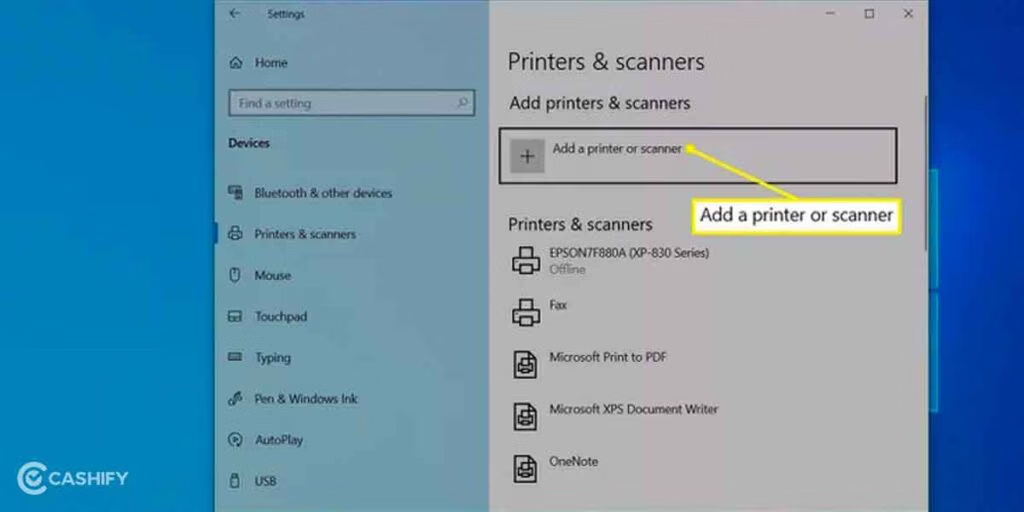
Learning how to install printer drivers doesn’t have to be complicated. Whether you choose automatic installation, download from the manufacturer, or use Windows Update, the key is following the right steps for your specific situation.
Remember these essential points: always verify your exact printer model, download from official sources, and restart your computer after installation. Avoid common mistakes like connecting your printer too early or installing multiple conflicting drivers.
If you run into issues, don’t panic. Use the troubleshooting tips we covered, check online support communities, or contact your printer manufacturer’s support team. Most driver problems have simple solutions.
Now you have the knowledge to install printer drivers confidently. Pick the method that works best for your situation and get your printer working today. Whether you’re setting up a home office or helping a family member, you’ve got this.
Have questions or tips about printer driver installation? Share your experience in the comments below!
Router Restart Wireless Printer: Secret Trick Fixes 99% of Problems Read More.


