
Introduction
Getting a printer memory overrun error right when you need to print an important document? Frustrating, right?
This error pops up when your printer doesn’t have enough memory to process large or complex documents. It’s like asking your printer to juggle too many things at once—eventually, it just can’t keep up.
The good news? You don’t need to be a tech expert to fix this. Most printer memory errors can be solved in just a few minutes with simple adjustments.
In this guide, I’ll walk you through exactly what causes the printer memory overrun error and show you proven solutions that work for HP, Canon, Epson, Brother, and most other printer brands. Whether you’re printing a 100-page report or a graphics-heavy presentation, you’ll learn how to get your documents printing smoothly again.
Let’s dive in and get your printer working properly.
What Is a Printer Memory Overrun Error?
A printer memory overrun error happens when your printer’s internal memory (RAM) gets overwhelmed by the document you’re trying to print.
Think of it like this: your printer has a workspace where it prepares each page before printing. When that workspace gets too crowded with complex graphics, large files, or too many pages at once, the printer basically says, “I can’t handle this anymore” and throws an error.
Common Error Messages You Might See:
- “Memory Overrun Error”
- “21 ERROR” (on HP printers)
- “Printer Memory Full”
- “Insufficient Memory”
- “Not Enough Memory to Print Page”
This issue is especially common when printing:
- Large PDF files with high-resolution images
- Documents with lots of graphics or photos
- Very long documents (50+ pages)
- Files with complex formatting or embedded fonts
- Color-heavy presentations or brochures
The error doesn’t mean your printer is broken. It just means the document is too demanding for the available memory.
7 Proven Ways to Fix Printer Memory Overrun Error
Let’s get your printer back on track. I’ll start with the quickest fixes and move to more advanced solutions.
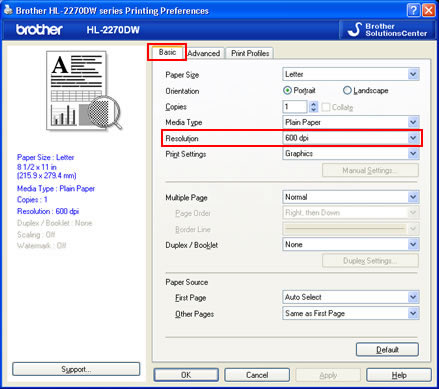
1. Reduce Print Quality Settings
This is the fastest fix and works about 60% of the time.
Lowering your print quality reduces the amount of data your printer needs to process. Here’s how:
For Windows:
- Open your document
- Click File → Print
- Select “Printer Properties” or “Preferences”
- Find “Print Quality” and change it from “Best” to “Normal” or “Draft”
- Click OK and try printing again
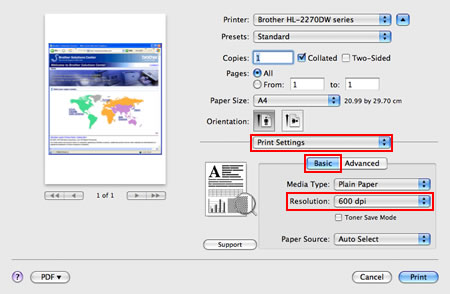
For Mac:
- Go to File → Print
- Click “Show Details”
- Find quality settings under “Media & Quality” or similar
- Select a lower quality option
Draft mode uses way less memory because it simplifies how images and text are rendered. Your document might not look as crisp, but it’ll print.
2. Print in Smaller Batches
Instead of printing all 100 pages at once, break it up.
Try printing 10-20 pages at a time. Yes, it takes longer, but it prevents the memory from getting overloaded.
How to print specific pages:
- In the print dialog, look for “Pages” or “Page Range”
- Type something like “1-20” then print
- Then print “21-40” and so on
This method works because your printer’s memory gets cleared between print jobs. It’s like giving it a breather before the next batch.
3. Simplify Your Document
Complex documents eat up printer memory fast.
Quick document simplification tips:
- Compress images: Large high-res photos are memory killers. Use online tools to compress them before adding to your document
- Remove unnecessary graphics: Do you really need that decorative background on every page?
- Simplify fonts: Fancy fonts require more memory. Stick to standard ones like Arial or Times New Roman
- Flatten PDFs: If you’re printing a PDF, “flatten” it to remove layers and reduce complexity
For PDFs, you can also try printing them as an image:
- In Adobe Reader, go to Print
- Click “Advanced”
- Check “Print as Image”
- Click OK
This converts each page to a simple image, which can sometimes get around memory issues.
4. Update or Reinstall Printer Drivers

Outdated printer drivers can cause all sorts of problems, including memory errors.
To update your printer driver:
Windows:
- Press Windows key + X
- Select “Device Manager”
- Expand “Printers”
- Right-click your printer
- Choose “Update driver”
- Select “Search automatically for drivers”
Mac:
- Go to System Settings → Printers & Scanners
- Select your printer
- Look for a “Software Update” button
If updating doesn’t help, try completely uninstalling and reinstalling the driver from the manufacturer’s website. Fresh drivers can fix hidden glitches.
5. Add More RAM to Your Printer
If you constantly print large documents, your printer might just need more memory.
Many business printers allow you to add extra RAM, just like a computer. Check your printer’s manual or look up your model online to see if it supports memory upgrades.
Typical costs:
- Printer RAM modules: $30-$150 depending on capacity
- Professional installation: $50-$100 (or DIY if you’re comfortable)
For an HP LaserJet, for example, upgrading from 64MB to 256MB of RAM can make a huge difference. Visit HP’s support website to find compatible memory for your specific model.
This is the most permanent solution if you regularly work with large files.
6. Use a Different Print Driver (PCL vs PS)
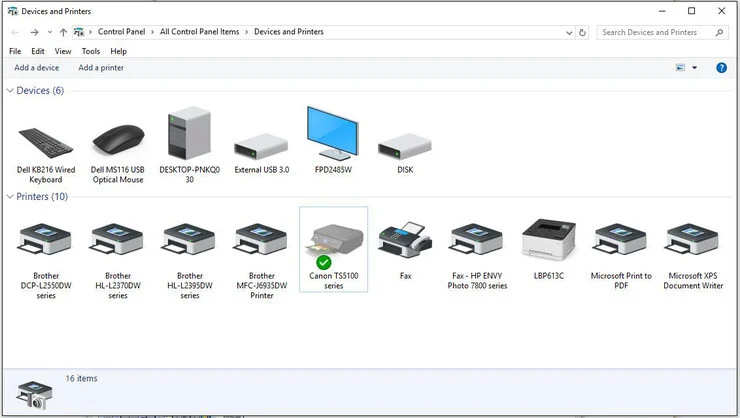
Some printers support multiple “languages” for processing print jobs—mainly PCL and PostScript (PS).
If one isn’t working, try switching to the other.
To add an alternative driver:
- Go to your printer manufacturer’s website
- Search for your printer model
- Download both the PCL and PostScript drivers
- Install the one you’re not currently using
- Try printing with the new driver
PostScript drivers are usually better for graphics-heavy documents, while PCL works well for text. Switching between them can bypass memory issues.
7. Print via PDF or Image Format
Converting your document to a PDF first can help, especially if you’re printing from Word or PowerPoint.
Why this works: PDFs are already “flattened” and optimized for printing. Your printer doesn’t have to interpret complex formatting on the fly.
How to do it:
- Open your document
- Go to File → Save As
- Choose PDF as the format
- Save it
- Open the PDF and print from there
Alternatively, you can “print to PDF” by selecting a PDF printer in the print dialog, then print the resulting PDF file.
Additional Tools and Settings That Can Help

Clear Your Print Queue
Sometimes old print jobs clog up your printer’s memory.
To clear the queue:
- Windows: Open Settings → Devices → Printers & Scanners → Open queue → Cancel all documents
- Mac: Open Printers & Scanners → Double-click your printer → Delete all jobs
A fresh queue gives your printer more breathing room.
Restart Your Printer Properly
Don’t just turn it off and on quickly. Here’s the proper way:
- Turn off your printer
- Unplug it from the wall
- Wait 60 seconds (this clears residual memory)
- Plug it back in
- Turn it on
This “hard reset” clears temporary memory and can fix random glitches.
Check Your Printer’s Memory Status
Some printers let you check memory usage through their control panel or web interface.
- For network printers, type the printer’s IP address into a web browser
- Look for a “Status” or “Information” page
- Check current memory usage
If it’s consistently maxed out, you definitely need more RAM or to simplify your documents.
Troubleshooting: Common Mistakes to Avoid

Mistake #1: Printing Too Many Copies at Once
Printing 50 copies of a 20-page document? That’s asking for trouble.
Instead, print one copy first to make sure everything looks good. Then print the rest in batches of 10-15 copies.
Mistake #2: Ignoring Document File Size
A 500MB PowerPoint presentation is going to cause problems no matter what.
Before printing, check your file size. If it’s over 50MB, definitely compress images and simplify graphics first. Large files are a red flag.
Mistake #3: Using Maximum Quality for Everything
You don’t need “Best” quality for internal memos or draft copies.
Save high-quality printing for final versions and client-facing documents. Everything else can be printed in normal or draft mode without issues.
Mistake #4: Not Checking for Firmware Updates
Printer firmware is like its operating system. Outdated firmware can cause mysterious errors.
Check your printer manufacturer’s website every few months for firmware updates. These often include fixes for memory management issues.
Mistake #5: Trying to Print Everything Wirelessly
Wireless printing adds another layer of complexity and can worsen memory issues.
For large documents, try connecting your printer directly to your computer with a USB cable. It’s faster and more reliable, putting less strain on the printer’s processor.
FAQs About Printer Memory Overrun Error
Q: Will adding more RAM to my printer fix the memory overrun error permanently?
Yes, in most cases. If you regularly print large documents, upgrading your printer’s RAM is the best long-term solution. Most printers can be upgraded from 64MB to 256MB or even 512MB.
Q: Why does this error only happen with certain documents?
The printer memory overrun error occurs when a document has too many complex elements—high-resolution images, special fonts, or heavy graphics. Simple text documents rarely cause this problem.
Q: Can I fix this error without buying new equipment?
Absolutely. Most of the time, you can fix printer memory errors by reducing print quality, printing in batches, simplifying your document, or updating drivers. These solutions cost nothing.
Q: Does this error mean my printer is dying?
No. A memory overrun error is a software/capacity issue, not a hardware failure. Your printer is working fine—it just doesn’t have enough memory for that specific job. It’s like running out of space on your phone; the phone isn’t broken, you just need to free up memory.
Conclusion: Get Back to Printing Without Errors
The printer memory overrun error is annoying, but it’s totally fixable.
Start with the quick solutions: lower your print quality, print in smaller batches, and simplify your document. These work for most people and take just a few minutes.
If you’re still having trouble, try updating your drivers, clearing your print queue, or switching print drivers. And if you constantly work with large documents, seriously consider upgrading your printer’s RAM—it’s a one-time investment that solves the problem for good.
Remember, this error doesn’t mean your printer is broken. It just means you’re asking it to do more than its current memory allows.
Now you’ve got seven proven methods to fix the issue and get your documents printing smoothly again. Pick the solution that fits your situation and get back to work.
Happy printing—error-free this time!
Replace Transfer Belt: Stop Print Quality Disasters Now Read More


