
Introduction
A printer spooler error can stop your work in seconds. You hit print, and nothing happens. Or worse, you get an error message that makes no sense. The good news? Most spooler problems are easy to fix once you know what you’re dealing with.
This guide will show you exactly what a printer spooler is and how to fix the most common errors. No tech jargon, just simple steps that work. Whether you’re printing important documents at home or running a busy office, these solutions will get you back to printing fast.
What Is a Printer Spooler?
A printer spooler is a software service that manages all print jobs on your computer. Think of it as a waiting room for your documents before they go to the printer.
When you click print, your computer doesn’t send the file directly to the printer. Instead, the spooler stores it temporarily. This lets you keep working while the printer does its job in the background.
The spooler handles the order of print jobs too. If you send three documents to print, the spooler makes sure they print one by one. It also helps different programs share the same printer without conflicts.
Most people never think about the spooler until it stops working. When it crashes or gets stuck, your printer won’t respond. Files pile up in the queue and nothing prints. That’s when you need to know how to fix it.
7 Fast Ways to Fix Printer Spooler Errors
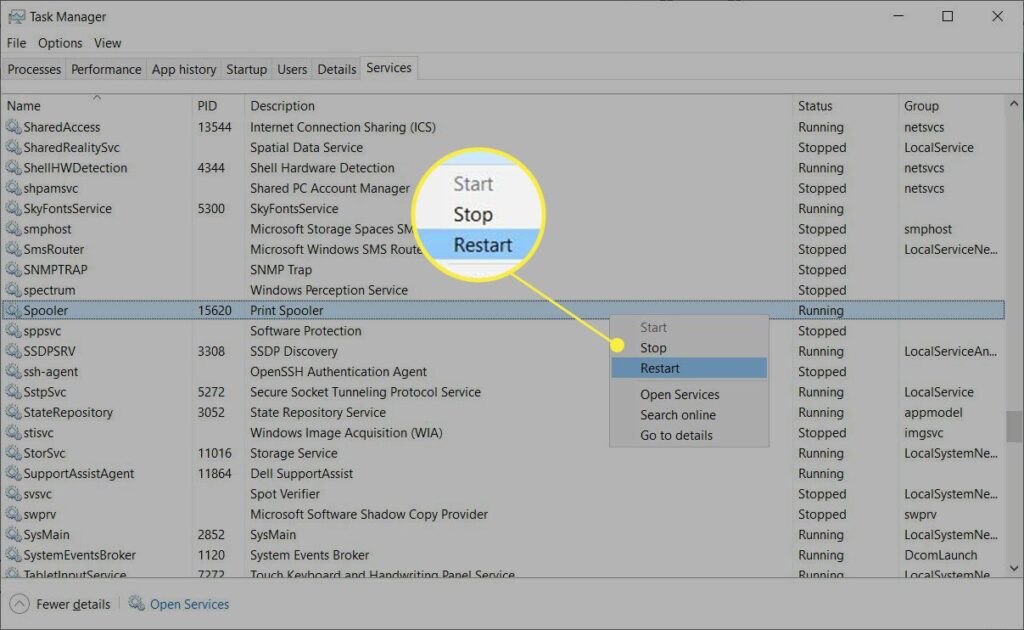
1. Restart the Print Spooler Service
This is the quickest fix for most spooler problems. The print spooler service can crash or freeze, stopping all printing.
On Windows:
- Press Windows + R keys together
- Type “services.msc” and press Enter
- Scroll down and find “Print Spooler”
- Right-click it and select “Restart”
- Try printing again
If the restart option is grayed out, click “Start” instead. This means the service stopped completely.
On Mac:
- Open System Preferences
- Click on “Printers & Scanners”
- Select your printer and click “Reset printing system”
- Confirm and re-add your printer
This fix works about 70% of the time. It’s always worth trying first before moving to more complex solutions.
2. Clear the Spooler Cache
Old or corrupted print jobs can clog the spooler. Clearing the cache removes these stuck files.
Step-by-step process:
- Open services.msc like before
- Stop the Print Spooler service (right-click and select Stop)
- Open File Explorer
- Navigate to: C:\Windows\System32\spool\PRINTERS
- Delete all files in this folder
- Go back to services and restart Print Spooler
These files are temporary. Deleting them won’t harm your system. They’re just old print jobs that never completed.
Sometimes you’ll see files that won’t delete. Close all programs and try again. If that doesn’t work, restart your computer and repeat these steps.
3. Update or Reinstall Printer Drivers
Bad drivers cause many spooler errors. An outdated or corrupted driver can make the spooler crash repeatedly.
To update drivers:
- Press Windows + X and select Device Manager
- Expand “Print queues”
- Right-click your printer
- Choose “Update driver”
- Select “Search automatically for drivers”
If Windows doesn’t find anything new, visit the printer manufacturer’s website. Download the latest driver for your specific model.
To reinstall:
- In Device Manager, right-click the printer
- Select “Uninstall device”
- Restart your computer
- Windows will reinstall the driver automatically
For best results, download the driver directly from HP, Canon, Epson, or whatever brand you use. Generic drivers sometimes cause problems. You can find official drivers at Microsoft’s support page or your printer manufacturer’s website.
4. Check for Windows Updates
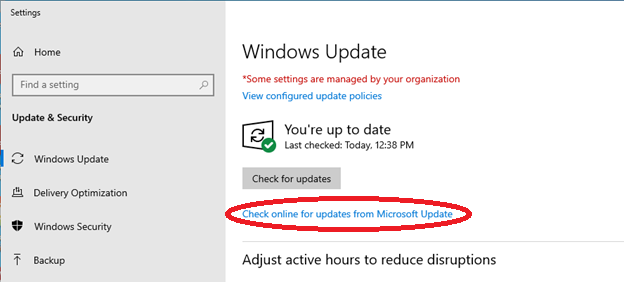
Microsoft regularly fixes printer spooler bugs through updates. An outdated system might have known issues that patches can solve.
How to update:
- Open Settings
- Click “Update & Security”
- Select “Windows Update”
- Click “Check for updates”
- Install any available updates
Updates sometimes include printer-specific fixes. They also update the spooler service itself. After updating, restart your computer even if Windows doesn’t ask you to.
Some updates need multiple restarts. Don’t skip this step. A half-installed update can create new problems.
5. Disable SNMP Status
SNMP (Simple Network Management Protocol) can interfere with printer communication. Turning it off often fixes network printer issues.
Here’s how:
- Open Control Panel
- Go to “Devices and Printers”
- Right-click your printer and select “Printer properties”
- Click the “Ports” tab
- Select your printer port
- Click “Configure Port”
- Uncheck “SNMP Status Enabled”
- Click OK and OK again
This setting mainly affects network printers. If you’re using a USB printer, this step probably won’t help. But it’s worth trying if other fixes haven’t worked.
6. Run the Printer Troubleshooter
Windows has a built-in tool that finds and fixes common printer problems automatically.
To run it:
- Open Settings
- Go to “Update & Security”
- Click “Troubleshoot”
- Select “Additional troubleshooters”
- Click “Printer” and run the troubleshooter
The tool will check for multiple issues. It looks at the spooler service, driver problems, and connection issues. Follow any recommendations it makes.
This troubleshooter is surprisingly effective. It can fix problems you didn’t even know existed. Let it complete fully before trying other solutions.
7. Change Spooler Settings
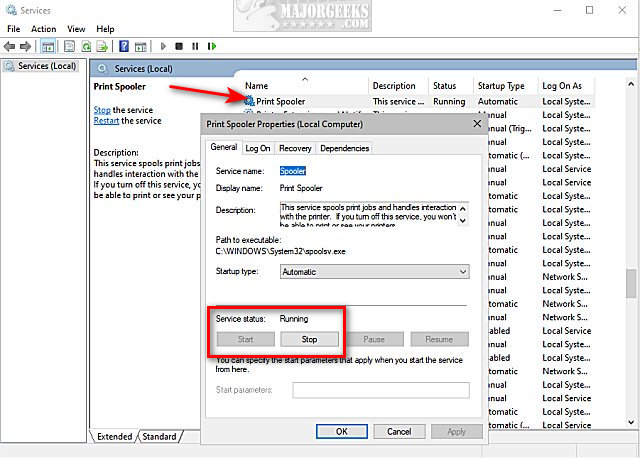
Sometimes the spooler itself needs different settings to work properly with your printer.
To adjust settings:
- Open services.msc
- Double-click “Print Spooler”
- Click the “Recovery” tab
- Set all three failure options to “Restart the Service”
- Set restart delay to 1 minute
- Click OK
This makes the spooler automatically restart if it crashes. You won’t need to fix it manually every time.
You can also try changing how documents spool. In printer properties, go to the Advanced tab. Try “Start printing after last page is spooled” instead of “Start printing immediately.” This prevents incomplete jobs from clogging the queue.
Additional Tools and Tips
Several third-party tools can help manage your print spooler service better.
Print Spooler Fix Wizard is a free tool from Microsoft. It automates many of the manual fixes above. Just download and run it when you have issues.
Printer Pro Desktop offers advanced spooler management. It shows all queued jobs and lets you delete stuck ones easily. The free version works fine for home users.
For persistent problems, try SpoolerFix. This tiny program sits in your system tray. If the spooler crashes, SpoolerFix restarts it automatically. You won’t even notice the interruption.
Keep your printer firmware updated too. Old firmware can cause communication problems with the spooler. Check your printer’s display menu or the manufacturer’s website for firmware updates.
Regular maintenance helps prevent spooler errors. Clear your print queue weekly. Delete old print jobs you don’t need. This keeps the spooler running smoothly.
Common Mistakes and How to Avoid Them
Mistake 1: Deleting the Wrong Files
When clearing the spooler cache, only delete files in the PRINTERS folder. Never delete files from the parent “spool” folder. Those are system files Windows needs.
Mistake 2: Not Stopping the Service First
Always stop the Print Spooler service before deleting cache files. If you don’t, Windows won’t let you delete them. The service locks these files while running.
Mistake 3: Using Generic Drivers
Windows might offer generic printer drivers during installation. These often cause spooler problems. Always use the driver from your printer’s manufacturer.
Mistake 4: Ignoring Error Messages
Spooler errors often include error codes. Write down these codes before trying fixes. They help identify the exact problem. Search online for the specific code to find targeted solutions.
Mistake 5: Skipping Restarts
Many fixes require a restart to work properly. Don’t skip this step. Restart after updating drivers, clearing the cache, or changing settings. A restart ensures all changes take effect.
Mistake 6: Printing While Troubleshooting
Don’t send new print jobs while fixing spooler issues. This adds more files to an already problematic queue. Wait until you’ve fixed the problem, then test with one document.
Mistake 7: Not Checking Connections
Physical connection problems can look like spooler errors. Check your USB cable or network connection first. A loose cable can’t be fixed by restarting services.
Frequently Asked Questions
Q: Why does my printer spooler keep stopping?
The spooler usually stops due to corrupted print jobs, bad drivers, or Windows bugs. Try clearing the cache and updating your drivers first. If problems continue, check for Windows updates or run the troubleshooter.
Q: Can I disable the printer spooler?
You can, but you shouldn’t. Without the spooler, you can only print one document at a time. You also can’t do anything else while printing. The spooler makes printing much more convenient.
Q: How do I know if the spooler is running?
Open services.msc and find Print Spooler in the list. The Status column should say “Running.” If it says anything else, right-click and select Start.
Q: What is Spooler SubSystem App high CPU usage?
This happens when the spooler processes many or large print jobs. It’s normal during printing. If CPU usage stays high when you’re not printing, you have stuck jobs. Clear the spooler cache to fix it.
Q: Will fixing the spooler delete my documents?
No. The spooler only handles temporary print data. Your original documents stay safe on your computer. Clearing the spooler just removes the print queue, not your files.
Q: Can antivirus software cause spooler problems?
Yes. Some antivirus programs block spooler files they think are suspicious. Add the PRINTERS folder to your antivirus exceptions list. This prevents false positives from stopping your printing.
Conclusion
Printer spooler problems are frustrating, but they’re usually easy to fix. Most issues come from stuck print jobs, bad drivers, or a crashed service. The solutions in this guide work for the vast majority of cases.
Start with the simple fixes first. Restart the spooler service and clear the cache. These two steps solve most problems in under five minutes. If those don’t work, move to driver updates and Windows troubleshooting.
Remember to maintain your printing system regularly. Update drivers, clear old jobs, and keep Windows current. Prevention is easier than fixing problems after they start.
With these tools and knowledge, you can handle any spooler error that comes your way. Save this guide for future reference. The next time printing stops working, you’ll know exactly what to do.
Fix Printer Banding Lines Fast | Stop Streaky Prints Today Read More


