
Introduction
Are you struggling to fix printer changing IP address problems that keep disrupting your work? If your printer constantly loses connection and you can’t find it on your network, you’re dealing with one of the most common printer issues today.
When you need to fix printer changing IP address errors, the frustration is real. You waste time reinstalling drivers, searching for the printer, and dealing with failed print jobs. Your printer disappears from the network every few days, forcing you to troubleshoot again and again.
But here’s the good news: you can fix printer changing IP address problems permanently with simple solutions that work for any printer brand—HP, Canon, Epson, Brother, or others. This comprehensive guide shows you exactly how to stop your printer’s IP address from changing.
In the next few minutes, you’ll discover why this happens and learn proven methods to fix printer changing IP address issues once and for all. Let’s solve this problem together.
What Causes Printer IP Address to Keep Changing?
Before you can fix printer changing IP address problems, you need to understand why it happens.
Every device on your network needs a unique identifier called an IP address. Think of it like a home address for your printer.
Your router assigns IP addresses automatically through a system called DHCP (Dynamic Host Configuration Protocol). This system makes networking easy, but it has one downside: IP addresses can change.
Here’s what happens:
- Your printer turns off or goes to sleep
- The router assigns that IP address to another device
- When your printer wakes up, it gets a different address
- Your computer still looks for the old address
- Result: “Printer not found” errors
This cycle repeats endlessly unless you take steps to fix printer changing IP address behavior.
Most home routers assign addresses from a pool (like 192.168.1.100 to 192.168.1.200). When many devices connect and disconnect, your printer might get a different number each time.
The solution? Give your printer a permanent address it can keep forever.
7 Proven Methods to Fix Printer Changing IP Address Problems
Method 1: Fix Printer Changing IP Address with Static IP Configuration
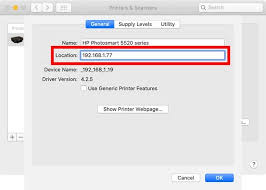
The most reliable way to fix printer changing IP address issues is setting a static IP address directly on your printer.
Here’s how:
Access your printer’s control panel (either through the LCD screen or web interface)
Navigate to Network Settings or TCP/IP Settings
Write down these current values:
- IP Address (example: 192.168.1.150)
- Subnet Mask (usually 255.255.255.0)
- Gateway (your router’s address, like 192.168.1.1)
- DNS Server (often the same as Gateway)
Change from DHCP to Static/Manual
Enter your chosen IP address (pick a number outside your router’s DHCP range, like 192.168.1.210)
Keep the Subnet Mask, Gateway, and DNS the same
Save and restart your printer
Pro tip: Choose an IP address ending in a high number (like .200 or higher) to avoid conflicts with other devices.
Method 2: Fix Printer Changing IP Address Using DHCP Reservation
DHCP reservation is another excellent way to fix printer changing IP address problems. This lets your printer keep getting the same address automatically.
Steps to create a reservation:
Find your printer’s MAC address (check printer’s network information page or settings)
Open your router’s admin page (usually 192.168.1.1 or 192.168.0.1 in your browser)
Log in with your router credentials
Look for DHCP Settings or Address Reservation (location varies by router brand)
Add a new reservation:
- Enter the printer’s MAC address
- Assign your desired IP address
- Save the reservation
Restart your printer to get the reserved address
Different routers call this feature different names: DHCP Reservation, Address Reservation, or Static DHCP. The concept remains the same.
Method 3: Fix Printer Changing IP Address by Reducing DHCP Pool
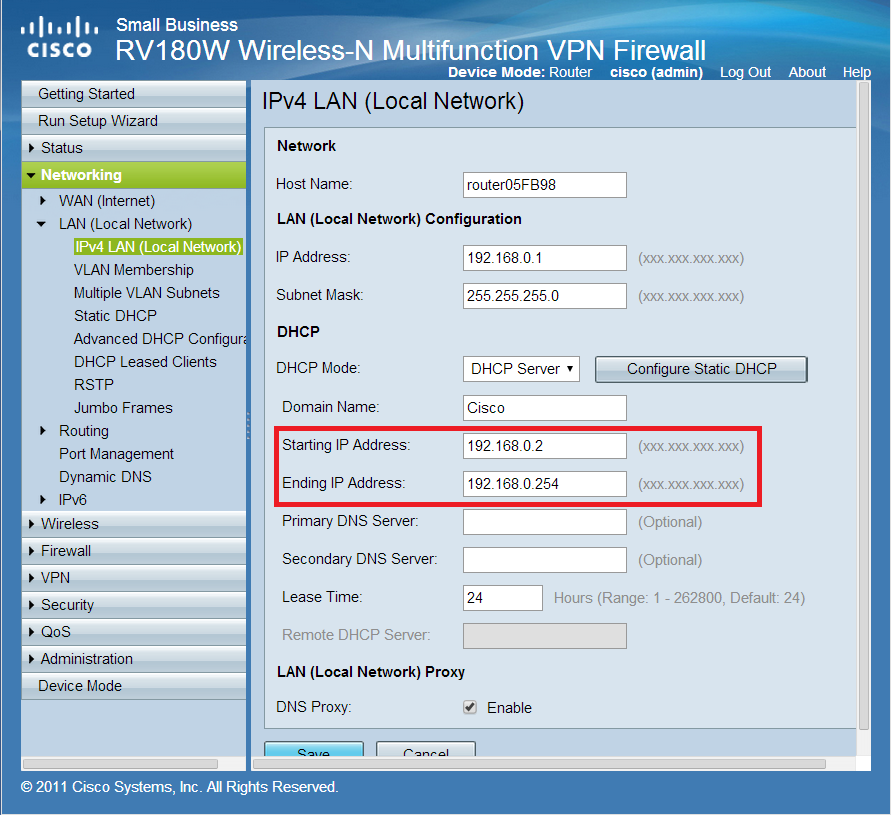
Making your DHCP pool smaller helps fix printer changing IP address problems by preventing conflicts.
Access router settings
Find DHCP Server settings
Note the current range (example: 192.168.1.100 to 192.168.1.200)
Reduce the ending address (change to 192.168.1.150 instead of 192.168.1.200)
Assign your printer an address above this range (like 192.168.1.180)
Save changes and restart router
This creates a “safe zone” for devices with static addresses.
Method 4: Fix Printer Changing IP Address Through Firmware Updates
Outdated firmware can cause the printer IP address to keep changing. Updating helps fix printer changing IP address bugs permanently.
Visit your printer manufacturer’s website
Enter your printer model number
Download the latest firmware
Follow installation instructions (usually through printer software or control panel)
Restart printer after update
Regular firmware updates also improve security and add new features.
Method 5: Fix Printer Changing IP Address by Disabling IPv6
Some printers struggle with IPv6 addressing. Disabling it can fix printer changing IP address connection problems.
Access printer network settings
Find IPv6 options
Disable or turn off IPv6
Ensure IPv4 is enabled
Save and restart
Most home networks primarily use IPv4, so disabling IPv6 rarely causes issues.
Method 6: Fix Printer Changing IP Address with Updated Computer Settings
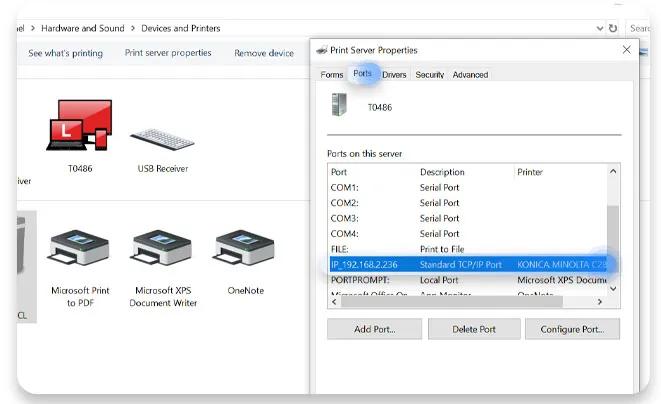
Sometimes to fix printer changing IP address issues, you need to update how your computer connects.
On Windows:
- Open Settings > Devices > Printers & Scanners
- Remove your printer
- Add it again using its new static IP address
- Choose “Add by IP address” option
On Mac:
- Open System Preferences > Printers & Scanners
- Remove the printer
- Click the “+” button
- Select IP tab and enter printer’s static address
Update printer drivers after reconnecting for best results.
Method 7: Fix Printer Changing IP Address Using Alternative Connections
If standard methods don’t fix printer changing IP address problems, try alternative connections.
WPS (Wi-Fi Protected Setup):
- Press WPS button on your router
- Press WPS button on your printer within 2 minutes
- Devices connect automatically
Wi-Fi Direct:
- Enable Wi-Fi Direct on printer
- Connect devices directly without router
- Eliminates IP address changes entirely
These methods work best for single-device printing scenarios.
Best Tools to Monitor and Fix Printer Changing IP Address Issues

Several tools can help you track and fix printer changing IP address problems:
Advanced IP Scanner (free tool for Windows) shows all devices on your network with their current IP addresses and MAC addresses. Perfect for tracking your printer’s address.
Angry IP Scanner works on Windows, Mac, and Linux. It quickly scans your network and identifies every connected device.
Fing (mobile app) lets you monitor your network from your phone. Get alerts when devices connect or disconnect.
Most printer manufacturers also offer mobile apps with network diagnostic tools. HP Smart, Canon PRINT, and Epson iPrint all include IP address management features.
For businesses, consider using network monitoring software like PRTG or Spiceworks to track all devices automatically and help fix printer changing IP address issues before they cause problems.
Common Mistakes When Trying to Fix Printer Changing IP Address
Don’t use an IP address already in use. Always check which addresses are active on your network before assigning a static IP. Choose an address outside your DHCP range.
Don’t forget to update printer connections on all devices. After you fix printer changing IP address problems, update the printer settings on every computer, phone, and tablet that uses it.
Don’t skip the subnet mask and gateway. When setting a static IP, you must enter the correct subnet mask and gateway. Get these wrong, and your printer won’t connect at all.
Don’t assign addresses too close to your router’s IP. If your router is 192.168.1.1, don’t use 192.168.1.2 or 192.168.1.3. These might be reserved for router functions.
Don’t ignore printer sleep settings. Some printers disconnect from Wi-Fi when sleeping. Adjust power settings to keep network connections active.
Don’t use special characters in your Wi-Fi password. Complex passwords sometimes cause printer connection issues. Stick to letters and numbers if problems persist.
Don’t forget to document your changes. Write down your printer’s new static IP address, MAC address, and router login credentials for future reference.
Frequently Asked Questions About How to Fix Printer Changing IP Address
Q1: What’s the fastest way to fix printer changing IP address problems?
The fastest solution is creating a DHCP reservation in your router. This takes about 5 minutes and permanently assigns the same IP address to your printer’s MAC address without changing printer settings.
Q2: How do I find my printer’s current IP address to fix printer changing IP address issues?
Print a network configuration page directly from your printer. Most printers have this option in Settings > Network > Print Network Status or Configuration Page. You can also check your router’s connected devices list.
Q3: Will a static IP fix printer changing IP address problems permanently?
Yes. When you assign a static IP address to your printer (either through printer settings or DHCP reservation), your printer will always use that address. This permanently solves IP address changes.
Q4: Can I fix printer changing IP address issues without accessing my router?
Yes. You can fix printer changing IP address problems by setting a static IP directly on your printer through its control panel or web interface. This doesn’t require router access.
Q5: What if my methods to fix printer changing IP address don’t work?
First, verify you saved the settings correctly. Then check if your router has any special DHCP rules that might override static IPs. Some routers have “aggressive DHCP” features that need disabling. Update printer firmware as a last resort.
Q6: Does firmware update help fix printer changing IP address problems?
Yes. Outdated firmware often causes network stability issues. Manufacturers release updates specifically to fix printer changing IP address bugs and improve connectivity.
Conclusion
Now you have everything you need to fix printer changing IP address problems permanently. This frustrating issue doesn’t have to disrupt your printing anymore.
The easiest way to fix printer changing IP address issues is creating a DHCP reservation in your router. This takes just five minutes and works for most situations. If you need more control, assign a static IP address directly through your printer’s settings.
Remember these key points to successfully fix printer changing IP address problems:
- Choose an IP address outside your DHCP range
- Keep your subnet mask and gateway settings correct
- Update printer connections on all your devices
- Document your new IP address for future reference
Most users successfully fix printer changing IP address issues within 15 minutes using these methods. You can eliminate connection errors, stop wasting time searching for lost printers, and finally enjoy reliable printing.
Take action today. Pick one method from this guide to fix printer changing IP address problems right now. Your future self will thank you when your printer just works—every single time.
For more printer troubleshooting guides and networking tips, bookmark this page and check out our related articles on printer maintenance and network optimization.
For more detailed information on network basics and IP addressing, visit the Cisco Networking Basics Guide.
Optimal Settings for Printing on Transparencies: Master Perfect Results Read More.


