
Introduction
You’re ready to print an important document. You click print, and suddenly, an error message pops up saying the port is in use error. Your printer won’t respond, and you’re left wondering what went wrong.
This frustrating issue stops thousands of people from printing every day. The good news? It’s usually simple to fix. The port is in use error happens when your computer thinks another program is using the printer connection. This blocks new print jobs from going through.
In this guide, you’ll learn exactly what causes this error and how to fix it quickly. We’ll walk you through simple steps that work for Windows and Mac users. No technical skills needed.
What Is a Port Is in Use Error?
A port is in use error means your computer can’t send data to your printer because something is blocking the connection.
Think of printer ports like doorways. Your print jobs need to pass through these doorways to reach your printer. When you see this error, it’s like finding a locked door. Something is already using that path, or your computer thinks it is.
This error appears in different ways:
- “Port is already in use”
- “Cannot open port”
- “Printer port not available”
- “Access denied to port”
Your printer uses either a physical port (USB cable) or a network port (Wi-Fi connection). Both types can show this error. The problem usually happens when old print jobs get stuck, another program controls the printer, or your printer drivers get confused.
Windows computers show this error more often than Macs. But the fix works similarly for both systems. The key is finding what’s blocking your printer port and clearing it out.
7 Proven Ways to Fix Port Is in Use Error
1. Restart Your Printer and Computer
This sounds too simple, but it works most of the time.
Turn off your printer completely. Unplug it from the power source and wait 30 seconds. This clears any stuck processes in the printer’s memory.
While the printer is off, restart your computer. This closes all programs that might be holding onto the printer port. When your computer starts up fresh, those connections reset.
Plug your printer back in and turn it on. Wait until it finishes warming up. Then try printing again. This simple reset fixes about 60% of port errors.
2. Clear the Print Queue
Stuck print jobs cause many port errors. Your computer keeps trying to send these old jobs, which blocks new ones.
For Windows:
- Press Windows key + R
- Type “services.msc” and press Enter
- Find “Print Spooler” in the list
- Right-click it and choose “Stop”
- Open File Explorer
- Navigate to C:\Windows\System32\spool\PRINTERS
- Delete all files in this folder
- Go back to Services and start Print Spooler again
For Mac:
- Open System Preferences
- Click Printers & Scanners
- Select your printer
- Click “Open Print Queue”
- Click the X next to each job to delete them
- If jobs won’t delete, open Terminal
- Type: sudo cancel -a
- Enter your password
After clearing the queue, try printing a test page. Your printer port should be free now.
3. Check for Programs Using the Printer
Other software might be holding your printer connection without you knowing.
Close all programs on your computer, especially:
- PDF readers like Adobe Acrobat
- Photo editing software
- Scanning applications
- Fax programs
- Print management tools
Some programs keep printer connections open even when you’re not actively using them. Closing these programs releases the port.
Check Task Manager (Windows):
- Press Ctrl + Shift + Esc
- Look at the Processes tab
- Find any printer-related programs
- Right-click and choose “End Task”
Check Activity Monitor (Mac):
- Open Activity Monitor from Applications > Utilities
- Search for printer or print in the search box
- Select any printer processes
- Click the X button to quit them
4. Reinstall Your Printer Drivers
Corrupted or outdated drivers often cause the port is in use error. Drivers tell your computer how to talk to your printer.
Remove old drivers first:
- Open Control Panel (Windows) or System Preferences (Mac)
- Go to Devices > Printers & Scanners
- Select your printer
- Click “Remove Device” or the minus (-) button
- Restart your computer
Install fresh drivers:
- Visit your printer manufacturer’s website (HP Support, Canon, Epson, Brother, etc.)
- Enter your printer model number
- Download the latest driver for your operating system
- Run the installer and follow the prompts
- Restart again after installation
Fresh drivers create new port connections. This often solves stubborn port errors that other methods don’t fix.
5. Change the Printer Port Settings
Sometimes you need to manually adjust which port your printer uses.
For Windows:
- Open Settings > Devices > Printers & Scanners
- Click your printer, then “Manage”
- Click “Printer Properties”
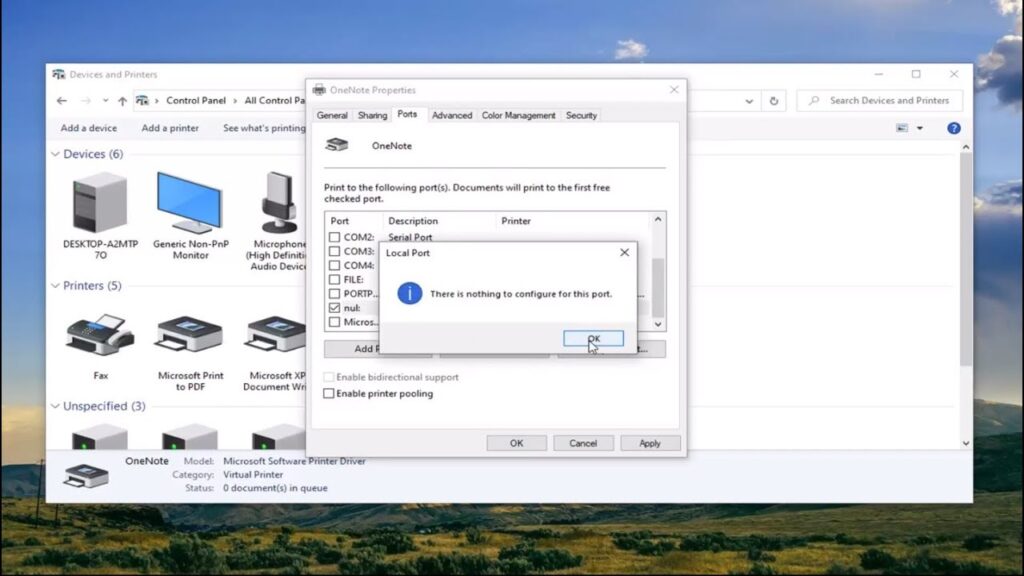
- Go to the Ports tab
- Look for a checkmark next to a port
- Try checking a different port (like USB002 instead of USB001)
- Click “Apply” and test printing
For network printers:
- In the Ports tab, click “Add Port”
- Select “Standard TCP/IP Port”
- Click “New Port”
- Enter your printer’s IP address
- Follow the wizard to complete setup
Changing ports gives your printer a fresh connection pathway. This bypasses whatever was blocking the old port.
6. Disable Bidirectional Support
Bidirectional support lets your printer send information back to your computer. Sometimes this feature causes connection conflicts.
Turn it off:
- Open Printer Properties (as described in step 5)
- Go to the Ports tab
- Uncheck “Enable bidirectional support”
- Click “Apply” and “OK”
- Try printing again
You might lose some printer status updates, but your port error should disappear. You can always turn this back on later if needed.
7. Check Your Firewall and Antivirus
Security software sometimes blocks printer connections, thinking they’re threats.
Temporarily disable your firewall:
- Open Windows Security or your antivirus program
- Turn off the firewall for a few minutes
- Try printing
- If it works, add your printer as an exception
- Turn the firewall back on
Add printer exception:
- Open your firewall settings
- Look for “Allow an app through firewall”
- Click “Change settings”
- Find your printer software
- Check both Private and Public boxes
- Save changes
Your security stays strong while your printer works properly.
Additional Tools to Diagnose Port Issues

Windows includes built-in troubleshooters that fix many printer problems automatically.
Run the Windows Printer Troubleshooter:
- Open Settings
- Go to Update & Security
- Click Troubleshoot
- Select “Printer” and run the troubleshooter
- Follow any recommendations it makes
The troubleshooter checks your printer connection, drivers, and port settings. It fixes common issues without you doing manual steps.
Check Device Manager for errors:
- Right-click the Start button
- Select Device Manager
- Expand “Print queues”
- Look for yellow warning icons
- Right-click any problem devices
- Choose “Update driver” or “Uninstall device”
You can also use third-party tools like Print Conductor or DriverEasy. These scan for driver problems and port conflicts. But try the free built-in tools first.
Common Mistakes That Make Port Errors Worse

Many people accidentally create bigger problems when trying to fix port errors.
Don’t install multiple printer drivers. Adding the same printer several times creates port confusion. Your computer doesn’t know which connection to use. Always remove old printer installations before adding new ones.
Don’t use generic drivers. Windows sometimes offers generic print drivers during setup. These basic drivers often cause port conflicts. Always get the exact driver from your printer’s manufacturer website.
Don’t skip the restart. It’s tempting to keep trying fixes without restarting. But many changes only take effect after a full restart. Restart after each major change like driver updates or port modifications.
Don’t ignore cable problems. A damaged USB cable or loose connection causes errors that look like software problems. Try a different USB port or cable before diving into complex fixes. For network printers, check your Wi-Fi connection strength.
Don’t forget printer firmware. Outdated printer firmware creates compatibility issues with new drivers. Check your printer manufacturer’s website for firmware updates. Install these before updating your computer’s printer drivers.
Troubleshooting Specific Port Error Scenarios
For USB printers: If changing USB ports doesn’t help, your USB controller might have issues. Update your USB drivers through Device Manager. Some computers have USB power saving features that disconnect devices. Disable USB selective suspend in Power Options.
For network printers: Make sure your printer has a static IP address. Dynamic IP addresses change, which breaks the port connection. Access your router settings and assign a permanent IP to your printer. Then update the printer port with this IP address.
For shared printers: When using a printer shared from another computer, both computers need matching drivers. The host computer must stay turned on for others to print. Check that printer sharing is enabled in Windows network settings.
For wireless printers: Wi-Fi interference causes intermittent port errors. Move your printer closer to the router. Make sure both devices use the same Wi-Fi network (not guest networks). Restart your router if the printer keeps disconnecting.
Preventing Future Port Errors

Once you fix the port is in use error, keep it from coming back.
Update your printer drivers every few months. Manufacturers release updates that fix bugs and improve connections. Sign up for update notifications on your printer manufacturer’s website.
Don’t let print jobs pile up. Cancel jobs you don’t need anymore. A clean print queue prevents stuck jobs from blocking the port.
Restart your printer weekly. This clears temporary files and resets connections. You can do this during off-hours or weekends when you’re not printing.
For network printers, check your connection regularly. Make sure the printer maintains its IP address. Test the connection by pinging the printer’s IP address from your computer.
Keep your operating system updated. Windows and Mac updates often include printer compatibility improvements. Enable automatic updates so you don’t miss important fixes.
Frequently Asked Questions
What causes port is in use error most often? Stuck print jobs cause this error most frequently. When a print job fails to complete, it keeps the port busy. Other common causes include outdated drivers, firewall blocking, or another program using the printer.
Can I fix this error without technical knowledge? Yes. Start with the simple solutions like restarting your devices and clearing the print queue. These steps require no technical skills and fix most port errors. Only move to advanced fixes if simple methods don’t work.
How long does it take to fix port errors? Basic fixes take 5-10 minutes. Reinstalling drivers might take 20-30 minutes including download time. Most people solve the problem within 15 minutes using the restart and print queue clearing methods.
Will I lose my printer settings when fixing this? Restarting and clearing print queues keeps all your settings. Reinstalling drivers might reset some preferences like default paper size or print quality. Write down your important settings before removing drivers.
Why does this error keep coming back? Recurring port errors usually mean deeper issues. Check for outdated drivers, failing USB cables, or unstable network connections. Sometimes background programs interfere with printer connections. Identify and fix the root cause to stop repeated errors.
Conclusion
The port is in use error frustrates many people, but now you know how to beat it. Start with simple fixes like restarting your devices and clearing stuck print jobs. These quick steps solve most port problems in minutes.
If basic methods don’t work, move on to driver updates and port changes. Check for programs blocking your printer and adjust your firewall settings if needed. Each fix targets a different cause of port errors.
Remember to prevent future problems. Keep your drivers updated, maintain a clean print queue, and restart your printer regularly. These habits stop port errors before they start.
Your printer should work smoothly now. If problems continue after trying all these steps, contact your printer manufacturer’s support. They can help with hardware issues that software fixes can’t solve.
What is Printer Firmware? Critical Updates You Can’t Ignore in 2025 Read More


