
Introduction
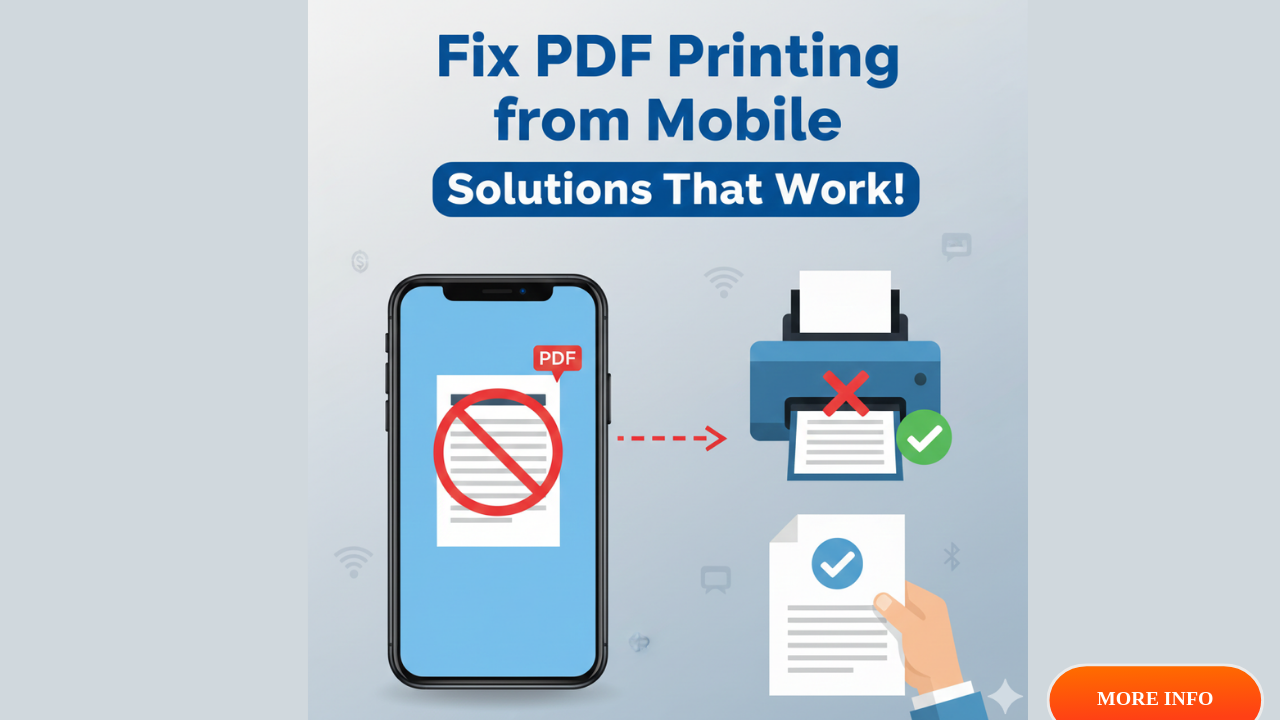
PDF printing issues from mobile apps frustrate millions of smartphone users every day. You tap the print button, select your printer, and nothing happens. Or worse, the document prints blank pages or cuts off important information. These common problems waste time, paper, and create unnecessary stress when you need documents printed quickly.
This comprehensive guide walks you through proven solutions for fixing PDF printing issues from mobile apps on both Android and iOS devices. Whether you’re printing from Gmail, Adobe Acrobat, or any other mobile application, you’ll discover exactly what’s causing your printing problems and how to resolve them permanently.
What Are PDF Printing Issues from Mobile Apps?
PDF printing issues from mobile apps occur when documents fail to print correctly from smartphones or tablets. These problems manifest in several ways.
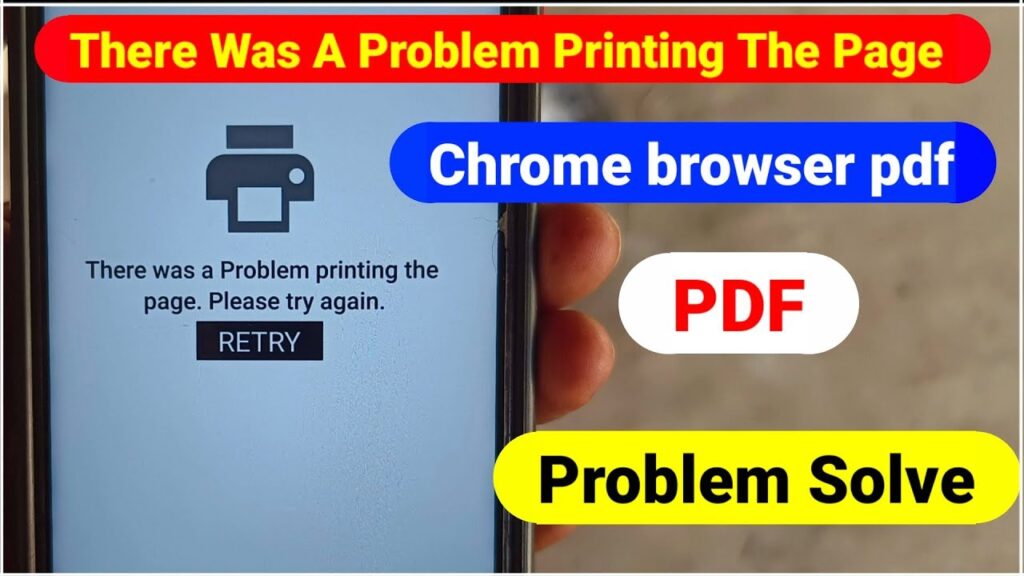
Sometimes the print command doesn’t respond at all. You select the printer, choose settings, and tap print, but nothing happens. The document never reaches the printer queue.
Other times, documents print with formatting errors. Pages appear blank, text gets cut off, images don’t display, or colors look completely wrong. These issues happen even though the PDF looks perfect on your phone screen.
Connection problems also cause printing failures. Your phone can’t find the wireless printer, loses connection mid-job, or shows the printer as offline even though it’s working fine from computers.
Mobile printing relies on several technologies working together: your phone’s operating system, the specific app you’re using, wireless network connectivity, printer drivers, and the printer’s own firmware. When any component has compatibility issues or configuration problems, printing fails.
Understanding these different failure points helps you troubleshoot effectively instead of randomly trying fixes that don’t address the real problem.
8 Proven Ways to Fix PDF Printing Issues from Mobile Apps
Step 1: Restart Your Phone and Printer
The simplest solution often works best. Many PDF printing issues from mobile apps resolve with a basic restart.
Turn off your smartphone completely. Don’t just lock the screen—actually power it down. Wait 30 seconds, then turn it back on.
While your phone restarts, unplug your printer from the power outlet. Wait one full minute. This allows the printer’s memory to clear completely.
Plug the printer back in and let it fully initialize before attempting to print. The startup process can take 2-3 minutes for some models.
This restart process clears temporary glitches in both devices. It refreshes network connections and resets software processes that may have frozen or encountered errors.
Try printing your PDF again after both devices have restarted. This simple step fixes approximately 30% of mobile printing problems according to printer manufacturer support data.
Step 2: Check Your WiFi Connection Strength
Weak wireless signals cause many printing failures that users mistake for app problems.
Open your phone’s WiFi settings and look at the signal strength indicator. If you see fewer than three bars, your connection may be too weak for reliable printing.
Move closer to your WiFi router. Most wireless printers work best within 30 feet of the router without walls blocking the signal.
Check that both your phone and printer connect to the same WiFi network. Many homes have multiple networks (2.4GHz and 5GHz bands, guest networks, etc.). Devices on different networks can’t communicate even if they’re in the same room.
Run a speed test on your phone using a free app or website. If speeds are below 5 Mbps, network congestion may interrupt print jobs.
Restart your WiFi router if connection problems persist. Unplug it for 30 seconds, plug it back in, and wait for it to fully restart before testing printing again.
Step 3: Update the Mobile App Causing Problems

Outdated apps frequently cause PDF printing issues from mobile apps because they lack compatibility fixes.
Open the App Store (iOS) or Google Play Store (Android). Tap your profile icon and select “Manage apps & device” or “Updates.”
Look for the specific app you’re having printing trouble with. If an update is available, install it immediately.
App developers regularly release updates that fix printing bugs, improve compatibility with new printer models, and resolve issues with the latest mobile operating system versions.
After updating, force-close the app completely. On iPhone, swipe up from the bottom and swipe the app away. On Android, go to Settings > Apps, find the app, and tap “Force stop.”
Reopen the app and try printing again. Many users report that app updates alone solve their printing problems without needing other fixes.
Step 4: Clear the App’s Cache and Data
Corrupted cache files often prevent PDFs from printing correctly even when everything else works fine.
On Android, go to Settings > Apps > [Problem App] > Storage. Tap “Clear Cache” first. This removes temporary files without deleting your app data.
If clearing cache doesn’t help, tap “Clear Data.” Warning: This resets the app to its original state, so you’ll need to log in again and reconfigure settings.
On iPhone, iOS doesn’t offer built-in cache clearing for most apps. Instead, delete the problematic app completely, then reinstall it from the App Store. This achieves the same result as clearing cache and data.
Cache corruption happens gradually as apps store more temporary files. Print-related cache includes font data, page layout information, and temporary document copies. When these files become corrupted, printing fails even though viewing works normally.
Step 5: Try a Different Printing Method
Sometimes the issue isn’t with your phone or printer—it’s with how the specific app handles printing.
Instead of using the app’s built-in print function, try opening the PDF in a different app. Tap the “Share” icon, select “Open in,” and choose Adobe Acrobat Reader, Google Drive, or your phone’s built-in Files app.
Print from that second app instead. Different apps use different printing frameworks, so switching apps often bypasses compatibility issues.
You can also try saving the PDF to your phone first, then printing from the saved file instead of printing directly from the original app. This approach works especially well for email attachments and web-based documents.
For important documents, consider emailing the PDF to yourself, opening it on a computer, and printing from there. While not ideal for mobile convenience, this guarantees the document prints correctly.
Step 6: Update Your Printer’s Firmware

Outdated printer firmware causes compatibility problems with newer mobile apps and operating systems.
Visit your printer manufacturer’s website and navigate to the support section. Enter your exact printer model number to find available firmware updates.
Most modern wireless printers also offer built-in firmware update options. Access your printer’s control panel or touchscreen, look for “Settings” or “Tools,” then find “Firmware Update” or “Check for Updates.”
The printer will connect to the manufacturer’s servers and download any available updates automatically. This process typically takes 5-10 minutes. Don’t turn off the printer during firmware updates.
Firmware updates improve mobile printing compatibility, fix security vulnerabilities, and resolve bugs that cause printing failures. Manufacturers release these updates several times per year.
After updating firmware, print a test page from the printer itself to verify it’s working properly, then try printing your PDF from the mobile app again.
Step 7: Check PDF File Size and Complexity
Large or complex PDFs often fail to print from mobile apps due to memory limitations.
Check the PDF file size. Files larger than 50MB frequently cause problems on mobile devices. If your PDF is oversized, try compressing it using a PDF compressor app or website before printing.
Documents with many high-resolution images, complex graphics, or hundreds of pages tax your phone’s processing power. Consider printing these documents in smaller sections instead of all at once.
Some mobile apps have specific file size limits for printing. Check the app’s documentation or try printing a small, simple PDF to verify the app’s printing function works at all.
If you consistently need to print large PDFs, consider using a computer instead. Mobile devices simply don’t have the processing power and memory for complex print jobs that computers handle easily.
Step 8: Reinstall Printer Software and Drivers
When other solutions fail, reinstalling printer-related software often resolves persistent PDF printing issues from mobile apps.
Delete your printer from your phone’s printer list. On iPhone, go to Settings > Printers, swipe left on the printer name, and tap Delete. On Android, open Settings > Connected devices > Connection preferences > Printing, tap your printer service, and remove the printer.
If you installed a manufacturer-specific printing app (HP Smart, Epson iPrint, Canon PRINT, etc.), delete that app completely from your phone.
Restart your phone after removing printer software.
Reinstall the manufacturer’s printing app from the App Store or Google Play Store. Open the app and follow the setup wizard to reconnect your printer.
This clean installation process removes corrupted configuration files and ensures you have the latest compatible printer drivers for your mobile device.
Additional Mobile Printing Tools and Services
Several third-party services enhance mobile printing capabilities beyond what standard apps offer.
Google Cloud Print was discontinued in 2020, but alternatives like PrinterShare and PrintCentral provide similar cross-platform printing solutions. These apps work with almost any printer and offer more reliable printing than some built-in mobile printing options.
Apple AirPrint provides seamless printing for iPhone and iPad users with compatible printers. Over 5,000 printer models support AirPrint natively. Check Apple’s official AirPrint printer list at <a href=”https://support.apple.com/en-us/HT201311″>https://support.apple.com/en-us/HT201311</a> to verify your printer’s compatibility.
Mopria Print Service for Android devices creates a universal printing standard across different printer brands. Download this free app from Google Play Store if your printer manufacturer’s app gives you trouble.
For business users, mobile device management (MDM) solutions often include enterprise printing capabilities that bypass common consumer app printing problems.
Common Mistakes When Troubleshooting Mobile Printing Problems
Assuming the Problem Is Always the Printer
Many users immediately blame the printer when encountering PDF printing issues from mobile apps. They spend hours troubleshooting printer settings when the actual problem lies in their phone, the app, or network connection.
Always verify the printer works correctly from other devices before deep-diving into printer troubleshooting. Print a test page directly from the printer’s control panel, then try printing from a computer. If both work, the issue is definitely mobile-related, not printer-related.
Ignoring Mobile Operating System Updates
Outdated phones create compatibility problems with printer apps and wireless printing protocols. Some users deliberately avoid OS updates, worried about performance impacts or bugs.
However, operating system updates include critical fixes for printing functionality. iOS and Android updates regularly improve AirPrint, Mopria, and manufacturer-specific printing compatibility.
Check for available updates in your phone’s settings and install them. Yes, occasionally an update creates new problems, but far more often, updates resolve existing issues.
Using Incompatible File Formats
Not all mobile apps handle PDFs the same way. Some apps convert PDFs to images before printing, which causes quality loss and formatting problems. Others try to reflow PDF content for mobile screens, breaking the original formatting.
When possible, use apps specifically designed for PDF handling like Adobe Acrobat Reader. These apps maintain proper PDF formatting during the printing process.
Overlooking Paper and Ink Issues
Sometimes what appears to be a mobile app printing problem is actually a physical printer issue. Low ink produces faint or blank pages. The wrong paper size causes formatting errors and cut-off content.
Check your printer’s ink levels and paper supply before troubleshooting software issues. Replace low ink cartridges and ensure you’ve loaded the correct paper size that matches your print settings.
Physical printer maintenance—cleaning print heads, aligning cartridges, and removing paper jams—solves problems that no amount of mobile troubleshooting can fix.
Frequently Asked Questions
Q: Why do PDFs print blank pages from my phone but show content on screen?
This happens when the PDF uses fonts or graphics that your printer can’t process correctly. Try opening the PDF in Adobe Acrobat Reader and printing from there, as it handles font embedding better than most apps. Also check if printing as an image resolves the issue—most printing dialogs have an “Advanced” option for this.
Q: Can I fix PDF printing issues from mobile apps without a computer?
Yes, most solutions work entirely on your mobile device. Restarting devices, updating apps, clearing cache, and checking network connections require only your phone and printer. You only need a computer for updating printer firmware if your printer model doesn’t support wireless firmware updates.
Q: Why does printing work from some apps but not others?
Different apps use different printing methods. Native iOS and Android apps typically use system-level printing services (AirPrint or Mopria), while third-party apps may use custom printing code. If one app works and another doesn’t, the problem lies in how that specific app implements printing, not with your printer or phone.
Q: How can I prevent mobile printing problems in the future?
Keep everything updated: your phone’s operating system, printing apps, and printer firmware. Use your printer regularly—sitting idle for weeks can cause connectivity and mechanical issues. Maintain a strong WiFi signal between your phone and printer, and restart both devices monthly to clear accumulated software glitches.
Conclusion
Fixing PDF printing issues from mobile apps doesn’t require technical expertise or expensive repairs. The eight troubleshooting steps in this guide—from basic restarts to firmware updates—resolve the vast majority of mobile printing problems. Start with the simplest solutions like restarting devices and checking WiFi connections before moving to more involved fixes like reinstalling apps or updating firmware. Remember that mobile printing relies on multiple technologies working together, so systematic troubleshooting identifies exactly where the breakdown occurs. By understanding common mistakes and maintaining your devices properly, you can prevent most printing problems before they start. Apply these solutions today and enjoy reliable, hassle-free printing from your smartphone or tablet whenever you need it.
Master Remote Printer Queue Control: Ultimate PowerShell Guide Read More.


