
Introduction
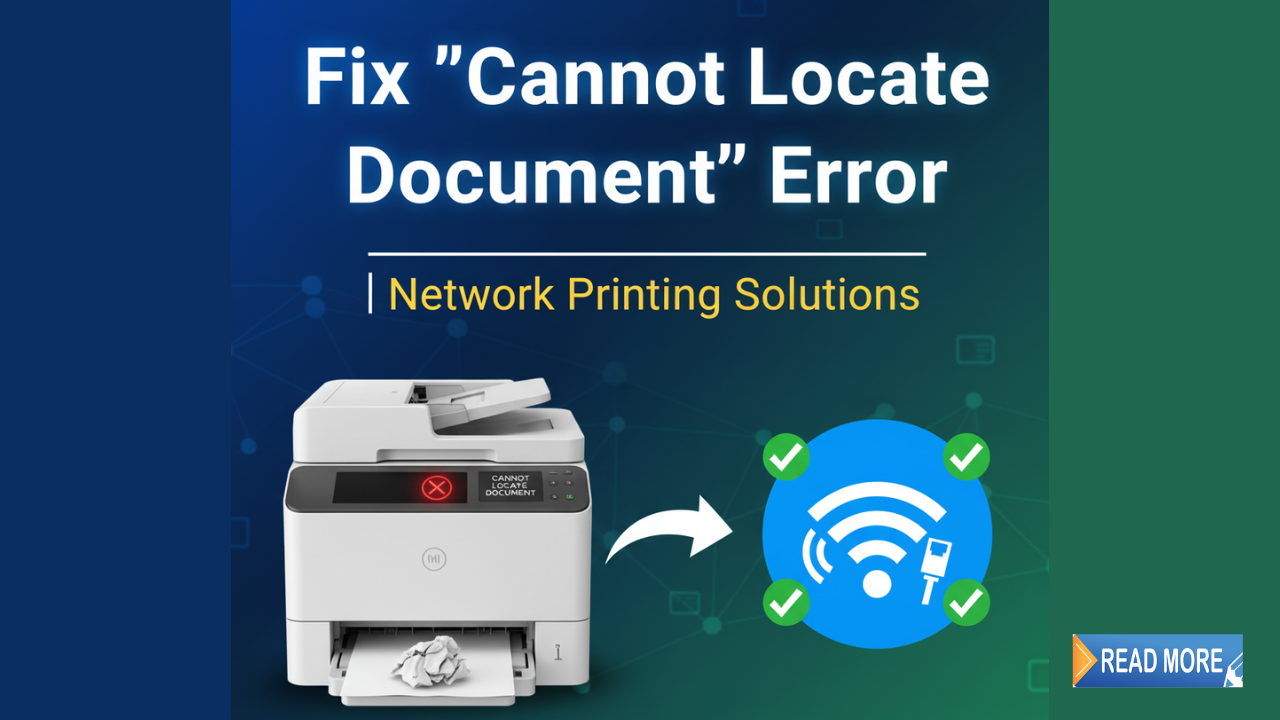
Getting the “cannot locate document error printing” message when you’re trying to print an important file is incredibly frustrating. You can see the document right there on your screen, but your printer acts like it doesn’t exist.
This error happens a lot when printing from network drives. It’s one of those tech problems that can waste hours of your day if you don’t know how to fix it.
The good news? This error usually has simple causes and even simpler solutions. In this guide, I’ll walk you through exactly how to fix the “cannot locate document error printing” issue, whether you’re using Windows, Mac, or printing from a shared company network.
You don’t need to be a tech expert. Just follow these steps, and you’ll be printing again in no time.
What Is the “Cannot Locate Document” Error When Printing?
The “cannot locate document error printing” appears when your printer or computer can’t find the file you’re trying to print. Even though you can open and view the document, the printing system loses track of where it’s stored.
This happens most often with files saved on network drives. These are shared storage locations on company servers or home networks that multiple people can access.
Here’s what’s happening behind the scenes:
When you hit print, your computer needs to send the document to the printer. But if the file is on a network drive, the computer must first access that network location. If anything interrupts this connection—even for a second—the printer can’t find the document.
Common causes include:
- Network connection drops or slowness
- Permission issues with the network drive
- Printer spooler problems
- File path names that are too long
- Special characters in file names
- Temporary network drive mapping issues
Understanding the cause helps you pick the right solution. Let’s get into the fixes.
7 Proven Ways to Fix Cannot Locate Document Error Printing
Here are the most effective solutions, starting with the simplest fixes first.
1. Copy the File to Your Local Drive Before Printing
This is the quickest workaround and works immediately.
How to do it:
- Find your document on the network drive
- Right-click and select “Copy”
- Open your Documents folder or Desktop
- Right-click and select “Paste”
- Open the copied file and try printing again
Why this works: By copying the file locally, you remove the network connection from the equation. Your computer can access the file directly without needing to reach across the network.
This isn’t a permanent fix, but it gets your document printed right now while you work on solving the root problem.
2. Map the Network Drive Permanently
Temporary network connections can drop unexpectedly, causing the “cannot locate document error printing” issue.
Windows instructions:
- Open File Explorer
- Click “This PC” in the left sidebar
- Click “Map network drive” in the toolbar
- Choose a drive letter (like Z:)
- Enter the network path (example: \server\shared)
- Check “Reconnect at sign-in”
- Click “Finish”
Mac instructions:
- Open Finder
- Click “Go” in the menu bar
- Select “Connect to Server”
- Enter the server address (smb://server/shared)
- Click “Connect”
- Click the “+” to add to favorites
Why this works: Permanent mapping creates a stable connection to the network drive that survives restarts and temporary network hiccups.
3. Restart the Print Spooler Service
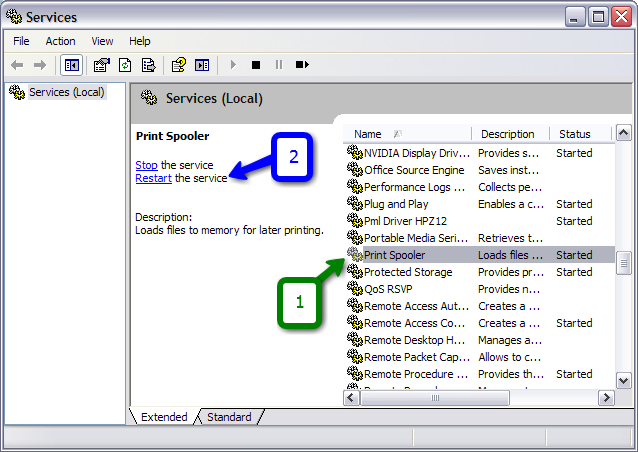
The print spooler manages all print jobs. When it has issues, you’ll see errors like “cannot locate document error printing.”
Windows steps:
- Press Windows key + R
- Type “services.msc” and press Enter
- Scroll down to “Print Spooler”
- Right-click it and select “Restart”
- Try printing again
Alternative method:
- Open Command Prompt as administrator
- Type: net stop spooler
- Press Enter
- Type: net start spooler
- Press Enter
Why this works: Restarting the spooler clears stuck print jobs and resets the printing system. This fixes many printing errors quickly.
4. Shorten the File Path and Remove Special Characters
Long file paths or files with special characters cause the “cannot locate document error printing” frequently.
What to check:
- File path longer than 260 characters (the Windows limit)
- Special characters like: & % # @ ! *
- Multiple spaces in file names
- Non-English characters
How to fix it:
- Rename the file with a simple name (like “Invoice_March2024.pdf”)
- Move the file closer to the root directory
- Remove all special characters
- Replace spaces with underscores
Example:
- Bad: \server\department\team\projects\2024\Q1\Client Files\Invoice #1234 – March (Final Version).pdf
- Good: \server\shared\Invoice_1234_March.pdf
Why this works: Shorter, simpler paths are easier for the printing system to process. Special characters can confuse the system and cause errors.
5. Check and Fix Network Drive Permissions
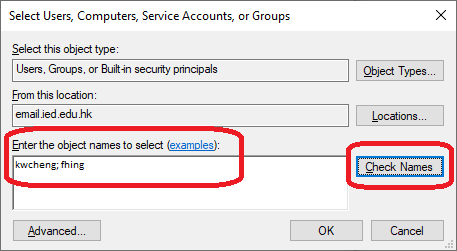
You might be able to open the file but not print it due to permission settings.
How to check permissions (Windows):
- Right-click the network drive folder
- Select “Properties”
- Click the “Security” tab
- Check if your user account has “Read” and “Read & Execute” permissions
- If not, contact your IT administrator
For Mac users:
- Right-click the network volume in Finder
- Select “Get Info”
- Check the “Sharing & Permissions” section
- Ensure you have at least “Read Only” access
Why this works: Printing requires reading the file. If permissions are restricted, you’ll get the “cannot locate document error printing” even if you can view the document.
6. Clear the Print Queue and Temp Files
Stuck or corrupted print jobs cause ongoing problems.
Clear print queue:
- Open Settings > Devices > Printers & scanners (Windows)
- Click your printer
- Click “Open queue”
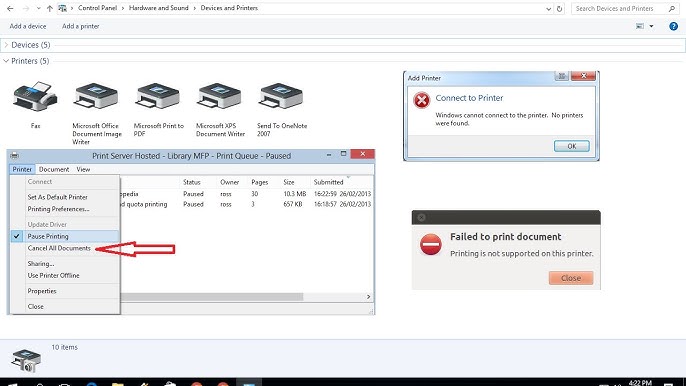
- Click “Printer” menu > “Cancel All Documents”
Clear temp files:
- Press Windows key + R
- Type: %temp%
- Press Enter
- Select all files (Ctrl + A)
- Delete them (some may not delete—that’s okay)
Also clear spooler files:
- Stop the print spooler service (see step 3)
- Navigate to: C:\Windows\System32\spool\PRINTERS
- Delete all files in this folder
- Restart the print spooler
Why this works: Old print jobs and temp files can interfere with new print attempts. Starting fresh often resolves the error.
7. Update or Reinstall Printer Drivers

Outdated printer drivers frequently cause the “cannot locate document error printing” problem, especially after Windows updates.
Update drivers:
- Open Device Manager (right-click Start button)
- Expand “Print queues”
- Right-click your printer
- Select “Update driver”
- Choose “Search automatically for drivers”
Reinstall printer:
- Go to Settings > Devices > Printers & scanners
- Click your printer
- Click “Remove device”
- Restart your computer
- Add the printer again
Download from manufacturer: Visit your printer brand’s website (HP, Canon, Epson, Brother) and download the latest driver for your specific model. This often works better than Windows automatic updates.
Why this works: Driver updates fix bugs and compatibility issues. A fresh installation removes corrupted driver files that cause printing errors.
Additional Tools and Tips to Prevent Future Printing Errors
Beyond fixing the immediate “cannot locate document error printing” issue, here are ways to prevent it from happening again.
Use a reliable network connection: If you’re on Wi-Fi and experiencing frequent errors, try connecting with an ethernet cable. Wired connections are more stable for network printing.
Keep Windows and printer firmware updated: Enable automatic updates to ensure you have the latest bug fixes and security patches.
Consider using a print management software: For businesses with frequent network printing, tools like PaperCut or PrinterLogic help manage network printing more reliably.
Set up a local printer cache: Some advanced users configure their systems to cache network documents locally before printing, reducing network-related errors.
Monitor network drive health: If you’re the IT administrator, regularly check your network drive performance. Slow or overloaded servers cause printing problems.
According to Microsoft’s official support documentation, maintaining updated systems and properly configured network drives prevents most printing errors.
Common Mistakes to Avoid When Fixing Cannot Locate Document Error Printing

People often make these mistakes when troubleshooting, which makes the problem worse.
Mistake 1: Not checking if the network drive is actually connected
Before trying complex fixes, verify you can access other files on the network drive. If you can’t, the problem is your network connection, not the printer.
Mistake 2: Using “Save As” to the same network location
When people encounter the error, they sometimes save the document again to the same network drive. This doesn’t help because the problem is with accessing that location.
Mistake 3: Trying to print large files over slow networks
Large PDFs or image-heavy documents take longer to transfer. On slow networks, the connection might timeout before the file fully transfers to the printer.
The solution? Either compress the file, improve your network speed, or copy it locally first.
Mistake 4: Ignoring antivirus or firewall blocks
Security software sometimes blocks printer access to network locations. Check your antivirus logs to see if it’s blocking the printer service.
Mistake 5: Not restarting after making changes
Many printer and network fixes require a restart to take effect. Don’t skip this step even though it seems old-fashioned.
Mistake 6: Assuming it’s always a printer problem
The “cannot locate document error printing” is usually a network or file location issue, not a printer hardware problem. Don’t waste time troubleshooting your printer when the issue is elsewhere.
Frequently Asked Questions
Q: Why does the cannot locate document error printing only happen with certain files?
Usually because those files have long paths, special characters in the name, or are larger in size. Try renaming the file and moving it to a simpler folder structure. If only specific file types fail (like PDFs), update the software that created them.
Q: Can a VPN connection cause the cannot locate document error printing?
Yes, absolutely. VPNs add another layer between your computer and the network drive, which can cause delays or connection drops. Try disconnecting from VPN and connecting directly to your local network before printing.
Q: How do I fix this error on a Mac when printing from network drives?
The same principles apply. Copy the file locally, check your network connection, or use “Connect to Server” in Finder to establish a more stable connection. Mac users should also check Console logs for specific error messages.
Q: Will upgrading to Windows 11 fix the cannot locate document error printing?
Not necessarily. The error exists across Windows versions. Focus on the solutions in this guide rather than upgrading your operating system. However, keeping your current OS updated with the latest patches does help.
Q: Can I print directly from a network drive without copying files?
Yes, once you fix the underlying issue. The solutions in this guide—especially mapping the drive permanently and ensuring stable network connections—let you print directly from network locations reliably.
Conclusion
The “cannot locate document error printing” is annoying but fixable. Most cases resolve by copying the file locally, mapping the network drive properly, or restarting the print spooler.
Start with the simple fixes first. Copy your document to your desktop and print from there if you need immediate results. Then work through the other solutions to fix the root cause.
Remember these key points:
- Network stability matters more than printer hardware for this error
- Short file paths without special characters prevent problems
- Mapped network drives are more reliable than temporary connections
- Regular updates to Windows and printer drivers prevent many issues
If you’ve tried everything and still see the “cannot locate document error printing,” contact your IT department or the printer manufacturer’s support. Sometimes network or server configuration needs professional adjustment.
But for most people, the seven methods in this guide will solve the problem and get you back to printing quickly.


