
The 30-Second Summary
You want to print photos directly from your Smart TV to a wireless printer without using a computer. Use one of these methods:
- Use TV’s built-in print function via Wi-Fi Direct – Works for Samsung/LG Smart TVs with wireless printers on same network (fastest method)
- Cast TV screen to phone, then print via mobile app – Universal method for any TV/printer combination
- Connect USB drive to TV, copy photos, then print from USB on printer – No network required, works offline
Compatibility Verification
This guide applies if you have:
Smart TV Requirements:
- Samsung Smart TV (2018+)
- LG webOS TV (2017+)
- Sony Android TV (2016+)
- Google TV or Chromecast-enabled TV
- Any TV with USB port (for offline method)
Printer Requirements:
- Wireless printer with Wi-Fi Direct or network printing
- Printer with USB port (for offline method)
- HP, Canon, Brother, Epson models manufactured 2015+
What WON’T work:
- USB cable directly from TV to printer (TVs don’t support USB printer connections)
- Bluetooth printing (printers don’t use Bluetooth for printing)
- HDMI connections (HDMI is video only, not data transfer)
Method 1: Direct Print via TV’s Native Print Function (Samsung/LG Only)
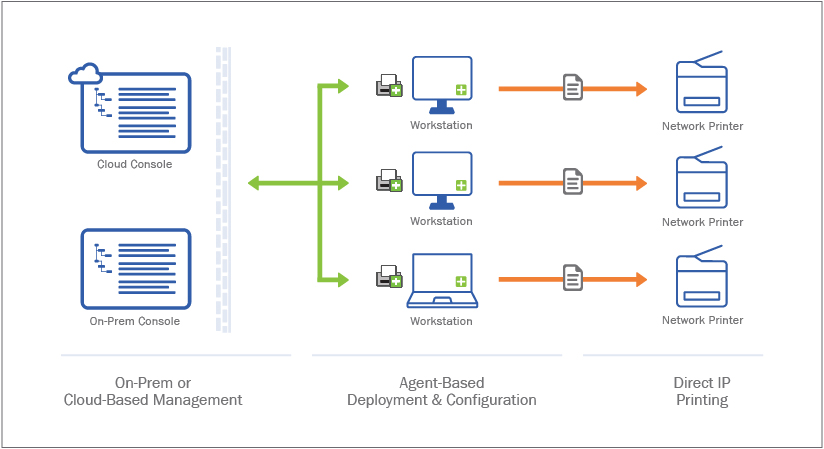
Works for: Samsung Smart TVs (2018+), LG webOS TVs (2019+) with HP, Canon, Epson wireless printers
Requirements:
- TV and printer on same Wi-Fi network
- Printer supports Google Cloud Print, Mopria, or AirPrint
Samsung Smart TV Setup:
- Ensure printer is connected to same Wi-Fi network as TV
- Print network config page from printer to verify
- SSID must match TV’s connected network exactly
- Open photo on TV:
- Press Home button on remote
- Navigate to Gallery or My Content
- Select photo you want to print
- Access print menu:
- Press Tools or Options button on remote
- Select Print
- TV scans network for printers (takes 10-30 seconds)
- Select printer from list:
- Choose your printer model
- Adjust settings:
- Paper size (4×6, 5×7, Letter)
- Print quality (Best/Normal/Draft)
- Copies
- Press Print
If printer doesn’t appear:
- TV Settings → General → Network → Network Status → Check connection
- Printer must support Mopria Print Service (most 2015+ models do)
- Some Samsung TVs require Samsung Print Service Plugin installed via TV app store
LG webOS TV Setup:
- Open LG Content Store:
- Press Home button
- Navigate to LG Content Store
- Search “LG Print” or “PrintHand Mobile“
- Install app
- Launch print app:
- Open installed print app
- App auto-discovers printers on network
- Select your printer from list
- Select and print photo:
- Navigate to Gallery or USB device
- Select photo
- Tap Print icon
- Adjust settings → Print
Technician’s Note: Samsung TVs manufactured 2020-2023 have hidden print function that only works with Samsung wireless printers and HP Smart-enabled models. For Canon/Epson, must use Method 2 (screen casting). LG TVs running webOS 6.0+ removed native print support—PrintHand Mobile app is mandatory workaround but costs $6.99 after 14-day trial.
For printers not appearing on network, check our Wireless Printer Network Discovery Fix Guide.
Method 2: Screen Cast to Phone, Then Print (Universal Method)
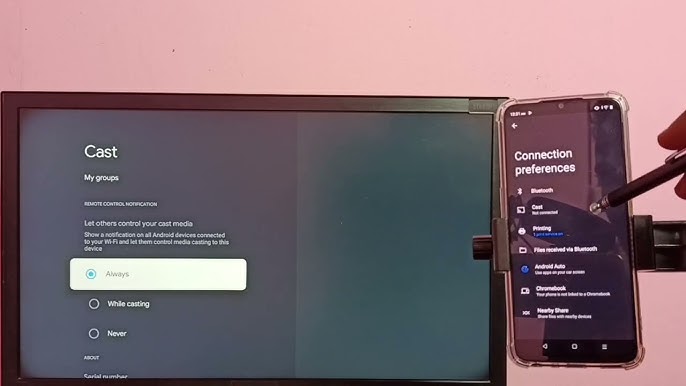
Works for: ALL Smart TVs with casting support + ALL wireless printers
Requirements:
- Smartphone (Android/iPhone)
- TV with Chromecast, AirPlay, or screen mirroring
- Printer manufacturer app installed on phone
Step-by-Step:
- Enable screen mirroring on TV:
- Samsung: Settings → General → Apple AirPlay Settings → AirPlay (turn ON)
- LG: Home → Screen Share → Enable
- Sony Android TV: Settings → Device Preferences → Cast → Turn ON
- Google TV: Built-in (no setup needed)
- Display photo on TV:
- Open Gallery/Photos app on TV
- Navigate to desired photo
- Display fullscreen
- Take screenshot from phone:
- Android: Open Google Home app → Cast screen to TV → Open TV’s photo gallery → Screenshot
- iPhone: Control Center → Screen Mirroring → Select TV → View photo on TV → Screenshot
- Print from phone using manufacturer app:
- HP Smart app: Open → Select photo → Print
- Canon PRINT app: Open → Photo Print → Select screenshot → Print
- Brother iPrint&Scan: Open → Photos → Select screenshot → Print
- Epson Smart Panel: Open → Print Photos → Select screenshot → Print
Alternative: Use TV’s mobile app for direct transfer:
- Samsung SmartThings app: View photos on TV → Share to phone → Print
- LG ThinQ app: Gallery → Select photo → Share → Save to phone → Print
- Sony Google TV app: No direct photo transfer (use screenshot method)
Technician’s Note: Screen casting introduces quality loss—original 4K TV photo becomes 1080p screenshot on most phones. For best print quality, transfer original photo files to phone via USB drive first, then print. Samsung phones with DeX mode can cast at native resolution to Samsung TVs—enables lossless transfer.
Method 3: USB Drive Transfer (Offline Method – No Network Required)
Best for: Printing high-resolution photos without quality loss, or when Wi-Fi is unavailable
Works with: Any printer with USB port, any TV with USB port
Execution:
- Insert USB drive into TV:
- Use USB 2.0 or 3.0 flash drive (FAT32 or exFAT format)
- TV should auto-detect and show popup
- Copy photos from TV to USB:
- Samsung: My Content → USB Device → Select photos → Tools → Copy to USB
- LG: Home → Gallery → USB Device → Select photos → Options → Copy
- Sony: Home → Media Player → USB → Select photos → Options → Copy to USB
- If TV doesn’t support copy function: Use phone/computer to download photos from TV’s built-in storage via network first
- Eject USB from TV safely:
- Press Stop or Eject before removing
- Prevents file corruption
- Insert USB into printer:
- Locate USB port on printer (usually front panel or side)
- Insert USB drive
- Print directly from printer:
- HP: Press photo icon → USB Device → Select photos → Print
- Canon: Menu → Print from USB → Select photos → Print Settings → Print
- Brother: Print → USB → Select Image → Print
- Epson: Home → Print Photos → USB Flash Drive → Select photos → Print
Technician’s Note: Canon PIXMA printers with LCD touchscreen can only read JPEG files from USB—HEIF/HEIC (iPhone photos) and PNG are not supported. Must convert to JPEG first using phone/computer. Epson EcoTank models limit USB printing to 4×6 and 5×7 sizes—Letter-size requires computer driver. Brother printers read USB at USB 2.0 speed even in USB 3.0 ports—expect 30-second delay for 20MB+ photo files.
Method 4: Use Streaming Device as Bridge (Roku/Fire TV/Apple TV)
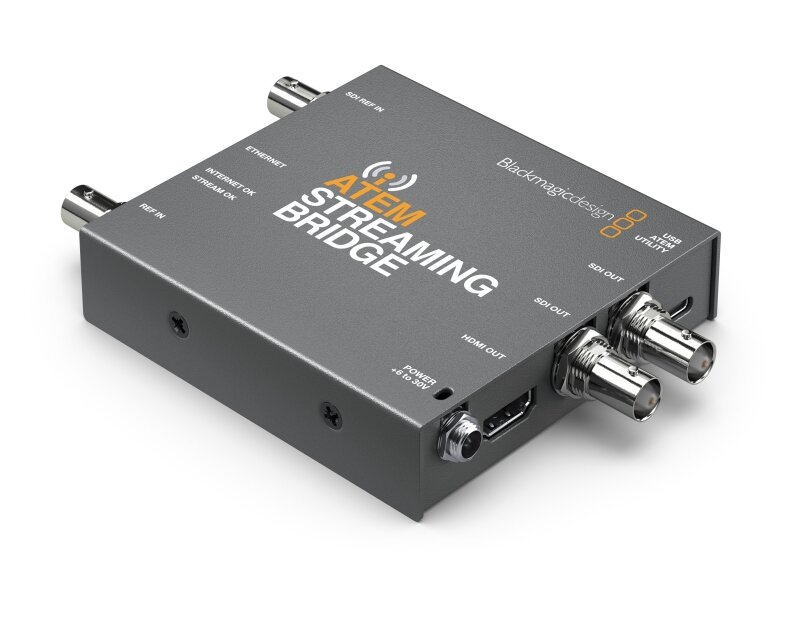
Works if: TV doesn’t have native printing but has HDMI streaming device attached
Roku Setup:
- Install Roku mobile app on smartphone
- Connect phone to same Wi-Fi as Roku
- Open Roku app → Media:
- Select Photos
- Choose photo from phone
- Cast to Roku/TV
- Screenshot photo from TV using phone’s camera (or use Method 2 screen mirroring)
- Print screenshot from phone
Roku does NOT support direct printing—this is a workaround.
Fire TV Setup:
- Enable ADB Debugging:
- Fire TV Settings → My Fire TV → Developer Options → ADB Debugging (ON)
- Use Fire TV app on phone:
- Cast photos to Fire TV
- Use screen mirroring to capture on phone
- Print from phone
Fire TV has no native print support.
Apple TV Setup (Best Option):
- Ensure AirPrint-compatible printer on network
- iPhone/iPad:
- Open Photos app
- Select photo
- Tap Share icon → AirPlay → Select Apple TV
- Photo displays on TV
- Print via AirPrint:
- On iPhone: Share → Print → Select AirPrint printer
- Photo prints at original resolution
Technician’s Note: Apple TV + AirPrint is the only streaming device method that preserves original photo quality. Roku and Fire TV require screenshot workarounds that degrade resolution. Apple TV 4K (2021+) supports AirPlay at full 4K resolution—pair with HP ENVY Photo, Canon PIXMA Pro, or Epson Expression Photo printers for true photo-quality prints.
Method 5: Network Shared Printer via Router (Advanced)
For tech-savvy users with network-attached storage or router with USB port.
Requirements:
- Router with USB port AND print server functionality
- USB printer (non-wireless)
- Smart TV with network file browser
Setup Process:
- Connect printer to router via USB cable
- Enable print server on router:
- Access router admin panel (192.168.1.1 or 192.168.0.1)
- Navigate to USB Settings or Print Server
- Enable USB Print Server
- Note printer network path (e.g.,
\\192.168.1.1\USB_Printer)
- Map printer on TV (if supported):
- Samsung/LG advanced network settings
- Add network printer using IP address path
- Most TVs do NOT support this—requires Method 2 instead
Why this rarely works: Smart TVs lack printer driver support. Even if TV detects network printer, it cannot send print commands without drivers.
Better approach: Use this setup for computers/phones to print, then use Method 2 (screen cast) from TV to phone.
Technician’s Note: Only Netgear Nighthawk and Asus RT-AC routers have functional print server mode—TP-Link and Linksys routers advertise print server but compatibility is limited to Windows computers only. Brother printers work best with router print servers; HP and Canon models often show “Driver not available” errors.
Method 6: Connect TV to Computer, Then Print (Wired Alternative)
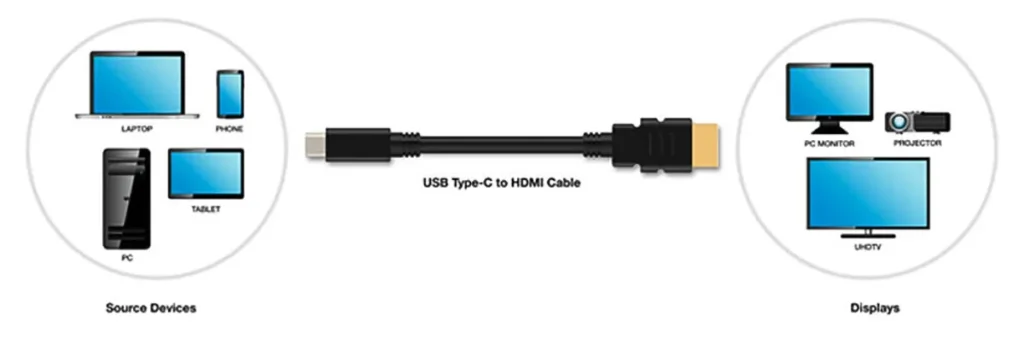
For users who don’t want wireless setup.
Requirements:
- HDMI cable (TV to computer)
- Computer with printer installed
- TV with HDMI input
Execution:
- Connect computer to TV via HDMI:
- Plug HDMI cable from computer to TV
- TV Input → Select HDMI port
- Computer screen mirrors to TV
- Open photo on computer:
- Navigate to photo file
- Displays on TV via HDMI mirroring
- Print normally from computer:
- Right-click photo → Print
- Select printer
- Adjust settings → Print
Why this works: TV acts as external monitor. Computer handles all print communication.
Technician’s Note: This is the most reliable method for high-quality photo printing. TV’s native photo viewer compresses images—computer software (Adobe Lightroom, Windows Photos, Mac Preview) preserves original resolution and color profiles. For professional prints, always use computer-based workflow.
Troubleshooting Common Issues
TV Can’t Find Printer on Network
Cause: Printer and TV on different subnets or network isolation enabled
Fix:
- Print network configuration page from printer
- Note IP address (e.g., 192.168.1.105)
- Check TV’s IP: TV Settings → Network → Network Status
- First three octets must match (192.168.1.x = same subnet)
- If different: Router has network isolation—disable AP Isolation in router settings
Print Quality is Poor/Pixelated
Cause: Screenshot method used instead of original file transfer
Fix:
- Transfer original photo files to USB drive using computer
- Insert USB into printer
- Print directly from USB (Method 3)
- OR: Transfer files to phone first, then print via manufacturer app
TV Shows “Printer Not Supported”
Cause: TV’s print function requires specific protocols (Mopria/AirPrint)
Fix:
- Check printer specifications for Mopria/AirPrint support
- If not supported: Use Method 2 (screen cast) or Method 3 (USB) instead
- Update printer firmware—older firmware may lack Mopria certification
Photos Print Cropped/Wrong Orientation
Cause: Aspect ratio mismatch between TV display (16:9) and photo paper (4:3 or 3:2)
Fix:
- Use printer’s LCD touchscreen to preview before printing
- Select Fit to Page or Scale to Fit option
- OR: Edit photo on phone/computer to match paper dimensions first
USB Drive Not Detected by Printer
Cause: File system incompatibility or USB power issue
Fix:
- Reformat USB drive:
- Use FAT32 (best compatibility)
- Max file size 4GB per photo
- exFAT works on 2018+ printers
- Use USB 2.0 drive (some printers don’t recognize USB 3.0)
- Try different USB port on printer
Technician’s Note: Samsung TVs format USB drives as exFAT by default—older Canon/Epson printers (2015-2017) require FAT32. Must reformat USB on computer first. Brother printers with “PictBridge” port (separate USB port from main document feeder) ONLY accept digital cameras—regular USB drives not recognized there.
Brand-Specific Smart TV Print Features
Samsung Smart TV (Tizen OS):
Native print support: Models 2018-2019 only (discontinued 2020+)
Workaround for 2020+ models:
- Samsung SmartThings app → Share to phone → Print
- Or use Samsung DeX mode (Galaxy phones only) for direct wireless printing
Hidden setting: Settings → General → External Device Manager → Connection Notification → Enable (shows printer discovery popup)
LG Smart TV (webOS):
Native print support: webOS 4.5 and earlier (2019 and older)
Removed in webOS 5.0+ (2020+):
- Must use PrintHand Mobile app (paid)
- Or use LG ThinQ app → Save to phone → Print
Workaround: Install Printer Share app from LG Content Store (free, but ad-supported)
Sony Android TV:
Native print support: None
Best method:
- Use Google Photos app → Cast to TV → Print from phone via Google Cloud Print successor (Mopria)
- Or use built-in Chromecast → Screen mirror → Print
Hidden feature: Sony TVs with Android 9+ support “Printer Sharing” in Developer Options (Settings → Device Preferences → About → Tap “Build” 7 times → Developer Options → USB Printer)—but feature is non-functional on most models.
Google TV / Chromecast with Google TV:
No native print support
Best method: Cast from phone → Print from phone using manufacturer app
Recommended Printers for Direct TV Printing
Best compatibility (2026):
HP ENVY Photo 7855/7858:
- Full AirPrint + Mopria support
- Wi-Fi Direct for network-free connection
- USB port for offline printing
- Best for Samsung/LG TVs
Canon PIXMA TS9521C:
- 12″ wide format for large prints
- USB + wireless
- Compatible with all Method 3 (USB) workflows
- Best for high-quality photo prints from TV
Epson Expression Photo XP-970:
- 6-color ink system
- AirPrint certified
- Fast USB printing (15 seconds per 4×6 photo)
- Best for Apple TV users
Brother MFC-J4335DW:
- Most reliable USB drive reading
- Supports FAT32, exFAT, NTFS
- Large touchscreen for photo selection
- Best for Method 3 (USB) workflow
Print Quality Comparison by Method
Method 1 (TV Native Print):
- Resolution: 1080p equivalent (compressed)
- Quality: Good for casual prints
- Best for: Social media photos, quick prints
Method 2 (Screen Cast):
- Resolution: 720p-1080p (screenshot compression)
- Quality: Fair to Good
- Best for: Temporary prints, drafts
Method 3 (USB Direct):
- Resolution: Original file resolution (no compression)
- Quality: Excellent (preserves original)
- Best for: Photo albums, framing, archival prints
Method 6 (Computer-based):
- Resolution: Original + editing software enhancements
- Quality: Professional grade
- Best for: Color-corrected prints, professional use
Technician’s Note: For prints intended for framing or long-term display, always use Method 3 or Method 6. TV-based compression discards EXIF data (color profiles, exposure info) which affects print color accuracy. Computer-based printing preserves ICC profiles for accurate color reproduction on high-end photo printers.
Alternative: Use TV Manufacturer’s Cloud Service
Samsung Cloud Print (Discontinued 2021):
- No longer available
- Use Samsung SmartThings app instead
LG Cloud Print:
- Not a native feature
- Use LG ThinQ app → Google Photos integration → Print
Sony PlayStation Photo Print (PS5/PS4):
- Works if PlayStation connected to same TV
- PS5 → Media Gallery → Select photo → Share → Phone → Print
- Requires PlayStation App on phone
Focus Keyword
Primary Focus Keyword: “connect printer to smart tv”
Supporting LSI Keywords:
- print from smart tv to printer
- smart tv photo printing
- print photos from tv
- wireless printer smart tv connection
- tv to printer direct print
- samsung tv print photos


Recent Comments