
Introduction
ChromeOS printing setup and troubleshooting doesn’t have to be complicated. If you own a Chromebook, you might wonder how to connect your printer or fix printing problems. Many users face issues when trying to print documents for work or school. The good news is that most printing problems have simple solutions.
This complete guide walks you through everything you need to know about ChromeOS printing. You will learn how to set up wireless and USB printers, fix common errors, and optimize your printing experience. Whether you’re new to Chromebooks or facing sudden printer issues, these step-by-step instructions will get you printing again quickly.
What Is ChromeOS Printing?
ChromeOS printing is the system that allows your Chromebook to communicate with printers and produce printed documents. Unlike Windows or Mac computers, Chromebooks use a different approach to handle printing tasks.
ChromeOS relies on web-based printing technology. It uses Internet Printing Protocol (IPP) and IPP Everywhere standards to connect with modern printers. This means your printer needs to support these standards to work seamlessly with your Chromebook.
The system works through native printing and cloud-based solutions. Native printing connects directly to printers on your local network without needing special software. Your Chromebook automatically detects compatible printers when both devices connect to the same Wi-Fi network.
Most modern printers from brands like HP, Canon, Epson, Brother, and Xerox work with ChromeOS. However, older printer models might need extra steps or may not be compatible at all. The key is understanding which connection method works best for your setup.
ChromeOS printing has improved significantly over the years. Earlier versions required Google Cloud Print, which Google discontinued in 2020. Today’s ChromeOS offers better native support, making printing more straightforward and reliable for most users.
5 Easy Steps for ChromeOS Printing Setup and Troubleshooting
Step 1: Check Printer Compatibility
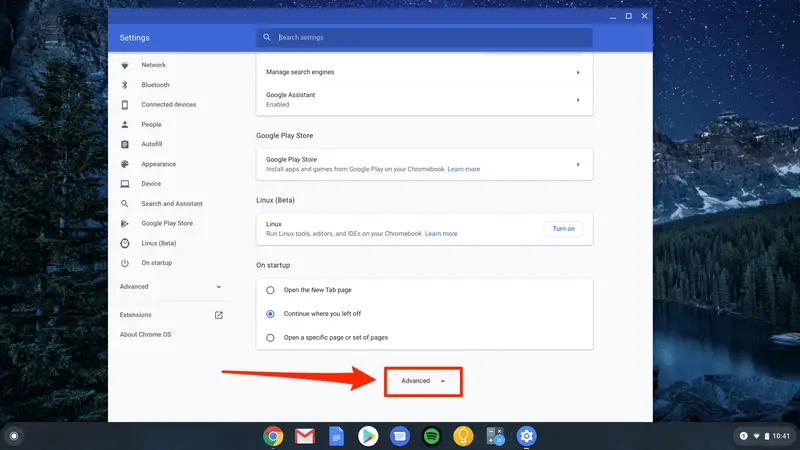
Before you start the ChromeOS printing setup and troubleshooting process, confirm your printer works with ChromeOS. Not all printers support Chromebook connections.
Visit the manufacturer’s website and search for ChromeOS compatibility information. Look for terms like “IPP Everywhere,” “Mopria certified,” or “ChromeOS compatible” in the printer specifications. These indicators show your printer should work without problems.
Most printers made after 2016 support the necessary standards. Wireless printers generally have better compatibility than older wired-only models. If your printer doesn’t appear on compatibility lists, you might face limitations or need workarounds.
You can also check Google’s support page for a list of compatible printers. Keep in mind that even if a printer isn’t officially listed, it might still work if it supports IPP standards. Testing is the best way to know for sure.
Step 2: Connect Your Wireless Printer
Wireless printing offers the most convenience for ChromeOS users. Follow these simple steps to connect your wireless printer to your Chromebook.
First, turn on your printer and ensure it connects to your Wi-Fi network. Use the printer’s control panel or mobile app to complete the network setup. Your printer must be on the same network as your Chromebook. This is the most common mistake people make during setup.
On your Chromebook, click the clock in the bottom-right corner. Select the Settings icon that looks like a gear. In Settings, click “Print and scan” from the left menu. Your Chromebook will automatically search for available printers on your network.
Look under “Other available printers” for your printer’s name. When you see it, click the “Save” button next to it. Your printer now appears under “Your saved printers” and becomes your default printing device.
Test your connection by opening any document and pressing Ctrl + P on your keyboard. The print dialog box should show your printer as an option. Select it and click Print to send a test page. If the page prints successfully, your wireless setup is complete.
Step 3: Set Up a USB Printer Connection
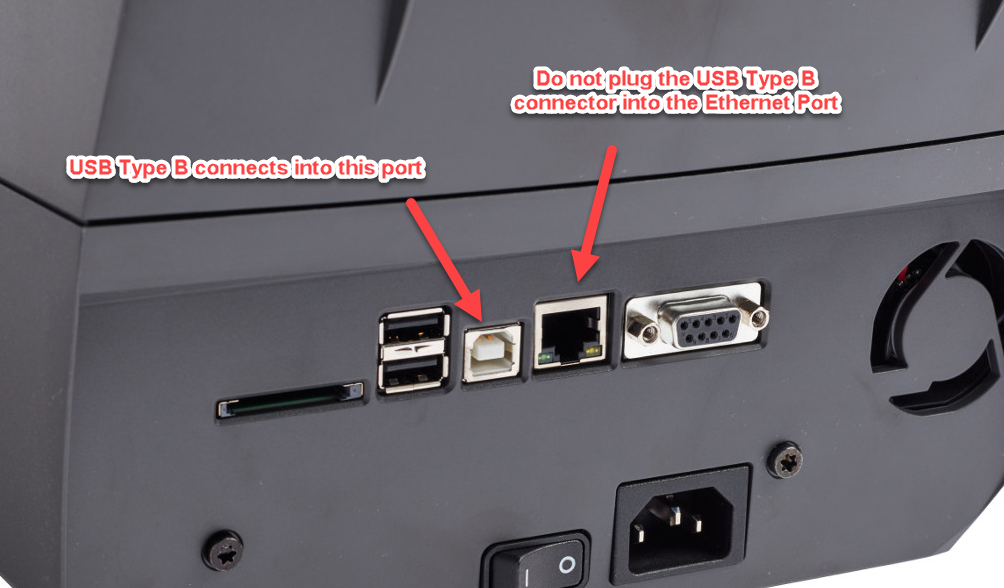
USB connections work well for older printers or when wireless isn’t available. The process is even simpler than wireless setup.
Connect the USB cable from your printer to your Chromebook’s USB port. Your Chromebook should immediately detect the printer. A notification will pop up asking you to add the new printer. Click “Add Printer” in this notification.
If no notification appears, go to Settings and click “Print and scan.” Look under “Add printers to your profile” for your connected printer. Click on it to add it to your saved printers list.
USB printing works best when your Chromebook stays near your printer. However, this method doesn’t require network configuration and often proves more reliable than wireless for troublesome printers.
Some older printers might need manual configuration. If automatic detection fails, you’ll need to add the printer manually using its specifications. We’ll cover manual setup in the troubleshooting section below.
Step 4: Configure Advanced Printer Settings
After basic ChromeOS printing setup and troubleshooting, you might want to adjust advanced settings for better results. These options help you control print quality, paper size, and other important features.
Press Ctrl + P to open the print dialog when you’re ready to print. Click “More settings” to expand additional options. Here you can change the number of copies, select color or black-and-white printing, and choose paper size.
You can also adjust page orientation (portrait or landscape), select specific page ranges, and enable two-sided printing if your printer supports it. These settings apply to each individual print job.
For printer-specific features like high-quality mode or draft printing, look for the “Advanced” option in the print dialog. Some printers offer additional settings like stapling or hole-punching for business models. Note that not all printer features available on Windows or Mac work through ChromeOS’s native interface.
If you need advanced features regularly, consider installing your printer manufacturer’s Android app from the Play Store. These apps often provide access to all printer capabilities that ChromeOS’s native interface doesn’t support.
Step 5: Update ChromeOS and Printer Firmware
Keeping your software updated prevents many printing problems. Both your Chromebook and printer need current software to communicate properly.
To update ChromeOS, click the clock and select Settings. Scroll down and click “About ChromeOS” in the left menu. Click “Check for updates” and install any available updates. Your Chromebook might need to restart after updating.
Printer firmware updates vary by manufacturer. Check your printer’s control panel for an update option. Many modern printers can download and install updates automatically when connected to the internet.
You can also visit the manufacturer’s website, enter your printer model number, and download the latest firmware manually. Follow the provided instructions carefully during firmware installation to avoid problems.
Regular updates fix bugs, improve compatibility, and add new features. Set a reminder to check for updates monthly. This simple habit prevents many issues before they start and ensures your ChromeOS printing setup continues working smoothly.
Additional ChromeOS Printing Tools and Features

ChromeOS offers several tools that make printing easier and more efficient. Understanding these features helps you get the most from your Chromebook’s printing capabilities.
The print preview feature shows exactly how your document will look before printing. This saves paper and ink by letting you catch formatting errors. Always review the preview before clicking the final Print button.
You can save documents as PDF files instead of printing them. In the print dialog, change the destination from your printer to “Save as PDF.” This creates a digital copy you can share via email or cloud storage. It’s perfect for going paperless while keeping the option to print later.
For businesses and schools, administrators can configure printers through the Google Admin console. This allows IT departments to set up shared printers that automatically appear for all users in an organization. It eliminates the need for individual setup on each device.
Many printer manufacturers offer Android apps that work on Chromebooks. Install these from the Play Store to access features like scanning, ink level monitoring, and advanced print settings. Popular apps include HP Smart, Canon Print, Epson iPrint, and Brother iPrint&Scan.
Some third-party printing solutions like PaperCut Mobility Print work with ChromeOS for enterprise environments. These tools provide additional security features, print tracking, and support for printers that don’t natively work with Chromebooks.
Common ChromeOS Printing Problems and Solutions
Even with proper setup, you might encounter issues with ChromeOS printing setup and troubleshooting. Here are the most common problems and how to fix them quickly.
Printer Not Detected: This is the number one complaint from Chromebook users. First, verify both devices connect to the same Wi-Fi network. Check your printer’s network settings using its control panel. Restart both your Chromebook and printer. After rebooting, wait a few minutes for your Chromebook to rediscover the printer.
“Printer Unreachable” Error: This error usually means network connectivity issues. Confirm your printer stays connected to Wi-Fi by printing a network configuration page from the printer itself. Check if your printer’s IP address changed. Some routers assign dynamic IP addresses that change periodically. Consider assigning your printer a static IP address in your router settings to prevent this.
“Filter Failed” Message: This problem affects certain HP printers with specific ChromeOS versions. It stems from compatibility issues between printer drivers and ChromeOS updates. Try removing and re-adding your printer. If that doesn’t work, switch to a USB connection temporarily or install the HP Print for Chrome extension from the Chrome Web Store.
Print Quality Issues: Faded prints, streaks, or smudges usually indicate low ink or toner levels. Replace cartridges if needed. Run your printer’s cleaning cycle from its control panel. Also check that you selected the correct paper size and type in your print settings. Wrong settings cause alignment problems and poor output.
Incomplete or Garbled Prints: If pages print with strange characters or only partial content, your printer might not fully support the document format. Try saving the document as a PDF first, then printing the PDF. This often resolves formatting issues. Update your printer’s firmware to the latest version, as updates frequently fix these compatibility problems.
Bluetooth Printing Not Working: ChromeOS does not support Bluetooth printing at all. If your printer only offers Bluetooth connectivity, it won’t work with your Chromebook. You must use Wi-Fi or USB connections instead.
Slow Printing Speed: Network congestion or wireless interference can slow printing. Move your printer closer to your Wi-Fi router. Consider using a USB connection for faster, more reliable printing if your printer sits near your Chromebook.
Can’t Access Advanced Printer Features: ChromeOS’s native print interface doesn’t support all printer features like stapling, hole-punching, or secure print release. Install your printer manufacturer’s Android app from the Play Store to access these advanced capabilities.
Frequently Asked Questions
How do I fix ChromeOS printing setup and troubleshooting when my printer won’t connect?
First, make sure your printer and Chromebook connect to the same Wi-Fi network. Turn both devices off, wait 30 seconds, then turn them back on. Go to Settings > Print and scan and remove your printer. Add it again using the Save button. If wireless fails, try a USB cable connection. Update ChromeOS and printer firmware to the latest versions.
Can I print from my Chromebook without Wi-Fi?
Yes, you can print using a USB cable connection even without Wi-Fi. Connect your printer directly to your Chromebook with a USB cable. Your Chromebook should detect it automatically. This method works well for offline printing needs and provides a reliable connection when wireless isn’t available.
Why does my Chromebook say my printer is incompatible?
Older printers might not support IPP Everywhere or similar standards required by ChromeOS. Check your printer manufacturer’s website for ChromeOS compatibility. If your printer isn’t compatible, consider using a Generic PostScript Printer Description (PPD) file, though this may not work for all models. Alternatively, you might need to replace your printer with a newer model that supports ChromeOS.
How do I print from Android apps on my Chromebook?
Open the Android app and access its print function (usually in the menu or by pressing Ctrl + P). The print dialog will show your saved printers. Select your printer and adjust settings as needed. Most Android apps integrate seamlessly with ChromeOS printing, giving you access to the same printers you’ve already set up in your Chromebook settings.
Conclusion
ChromeOS printing setup and troubleshooting is straightforward once you understand the basic steps. Start by checking printer compatibility and connecting via Wi-Fi or USB. Configure your settings to match your needs and keep both your Chromebook and printer updated.
When problems arise, work through common solutions systematically. Check network connections, restart devices, and verify settings before trying complex fixes. Most issues resolve quickly with simple troubleshooting steps.
Remember that ChromeOS handles printing differently than other operating systems. Embrace native printing for compatible printers and use manufacturer Android apps when you need advanced features. With the right approach, your Chromebook becomes a reliable tool for all your printing needs.
Take action today by setting up your printer using these steps. Bookmark this ChromeOS printing setup and troubleshooting guide for future reference. You now have everything needed to print successfully from your Chromebook.
Preventative Maintenance Checklist for High-Volume Office Printers Read More


