
Introduction
Need Brother printer support to fix a printing problem? Many users face issues like connection errors, paper jams, or poor print quality with their Brother printers.
Brother printers are known for reliability and performance. However, even the best printers can develop problems. Your printer might stop responding, show error messages, or refuse to connect to your network.
This complete guide will teach you how to access Brother printer support and solve common issues on your own. You’ll discover official support channels, helpful troubleshooting steps, and useful tools designed specifically for Brother printers.
Whether you have a Brother laser printer or inkjet model, this article will help you get back to printing quickly.
What Is Brother Printer Support?
Brother printer support includes all the help and resources Brother provides to fix printer problems and maintain your device. This encompasses technical assistance, software downloads, user manuals, and customer service options.
Brother offers several support types:
- Online resources: Troubleshooting guides, FAQs, and video tutorials on the Brother website.
- Phone support: Direct technical help from Brother specialists.
- Email support: Written assistance for non-urgent issues.
- Live chat: Real-time help through the Brother website.
- Driver downloads: Software and firmware updates for your printer model.
Brother printers typically come with a one-year limited warranty. During this period, you can access free technical support and potential repair or replacement services if your printer has manufacturing defects.
Support helps with various issues including wireless setup, driver installation, print quality problems, scanner errors, and network connectivity. The goal is to resolve your printer issues efficiently without requiring a technician visit.
Knowing where to find Brother support saves you time and frustration. Instead of searching randomly online, you can use official resources created specifically for your printer model.
7 Ways to Access Brother Printer Support
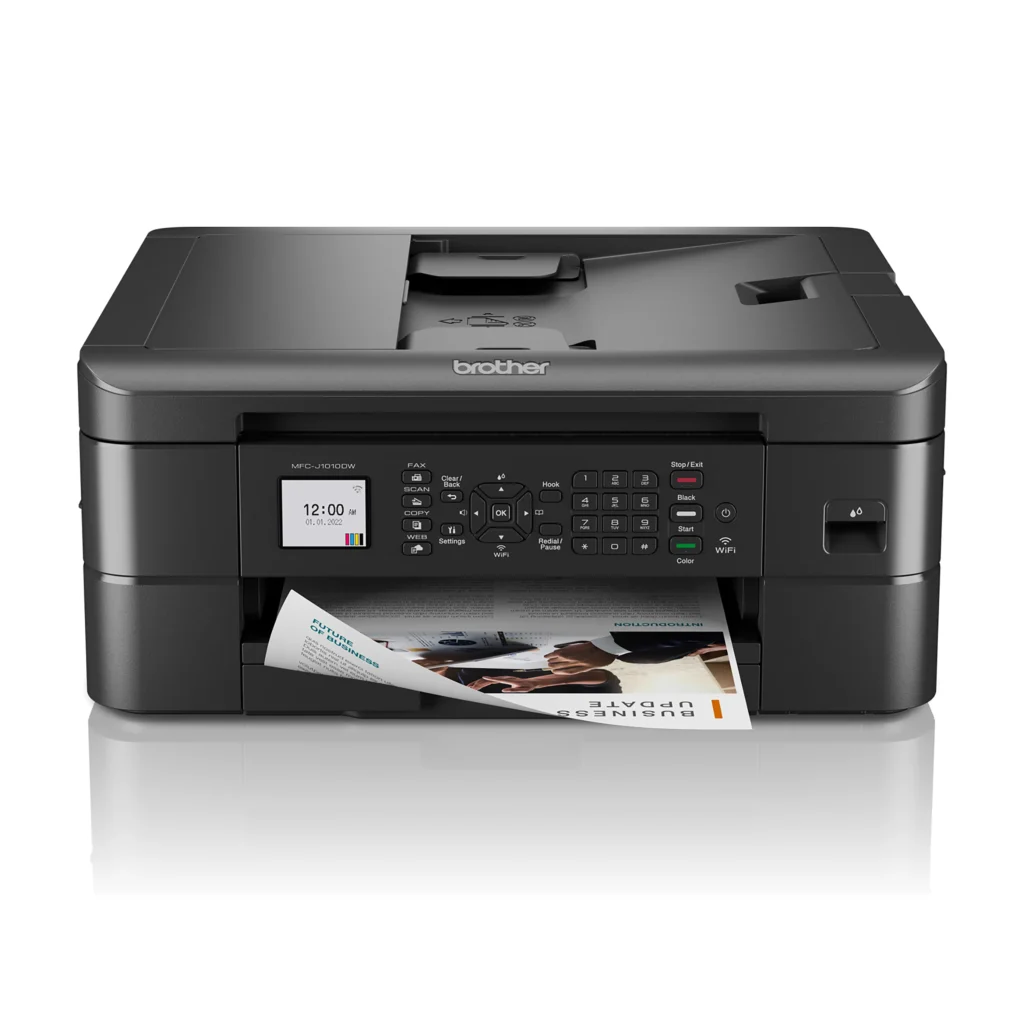
Method 1: Visit the Brother Support Website
The Brother support website is the most comprehensive resource for printer help.
Step 1: Open your browser and go to Brother Support.
Step 2: Click on “Printers” or “All Printers” from the product menu.
Step 3: Enter your printer model number. You’ll find this on the front of your printer, such as “HL-L2350DW” or “MFC-J995DW.”
Step 4: Select your model from the search results.
Step 5: Browse available resources including downloads, manuals, FAQs, and troubleshooting guides.
The website organizes information by topic. You can find driver downloads, how-to videos, and step-by-step instructions for specific problems.
This should be your first stop when you need help. Most common issues have detailed solutions already posted.
Method 2: Download and Install Brother iPrint&Scan
Brother iPrint&Scan is a free mobile app that simplifies printer management.
Step 1: Download Brother iPrint&Scan from Google Play Store or Apple App Store.
Step 2: Install the app on your smartphone or tablet.
Step 3: Open the app and follow the setup instructions.
Step 4: The app will automatically search for Brother printers on your network.
Step 5: Select your printer to connect.
This app lets you:
- Print documents and photos from your mobile device
- Scan documents directly to your phone
- Check printer status and ink levels
- Access basic troubleshooting tips
The app includes a help section with common solutions. It’s particularly useful for fixing wireless connection problems.
Method 3: Use Brother ControlCenter Software
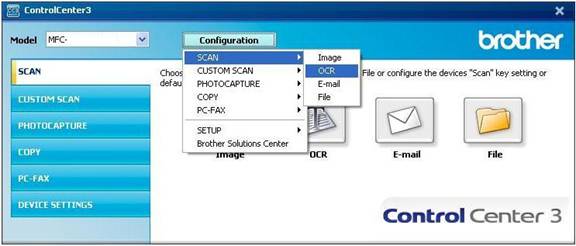
Brother ControlCenter is desktop software that helps manage your printer functions.
Step 1: Visit the Brother support website and find your printer model.
Step 2: Download the ControlCenter software for your operating system (Windows or Mac).
Step 3: Install the software on your computer.
Step 4: Open ControlCenter from your applications folder or start menu.
Step 5: Use the software to access scanning features, check printer status, and adjust settings.
ControlCenter provides easy access to printer maintenance tools. You can check ink or toner levels, clean print heads, and update firmware from this central location.
Method 4: Contact Brother Phone Support
Sometimes you need to speak with a support technician directly.
Step 1: Locate your printer’s serial number. Check the back or bottom of the printer.
Step 2: Visit the Brother contact page on their website.
Step 3: Select your country or region.
Step 4: Choose “Technical Support” to find the correct phone number.
Step 5: Call during business hours with your printer model and serial number ready.
Phone support is helpful for complex technical issues. The technician can guide you through advanced troubleshooting steps while you have the printer in front of you.
Have your purchase information available. If your printer is under warranty, mention this at the beginning of the call.
Method 5: Use Live Chat Support
Brother offers live chat for quick questions and troubleshooting.
Step 1: Go to the Brother support website.
Step 2: Look for the “Chat” or “Live Chat” button, usually in the bottom corner.
Step 3: Click to start a chat session.
Step 4: Provide your printer model number when asked.
Step 5: Describe your problem clearly to the support agent.
Chat support is faster than email and doesn’t require waiting on hold. It’s ideal for straightforward questions or when you need quick guidance.
Save the chat transcript at the end. This gives you a record of the solutions provided.
Method 6: Email Brother Support
For non-urgent issues, email support is a good option.
Step 1: Visit the Brother contact page.
Step 2: Select “Email Support” or “Contact Us.”
Step 3: Fill out the support form with your information.
Step 4: Include your printer model, serial number, and detailed description of the problem.
Step 5: Attach photos if relevant (like error messages on the display).
Email responses typically arrive within 24-48 hours. This method works well when you need detailed instructions or have multiple questions.
Method 7: Check the Brother Community Forum
The Brother Solutions Center includes community forums where users help each other.
Step 1: Visit the Brother support website.
Step 2: Navigate to the Community or Forum section.
Step 3: Search for your specific problem using keywords.
Step 4: Read existing discussions to see if someone already solved your issue.
Step 5: Create a new post if you don’t find an answer.
Other Brother printer users and sometimes Brother staff members answer forum questions. This is especially helpful for unusual problems or finding workarounds.
Essential Tools and Best Practices

Keep Your Printer Firmware Updated
Firmware updates fix bugs and improve printer performance.
How to update:
- Visit the Brother support website
- Enter your printer model
- Download the latest firmware
- Follow the installation instructions carefully
Updates can solve connectivity issues, improve print quality, and add new features. Check for updates every few months.
Use the Brother Printer Driver Update Tool
Brother offers automatic driver update utilities for Windows users.
This tool scans your system and downloads the correct drivers for your printer. It saves time compared to manual driver searches.
Download it from the Brother website under your printer’s support page.
Register Your Brother Printer
Register your printer on the Brother website after purchase.
Registration provides:
- Warranty tracking
- Product update notifications
- Exclusive support offers
- Easier access to technical support
You’ll need your serial number and purchase date. Registration takes only a few minutes.
Use Genuine Brother Consumables
Always use genuine Brother ink cartridges or toner.
Third-party supplies can cause:
- Poor print quality
- Printer damage
- Error messages
- Warranty issues
Genuine Brother consumables are tested specifically for your printer model. They deliver consistent results and help your printer last longer.
Clean Your Printer Regularly
Regular maintenance prevents many common problems.
Clean the print heads monthly if you print frequently. Remove dust from the paper tray and exterior. Check for paper debris inside the printer.
Most Brother printers have automatic cleaning cycles. Run these from your printer’s menu or ControlCenter software.
Common Brother Printer Problems and Quick Fixes

Problem 1: Printer Not Connecting to Wi-Fi
This is one of the most frequent issues users face.
Quick Fix: Restart your printer and router. Wait 30 seconds before turning them back on.
Check that your Wi-Fi password is correct. Use the printer’s control panel to reconnect to your network. Select your network name and enter the password carefully.
If problems persist, temporarily connect via USB cable to update the printer’s firmware. Updated firmware often resolves wireless issues.
Problem 2: Printer Showing Offline
Your computer can’t communicate with the printer.
Quick Fix: Check all cable connections if using USB. For wireless printers, verify they’re on the same network as your computer.
On Windows, go to Devices and Printers. Right-click your Brother printer and select “See what’s printing.” Click “Printer” in the menu and uncheck “Use Printer Offline.”
On Mac, open System Preferences, select Printers & Scanners, remove your printer, and add it again.
Problem 3: Poor Print Quality or Streaks
Your documents have faded areas, lines, or missing colors.
Quick Fix: Run the printer’s automatic cleaning cycle. Access this through the printer’s menu under “Maintenance” or “Machine.”
Check your ink or toner levels. Replace cartridges if they’re low. Make sure you removed the protective tape from new cartridges.
Print a test page to identify specific issues. If only one color is affected, that particular cartridge might need replacement.
Problem 4: Paper Jams
Paper gets stuck during printing.
Quick Fix: Turn off the printer completely before attempting to remove jammed paper.
Open all access panels—front, back, and top. Gently pull the paper out in the direction it feeds. Check for torn pieces.
Avoid overfilling the paper tray. Fan the paper before loading to prevent multiple sheets feeding at once. Make sure paper guides are adjusted properly.
Problem 5: Printer Not Recognized by Computer
Your computer doesn’t detect the printer.
Quick Fix: Uninstall and reinstall the printer driver. Download the latest driver from the Brother website.
Try a different USB port if using wired connection. Use a USB 2.0 port rather than USB 3.0 if you’re having issues.
For wireless connection, run the printer’s network setup again. The Brother iPrint&Scan app can help with wireless setup troubleshooting.
Problem 6: Scanner Not Working
The printer prints fine but won’t scan.
Quick Fix: Make sure you installed the full driver package, not just the basic print driver. The full package includes scanning software.
Download Brother ControlCenter from the support website. This software manages scanning functions.
Check that your scanner is selected as the default scanning device in your computer’s settings. Restart both the printer and computer after installing scanning software.
Problem 7: Error Messages on Display
Your printer shows error codes like “Machine Error” or specific number codes.
Quick Fix: Note the exact error code or message. Search for it on the Brother support website for specific solutions.
Common errors like “Replace Drum Soon” or “Toner Low” indicate you need to replace consumables. Other errors might require resetting the printer.
To reset most Brother printers: turn off the printer, unplug it for 60 seconds, then plug it back in and power on.
Frequently Asked Questions
Q1: Is Brother printer support available 24/7?
Phone support operates during business hours, but the Brother website provides 24/7 access to troubleshooting guides, FAQs, and driver downloads. Live chat hours vary by region. Check the Brother contact page for specific hours in your area.
Q2: How do I find my Brother printer model number?
Look at the front of your printer for a model name like “HL-L2350DW” or “MFC-J995DW.” You can also find it on a label on the back or bottom of the printer. The model number is also displayed in your printer’s menu under “Machine Info.”
Q3: Does Brother offer warranty support?
Yes, Brother printers come with a standard one-year limited warranty. Some models offer extended warranties. Register your printer on the Brother website to activate warranty coverage. Keep your purchase receipt as proof of purchase date.
Q4: Can I get support for older Brother printer models?
Brother maintains support for older models, but availability varies. You can still download drivers and find documentation on the Brother website. However, drivers for very old printers may not be compatible with the latest operating systems.
Q5: What should I do if basic troubleshooting doesn’t work?
Contact Brother support directly through phone or live chat. They can provide advanced troubleshooting steps or determine if your printer needs professional service. If your printer is under warranty, Brother may offer repair or replacement options.
Conclusion

Getting Brother printer support is straightforward when you know where to look. You now have multiple options to solve printer problems—from using online resources to contacting Brother support directly.
Start with the Brother support website for quick answers and driver downloads. Use the Brother iPrint&Scan app or ControlCenter software for easier printer management. For complex issues, don’t hesitate to contact Brother phone or chat support.
Remember to keep your printer firmware and drivers updated. Use genuine Brother consumables to maintain print quality and avoid problems. Regular cleaning and proper maintenance prevent many common issues.
Most Brother printer problems can be resolved at home with the right guidance. Follow the troubleshooting steps in this guide, and your printer should be working properly again.
Don’t let printer issues interrupt your work. Use these Brother printer support resources today and get back to printing with confidence!
HP Printer Support: Complete Guide to Fix Common Issues Fast Read More.


