
Introduction
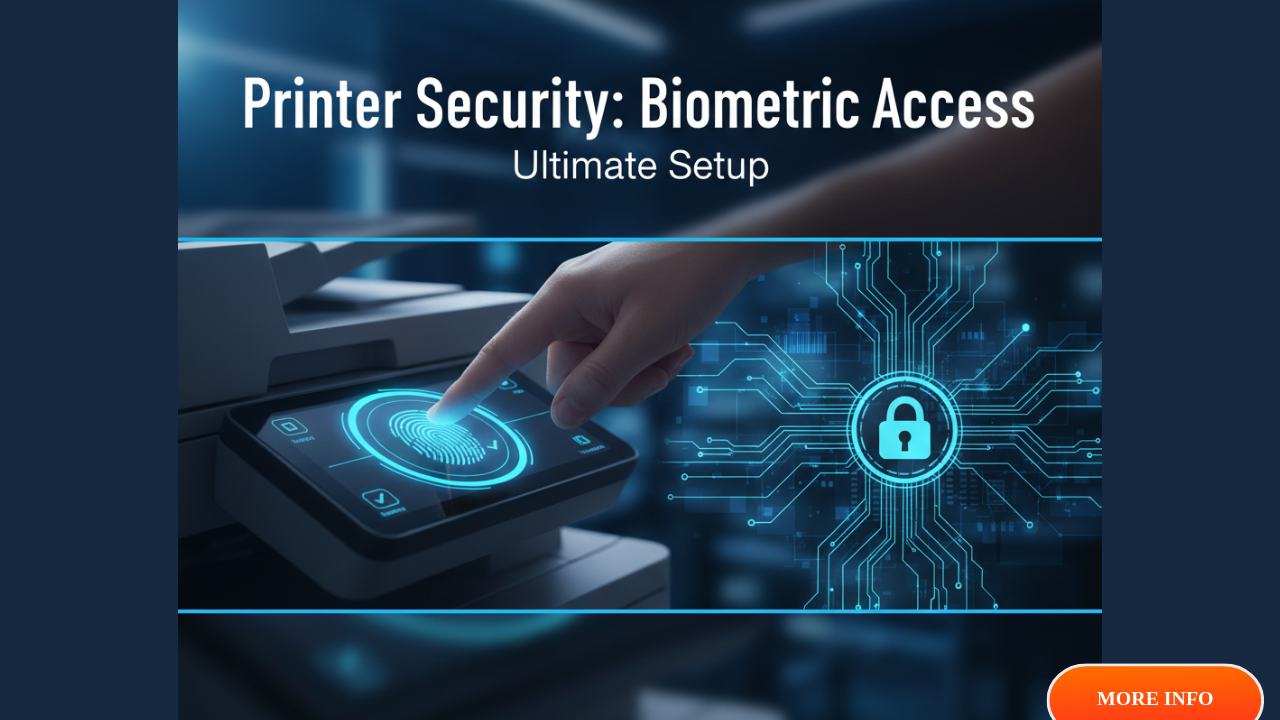
Biometric authentication for printer access transforms ordinary office printers into secure document management systems. Without proper security, anyone can walk up to your networked printer and print sensitive documents, access confidential scans, or retrieve private information left in the output tray. Companies lose thousands of dollars annually due to unauthorized printing, data breaches through unsecured printers, and wasted resources from unrestricted access.
This comprehensive guide shows you exactly how to set up biometric authentication for printer access using fingerprint scanners, PIN codes, proximity cards, and mobile authentication methods. Whether you manage a small business or enterprise network, you’ll discover proven security strategies that protect sensitive documents, reduce printing costs, and maintain compliance with data protection regulations.
What Is Biometric Authentication for Printer Access?
Biometric authentication for printer access uses unique physical characteristics or secure credentials to verify user identity before allowing printer operations. Instead of anyone printing, copying, or scanning documents freely, users must authenticate themselves first.
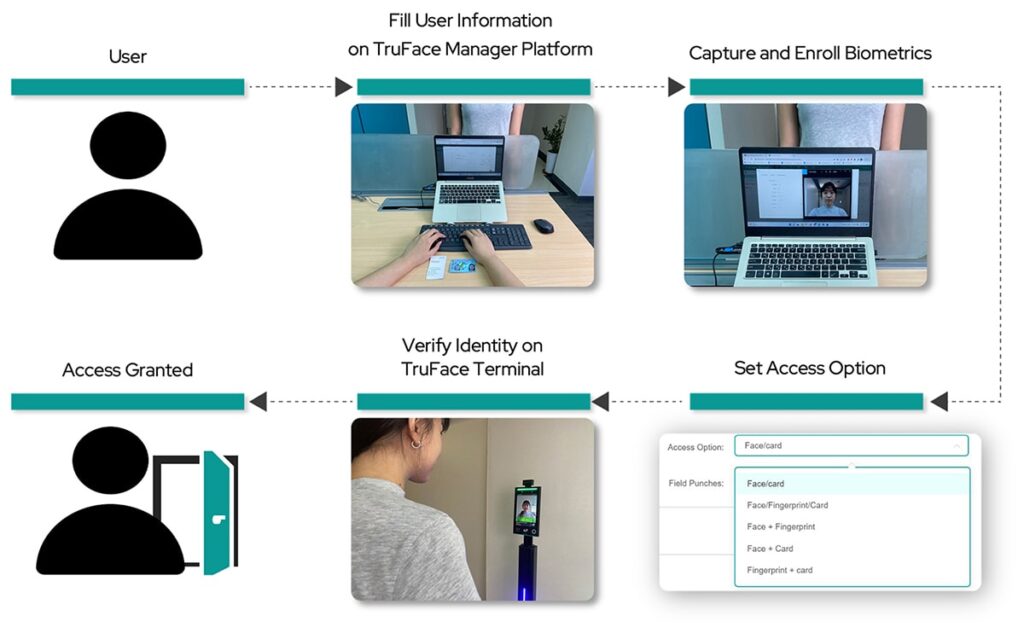
Common authentication methods include fingerprint scanning, where users place their finger on a sensor built into the printer’s control panel. The printer compares the fingerprint against stored templates and grants access only to authorized users.
PIN authentication requires users to enter a numeric code on the printer’s touchscreen before accessing functions. This method works on almost any modern printer without additional hardware.
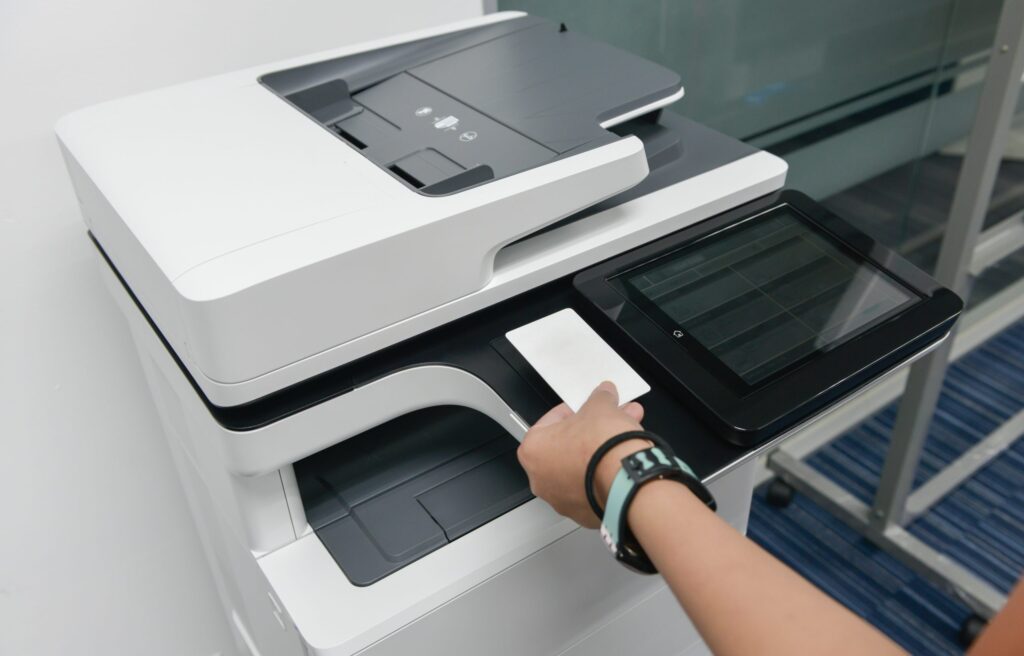
Proximity card readers let users tap or swipe employee badges against the printer to authenticate. The printer reads the card’s unique identifier and verifies permissions against a database.
Mobile authentication allows users to release print jobs from their smartphones using secure apps. The printer only produces documents when the authorized user physically stands at the device with their authenticated phone.
These security measures prevent unauthorized access, track who prints what documents, reduce waste from forgotten print jobs, and ensure compliance with privacy regulations like HIPAA, GDPR, and SOX that require tracking document access.
6 Essential Steps for Biometric Authentication for Printer Access Setup
Step 1: Choose the Right Biometric Authentication for Printer Access Method
Before implementing biometric authentication for printer access, evaluate which security method fits your organization’s requirements and budget.
Fingerprint authentication offers the highest security level. It’s impossible to share fingerprints, and users can’t forget them at home. However, fingerprint readers require specific printer models or external hardware that adds to costs.
PIN codes work on any printer with a touchscreen display. They’re inexpensive to implement and easy for users to understand. The downside is that users can share PINs, reducing security effectiveness.
Proximity card systems integrate with existing employee badge infrastructure. If your organization already uses card access for buildings, extending this to printers creates a seamless user experience. Card readers cost between $200-$500 per printer.
Mobile authentication using smartphones provides excellent security and user convenience. Employees always carry their phones, making this method practical for modern workplaces. It requires compatible printers and mobile printing apps.
Consider your security needs, user count, budget, and existing infrastructure when choosing. High-security environments like healthcare and legal firms benefit most from fingerprint or card-based systems. Small businesses often find PIN authentication sufficient.
Step 2: Verify Printer Compatibility for Biometric Authentication for Printer Access
Not all printers support advanced authentication methods. Check your printer’s specifications before purchasing additional hardware.
Review your printer’s manual or manufacturer website to confirm authentication capabilities. Look for terms like “secure print,” “user authentication,” “access control,” or “pull printing.”
Most enterprise-level printers from HP, Canon, Xerox, Ricoh, and Konica Minolta include built-in authentication support. Consumer-grade printers rarely have these features.
For fingerprint authentication, verify whether your printer has an integrated fingerprint reader or supports external USB fingerprint scanners. Manufacturers like Digital Persona and HID Global produce compatible readers.
Card reader compatibility depends on your existing badge system. Check if your printer supports HID, Mifare, or other proximity card standards that match your employee badges.
Make a list of required hardware: authentication device itself, necessary cables, mounting hardware, and any software licenses. Budget accordingly, as total costs can range from $100 for simple PIN systems to $2,000+ for integrated biometric solutions per printer.
Contact your printer manufacturer’s support team if you’re unsure about compatibility. They can confirm whether your specific model supports the authentication method you want to implement.
Step 3: Install Authentication Hardware for Printer Access Control
Once you’ve acquired compatible hardware, proper installation ensures reliable operation of your biometric authentication for printer access system.
For fingerprint readers, locate the optimal mounting position on or near the printer. The reader should be easily accessible at standing height, typically 42-48 inches from the floor. Use the provided mounting bracket or adhesive backing.
Connect the fingerprint reader to the printer’s USB port or network connection as specified by the manufacturer. Some readers connect directly to the printer, while others connect to your network and communicate with the printer through software.
Card readers require similar mounting considerations. Position the reader where users can naturally tap their badges without awkward reaching. Run any necessary wiring through cable management channels to maintain a clean appearance.
For PIN authentication, no hardware installation is needed. The printer’s existing touchscreen serves as the input device.
Power on the authentication device and verify it’s recognized by the printer. Most printers display a confirmation message or show the authentication device in their network settings menu.
Install any required device drivers on your computer or print server. Follow the manufacturer’s installation wizard, which typically takes 5-10 minutes.
Test the hardware by attempting to scan a fingerprint or card. The device should respond with a light, beep, or screen message confirming it’s operational.
Step 4: Configure User Database for Biometric Authentication for Printer Access
Biometric authentication for printer access requires a database of authorized users and their specific permissions.
Access your printer’s web interface by entering its IP address in a browser. Navigate to the security or authentication settings section.
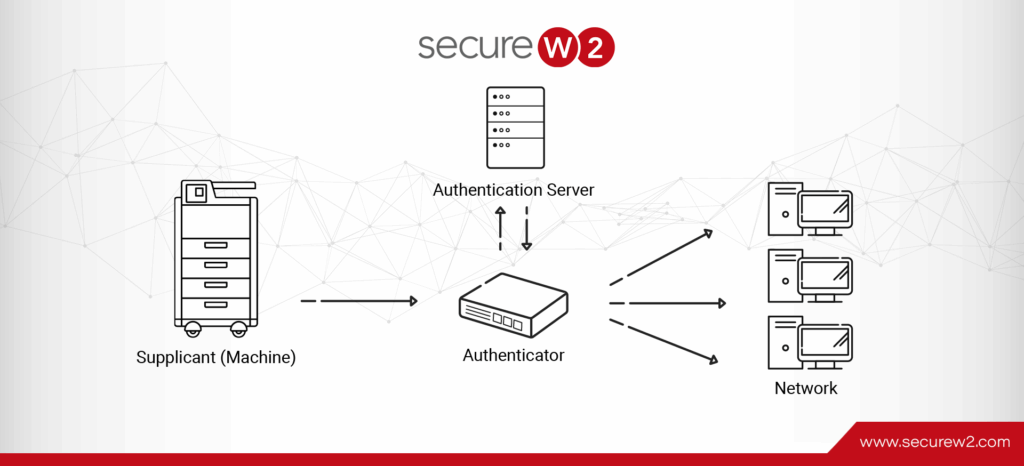
Choose between local user database (stored on the printer) or network authentication (Active Directory, LDAP, or cloud-based systems). Network authentication is better for organizations with many printers and users.
For local database setup, create user accounts directly on the printer. Enter each person’s name, assign a unique user ID, and set their permission level (print only, print and copy, full access, etc.).
If using fingerprint authentication, each user must enroll their fingerprint. Have users visit the printer, enter their user ID, then scan their fingerprint 3-5 times for accurate template creation. The printer stores an encrypted template, not the actual fingerprint image.
For card-based authentication, link each employee’s card number to their user account. Scan each person’s badge using the reader, then associate that card ID with their printer profile.
Set up cost centers or departments for tracking purposes. Assign users to appropriate groups based on their role and printing needs.
Configure permission levels carefully. Limit color printing, restrict scan-to-email functions, and block external USB printing for users who don’t require these features.
Step 5: Implement Secure Print Release with Biometric Authentication for Printer Access
Secure print release ensures documents don’t sit in output trays where unauthorized people can view them.
Enable “pull printing” or “secure print” in your printer’s settings. This feature holds print jobs in a queue until the user authenticates at the printer.
Configure the print driver on user computers to require authentication. Windows and Mac print drivers from major manufacturers include secure print options. Check the box labeled “Secure Print,” “Hold Job,” or “Print and Hold.”
Set a timeout period for held jobs. Documents waiting longer than 24-48 hours should automatically delete to free printer memory and maintain security.
Train users on the new print workflow: submit the print job from their computer, walk to the printer, authenticate using their chosen method, and select which jobs to release from the queue.
Some systems allow users to release jobs from any authenticated printer in the network. This flexibility helps in busy offices where one printer might be occupied.
For sensitive documents, implement mandatory secure print that prevents any job from printing without authentication, regardless of user settings.
Step 6: Monitor and Maintain Your Biometric Authentication for Printer Access System
After implementing biometric authentication for printer access, ongoing monitoring ensures the system works effectively.
Enable detailed logging in the printer’s administrative settings. Track who prints what documents, when, and from which printer. This audit trail proves essential for security investigations and cost allocation.
Review usage reports monthly. Look for unusual patterns like excessive printing by certain users, after-hours access, or failed authentication attempts that might indicate security issues.
Set up email alerts for security events: multiple failed login attempts, printing during restricted hours, or attempts to print unusually large jobs.
Update the user database regularly. Remove accounts for departed employees immediately. Add new users during their onboarding process to avoid access delays.
Clean fingerprint readers weekly with appropriate cleaning solutions. Dirty sensors produce false rejections that frustrate users. Use isopropyl alcohol and lint-free cloths.
Test card readers periodically to ensure they’re reading badges correctly. Check that backup authentication methods work if the primary system fails.
Update printer firmware and authentication software when manufacturers release patches. These updates often include security improvements and bug fixes.
Additional Tools for Biometric Authentication for Printer Access

Beyond basic authentication, several tools enhance printer security and management.
Print management software like PaperCut, Equitrac, or YSoft SafeQ provides centralized control across multiple printers. These solutions offer detailed reporting, cost allocation, and advanced security features beyond what individual printers provide.
Mobile printing apps from printer manufacturers (HP Smart, Canon PRINT, Xerox Mobile Print) include secure authentication options. Users can submit jobs from their phones and release them with biometric authentication built into their smartphones.
Encryption protocols protect data traveling between computers and printers. Enable IPSec or SSL/TLS encryption in your printer’s network settings to prevent interception of sensitive documents during transmission.
Regular security audits identify vulnerabilities in your printing infrastructure. The Cybersecurity and Infrastructure Security Agency offers guidance on securing network-connected devices at <a href=”https://www.cisa.gov/secure-our-world”>https://www.cisa.gov/secure-our-world</a>, including recommendations for printers and multifunction devices.
Consider implementing print quotas alongside authentication. Limit users to specific page counts per month to reduce waste and control costs.
Physical security measures complement digital authentication. Place printers in monitored areas rather than isolated corridors where document theft is easier.
Common Mistakes with Biometric Authentication for Printer Access
Choosing Authentication Methods Based on Cost Alone
Many organizations select PIN authentication purely because it’s the cheapest option. While cost matters, security effectiveness should drive the decision.
PINs get shared between coworkers, written on sticky notes, and eventually become common knowledge in the office. This defeats the purpose of authentication.
Evaluate the value of documents your printers handle. If you regularly print contracts, personnel files, financial statements, or patient records, invest in stronger authentication like fingerprints or cards.
The cost of a single data breach from unsecured printing far exceeds the investment in proper biometric authentication for printer access.
Failing to Train Users on Biometric Authentication for Printer Access
Installing authentication systems without training creates frustrated users who resist the new security measures.
Schedule training sessions before rolling out authentication. Demonstrate the entire print-release workflow, enroll everyone’s fingerprints or cards, and answer questions.
Create quick-reference guides posted near printers showing the authentication steps. Include troubleshooting tips for common issues like “fingerprint not recognized” or “card read error.”
Explain why the security measures exist. When users understand that authentication protects their confidential documents and reduces printing costs, they’re more likely to embrace the change.
Ignoring Network Security for Printer Access Systems
Securing the printer itself means nothing if attackers can compromise the authentication database or intercept credentials over the network.
Place printers on a separate VLAN (virtual LAN) from regular user computers. This network segmentation prevents attackers who compromise a workstation from directly accessing printer systems.
Change default administrator passwords on printers. Many organizations leave factory-default credentials in place, making printers easy targets for hackers.
Disable unnecessary network protocols and services on the printer. If you don’t use FTP, Telnet, or SNMP, turn them off to reduce attack surfaces.
Not Planning for Authentication Failures in Printer Access
What happens when the fingerprint reader malfunctions or the card system goes offline? Without backup authentication, users can’t print urgent documents.
Configure at least two authentication methods on each printer. If the primary method fails, users can fall back to the secondary option.
Give administrators the ability to temporarily disable authentication for emergencies. This override should require high-level credentials and automatically log the security exception.
Maintain support contracts with your authentication hardware vendors. Quick replacement of failed readers prevents extended downtime.
Frequently Asked Questions About Biometric Authentication for Printer Access
Q: How much does biometric authentication for printer access cost?
Costs vary by authentication method and scale. PIN authentication adds minimal cost (mostly software licensing at $50-$200 per printer). Fingerprint readers range from $200-$800 per printer plus software. Card reader systems cost $300-$1,000 per printer. Enterprise print management software with authentication runs $20-$50 per user annually. For a 50-person office with 5 printers, expect to invest $2,000-$10,000 total depending on the solution.
Q: Can users authenticate to any printer with biometric authentication for printer access?
This depends on your configuration. Most enterprise authentication systems allow users to release their print jobs from any authenticated printer in the network, providing flexibility in busy offices. However, administrators can restrict specific printers to certain user groups. For example, you might limit the accounting department’s printer to only accounting staff while allowing anyone to use lobby printers.
Q: What happens if biometric authentication for printer access fails?
Jobs remain in the print queue until authentication succeeds or the timeout period expires (typically 24-48 hours). If hardware fails completely, administrators can disable authentication temporarily to allow printing without security checks, though this should only be done for genuine emergencies. Most systems also support backup authentication methods like manual PIN entry if biometric readers malfunction.
Q: How secure is biometric authentication for printer access compared to passwords?
Biometric authentication is significantly more secure than passwords for printer access. You can’t forget, lose, or share a fingerprint. Fingerprint templates stored on printers are encrypted and can’t be reverse-engineered to recreate the actual fingerprint. However, card-based systems are only as secure as the physical security of the cards—if someone steals a badge, they can access that person’s printing privileges until the card is deactivated.
Conclusion
Setting up biometric authentication for printer access protects sensitive documents, reduces printing costs, and maintains compliance with data security regulations. The six steps outlined in this guide—from choosing the right authentication method to ongoing monitoring—provide a complete roadmap for securing your printing infrastructure. Whether you implement fingerprint scanning, PIN codes, proximity cards, or mobile authentication, the key is matching the security level to your organization’s needs and ensuring proper user training. Avoid common mistakes like choosing based on cost alone or neglecting network security, as these undermine even the best authentication systems. Start with one or two printers as a pilot program, gather user feedback, and expand biometric authentication for printer access once you’ve refined the process. Implement these security measures today to protect your organization’s confidential information and gain complete visibility into your printing operations.
Fix PDF Printing Issues from Mobile Apps: Proven Solutions That Work Read More


