
Introduction
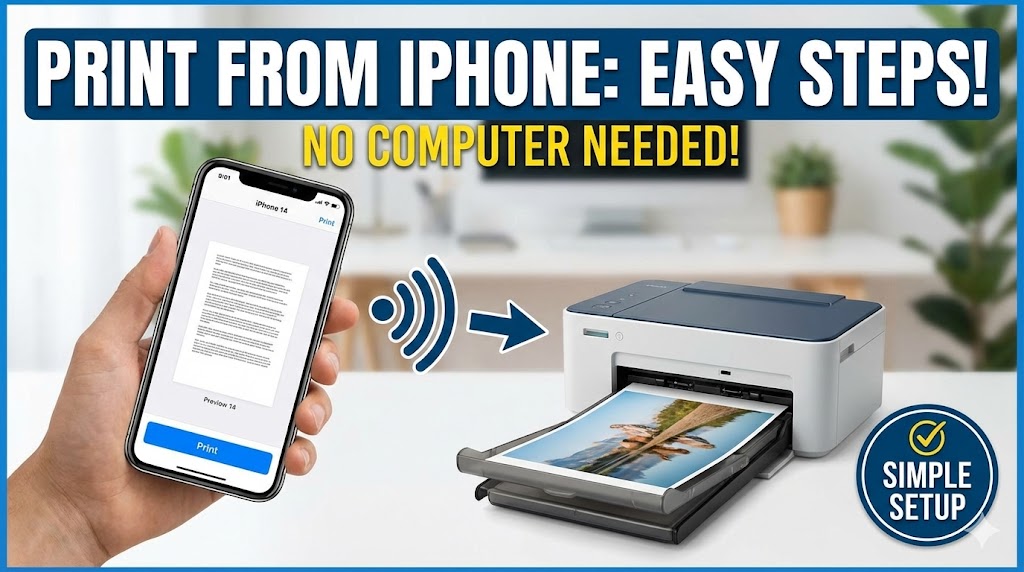
Want to print documents or photos directly from your iPhone? Connecting your iPhone to a printer is easier than you might think, and you don’t need any cables or complicated setup.
Many people struggle to print from their iPhone because they’re not sure which method works best. Whether you need to print a boarding pass, a photo, or an important document, your iPhone can connect to most modern printers wirelessly.
This complete guide will show you exactly how to use your iPhone printer. You’ll learn about AirPrint, third-party printing apps, and troubleshooting tips when things don’t work as expected.
By the end of this article, you’ll be printing from your iPhone like a pro.
What Is iPhone Printing?
iPhone printing refers to the ability to send documents, photos, emails, and web pages from your iPhone directly to a printer without using a computer. This wireless printing capability makes it convenient to print on the go.
Apple’s built-in solution is called AirPrint. This technology lets your iPhone communicate with compatible printers over Wi-Fi. You don’t need to install drivers or special software—it just works.
Here’s why iPhone printing is useful:
- No computer needed: Print directly from your phone wherever you are.
- Wireless convenience: No cables or USB connections required.
- Quick access: Print from any app that supports the share function.
- Photo printing: Send pictures to photo printers instantly.
Most printer manufacturers now make AirPrint-compatible models. Brands like HP, Canon, Epson, and Brother have extensive AirPrint support across their printer lines.
If your printer doesn’t support AirPrint, don’t worry. There are alternative methods using manufacturer apps or third-party printing solutions. Some older printers can still work with your iPhone through these apps.
Understanding your printing options helps you choose the best method for your specific printer and needs.
5 Easy Ways to Print from Your iPhone
Method 1: Use AirPrint (The Easiest Way)
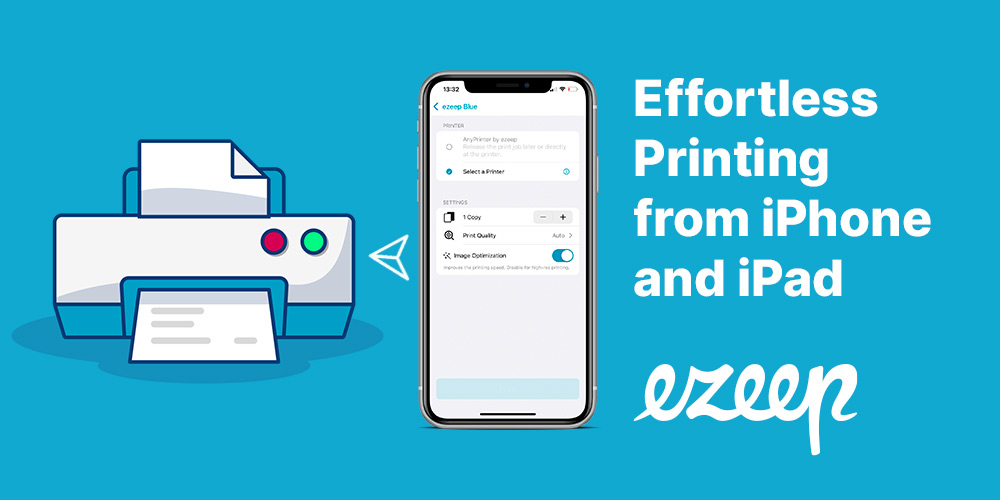
AirPrint is Apple’s wireless printing technology built into every iPhone. If you have an AirPrint-compatible printer, this is the simplest method.
Step 1: Make sure your iPhone and printer are connected to the same Wi-Fi network. This is crucial for AirPrint to work.
Step 2: Open the document, photo, email, or webpage you want to print.
Step 3: Tap the Share button. This looks like a square with an arrow pointing up.
Step 4: Scroll down and tap “Print.” You might need to scroll down in the share menu to find it.
Step 5: Tap “Select Printer” and choose your AirPrint printer from the list.
Step 6: Choose your print options:
- Number of copies
- Color or black and white
- Paper size
- Double-sided printing (if supported)
Step 7: Tap “Print” in the top right corner.
Your document will start printing immediately. You can check print status by double-clicking the home button (or swiping up on newer iPhones) and tapping the Print Center icon.
AirPrint works with most apps including Photos, Safari, Mail, Notes, and Pages. You can also print PDFs stored in the Files app.
Method 2: Use Manufacturer Printer Apps
Most printer brands offer free apps that provide additional printing features beyond AirPrint.
Popular printer apps:
- HP Smart (for HP printers)
- Canon PRINT Inkjet/SELPHY (for Canon printers)
- Epson iPrint (for Epson printers)
- Brother iPrint&Scan (for Brother printers)
Step 1: Download your printer manufacturer’s app from the App Store.
Step 2: Open the app and follow the setup instructions.
Step 3: The app will search for printers on your network. Select your printer.
Step 4: Choose what you want to print—photos, documents, web pages, or cloud files.
Step 5: Select your print settings within the app.
Step 6: Tap “Print” to send your job to the printer.
These apps often provide extra features like:
- Scanning documents to your iPhone
- Checking ink levels
- Accessing cloud storage (Google Drive, Dropbox)
- Printing directly from social media
The apps work even if your printer doesn’t support AirPrint. They create their own connection protocol.
Method 3: Print from Email
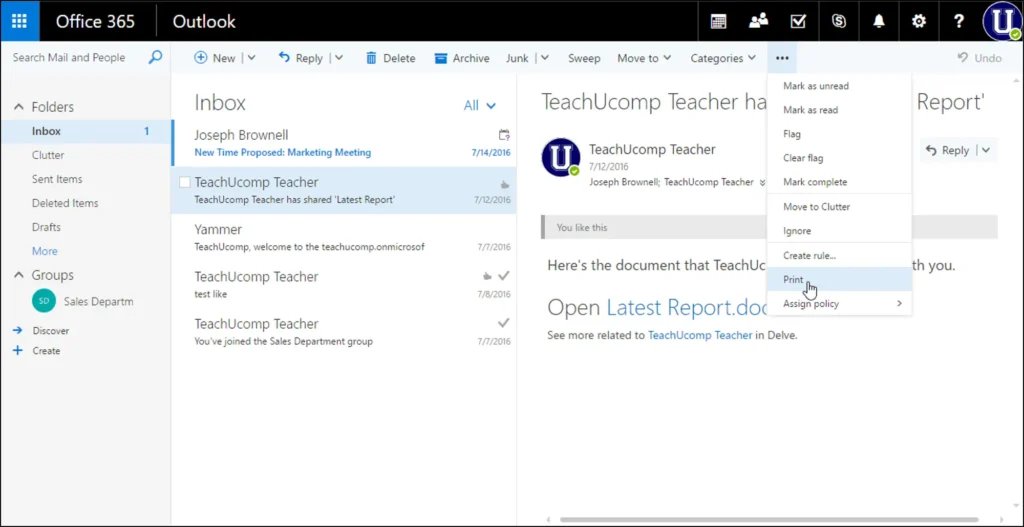
Printing emails from your iPhone is straightforward.
Step 1: Open the Mail app and find the email you want to print.
Step 2: Tap the Reply arrow at the bottom of the email.
Step 3: Tap “Print” from the menu options.
Step 4: Select your printer and adjust settings.
Step 5: Tap “Print” to complete.
You can print the entire email thread or just specific messages. If there are attachments, you might need to open them separately and print from there.
Method 4: Print Photos from the Photos App
Printing photos is one of the most common uses for iPhone printing.
Step 1: Open the Photos app and select the photo you want to print.
Step 2: Tap the Share button in the bottom left corner.
Step 3: Scroll down and select “Print.”
Step 4: Choose your printer from the list.
Step 5: Select how many copies you want. You can print multiple copies of the same photo.
Step 6: Tap “Print.”
For multiple photos, select several images first by tapping “Select” in the top right, then follow the same steps. The printer will print all selected photos.
Make sure your printer has photo paper loaded if you want high-quality photo prints.
Method 5: Print from Third-Party Apps
Many popular apps have built-in printing support.
Apps that support printing:
- Microsoft Word, Excel, and PowerPoint
- Google Docs, Sheets, and Slides
- Adobe Acrobat Reader
- Dropbox
- Evernote
Step 1: Open the document in your app.
Step 2: Look for the Share icon, menu button (three dots), or export option.
Step 3: Select “Print” from the available options.
Step 4: Choose your printer and settings.
Step 5: Tap “Print.”
The exact steps vary slightly between apps, but most follow this general pattern. Check the app’s menu or settings if you can’t find the print option.
Helpful Tips and Best Practices

Check if Your Printer Supports AirPrint
Not sure if your printer is AirPrint-compatible? Visit Apple’s AirPrint page for a complete list of compatible printers.
You can also check your printer’s manual or the manufacturer’s website. Most printers made after 2010 support AirPrint.
Keep Your iPhone and Printer Updated
Software updates fix bugs and improve compatibility.
For your iPhone:
- Go to Settings > General > Software Update
- Install any available iOS updates
For your printer:
- Check the manufacturer’s app for firmware updates
- Some printers can update through their control panel
Updates often solve printing problems and add new features.
Save Commonly Used Print Settings
Many printer apps let you save preset configurations. Create presets for:
- High-quality photo printing
- Draft document printing
- Double-sided business documents
This saves time when you print the same types of documents regularly.
Use Print Preview
Always check print preview before printing. This shows you exactly how your document will look.
You can zoom in to check details. If something looks wrong, cancel and adjust your settings.
Consider a Wireless Print Server
If you have an older printer without Wi-Fi, a wireless print server can help. These small devices connect to your printer via USB and create a wireless connection.
Popular options include the Lantronix xPrintServer. These work with iPhones and create AirPrint compatibility for non-AirPrint printers.
Common iPhone Printing Problems and Solutions

Problem 1: Printer Not Showing Up
Your iPhone can’t find the printer when you try to print.
Quick Fix: Verify both devices are on the same Wi-Fi network. Your iPhone and printer must be on the identical network for AirPrint to work.
Restart both your iPhone and printer. Turn off your printer completely, wait 30 seconds, then turn it back on.
Check that your printer’s wireless function is enabled. Some printers have a physical Wi-Fi button that needs to be turned on.
Move your printer closer to your Wi-Fi router. Weak signals can prevent discovery.
Problem 2: Print Jobs Are Stuck or Won’t Print
You sent a print job but nothing happens.
Quick Fix: Open the App Switcher on your iPhone (swipe up from the bottom or double-click home button). Look for Print Center and tap it.
You’ll see all pending print jobs. Tap any stuck job and select “Cancel.” Then try printing again.
Restart the printer. Many printing issues resolve with a simple restart.
Check the printer for error messages on its display. Common issues include:
- Out of paper
- Paper jam
- Low ink or toner
- Open cover
Problem 3: Poor Print Quality from iPhone
Prints look faded, streaky, or have missing colors.
Quick Fix: Run your printer’s cleaning cycle. Access this through the printer’s control panel or the manufacturer’s app on your iPhone.
Check ink or toner levels in the printer app. Replace cartridges if they’re low.
Make sure you selected the correct paper type in print settings. Using “Photo Paper” setting with plain paper (or vice versa) causes quality issues.
Ensure you’re using the right paper for your print job. Photo paper for photos, regular paper for documents.
Problem 4: AirPrint Not Working
AirPrint option doesn’t appear or printer isn’t compatible.
Quick Fix: Download your printer manufacturer’s app as an alternative. These apps often work with printers that don’t support AirPrint.
Update your iPhone to the latest iOS version. New updates often improve AirPrint functionality.
Reset your network settings on iPhone:
- Go to Settings > General > Transfer or Reset iPhone > Reset > Reset Network Settings
- Note: This will erase saved Wi-Fi passwords
Check your router settings. Some routers have settings that block device-to-device communication. Look for “AP Isolation” or “Client Isolation” and make sure it’s disabled.
Problem 5: Printing Takes Too Long
Print jobs are extremely slow to complete.
Quick Fix: Large files, especially high-resolution photos, take longer to print. Be patient with photo prints.
Check your Wi-Fi signal strength. Weak signals slow down data transfer between your iPhone and printer.
Reduce image quality in print settings if you don’t need maximum resolution. This speeds up printing for everyday documents.
Close other apps running in the background. They might be using network resources.
Problem 6: Can’t Print Specific Document Types
Some files won’t print from your iPhone.
Quick Fix: For files that won’t print directly, try opening them in a different app first.
For example, if a document won’t print from email, save it to Files app, then open and print from there.
Convert documents to PDF format. PDF files are universally printable from iPhones. Many apps have an “Export to PDF” option.
Use the manufacturer’s app for better file format support. These apps often handle more file types than AirPrint alone.
Frequently Asked Questions
Q1: Do I need special software to print from my iPhone?
No, if your printer supports AirPrint, printing works automatically through iOS. For non-AirPrint printers, download your printer manufacturer’s free app from the App Store. No computer or special software installation is required.
Q2: Can I print from my iPhone without Wi-Fi?
Some printers support Wi-Fi Direct or Bluetooth printing, which creates a direct connection without a router. Check your printer’s manual to see if it offers this feature. Otherwise, both devices need to be on the same Wi-Fi network.
Q3: Why can’t I see the Print option in some apps?
Not all apps support printing. If you don’t see a Print option, try taking a screenshot and printing the image from your Photos app, or use the Share function to save the content to another app that does support printing.
Q4: How do I print double-sided from my iPhone?
In the print preview screen, look for “Duplex” or “Two-Sided” in the options. Tap it and select “Long-Edge Binding” or “Short-Edge Binding” depending on how you want pages oriented. Your printer must support automatic duplex printing for this feature.
Q5: Can I print to any printer from my iPhone?
You can print to any AirPrint-compatible printer or any printer that has a manufacturer app available. Very old printers without wireless capability or app support cannot print directly from an iPhone without additional hardware like a wireless print server.
Conclusion
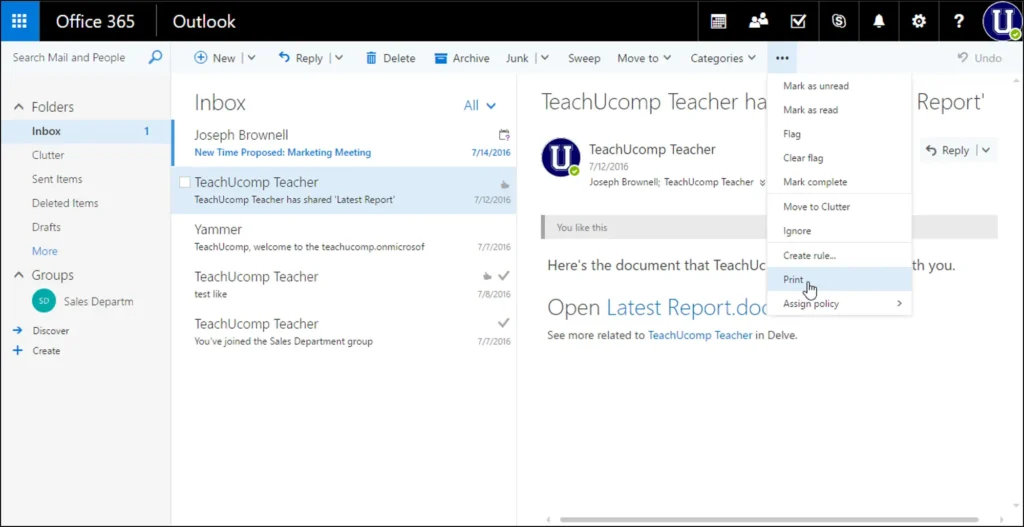
Printing from your iPhone is simple once you know the right method. Whether you use AirPrint for quick wireless printing or manufacturer apps for additional features, you have multiple options available.
Remember that both your iPhone and printer must be on the same Wi-Fi network for wireless printing to work. Keep your devices updated to avoid compatibility issues.
Start with AirPrint if your printer supports it—it’s the fastest and easiest option. If AirPrint doesn’t work or isn’t available, download your printer’s official app for reliable printing functionality.
Most printing problems can be solved by restarting devices, checking connections, or updating software. Follow the troubleshooting steps in this guide when issues arise.
Don’t let printing from your iPhone seem complicated. Try the methods outlined above, and you’ll find that your iPhone printer connection is easier than expected.
Start printing wirelessly from your iPhone today and enjoy the convenience of mobile printing!
Brother Printer Support: Easy Guide to Fix Common Printer Issues Read More.


