
Introduction
Having trouble with your HP printer? You’re not alone. Thousands of users need HP printer support every day to solve printing problems, connection issues, and error messages.
HP printers are reliable, but they can still have problems. Your printer might not connect to Wi-Fi, refuse to print, or show strange error codes. These issues are frustrating, especially when you need to print something urgent.
This guide will show you how to get HP printer support and fix common problems yourself. You’ll learn about official support channels, troubleshooting steps, and useful tools that can solve most printer issues quickly.
By the end of this article, you’ll know exactly what to do when your HP printer stops working.
What Is HP Printer Support?
HP printer support refers to the help and resources HP provides to fix printer problems. This includes technical assistance, software tools, online guides, and customer service.
HP offers several types of support:
- Online support: Articles, videos, and troubleshooting guides on HP’s website.
- Phone support: Direct help from HP technicians.
- Chat support: Live chat assistance for quick questions.
- Community forums: User discussions and solutions.
- Software tools: Free diagnostic programs like HP Print and Scan Doctor.
Most HP printers come with a warranty. During the warranty period, you can get free technical support and sometimes free repairs or replacements.
HP support helps with issues like paper jams, connectivity problems, print quality issues, driver installation, and software errors. The goal is to get your printer working again as quickly as possible.
Understanding what support options are available saves you time. Instead of guessing how to fix problems, you can use official resources designed specifically for your printer model.
6 Ways to Get HP Printer Support

Method 1: Visit the Official HP Support Website
The HP support website is your first stop for printer help.
Step 1: Open your web browser and go to HP Customer Support.
Step 2: Click on “Printers” from the product categories.
Step 3: Enter your printer model number in the search box. You can find this on the front or top of your printer.
Step 4: Browse the available resources. You’ll see driver downloads, manuals, troubleshooting guides, and how-to videos.
Step 5: Use the search function to find solutions for specific problems. Type keywords like “printer offline” or “paper jam.”
The website has detailed articles for almost every printer issue. Many problems can be solved just by following these guides.
Method 2: Use HP Print and Scan Doctor
HP Print and Scan Doctor is a free tool that automatically fixes common printer problems.
Step 1: Download HP Print and Scan Doctor from the official HP website.
Step 2: Install the program on your Windows computer. It works with Windows 10 and 11.
Step 3: Run the tool and select your printer from the list.
Step 4: Click “Start” to let the program diagnose issues.
Step 5: Follow any on-screen instructions if the tool finds problems.
This tool can fix issues like:
- Printer not responding
- Connection problems
- Print queue stuck
- Scanner not working
- Driver errors
HP Print and Scan Doctor solves many problems automatically. It’s one of the easiest ways to get your printer working again.
Method 3: Contact HP Phone Support
Sometimes you need to talk to a real person. HP offers phone support for technical help.
Step 1: Find your printer’s serial number. This is usually on a sticker on the back or bottom of the printer.
Step 2: Visit the HP Contact page on their website.
Step 3: Enter your printer model or serial number.
Step 4: The website will show you the correct support phone number for your region.
Step 5: Call during business hours and explain your problem to the support agent.
Have your printer nearby during the call. The technician might ask you to check settings or try specific steps.
Phone support is helpful for complex issues that automated tools can’t fix.
Method 4: Use HP Virtual Agent (Chat Support)
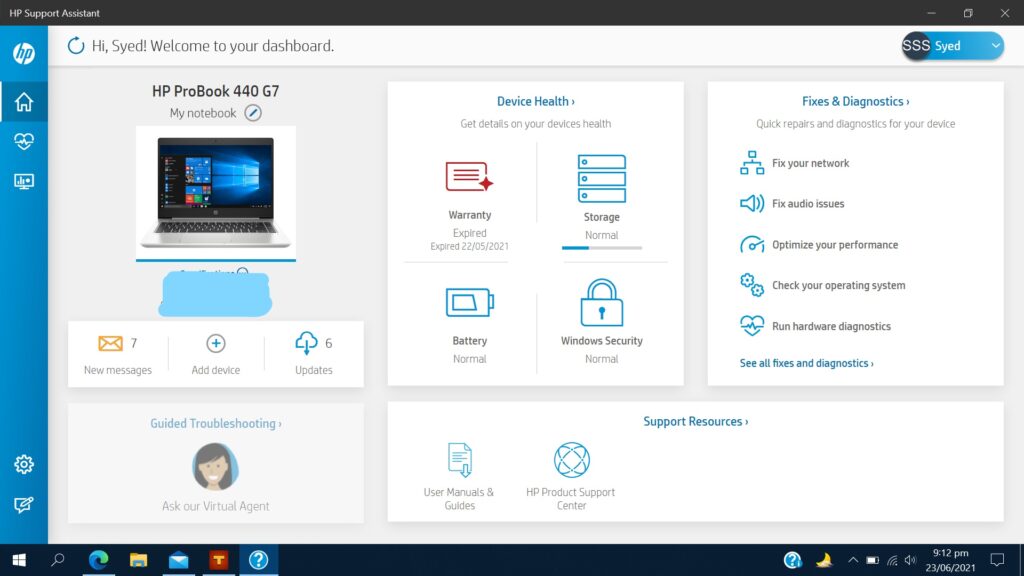
HP’s virtual agent provides instant chat support.
Step 1: Go to the HP support website.
Step 2: Look for the chat icon in the bottom right corner of the page.
Step 3: Click the icon to start a conversation.
Step 4: Type your question or describe your problem.
Step 5: Follow the suggestions provided by the virtual agent.
The virtual agent uses artificial intelligence to understand your issue. It can provide troubleshooting steps, links to articles, or connect you with a human agent if needed.
Chat support is faster than phone calls and available 24/7 for basic questions.
Method 5: Check the HP Support Community
The HP Community forum is where users help each other solve printer problems.
Step 1: Visit the HP Support Community website.
Step 2: Search for your specific problem using the search bar.
Step 3: Read through existing threads. Someone else might have already solved your issue.
Step 4: If you don’t find an answer, create a new post explaining your problem.
Step 5: Wait for responses from community members or HP experts.
Community forums are great for unusual problems. Experienced users and HP staff regularly answer questions there.
Method 6: Schedule a Repair or Replacement
If your printer is still under warranty and can’t be fixed remotely, HP might repair or replace it.
Step 1: Contact HP support through phone or chat.
Step 2: Explain that basic troubleshooting hasn’t worked.
Step 3: Provide your warranty information and serial number.
Step 4: The support agent will determine if your printer qualifies for repair or replacement.
Step 5: Follow the instructions for shipping your printer or scheduling an in-home service.
HP typically covers shipping costs for warranty repairs. This option is available only if your printer is still covered by the manufacturer’s warranty.
Helpful Tools and Best Practices
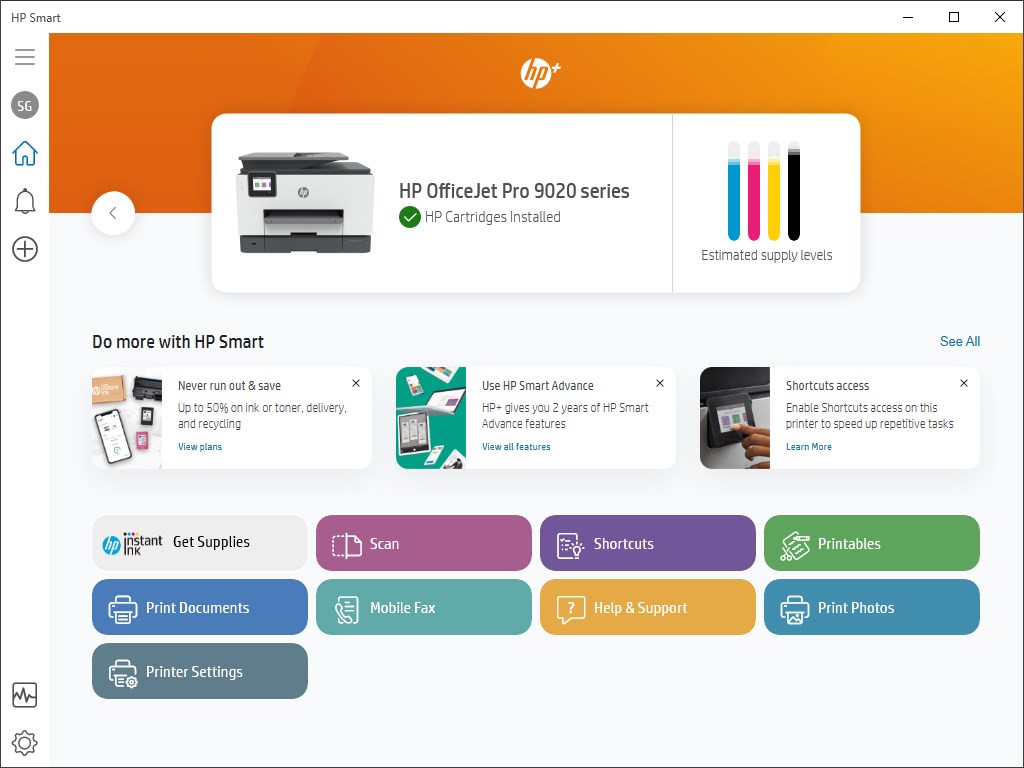
Install HP Smart App
The HP Smart app makes managing your printer easier. It’s available for Windows, Mac, iOS, and Android.
The app lets you:
- Print and scan from your phone or tablet
- Check ink levels
- Order replacement ink
- Run diagnostics
- Update printer firmware
Download it from the Microsoft Store, Mac App Store, Google Play, or Apple App Store.
Keep Your Printer Drivers Updated
Outdated drivers cause many printing problems. Check for driver updates regularly.
Visit the HP support website and enter your printer model. Download the latest driver for your operating system.
Updated drivers fix bugs and improve performance. They also add compatibility with newer operating systems.
Use Genuine HP Ink and Toner
Using third-party cartridges can cause print quality problems and error messages.
Genuine HP ink cartridges are designed specifically for your printer model. They provide better print quality and reliability.
Check your ink levels regularly. Replace cartridges before they run completely empty to avoid print head damage.
Register Your Printer
Register your HP printer on the HP website after purchase. This ensures you receive:
- Warranty coverage
- Important firmware updates
- Special offers and discounts
- Better customer support
Registration takes just a few minutes and makes getting support easier later.
Common Printer Problems and Quick Fixes

Problem 1: Printer Shows Offline Status
This is one of the most common issues. Your computer thinks the printer isn’t available.
Quick Fix: Restart both your printer and computer. Check that the printer is connected to Wi-Fi or USB properly.
Go to your computer’s printer settings. Right-click your HP printer and uncheck “Use Printer Offline” if it’s selected.
Problem 2: Print Jobs Stuck in Queue
Documents pile up in the print queue and nothing prints.
Quick Fix: Open the print queue from your computer. Cancel all pending print jobs.
Restart the print spooler service on Windows. Open Services, find “Print Spooler,” right-click it, and select “Restart.”
Problem 3: Poor Print Quality
Your prints look faded, streaky, or have missing colors.
Quick Fix: Run the printer’s cleaning cycle. This is usually found in the printer settings or maintenance menu.
Check your ink levels. Replace any low or empty cartridges. Make sure you’re using the correct paper type for your print job.
Problem 4: Printer Won’t Connect to Wi-Fi
Your printer can’t connect to your wireless network.
Quick Fix: Make sure your Wi-Fi password is correct. Restart your router and printer.
Use the printer’s control panel to reconnect to your network. Select your Wi-Fi name and enter the password carefully.
If problems continue, use the HP Print and Scan Doctor tool. It has a specific fix for network issues.
Problem 5: Paper Jams
Paper gets stuck inside the printer.
Quick Fix: Turn off the printer first. Open all access doors and gently remove the jammed paper.
Pull the paper slowly in the direction it feeds. Don’t yank it or tear it. Check for any small pieces left inside.
Close all doors and turn the printer back on. Make sure you’re using the right paper size and not overfilling the paper tray.
Problem 6: Printer Makes Loud Noises
Unusual grinding or clicking sounds during printing.
Quick Fix: Turn off the printer and check for any foreign objects inside.
Look for stuck paper pieces, broken plastic parts, or loose components. If you find nothing obvious, contact HP support. Internal mechanical issues usually need professional repair.
Frequently Asked Questions
Q1: Is HP printer support free?
Yes, HP provides free support during your printer’s warranty period. This includes phone support, chat support, and access to all online resources. After warranty expires, basic online support remains free, but phone support may involve fees.
Q2: How do I find my HP printer model number?
Look for a label on the front, top, or back of your printer. The model number usually starts with letters like “HP DeskJet,” “HP OfficeJet,” or “HP LaserJet” followed by numbers. You can also find it in your printer’s settings menu.
Q3: Can I get support for older HP printers?
Yes, but support options may be limited. HP maintains online resources for older models. However, they may no longer produce drivers for very old printers with newer operating systems. Check the HP support website using your model number.
Q4: What should I do if HP Print and Scan Doctor doesn’t work?
Try contacting HP directly through phone or chat support. They can provide advanced troubleshooting steps. You might also need to manually reinstall printer drivers or update your operating system.
Q5: How long does HP warranty coverage last?
Most HP printers come with a one-year limited warranty. Some premium models offer extended coverage. Check your purchase documentation or enter your serial number on the HP website to verify your warranty status.
Conclusion
Getting HP printer support doesn’t have to be complicated. You now know multiple ways to solve printer problems—from using free diagnostic tools to contacting HP directly.
Start with the HP Print and Scan Doctor tool for quick automatic fixes. If that doesn’t work, visit the official HP support website for troubleshooting guides specific to your printer model. For complex issues, reach out to HP phone or chat support.
Remember to keep your drivers updated and use genuine HP ink cartridges. Register your printer to ensure you receive full warranty benefits and support.
Most printer problems can be fixed at home with the right guidance. Follow the steps in this guide, and you’ll have your HP printer working smoothly again.
Don’t let printer issues slow you down. Use these HP printer support resources today and get back to printing!
How to Find Printing Services Near Me: Fast & Easy Guide Read More.


