
Introduction
Learning how to connect HP printer to WiFi is easier than you think. Wireless printing frees you from messy cables and lets you print from any room in your house. You can even print from your phone, tablet, or laptop without plugging anything in.
Many people struggle with WiFi printer setup because the steps seem confusing. But the truth is simple: most HP printers connect to WiFi in just a few minutes. You don’t need to be a tech expert. You just need the right instructions.
This guide shows you exactly how to connect HP printer to WiFi using different methods. Whether you have a printer with a touchscreen, buttons, or the HP Smart app, we’ve got you covered. You’ll also learn how to fix common connection problems and keep your wireless printer running smoothly.
What Is HP Printer WiFi Connection?
HP printer WiFi connection means linking your printer to your home or office wireless network. Once connected, your printer can receive print jobs from any device on the same network. You don’t need USB cables anymore.
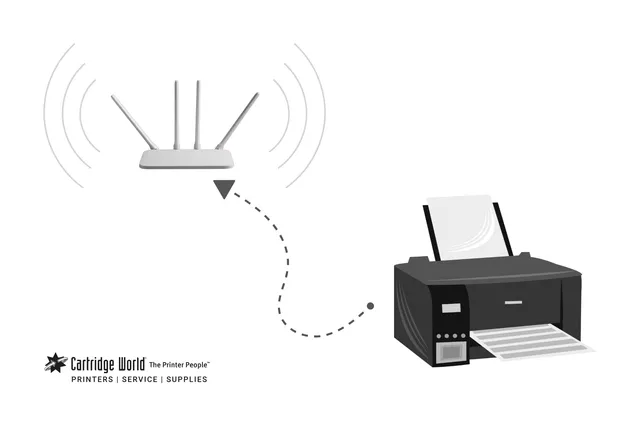
WiFi printing uses your existing wireless router to create a connection. Your printer gets its own spot on your network, just like your phone or laptop. Every device connected to that network can find and use the printer.
Most HP printers made after 2010 have built-in WiFi capability. This includes popular models like HP DeskJet, OfficeJet, Envy, and LaserJet printers. Look for a wireless icon on your printer or check the manual to confirm WiFi support.
There are several ways to connect your HP printer to WiFi. The Wireless Setup Wizard works on printers with display screens. WPS (Wi-Fi Protected Setup) offers one-button connection if your router supports it. The HP Smart app provides guided setup from your smartphone.
Understanding how to connect HP printer to WiFi helps you choose the best method for your specific model. Some methods are faster, while others work better with certain printer types. The connection process takes 5-15 minutes depending on which method you use.
6 Simple Methods to Connect HP Printer to WiFi
Method 1: Using the Wireless Setup Wizard
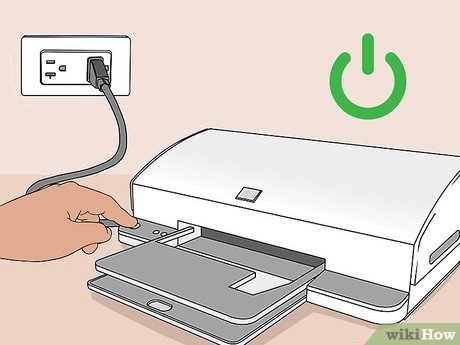
The Wireless Setup Wizard is the most common way to connect HP printers with touchscreen displays. Start by turning on your printer and making sure it’s within range of your WiFi router. Distance matters—walls and obstacles can weaken the signal.
On your printer’s touchscreen, tap the wireless icon or settings menu. Look for “Network Setup” or “Wireless Settings.” Select “Wireless Setup Wizard” from the list of options.
The printer will scan for available networks. This takes about 30 seconds. When the scan completes, you’ll see a list of WiFi networks. Find your network name (SSID) and tap on it.
Enter your WiFi password using the on-screen keyboard. Be careful with uppercase and lowercase letters—passwords are case-sensitive. Double-check your password before confirming. If entered correctly, your printer will connect within a minute.
A confirmation message appears when the connection succeeds. The wireless light on your printer should stop blinking and stay solid. Your printer is now connected to WiFi and ready to use.
Method 2: WPS Push Button Connection
WPS (Wi-Fi Protected Setup) offers the fastest way to connect HP printer to WiFi if your router has a WPS button. This method takes less than 2 minutes and doesn’t require you to enter passwords.
First, locate the WPS button on your wireless router. It’s usually labeled “WPS” and might be on the front, back, or side of the router. Some routers have it on top.
On your HP printer, press and hold the wireless button for about 3 seconds. The wireless light will start blinking. Within 2 minutes, press the WPS button on your router.
The printer and router will communicate automatically. You’ll see the wireless light blinking as they connect. When the light becomes solid, the connection is complete. Your printer is now on your WiFi network.
This method works great for printers without display screens. It’s also perfect if you don’t remember your WiFi password. However, not all routers support WPS, so check your router documentation first.
Method 3: Using the HP Smart App
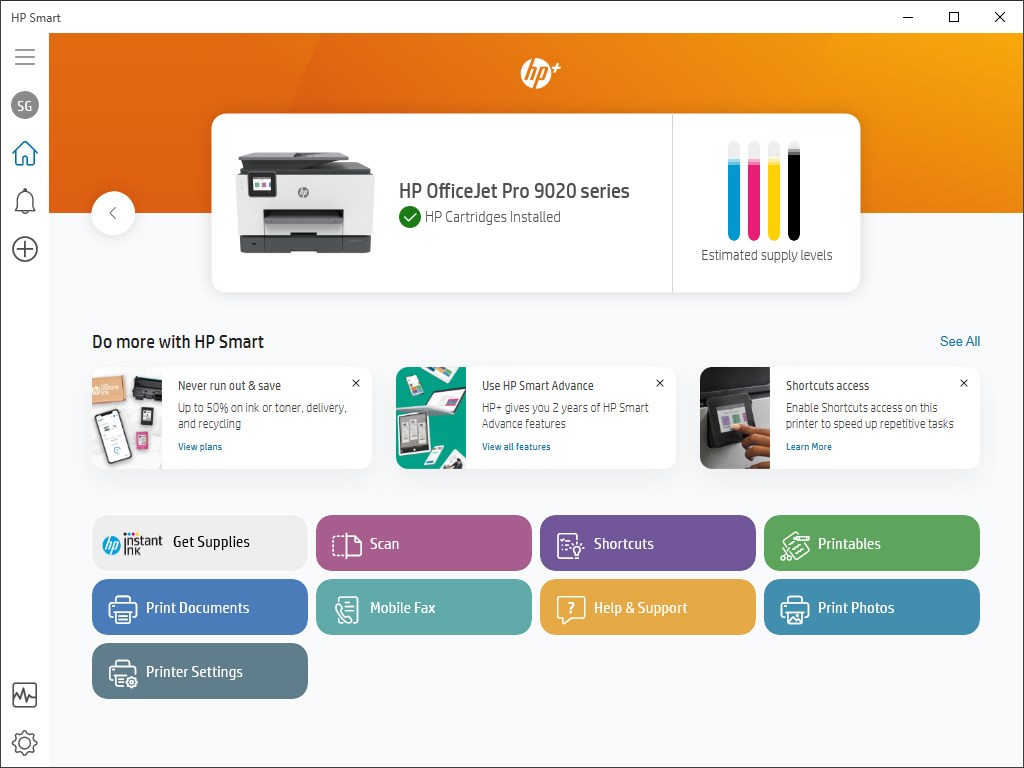
The HP Smart app guides you through WiFi setup with clear instructions. Download the free app from the App Store (iOS) or Google Play Store (Android). Install it on your smartphone or tablet.
Open the HP Smart app and tap the plus (+) icon to add a printer. The app will search for printers nearby. Make sure your phone is connected to your WiFi network—the same network you want the printer to join.
If the app finds your printer, tap on its name. If it doesn’t appear, tap “Setup a New Printer” and follow the guided process. The app will ask you to temporarily connect to your printer’s WiFi Direct network.
Go to your phone’s WiFi settings and connect to the network that starts with “HP-Print” or “DIRECT.” Return to the HP Smart app, which will now complete the setup. Select your home WiFi network and enter the password when prompted.
The app transfers this information to your printer. Your printer disconnects from WiFi Direct and joins your home network. The whole process takes about 5 minutes. This method works excellently for how to connect HP printer to WiFi without a display screen.
Method 4: USB Cable Setup (Temporary)
Some HP printers can connect to WiFi using a USB cable temporarily. You’ll need a USB cable and a computer for this method. The cable is only needed during setup—you can remove it afterward.
Connect your printer to your computer using a USB cable. Turn on both devices. Insert the HP printer software CD or download the latest drivers from https://support.hp.com.
Run the installer and select “Wireless” when asked about connection type. The software will detect that your printer is currently connected via USB. It will guide you through converting to a wireless connection.
Follow the on-screen instructions to enter your WiFi network name and password. The software configures your printer with this information. When setup completes, the software will tell you to disconnect the USB cable.
Remove the USB cable from both devices. Your printer now connects wirelessly. This method is helpful when other wireless setup methods fail. It provides a stable way to configure WiFi settings.
Method 5: WiFi Direct for Direct Device Connection
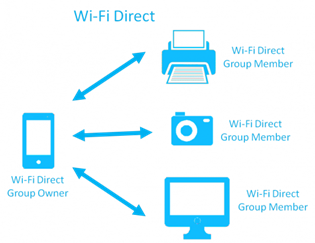
WiFi Direct creates a direct connection between your printer and one device without using a router. This isn’t the same as connecting to your home WiFi, but it’s useful when you can’t access a wireless network.
On your HP printer, find the WiFi Direct settings in the wireless menu. Enable WiFi Direct—the printer will display a network name and password. Write these down.
On your computer or phone, go to WiFi settings. Look for a network starting with “DIRECT-” followed by your printer model. Connect to this network using the password from your printer’s screen.
You can now print directly to your printer. However, only the connected device can print—other devices won’t have access. WiFi Direct is great for temporary printing situations or when traveling.
Remember, WiFi Direct doesn’t give your printer internet access. It’s purely a point-to-point connection. For full wireless printing from multiple devices, use one of the other methods to connect HP printer to WiFi properly.
Method 6: Manual IP Address Configuration
Advanced users can manually configure network settings. This method requires knowing your network’s IP address range and router settings. It’s typically used in office environments with specific network requirements.
Access your printer’s network settings menu. Select “Manual Setup” or “Advanced Settings.” You’ll need to enter several pieces of information: IP address, subnet mask, and gateway address.
Contact your network administrator or check your router settings for available IP addresses. Enter an unused IP address in your network’s range. The subnet mask is usually 255.255.255.0 for home networks.
Enter your router’s IP address as the gateway. This is typically 192.168.1.1 or 192.168.0.1. Save the settings and test the connection by printing a network configuration page.
This method gives you complete control over your printer’s network presence. It’s especially useful for preventing IP address conflicts or setting up static IP addresses for consistent printing.
Additional Tools and Resources for HP WiFi Printing

The HP Print and Scan Doctor is a free diagnostic tool for Windows computers. It automatically fixes common printing and connection problems. Download it from HP’s support website when you experience WiFi issues.
HP ePrint lets you print via email from anywhere. Once set up, your printer gets a unique email address. Send documents to that address, and they print automatically. This feature requires your printer to be connected to WiFi with internet access.
The HP Instant Ink program monitors your ink levels and ships new cartridges automatically. It requires a WiFi connection to track usage. This subscription service saves money and ensures you never run out of ink.
Router placement affects connection quality. Position your router centrally and elevated. Keep it away from metal objects, microwalls, and other electronics that cause interference. If your printer is far from the router, consider a WiFi extender.
Most HP printers let you print the Network Configuration Page directly from the printer menu. This page shows your current network settings, IP address, and connection status. Print this page to verify your WiFi connection and troubleshoot issues.
Troubleshooting Common WiFi Connection Problems
Printer Can’t Find WiFi Network
If your HP printer doesn’t see your WiFi network during setup, check that your router is working properly. Look for lit indicator lights on the router. If they’re off or red, restart your router by unplugging it for 30 seconds.
Make sure your WiFi network is broadcasting its SSID. Some routers hide the network name for security. Access your router settings and enable SSID broadcast. Also verify your router uses 2.4GHz frequency—many HP printers don’t support 5GHz networks.
Move your printer closer to the router during setup. Thick walls, floors, and metal objects block WiFi signals. Once connected successfully, you can move the printer to its permanent location.
Wrong Password Error
The most common mistake when learning how to connect HP printer to WiFi is entering the wrong password. WiFi passwords are case-sensitive. “Password123” is different from “password123” or “PASSWORD123.”
Check your router for a sticker showing the default password. If you changed it, make sure you’re entering your current password, not the default one. Look for special characters that are easy to mix up, like “O” and “0” or “l” and “1.”
If you can’t remember your WiFi password, connect another device (like your phone) to the WiFi and view the saved password. On Windows computers, go to Network Settings > WiFi > Manage Known Networks to see saved passwords.
Printer Keeps Disconnecting
When your printer repeatedly loses WiFi connection, the issue is usually signal strength or interference. Check the wireless signal bars on your printer’s display. One or two bars indicate weak signal.
Update your printer’s firmware through the HP Smart app or printer menu. Outdated firmware causes connectivity problems. Also update your router’s firmware from the router’s admin panel.
Change your router’s WiFi channel to reduce interference. Channels 1, 6, and 11 work best for 2.4GHz networks. Access your router settings to change the channel. Restart both your printer and router after making changes.
Cannot Print After Successful Connection
Sometimes your printer connects to WiFi but won’t print. First, verify your computer or phone is on the same WiFi network as the printer. Devices on different networks can’t communicate.
Check if your firewall or antivirus software blocks the printer connection. Temporarily disable these programs to test. If printing works, add an exception for your printer in the security software.
Remove and re-add the printer on your computer. On Windows, go to Settings > Devices > Printers & Scanners. Remove the printer and click “Add a printer or scanner” to reinstall it. This refreshes the connection.
Frequently Asked Questions (FAQs)
Q1: How to connect HP printer to WiFi without a password?
You can use the WPS push button method if your router supports it. Press the wireless button on your printer, then press the WPS button on your router within 2 minutes. They’ll connect automatically without requiring a password.
Q2: Why won’t my HP printer connect to my WiFi network?
Common reasons include wrong password, printer too far from router, router using 5GHz only (most HP printers need 2.4GHz), or outdated printer firmware. Try moving the printer closer, verify your password, and ensure your router broadcasts on 2.4GHz frequency.
Q3: How do I know if my HP printer is connected to WiFi?
Check the wireless icon on your printer. A solid blue light means connected. A blinking light means connecting or no connection. You can also print a Network Configuration Page from your printer’s menu to see connection status and IP address.
Q4: Can I connect my HP printer to WiFi using my phone?
Yes! Download the free HP Smart app on your iPhone or Android device. The app provides guided setup to connect HP printer to WiFi using your smartphone. It’s often easier than using the printer’s control panel.
Q5: Do I need to reconnect my HP printer to WiFi if I change my password?
Yes, if you change your WiFi password, you must update it on your printer. Go to the wireless settings on your printer and enter the new password. Alternatively, use the HP Smart app to update the network credentials.
Conclusion
Learning how to connect HP printer to WiFi opens up convenient wireless printing from all your devices. Whether you use the Wireless Setup Wizard, WPS button, HP Smart app, or USB setup, each method gets your printer online quickly. Choose the approach that matches your printer model and technical comfort level.
Most connection issues come from simple problems like wrong passwords, weak signals, or incompatible router settings. With the troubleshooting tips in this guide, you can solve these problems without calling support. Remember to keep your printer firmware updated and position your router optimally.
Now that you know how to connect HP printer to WiFi, enjoy cable-free printing from anywhere in your home or office. Print from your phone, laptop, or tablet with just a few clicks. Wireless printing saves time and makes your workspace cleaner and more organized.
HP Printer App: Essential Guide to Seamless Mobile Printing Read More.


