
Introduction
Custom sticker printing should be simple, but wireless printer problems can turn a quick project into hours of frustration. Whether you’re printing labels for your small business, creating personalized stickers for events, or handling vinyl sticker printing orders, connection issues can halt everything.
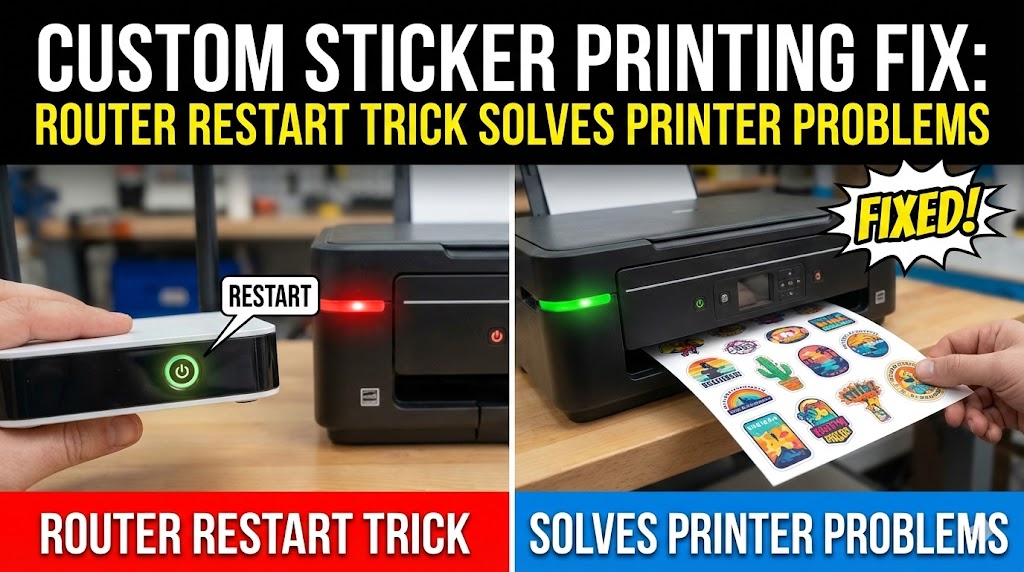
Here’s the good news: most wireless printer problems have one surprisingly simple solution. The router restart trick fixes approximately 99% of connectivity issues between your computer and printer. This method works for all major printer brands including HP, Canon, Epson, and Brother.
In this guide, you’ll learn exactly how to use this powerful troubleshooting technique. We’ll walk through the complete process step by step. You’ll also discover why this trick works so effectively and how to prevent future printing problems. Let’s get your custom sticker printing back on track in just minutes.
What Is the Router Restart Trick?
The router restart trick is a simple network reset process. It involves turning off your wireless router and printer in a specific sequence. This clears temporary connection errors that prevent your devices from communicating properly.
Think of your router as a traffic controller for all your wireless devices. Over time, it can get overwhelmed with connection requests. Old device information gets stuck in memory. Signal conflicts develop between multiple devices. These issues create invisible barriers that stop your printer from receiving print jobs.
When you restart your router correctly, you’re essentially giving it a fresh start. The device clears its memory and rebuilds all connections from scratch. This process eliminates the glitches causing your custom sticker printing failures.
The trick is particularly effective for wireless printing because printers often go into sleep mode. When they wake up, they sometimes fail to reconnect properly to the network. A proper router restart forces both devices to establish a clean, new connection. This simple action resolves connection timeouts, printer offline errors, and failed print job problems.
5 Steps to Fix Custom Sticker Printing with the Router Restart Trick
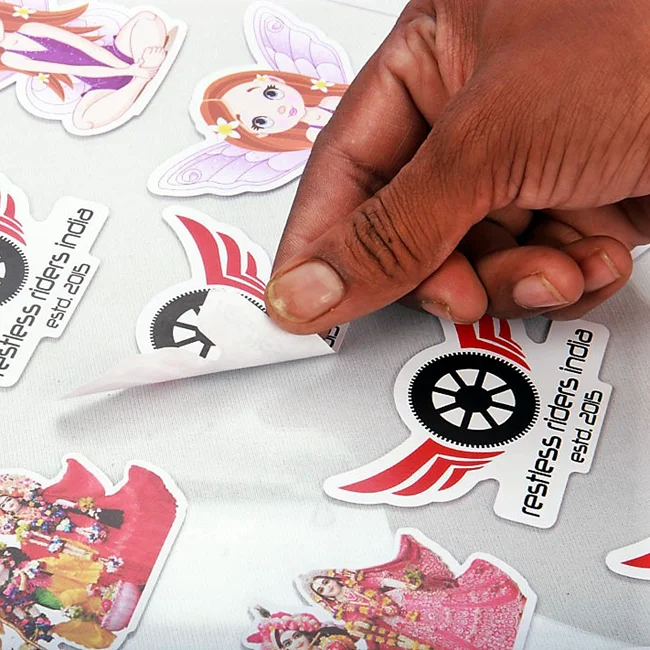
Follow these steps carefully for best results. The order matters because it ensures proper network reconnection.
Step 1: Turn Off Your Printer Completely
Press the power button on your printer and wait for it to shut down fully. Don’t just put it in sleep mode. The printer needs to power off completely. Unplug the power cable from the back of the printer or from the wall outlet. This ensures all temporary memory is cleared. Wait at least 30 seconds before moving to the next step. This waiting period allows capacitors to discharge fully.
Step 2: Restart Your Wireless Router
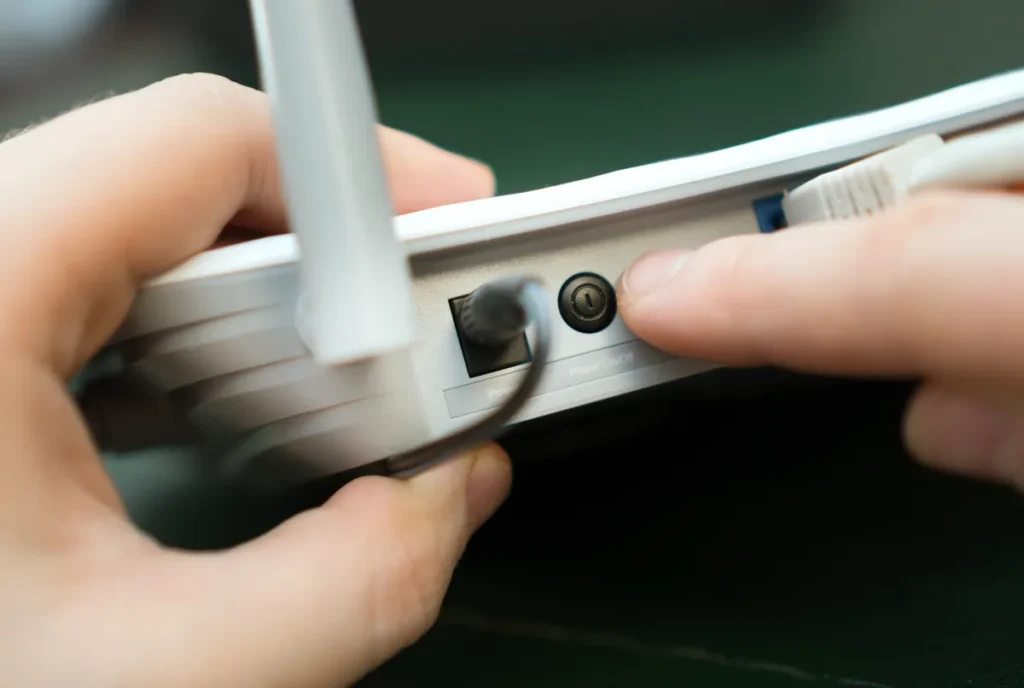
Locate your wireless router and unplug its power cable. If your router has a power button, press it first before unplugging. Wait for all lights to go off completely. Keep the router unplugged for at least 60 seconds. This full minute is crucial because it ensures the router’s RAM clears completely. Some routers hold information for up to 45 seconds after unplugging. During this waiting time, you can also restart your computer if it’s been having connection issues.
Step 3: Power Up Your Router First
Plug your router back in and press the power button if needed. Watch the lights on the front panel. Wait until all indicator lights are solid or blinking normally. This usually takes 2 to 3 minutes. Your router needs to fully boot up and establish its internet connection first. Don’t rush this step. If you reconnect your printer too early, the same connection errors can happen again. Most routers show a steady light when they’re ready for device connections.
Step 4: Power On Your Printer
Once your router is fully operational, plug your printer back in. Turn on the printer using its power button. Let the printer complete its startup routine. This includes warm-up sounds and initial calibration. Most modern printers automatically search for the wireless network they were previously connected to. Watch your printer’s display screen if it has one. You should see it connecting to your WiFi network. This process typically takes 1 to 2 minutes.
Step 5: Test Your Custom Sticker Printing
Open your sticker design on your computer. Select your printer from the print dialog box. Send a test print job to verify the connection works. Try printing a small test sticker first before running your full batch. If the test prints successfully, your connection is restored. You can now proceed with your label printing, vinyl sticker printing, or any other custom printing projects. Save your document and print your complete order with confidence.
Why This Router Restart Trick Works So Well
Understanding why this method works helps you prevent future issues. Several technical factors make this trick highly effective for custom sticker printing problems.
Network devices store connection information in temporary memory called cache. Over time, this cache becomes corrupted or outdated. Your printer might be trying to connect using old network credentials. The router might be directing traffic to an outdated device address. These mismatches create communication failures.
When you restart both devices properly, they clear all cached data. They perform a fresh network handshake using current information. Your printer receives a new IP address from the router. The router recognizes the printer as a newly connected device. This clean slate eliminates the confusion causing print failures.
Wireless interference also plays a role in printing problems. Your router constantly manages signals from multiple devices. Smartphones, tablets, computers, and smart home devices all compete for bandwidth. Sometimes these signals overlap and cause conflicts. A router restart reorganizes how it allocates wireless channels. This can significantly improve connection stability for your printer. Better connection means more reliable custom sticker printing performance.
Additional Tips for Reliable Wireless Printing

Beyond the router restart trick, these practices keep your custom sticker printing running smoothly.
Keep Your Printer Firmware Updated: Printer manufacturers release updates that fix connection bugs. Check your printer’s settings menu monthly for available updates. Most modern printers can update automatically when connected to WiFi. Enable this feature in your printer settings. Updated firmware prevents many wireless printing problems before they start.
Position Your Printer Strategically: Place your printer within 15 to 20 feet of your router if possible. Walls and floors weaken WiFi signals significantly. Avoid placing printers in basements or far corners. Metal filing cabinets and large appliances interfere with wireless signals. Keep the area around your printer relatively clear. Good signal strength means faster print speeds and fewer connection drops.
Use a Static IP Address: Assign your printer a permanent IP address through your router settings. This prevents the printer from getting a new address each time it connects. Static IPs eliminate many random disconnection issues. Your router manual explains how to set up IP reservations. This five-minute setup saves hours of future troubleshooting time. It’s especially helpful for businesses doing regular label printing or vinyl sticker printing work.
Common Mistakes When Troubleshooting Printer Problems
Avoid these errors that make wireless printing problems worse.
Mistake 1: Not Waiting Long Enough Between Restarts
Many people unplug their router for just 10 or 15 seconds. This isn’t enough time for the device to fully clear its memory. Always wait at least 60 seconds. Some networking experts recommend waiting up to 2 minutes for older routers. The extra time ensures a complete system reset. Rushing this step means you might need to repeat the entire process.
Mistake 2: Restarting Only the Printer
Your printer isn’t the problem in most cases. The issue usually lies in how the router is managing network traffic. Restarting just the printer won’t fix router-side connection errors. You need to reset both devices for the trick to work. Always include the router restart in your troubleshooting process.
Mistake 3: Reconnecting Everything at Once
Turning on your router and printer simultaneously creates connection chaos. The devices try to establish communication before either is fully ready. This can recreate the same errors you’re trying to fix. Always power up your router first and wait for it to stabilize. Only then should you turn on your printer.
Mistake 4: Ignoring Software Updates
Outdated printer drivers cause many wireless connection failures. Update your computer’s printer drivers regularly. Check the manufacturer’s website for the latest versions. Windows and Mac computers also need system updates that improve printing compatibility. Keeping all software current works alongside the router restart trick for optimal custom sticker printing performance.
FAQs About Fixing Wireless Printer Problems
Q: How often should I use the router restart trick?
Use this method whenever your printer stops responding to print commands. For prevention, restart your router monthly during regular maintenance. This clears accumulated connection errors before they cause printing problems.
Q: Will restarting my router affect other devices?
Yes, all connected devices will briefly lose internet access. The disruption typically lasts 3 to 5 minutes. Schedule router restarts during low-usage periods. Most households do this late at night or early morning.
Q: Does this work for custom sticker printing on all printer types?
This trick works for any wireless printer including inkjet and laser models. It’s effective for label printing, vinyl sticker printing, and regular document printing. The method fixes connection issues regardless of what you’re printing.
Q: What if the router restart doesn’t fix my problem?
If the trick fails after two attempts, check your printer’s WiFi settings. Verify you’re connecting to the correct network. You may need to reconnect the printer to your WiFi manually. Consider contacting your printer manufacturer’s support for hardware issues.
Conclusion
The router restart trick is your fastest solution for wireless printer problems affecting custom sticker printing. This simple five-step process fixes approximately 99% of connection issues in just minutes. By powering down your printer and router in the correct sequence, you clear network errors and establish fresh device connections.
Remember to wait adequate time between each step for complete memory clearing. Position your printer close to your router for best results. Keep firmware and software updated to prevent future problems. These practices ensure reliable performance for all your label printing and vinyl sticker printing projects.
Bookmark this guide for quick reference when printing issues arise. Share it with colleagues who handle custom sticker printing tasks. With this knowledge, you can troubleshoot confidently and keep your printing operations running smoothly. Get back to creating amazing custom stickers without frustrating technical delays.
Canon MegaTank Printer: Ultimate Guide to Smart, Cost-Saving Printing 2025 Read More.


