
Introduction
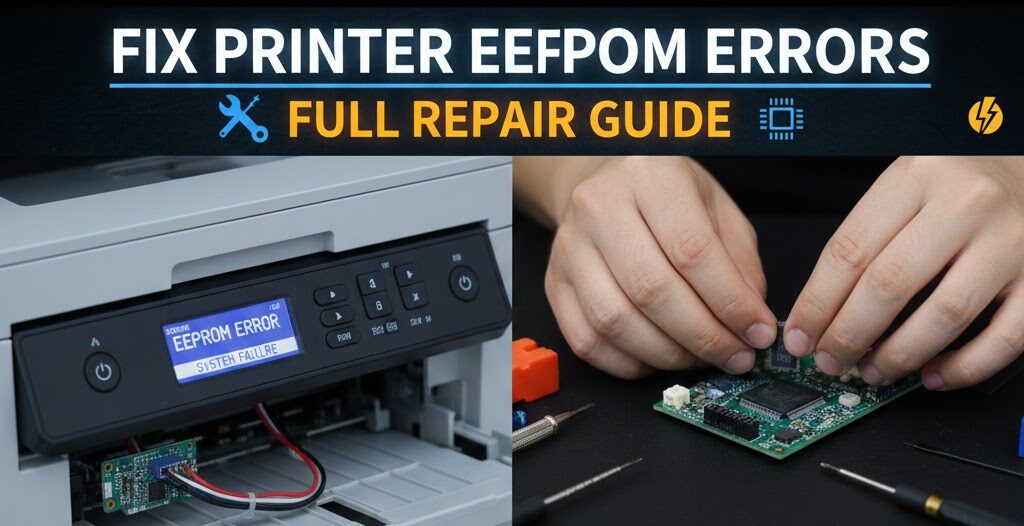
Learning how to fix printer EEPROM flash storage errors can save you from expensive repairs or premature printer replacement. These memory chip errors cause mysterious printer behavior, including random error messages, incorrect settings, and complete printing failures.
When you need to fix printer EEPROM flash storage errors, you’re dealing with the printer’s permanent memory where critical information lives. Settings, page counts, firmware data, and configuration details all store in these chips. When they malfunction, your printer struggles to function properly.
This comprehensive guide teaches you everything about how to fix printer EEPROM flash storage errors. You’ll learn what these errors are, how to identify them, step-by-step repair methods, and prevention strategies.
By mastering these techniques, you’ll restore printer functionality without costly service calls or replacements.
Let’s start diagnosing and solving your printer memory problems.
What Are Printer EEPROM Flash Storage Errors?
To fix printer EEPROM flash storage errors effectively, you must first understand what these components do.
EEPROM stands for Electrically Erasable Programmable Read-Only Memory. Flash storage is similar but uses different technology. Both serve as permanent memory in your printer, retaining data even when powered off.
What do these memory chips store?
Your printer’s EEPROM and flash storage contain firmware (operating software), configuration settings, page counters, color calibration data, network settings, and error logs. This information is essential for normal operation.
How do errors occur?
Power surges can corrupt memory. Incomplete firmware updates leave corrupted data. Age and heat cause physical chip degradation. Software bugs sometimes write incorrect data. Manufacturing defects occasionally cause premature failures.
Common symptoms indicating you need to fix printer EEPROM flash storage errors:
The printer displays “EEPROM error” or “memory error” messages. Settings reset to defaults unexpectedly. Page counts show incorrect numbers. The printer refuses to recognize genuine cartridges. Network settings disappear randomly. The device won’t complete startup.
Understanding these basics helps you fix printer EEPROM flash storage errors more effectively by identifying the root cause.
5 Proven Methods to Fix Printer EEPROM Flash Storage Errors
Follow these steps to fix printer EEPROM flash storage errors successfully.
Method 1: Perform a Complete Power Cycle to Fix Printer EEPROM Flash Storage Errors
The simplest solution often works first when you need to fix printer EEPROM flash storage errors.
Complete power cycle procedure:
Turn off your printer using the power button. Unplug the power cable from both the printer and wall outlet. Wait exactly 60 seconds. This duration allows capacitors to fully discharge.
Press and hold the power button for 15 seconds while unplugged. This drains residual electricity from circuits.
Plug the power cable directly into a wall outlet (not a power strip). Turn the printer on and wait for complete startup.
Why this works:
Complete power loss sometimes clears temporary memory corruption. The extended wait period ensures all electrical charges dissipate. This reset can restore normal EEPROM communication.
Success indicators:
If this method helps fix printer EEPROM flash storage errors, your printer completes startup without error messages. Settings remain stable. Printing functions resume normally.
When to try additional methods:
If error messages persist after three power cycle attempts, the problem requires more advanced solutions to fix printer EEPROM flash storage errors.
Method 2: Reset to Factory Defaults to Fix Printer EEPROM Flash Storage Errors
Factory resets clear corrupted configuration data stored in EEPROM when you fix printer EEPROM flash storage errors.
How to perform factory reset on HP printers:
Access the printer’s control panel. Navigate to Setup > Service > Restore Defaults. Confirm the reset. Wait for the printer to restart completely.
For Epson printers:
Turn off the printer. Hold down the reset button (usually near the control panel). Turn on the printer while holding reset. Release when the printer begins initialization.
For Canon printers:
Press Setup > Device Settings > Reset Settings > Reset All. Confirm your choice and wait for the restart.
For Brother printers:
Access Menu > Initial Setup > Reset > Factory Reset. Enter the admin password if prompted (default is often “access”).
Important considerations:
Factory resets erase wireless settings, custom paper sizes, and personalized preferences. Document your settings before resetting if possible.
After the reset completes to fix printer EEPROM flash storage errors, reconfigure essential settings like network connection and paper types.
What this accomplishes:
Resetting writes default values to EEPROM, replacing potentially corrupted data. This often resolves errors caused by incorrect settings or partial firmware updates.
Method 3: Update or Reinstall Firmware to Fix Printer EEPROM Flash Storage Errors

Firmware updates can fix printer EEPROM flash storage errors by replacing corrupted software with fresh code.
Finding correct firmware:
Visit your printer manufacturer’s official website. Navigate to Support or Downloads. Enter your exact printer model number. Download the latest firmware version.
The official HP printer support page provides firmware for HP models. Other manufacturers have similar resources.
Firmware update procedure:
Connect your printer via USB cable (more reliable than wireless for updates). Run the downloaded firmware file. Follow on-screen instructions carefully. Never interrupt the update process.
The printer will restart multiple times. This is normal behavior. Allow 10-20 minutes for completion.
Critical warnings:
Do not turn off the printer during firmware updates. Power loss during updates can permanently damage EEPROM. Ensure stable power supply. Consider using an uninterruptible power supply (UPS).
After firmware installation:
Check if error messages disappeared. Test all printer functions. Verify settings remained intact. This process often successfully fixes printer EEPROM flash storage errors caused by corrupted firmware.
Method 4: Use Manufacturer Service Tools to Fix Printer EEPROM Flash Storage Errors
Professional service utilities provide advanced options to fix printer EEPROM flash storage errors.
HP Printer Service Mode:
Turn off the printer. Hold down the “Resume” and “Power” buttons simultaneously. Release “Resume” while continuing to hold “Power”. The printer enters service mode with access to advanced EEPROM functions.
Navigate through service menus to find EEPROM initialization or reset options. Follow prompts carefully as these settings are powerful.
Epson Adjustment Program:
Download the official Epson Adjustment Program for your model. This software provides EEPROM reset capabilities. Run the program with your printer connected. Select EEPROM cleaning or initialization functions.
Canon Service Tool:
Canon’s official service software includes EEPROM management. Available through authorized service channels. Provides options to clear error codes and reset memory modules.
Safety considerations:
Service mode tools can permanently alter printer functionality. Document current settings. Proceed cautiously. If uncertain, consult professional service rather than risk further damage trying to fix printer EEPROM flash storage errors.
When service tools help:
These utilities access deeper EEPROM functions than standard menus. They can clear error flags, reset counters, and reinitialize memory structures that normal resets cannot reach.
Method 5: Replace the EEPROM Chip to Fix Printer EEPROM Flash Storage Errors
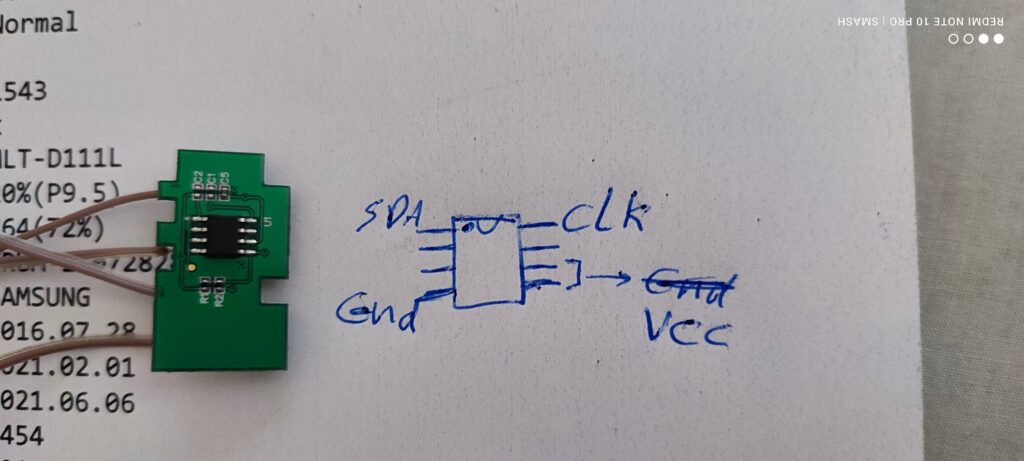
When software solutions fail to fix printer EEPROM flash storage errors, hardware replacement becomes necessary.
Identifying failed chips:
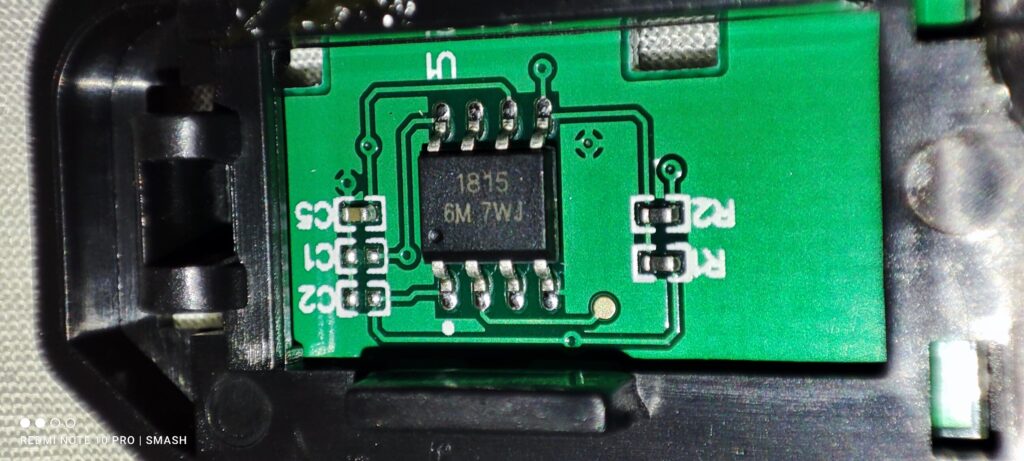
Persistent errors after all software attempts indicate hardware failure. EEPROM chips physically located on the main circuit board. They’re small rectangular chips labeled with part numbers.
Replacement options:
Contact manufacturer service centers for chip replacement. This requires soldering skills and proper tools. Professional repair typically costs $75-$200.
For DIY replacement, purchase exact replacement chips from electronics suppliers. Match part numbers precisely. Solder the new chip in place of the failed one.
Alternative to chip replacement:
Consider replacing the entire main board instead. Sometimes costs are similar. Board replacement is easier than chip-level soldering. It guarantees compatibility and function.
Economic decisions:
Compare repair costs against printer replacement costs. For budget printers, replacement might be more economical than attempting to fix printer EEPROM flash storage errors through hardware repair.
For expensive professional printers, chip or board replacement usually makes financial sense.
Advanced Tools for Diagnosing Printer EEPROM Flash Storage Errors

Several tools enhance your ability to fix printer EEPROM flash storage errors.
Printer diagnostic software from manufacturers provides detailed error reporting. HP Print and Scan Doctor, Epson Status Monitor, and Canon IJ Printer Utility all offer diagnostic capabilities. These programs read error codes directly from EEPROM and translate them into understandable messages.
Multimeters help test electrical connections to EEPROM chips. Check voltage levels on chip pins. Normal operating voltage is typically 3.3V or 5V. Significant deviations indicate hardware problems.
USB protocol analyzers for advanced users capture communication between computer and printer. This reveals EEPROM read/write errors during operation. Useful for diagnosing intermittent problems.
EEPROM programmer devices allow direct reading and writing of chip contents. Advanced repair shops use these to backup and restore EEPROM data. They provide the deepest access when you fix printer EEPROM flash storage errors.
System logs on your computer sometimes contain printer error details. Windows Event Viewer and Mac Console show printer communication errors that point to EEPROM problems.
These tools provide professional-level diagnostics helping you accurately fix printer EEPROM flash storage errors.
Common Mistakes When Trying to Fix Printer EEPROM Flash Storage Errors
Avoid these errors to successfully fix printer EEPROM flash storage errors.
Interrupting firmware updates is the most dangerous mistake. Many EEPROM errors originate from interrupted updates. Once started, let updates complete fully. Never turn off the printer or computer during this process. Power interruptions can permanently corrupt memory requiring professional repair or replacement.
Using incorrect firmware versions causes new problems. Always download firmware specifically for your exact model number. Similar model numbers might use different memory structures. Wrong firmware can brick your printer completely. Verify model numbers twice before installing anything.
Ignoring backup procedures means lost data. Before attempting to fix printer EEPROM flash storage errors, document current settings. Write down network configurations, custom paper sizes, and important preferences. Factory resets and firmware updates often erase this information. Recovery is impossible without backups.
Skipping simple solutions wastes time. Many users jump to complex repairs when simple power cycles would fix printer EEPROM flash storage errors. Always try basic troubleshooting first. Progress to advanced methods only when simple approaches fail.
Working during power instability risks worsening problems. Avoid attempting to fix printer EEPROM flash storage errors during storms or known power issues. Fluctuating voltage damages memory chips. Wait for stable power conditions.
Not grounding yourself before touching circuit boards causes static damage. Touch a grounded metal object before handling printer electronics. Static electricity destroys sensitive EEPROM chips instantly.
Forcing reset buttons or controls might break physical components. Use appropriate pressure when pressing buttons. If something doesn’t respond, forcing it rarely helps and often causes mechanical damage alongside memory errors.
Learn from these mistakes to fix printer EEPROM flash storage errors safely and effectively.
Frequently Asked Questions About How to Fix Printer EEPROM Flash Storage Errors
Can I fix printer EEPROM flash storage errors without losing my settings?
Sometimes yes, but often no. Simple power cycles preserve settings. Factory resets and firmware updates typically erase customization. Document important settings before attempting repairs. Most fixes prioritize function over preservation, requiring you to reconfigure after successfully fixing printer EEPROM flash storage errors.
How long does it take to fix printer EEPROM flash storage errors?
Simple power cycles take 5 minutes. Factory resets require 10-15 minutes. Firmware updates need 20-30 minutes. Service mode procedures take 30-60 minutes. Professional chip replacement takes 2-3 hours. Total time depends on which method successfully fixes your specific printer EEPROM flash storage errors.
Are printer EEPROM flash storage errors covered by warranty?
Usually yes, if within the warranty period. EEPROM failures are manufacturing defects when they occur early. Contact manufacturer support before attempting DIY repairs. Unauthorized repairs void warranties. Let manufacturers fix printer EEPROM flash storage errors for free when coverage applies.
Can power surges cause printer EEPROM flash storage errors?
Absolutely. Power surges are common causes of EEPROM corruption. Voltage spikes damage memory chips or corrupt stored data. Use surge protectors or uninterruptible power supplies (UPS) to prevent these issues. Prevention is easier than attempting to fix printer EEPROM flash storage errors after surge damage.
Will replacing ink cartridges fix printer EEPROM flash storage errors?
No. EEPROM errors are memory chip issues unrelated to ink cartridges. However, corrupted EEPROM data sometimes causes false “cartridge error” messages. Fix printer EEPROM flash storage errors first, then check if cartridge messages disappear. Don’t waste money replacing cartridges for memory problems.
Is it worth trying to fix printer EEPROM flash storage errors on old printers?
For printers under 3 years old, absolutely. For printers 5+ years old, compare repair costs to replacement costs. Budget printers rarely justify expensive repairs. Professional or specialty printers usually worth fixing. Calculate whether investment to fix printer EEPROM flash storage errors makes financial sense.
Conclusion
Learning to fix printer EEPROM flash storage errors empowers you to resolve memory-related printer problems without expensive service calls. These errors, while frustrating, often respond to systematic troubleshooting starting with simple power cycles and progressing through factory resets, firmware updates, and service mode utilities.
You now understand that EEPROM and flash storage are critical memory components storing firmware, settings, and operational data. When they malfunction, printers display error messages, lose settings, or fail to function entirely.
Start with basic solutions when you fix printer EEPROM flash storage errors: complete power cycles and factory resets solve most problems. Progress to firmware updates for persistent issues. Use manufacturer service tools for advanced problems. Consider hardware replacement only when all software solutions fail.
Avoid common mistakes like interrupting firmware updates, using wrong firmware versions, or working during power instability. These errors worsen problems rather than fixing them.
Document your settings before attempting repairs. Use proper tools and techniques. Know when professional help makes more sense than DIY attempts to fix printer EEPROM flash storage errors.
Take action now by identifying your specific error symptoms, then systematically applying these solutions. Most printer EEPROM flash storage errors are fixable with patience and proper techniques.
Restore your printer to full functionality today using these proven methods to fix printer EEPROM flash storage errors.
Refurbished vs New Printers Total Cost of Ownership: Smart Guide Read More.


