
Introduction
The Print to File feature for troubleshooting is a powerful tool that many users overlook when dealing with printer problems. This simple yet effective method helps you identify whether issues stem from your printer hardware, driver software, or the application you’re printing from.
When you use the Print to File feature for troubleshooting, you create a file containing all the print data without sending it to a physical printer. This technique isolates problems and provides valuable diagnostic information that can save hours of frustration.
In this comprehensive guide, you’ll discover how to leverage the Print to File feature for troubleshooting various printer issues. From understanding what this feature does to mastering step-by-step troubleshooting techniques, you’ll gain practical skills to solve printing problems quickly.
Let’s explore how this underrated feature can become your go-to troubleshooting solution.
What Is the Print to File Feature for Troubleshooting?
The Print to File feature for troubleshooting is a function available in most operating systems that saves print data as a file instead of sending it to a physical printer.
When you print normally, your computer converts documents into printer language (like PostScript or PCL), then sends this data to your printer. With Print to File, the same conversion happens, but the output saves to your hard drive as a .prn file.
Why is this useful for troubleshooting?
This feature helps you determine where printing problems occur. If Print to File works successfully, your application and print driver are functioning correctly. The issue likely lies with the printer hardware, cable connection, or network configuration.
If Print to File fails or produces errors, the problem exists in your software, drivers, or document itself. This narrows down troubleshooting significantly.
The Print to File feature for troubleshooting works across Windows, Mac, and Linux systems. It’s completely free, requires no additional software, and takes seconds to execute. For IT professionals and regular users alike, it’s an essential diagnostic tool that provides clarity when multiple components could be causing problems.
5 Effective Ways to Use Print to File Feature for Troubleshooting
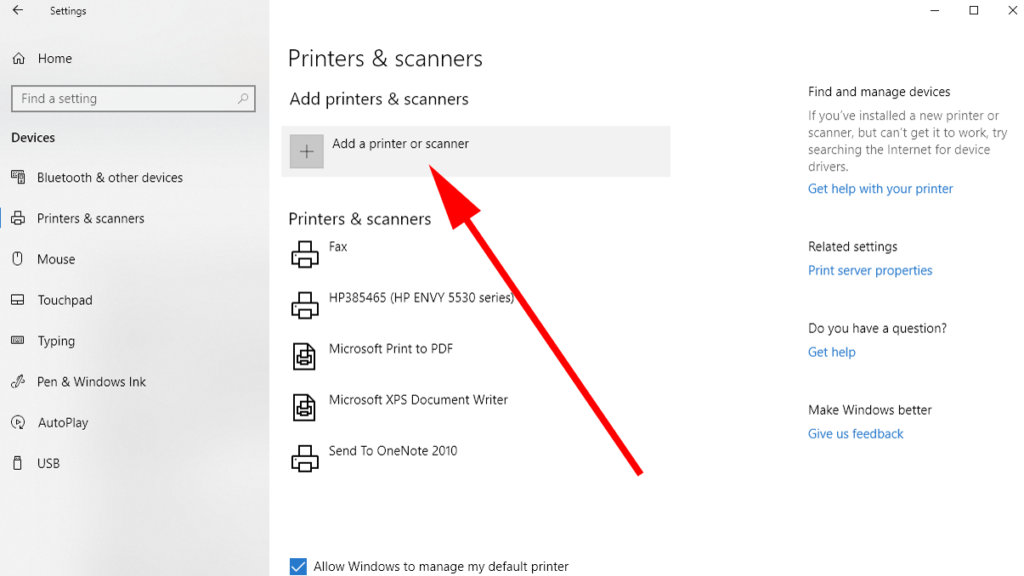
Master these five techniques to leverage the Print to File feature for troubleshooting effectively.
Step 1: Test Basic Print Driver Functionality Using Print to File Feature for Troubleshooting
Start your troubleshooting by verifying your print driver works correctly.
On Windows:
- Open any document (Word, PDF, or text file)
- Click File > Print
- Select your printer from the list
- Check the box labeled “Print to File”
- Click Print
- Choose a location and filename
- Click Save
If this process completes without errors and creates a file, your print driver is functioning properly.
On Mac:
- Open your document
- Click File > Print
- Click the PDF dropdown menu
- Select “Save as PDF”
- Choose your save location
- Click Save
Mac’s “Save as PDF” function serves the same diagnostic purpose when using the Print to File feature for troubleshooting.
What to look for:
Successful file creation means your application can communicate with the print driver. The driver can process the document and generate output. This eliminates software issues from your troubleshooting list.
If you encounter errors during this step, your problem lies with the driver installation, application compatibility, or document corruption.
Step 2: Isolate Application-Specific Issues with Print to File Feature for Troubleshooting
Sometimes printing fails in one application but works in others. The Print to File feature for troubleshooting helps identify application-specific problems.
Testing process:
Try printing the same content from different applications:
- Test a simple text document from Notepad or TextEdit
- Try printing from your web browser
- Attempt printing from Microsoft Word or Pages
- Test with Adobe PDF Reader
Use Print to File for each test. If one application fails while others succeed, you’ve identified an application-specific issue.
Common application issues discovered:
Corrupted application settings often prevent successful Print to File operations. Outdated software versions may have printing bugs. Application conflicts with print drivers can cause failures. Some applications have print preview features that malfunction separately from actual printing.
When you use the Print to File feature for troubleshooting across multiple applications, patterns emerge. If Microsoft Word fails but Notepad succeeds, reinstall or update Word. If all applications fail, the problem exists at the driver or system level.
Step 3: Verify Network Printer Communication Using Print to File Feature for Troubleshooting
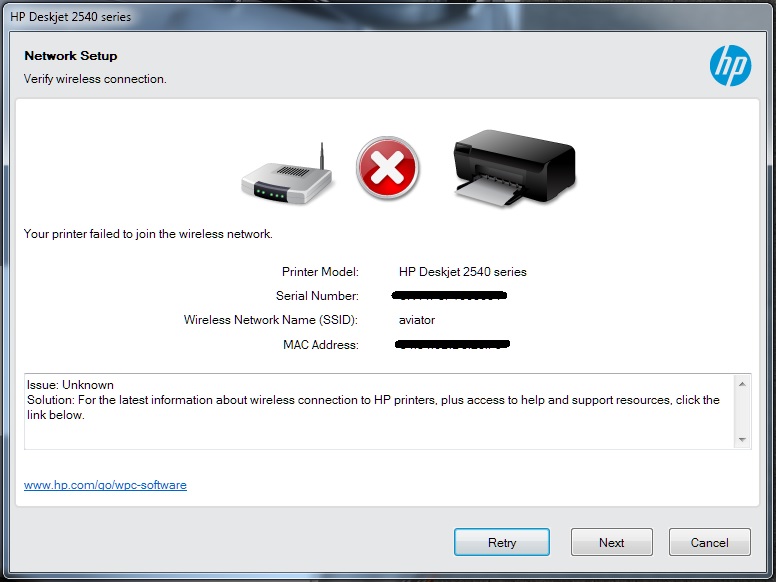
Network printing adds complexity. The Print to File feature for troubleshooting helps separate network issues from other problems.
Network troubleshooting steps:
First, try Print to File with your network printer selected. If this succeeds but actual printing fails, the issue is network-related, not software-related.
Check these network aspects:
- Verify the printer appears in your device list
- Confirm the printer shows as “online” status
- Test network connectivity with ping commands
- Check if other users can print to the same device
Using Print to File for network diagnostics:
When you successfully use the Print to File feature for troubleshooting with a network printer, you’ve confirmed:
- Your computer can communicate with the print queue
- The driver is correctly installed
- Your user permissions allow print job creation
- The document is properly formatted
If actual printing still fails after successful Print to File, focus on network cables, router settings, firewall rules, or printer network configuration.
Step 4: Diagnose Document Corruption with Print to File Feature for Troubleshooting
Corrupted documents often cause mysterious printing failures. The Print to File feature for troubleshooting quickly identifies these problems.
Testing for corruption:
Print to File with the problematic document. If this generates errors, try these steps:
- Copy content to a new document
- Remove images or complex formatting
- Break the document into sections
- Try Print to File on each section separately
What different results mean:
If Print to File fails with the full document but succeeds with sections, specific content is causing the problem. Images, fonts, or embedded objects often corrupt.
If Print to File fails even with plain text, the document file itself is damaged. Create a new document from scratch.
When you use the Print to File feature for troubleshooting document issues, save the .prn file if it’s created successfully. This file can often print directly to the printer, bypassing whatever issue exists in the original application.
Step 5: Test Driver Updates Using Print to File Feature for Troubleshooting
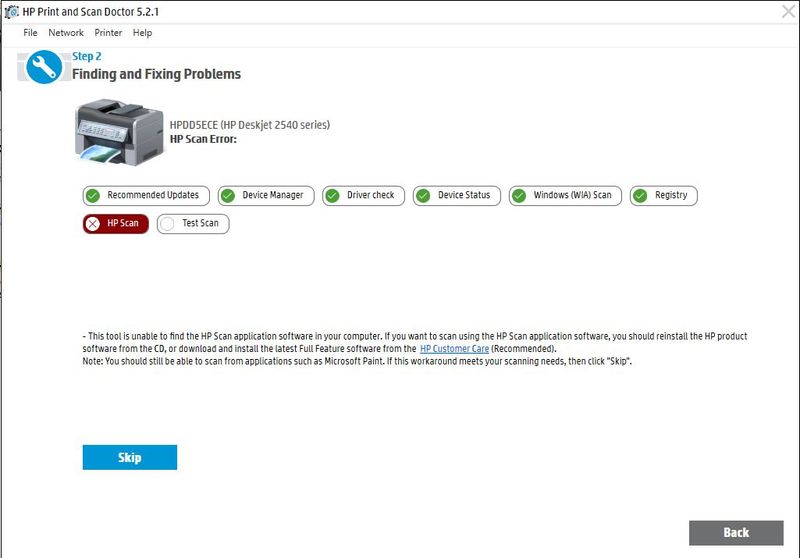
Outdated or incorrect drivers cause countless printing problems. The Print to File feature for troubleshooting validates driver installations.
Before updating drivers:
Use Print to File with your current driver. Note any errors or warnings. Save the output file for comparison.
After updating drivers:
Install the updated driver from the manufacturer’s website. The official Microsoft printer support page provides guidance for Windows users.
Repeat Print to File with the same document. Compare results:
- Does the new file generate faster?
- Are previous errors gone?
- Is the file size different?
Driver comparison benefits:
When you use the Print to File feature for troubleshooting before and after driver updates, you create a clear baseline. This proves whether the update solved your problem or introduced new issues.
If Print to File works identically with both drivers, your problem isn’t driver-related. Look elsewhere, such as printer hardware or network configuration.
Additional Tools to Enhance Print to File Feature for Troubleshooting

While the Print to File feature for troubleshooting is powerful alone, several tools enhance its effectiveness.
GhostScript is free software that reads and converts .prn files. After using Print to File, GhostScript can convert the output to PDF for inspection. This helps verify the print data contains what you expect.
Print Migrator from Microsoft helps with driver management across multiple computers. It’s valuable when you use the Print to File feature for troubleshooting in business environments with many users.
Printer Properties Advanced Settings in Windows provides detailed driver options. Access this by right-clicking your printer, selecting Printer Properties, then clicking the Advanced tab. Adjust spooler settings here if Print to File succeeds but actual printing fails.
Windows Event Viewer logs printing errors. After using the Print to File feature for troubleshooting, check Event Viewer under Windows Logs > System. Look for print spooler errors that occurred during your test.
Command-line tools offer advanced options. On Windows, the print command can send .prn files directly to printers: print /d:PrinterName filename.prn
These tools complement the Print to File feature for troubleshooting by providing deeper diagnostic capabilities and alternative testing methods.
Common Mistakes When Using Print to File Feature for Troubleshooting
Avoid these errors to maximize your troubleshooting effectiveness with the Print to File feature.
Not checking file creation location is the most common mistake. Windows often saves Print to File outputs in your Documents folder, but sometimes uses the last folder you accessed. If you think Print to File failed, verify the file wasn’t created in an unexpected location. Search for .prn files created in the last few minutes.
Ignoring file size indicators loses valuable diagnostic information. When you use the Print to File feature for troubleshooting, check the output file size. A 0-byte file indicates the print driver started but failed to generate data. Unusually large files suggest images or fonts aren’t compressing properly. Expected file sizes range from a few KB for simple text to several MB for graphics-heavy documents.
Testing with complex documents first makes troubleshooting harder. Always start with a simple text document when using the Print to File feature for troubleshooting. One paragraph of plain text isolates basic functionality. Once that works, gradually test more complex documents to identify what element causes problems.
Forgetting to test after each change prevents you from identifying which fix worked. After modifying drivers, settings, or software, immediately use the Print to File feature for troubleshooting again. This confirms whether your change helped, harmed, or had no effect.
Not documenting results causes confusion during extended troubleshooting. Keep notes of each Print to File test: timestamp, document used, success or failure, error messages, and file size. Patterns often emerge only when comparing multiple tests.
Overlooking permission issues can mislead troubleshooting. Ensure you have write permissions to the folder where Print to File saves outputs. Permission errors might seem like print driver problems when they’re actually file system issues.
Frequently Asked Questions About Print to File Feature for Troubleshooting
How does the Print to File feature for troubleshooting differ from printing normally?
Print to File creates a file containing print data instead of sending it to a physical printer. This isolates software and driver problems from hardware issues. If Print to File works but actual printing fails, your hardware or connection has problems, not your software.
Can I print the .prn file created by Print to File feature for troubleshooting?
Yes. On Windows, use the command prompt: copy /b filename.prn \\ComputerName\PrinterName. Or drag the .prn file to your printer icon. This sends the saved print data to your printer, often bypassing whatever caused the original problem.
What does it mean if Print to File feature for troubleshooting fails?
If Print to File fails, your problem exists in the application, print driver, or document itself. The printer hardware isn’t involved since no communication with physical hardware occurs. Focus troubleshooting on software: reinstall drivers, update applications, or try a different document.
Should I use Print to File feature for troubleshooting before contacting support?
Absolutely. Use Print to File before calling technical support. This provides concrete diagnostic information. You can tell support “Print to File succeeds but actual printing fails” or “Print to File generates an error.” This dramatically speeds up support interactions.
Does Print to File feature for troubleshooting work with all printer types?
Yes, Print to File works with inkjet, laser, thermal, and virtual printers. It works with local USB printers and network printers. Any printer with an installed driver supports Print to File, making it a universal troubleshooting tool.
Can Mac users benefit from Print to File feature for troubleshooting?
Yes. Mac’s “Save as PDF” function serves the same purpose. If Save as PDF works but printing fails, the problem is hardware or connection-related. If Save as PDF fails, the issue is with the application or document.
Conclusion
The Print to File feature for troubleshooting is an essential tool that simplifies printer problem diagnosis. By creating print data without involving physical hardware, you quickly identify whether issues originate from software, drivers, documents, or printer hardware.
You’ve learned how to use the Print to File feature for troubleshooting across different scenarios: testing driver functionality, isolating application problems, verifying network communication, diagnosing document corruption, and validating driver updates. These techniques eliminate guesswork and provide clear diagnostic paths.
Remember to start simple with basic documents, document your results, and test after each change. Avoid common mistakes like ignoring file sizes or testing complex documents first. Combine Print to File with additional tools like Event Viewer for comprehensive troubleshooting.
The next time printing problems arise, use the Print to File feature for troubleshooting as your first diagnostic step. This simple technique saves time, reduces frustration, and provides concrete evidence of where problems truly exist.
Start troubleshooting smarter today. Open any document, try Print to File, and see how this powerful feature transforms your approach to solving printer issues.
Effortless Guide: How to Write a Custom Script to Monitor Print Queue Status Read More.


