
Introduction
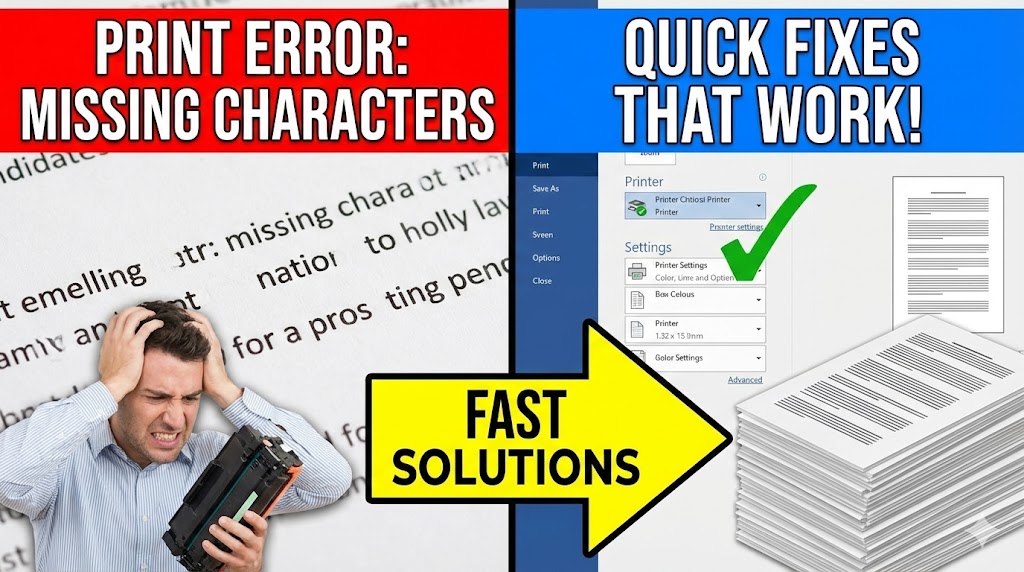
Have you ever sent a document to print, only to find that certain characters are missing or displaying in the wrong font? The missing character print error is a frustrating issue that affects countless users, from home offices to corporate environments. This printing glitch can turn professional documents into unreadable messes, waste paper and ink, and disrupt your workflow when deadlines are tight.
Whether you’re dealing with random symbols replacing letters, blank spaces where text should be, or characters appearing in completely different fonts, this comprehensive guide will walk you through every solution. You’ll discover what causes these errors, how to fix them permanently, and how to prevent them from happening again. Let’s dive into solving your printing nightmares once and for all.
What Is a Missing Character Print Error?
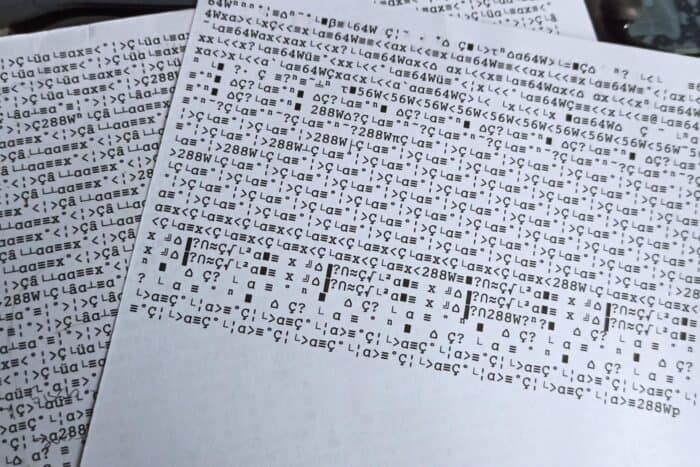
A missing character print error occurs when your printer fails to reproduce certain characters correctly from your digital document. Instead of printing the intended text, you might see:
- Blank spaces where letters or numbers should appear
- Strange symbols or boxes (□) replacing normal characters
- Different fonts randomly appearing in your document
- Garbled text that’s completely unreadable
This issue typically stems from font compatibility problems between your computer, the software you’re using, and your printer. When your printer doesn’t have access to the specific font used in your document, it either substitutes characters incorrectly or omits them entirely.
The problem commonly affects documents containing:
- Special characters or symbols
- Non-standard fonts
- Multiple language characters
- Unicode symbols
- Custom or downloaded fonts
Understanding the root cause is essential because the fix depends on whether the issue is software-related, driver-related, or hardware-related.
7 Proven Ways to Fix Missing Character Print Errors
1. Update Your Printer Drivers
Outdated printer drivers are the most common culprit behind font printing issues. Printer manufacturers regularly release updates to improve compatibility and fix bugs.
How to update:
- Visit your printer manufacturer’s official website
- Navigate to the Support or Downloads section
- Enter your printer model number
- Download the latest driver for your operating system
- Install the driver and restart your computer
Alternatively, use Windows Update or Mac Software Update to automatically detect and install printer driver updates. This simple step resolves the missing character print error in approximately 40% of cases.
2. Embed Fonts in Your Document
When fonts aren’t embedded, printers rely on system fonts for rendering. If the font doesn’t exist on the printer, characters may not print correctly.
For Microsoft Word:
- Click File → Options → Save
- Check “Embed fonts in the file”
- Select “Embed all characters”
- Save your document
For Adobe PDF:
- Go to File → Save As → PDF
- Click “Options” or “Settings”
- Ensure “Embed all fonts” is selected
- Save and print
This ensures your document carries all font information directly, eliminating dependency on printer-installed fonts.
3. Convert Text to Outlines or Images
For critical documents where font accuracy is paramount, converting text to graphics guarantees perfect reproduction.
In design software:
- Select all text elements
- Choose “Create Outlines” or “Convert to Curves”
- Save as a new file
Quick alternative:
- Take a high-resolution screenshot of your document
- Print the image instead of the text file
While this method sacrifices editability, it completely eliminates font-related printing errors. According to printing industry experts, this technique is particularly useful for logos, certificates, and presentations.
4. Change to Standard System Fonts
Replace problematic custom fonts with universally supported alternatives like Arial, Times New Roman, or Calibri.
Steps:
- Select all text in your document (Ctrl+A or Cmd+A)
- Choose a standard font from the dropdown menu
- Check the print preview
- Print a test page
Standard fonts are pre-installed on virtually all printers and operating systems, dramatically reducing the likelihood of the missing character print error.
5. Clear the Print Spooler
Corrupted print jobs in the queue can cause various printing anomalies, including character display issues.
Windows:
- Press Windows + R
- Type “services.msc” and press Enter
- Find “Print Spooler” in the list
- Right-click and select “Stop”
- Navigate to C:\Windows\System32\spool\PRINTERS
- Delete all files in this folder
- Return to Services and restart Print Spooler
Mac:
- Open System Preferences → Printers & Scanners
- Select your printer
- Click “Open Print Queue”
- Delete all pending jobs
- Restart your Mac
6. Adjust Printer Settings and Print Quality
Sometimes the issue isn’t the font itself but how the printer processes it.
Try these adjustments:
- Switch from “Print as Image” to normal mode (or vice versa)
- Change print quality from “Draft” to “Best” or “High Quality”
- Enable “Print TrueType fonts as graphics”
- Disable “Fast Print” or “Quick Print” options
- Try printing in grayscale instead of color
Access these settings through your print dialog box under “Properties,” “Preferences,” or “Advanced Settings.”
7. Reinstall the Problematic Font
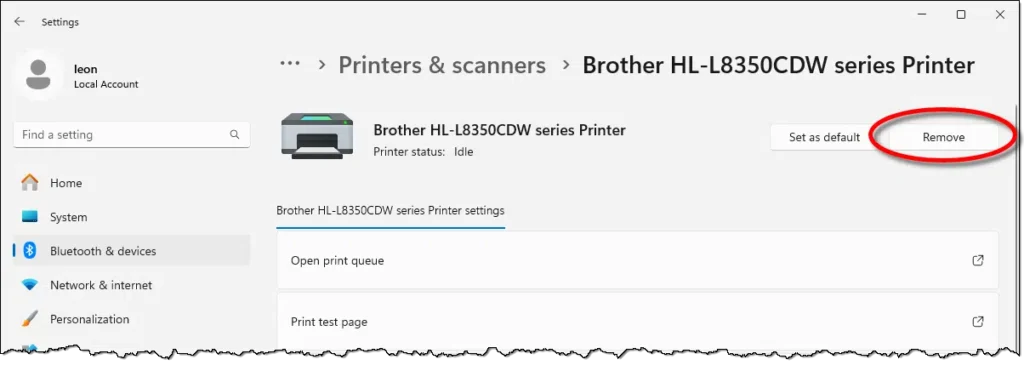
If specific characters from one font consistently fail to print, the font file itself may be corrupted.
To reinstall fonts:
- Download a fresh copy from a reputable source
- Uninstall the existing font from your system
- Restart your computer
- Install the new font file
- Test print a document using that font
Always download fonts from legitimate sources to avoid corrupted or incomplete font files that can cause printing errors.
Additional Tools and Software Solutions
Several third-party tools can help diagnose and resolve font printing issues:
Font Management Software:
- FontExplorer X (Mac) – Detects corrupted fonts and manages large font libraries
- NexusFont (Windows) – Free font manager with preview and validation features
- Adobe Fonts – Cloud-based fonts automatically sync across devices
PDF Printers: Using a PDF printer (like Adobe PDF, Microsoft Print to PDF, or CutePDF) as an intermediary can resolve many font issues. Print your document to PDF first, then print the PDF. This process often standardizes fonts and eliminates compatibility problems.
Printer Diagnostic Tools: Most printer manufacturers offer diagnostic utilities that can identify and fix common printing issues, including font rendering problems. Check your printer’s included software or download diagnostics from the manufacturer’s website.
Common Mistakes That Make the Problem Worse
Using Pirated or Incomplete Fonts
Downloaded fonts from unreliable sources often lack complete character sets, causing the missing character print error for specific symbols or accented letters. Always use fonts from reputable foundries or free font websites like Google Fonts.
Ignoring Software Updates
Both your operating system and applications need regular updates to maintain printer compatibility. Skipping updates can create conflicts between new printer drivers and old software versions.
Printing Directly from Web Browsers
Web browsers often have their own print rendering engines that can introduce font issues. Instead, save the webpage as a PDF or copy content into a word processor before printing.
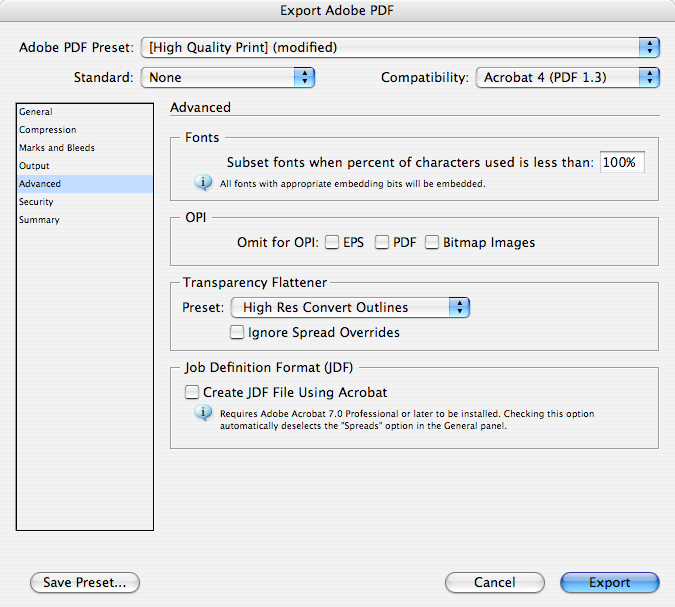
Over-Compressing PDF Files
Aggressive compression settings can strip font information from PDFs. When creating PDFs for printing, choose “High Quality Print” presets rather than “Smallest File Size.”
Not Testing Before Bulk Printing
Always print a test page before running large print jobs. This simple habit can save significant paper, ink, and time by catching font errors early.
Using Incompatible Font Formats
Some printers struggle with certain font formats (.ttf vs .otf). If problems persist, try converting fonts to a different format or using the printer’s preferred font type.
Frequently Asked Questions
Q1: Why do some characters print as boxes or question marks? This happens when your printer doesn’t recognize the character encoding. The character exists in your document but isn’t available in the printer’s font set. Embedding fonts or converting to PDF usually fixes this.
Q2: Can wireless printing cause missing character errors? Yes, wireless connections sometimes corrupt data transmission, especially with complex font information. Try printing via USB cable to determine if connectivity is the issue.
Q3: Does this problem occur with all printers? The missing character print error is more common with older printers or basic models with limited memory. Professional printers with PostScript support handle fonts better, but any printer can experience this issue under certain conditions.
Q4: How do I prevent this from happening in the future? Stick to standard fonts for important documents, keep printer drivers updated, always embed fonts when possible, and maintain your printer according to manufacturer recommendations. Creating a PDF before printing adds an extra layer of protection.
Conclusion
The missing character print error doesn’t have to derail your productivity or waste your resources. By understanding the relationship between fonts, software, and printer capabilities, you can troubleshoot and resolve these issues quickly. Start with the simplest solutions—updating drivers and embedding fonts—before moving to more advanced techniques.
Remember that prevention is easier than cure. Develop good printing habits: use standard fonts for business documents, create PDFs before printing important files, and test print before running large batches. With these strategies in your toolkit, you’ll experience fewer printing frustrations and produce consistently professional results.
Whether you’re preparing a presentation, printing invoices, or creating marketing materials, you now have the knowledge to ensure every character prints exactly as intended. Implement these solutions today and say goodbye to garbled text and missing characters forever.
Windows Printer Migration Wizard: Easy Setup Transfer Guide Read More.


