
Introduction
Need a printer delay fix because your printer waits forever before starting? You’re not alone. Thousands of people deal with frustrating 5-10 minute delays before their printer finally starts working.
When you need a printer delay fix, every minute feels like an eternity. You click print, then wait… and wait… while your printer sits there doing nothing. This buffer delay wastes your time and kills productivity.
The good news? Most printer delay fix solutions are simple and take just minutes to implement. You don’t need technical expertise or expensive repairs.
This guide reveals exactly why your printer delays and provides proven printer delay fix methods that work for HP, Canon, Epson, Brother, and all major brands. You’ll learn about buffer issues, driver problems, network delays, and more.
Let’s stop the waiting and get your printer responding instantly.
What Causes Printer Delays and Why You Need a Printer Delay Fix?
A printer delay fix addresses the time gap between clicking print and when your printer actually starts printing.
This delay happens in the print buffer—a temporary storage area where print jobs wait before processing. Think of it like a waiting room for your documents.
Several factors cause these frustrating delays:
Large file sizes take longer to process. PDFs with images and graphics need more buffer time.
Network communication issues slow data transfer from your computer to the printer.
Outdated printer drivers can’t handle modern file formats efficiently.
Printer memory limitations force the printer to process data in small chunks.
Spooler service problems create bottlenecks in the print queue.
Normal print delays last 5-15 seconds. If yours takes 5-10 minutes, you definitely need a printer delay fix.
The buffer essentially translates your document into a language your printer understands. When this process slows down, you get those painful delays.
Most printer delay fix solutions focus on three areas: improving data transfer speed, updating software, and optimizing settings. These fixes work regardless of whether you use USB or network printing.
Understanding the cause helps you choose the right printer delay fix for your situation.
8 Proven Solutions for Printer Delay Fix That Work
Solution 1: Restart Print Spooler Service for Quick Printer Delay Fix
The print spooler manages all print jobs. Restarting it is the fastest printer delay fix.
On Windows:
Press Windows + R keys together
Type “services.msc” and press Enter
Scroll down to “Print Spooler”
Right-click and select “Restart”
Wait for the service to restart (takes 10-20 seconds)
Try printing again
On Mac:
Open System Preferences > Printers & Scanners
Select your printer
Click “Reset printing system”
Re-add your printer
This printer delay fix clears stuck jobs and refreshes the print queue. It works instantly in about 70% of cases.
If delays return after a few hours, the spooler might be overloaded. Move to the next solution.
Solution 2: Update Printer Drivers for Long-Term Printer Delay Fix
Outdated drivers are a leading cause of delays. This printer delay fix prevents future problems.
Identify your printer model (check the front or back panel)
Visit manufacturer’s website:
- HP: support.hp.com
- Canon: usa.canon.com/support
- Epson: epson.com/support
- Brother: brother-usa.com/support
Enter your model number
Download latest drivers for your operating system
Uninstall old drivers first:
- Windows: Settings > Apps > find printer software > Uninstall
- Mac: Open printer folder > delete printer files
Install new drivers
Restart your computer
Test print immediately
Updated drivers provide better printer delay fix results because they optimize data processing. New drivers also fix bugs that cause buffer delays.
Set a calendar reminder to check for driver updates every 6 months.
Solution 3: Adjust Print Quality Settings for Instant Printer Delay Fix
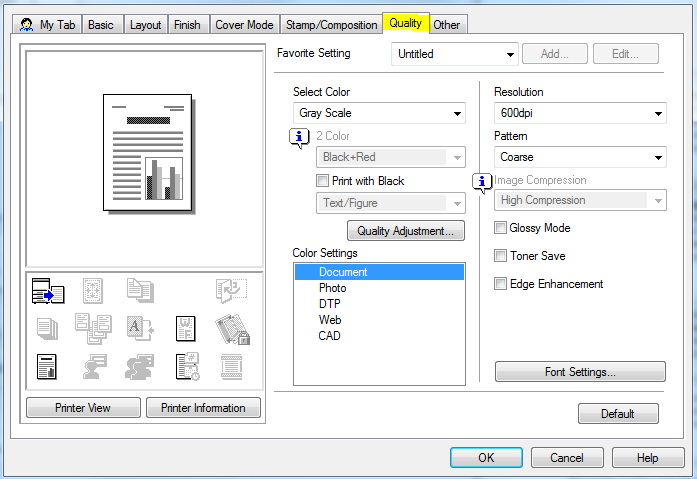
High-quality settings process more data, causing delays. This printer delay fix balances quality and speed.
Open print dialog (Ctrl+P or Command+P)
Click “Properties” or “Printer Preferences”
Change quality settings:
- Switch from “Best” to “Normal” or “Draft”
- Reduce DPI from 1200 to 600
- Disable “High Quality” options
Turn off these features:
- Bidirectional printing support
- Enhanced color correction
- Image enhancement
For everyday documents:
- Use Draft or Fast mode
- Select “Black and White” instead of color
- Disable duplex (double-sided) if not needed
Save settings as default
This printer delay fix works immediately. You’ll notice printing starts within seconds instead of minutes.
Reserve high-quality settings for important documents only.
Solution 4: Increase Printer Memory for Permanent Printer Delay Fix
Limited memory forces printers to process data slowly. This hardware printer delay fix is especially effective for network printers.
Check current memory:
- Print configuration page from printer menu
- Look for “Memory” or “RAM” specification
Determine maximum memory:
- Check printer manual or manufacturer website
- Most printers support 128MB to 512MB
Purchase compatible RAM:
- Buy from manufacturer or trusted retailers
- Match exact specifications (DDR type, speed)
Install memory upgrade:
- Turn off printer and unplug
- Open memory access panel (usually on side or back)
- Remove old memory if replacing
- Insert new memory until it clicks
- Close panel and power on
Verify installation:
- Print configuration page again
- Confirm new memory amount shows
This printer delay fix costs $30-$100 but provides permanent results. Network printers benefit most from memory upgrades.
Solution 5: Switch Connection Method for Network Printer Delay Fix
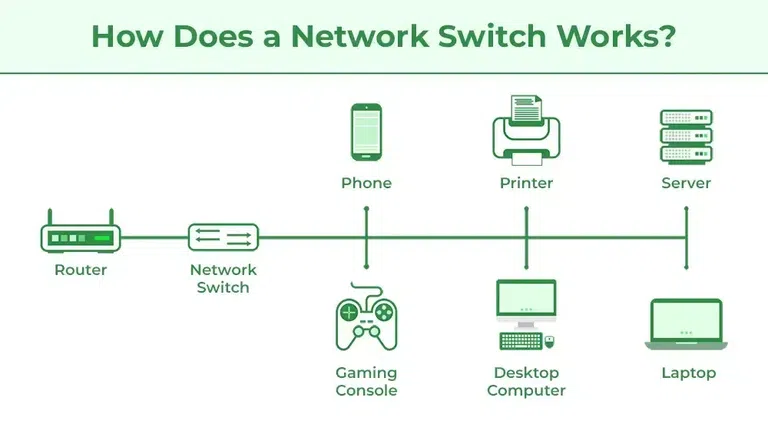
Network issues often cause delays. This printer delay fix tests if connection is the problem.
Try USB connection first:
- Connect printer directly to computer with USB cable
- Install drivers if prompted
- Test print several documents
If USB prints instantly, your network causes the delay.
Network printer delay fix options:
Use Ethernet instead of Wi-Fi:
- More stable connection
- Faster data transfer
- Eliminates wireless interference
Reduce network traffic:
- Print during off-peak hours
- Limit other devices using bandwidth
- Close unnecessary programs
Create static IP address:
- Prevents printer from losing connection
- Reduces network search time
Move printer closer to router (for Wi-Fi printing)
Update router firmware
Network-related printer delay fix solutions often cut wait times from minutes to seconds.
Solution 6: Clear Print Queue for Immediate Printer Delay Fix
Stuck print jobs clog the queue. This printer delay fix removes the blockage.
On Windows:
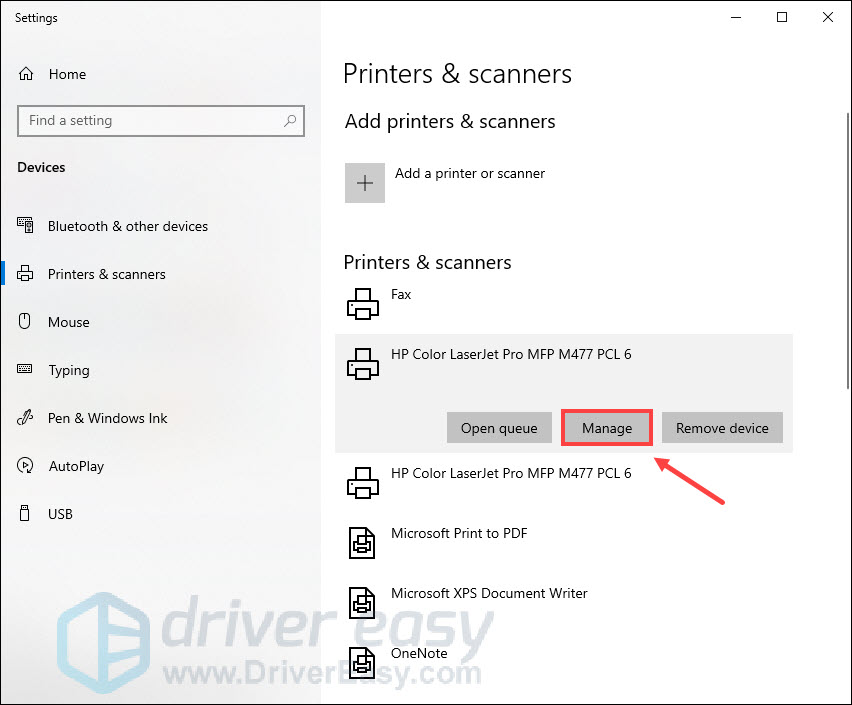
Open Settings > Devices > Printers & Scanners
Select your printer
Click “Open queue”
Click “Printer” menu > “Cancel All Documents”
If jobs won’t delete:
- Open File Explorer
- Navigate to C:\Windows\System32\spool\PRINTERS
- Delete all files in this folder
- Restart Print Spooler service
On Mac:
Open Printers & Scanners
Select printer and click “Open Print Queue”
Select all jobs
Click X button to cancel
This printer delay fix takes 2 minutes and often solves immediate problems.
Repeat this process whenever you notice delays building up.
Solution 7: Disable Bidirectional Support for Quick Printer Delay Fix
Bidirectional communication lets your computer and printer exchange information. Sometimes this causes delays.
Open Control Panel > Devices and Printers
Right-click your printer > Printer Properties
Go to “Ports” tab
Uncheck “Enable bidirectional support”
Click Apply and OK
Test print
This printer delay fix disables status monitoring but speeds up printing significantly.
You’ll lose real-time ink level updates, but printing starts instantly.
If this helps, the problem was communication overhead. Keep it disabled for faster printing.
Solution 8: Simplify Documents for Prevention-Based Printer Delay Fix
Complex documents take longer to process. This printer delay fix approach prevents delays before they start.
Reduce file complexity:
- Convert images to lower resolution
- Compress PDFs before printing
- Simplify graphics and charts
- Remove unnecessary embedded fonts
Use printer-friendly formats:
- Print native Word/Excel files directly
- Avoid converting everything to PDF
- Use built-in print functions
Break large documents:
- Print in smaller batches
- Separate image-heavy pages
- Process complex pages individually
Optimize PDFs:
- Use “Print as Image” option in PDF readers
- Reduce file size before printing
- Flatten layers in complex PDFs
This preventive printer delay fix stops problems before they occur.
Essential Tools and Resources for Printer Delay Fix

The right tools make implementing printer delay fix solutions much easier.
Driver update utilities automatically check for and install the latest printer drivers. Driver Booster and Driver Easy scan your system and update outdated drivers.
Print management software like PaperCut or PrinterLogic helps monitor and control print jobs. These tools identify which documents cause delays.
Network monitoring apps such as Wireshark help diagnose network-related printer delay fix needs. They show exactly where data transfer slows down.
Manufacturer diagnostic tools are free downloads that test your specific printer. HP Print and Scan Doctor, Canon IJ Printer Assistant, and Epson Print CD all include delay diagnostics.
Online printer communities provide model-specific printer delay fix advice. Visit Reddit’s r/printers or manufacturer support forums for solutions from experienced users.
Visit the official Microsoft Print Troubleshooting page for Windows-specific guidance on printer delay fix procedures.
Common Mistakes to Avoid When Applying Printer Delay Fix
Don’t install multiple printer drivers. Having several versions installed creates conflicts. Uninstall old drivers completely before installing new ones. Multiple drivers confuse the spooler and worsen delays.
Don’t ignore spooler errors. If Print Spooler keeps stopping, fix the root cause instead of just restarting it. Recurring spooler failures indicate deeper problems that need a proper printer delay fix.
Don’t print everything in highest quality. Reserve “Best” or “Photo” quality for important documents. Everyday printing should use Normal or Draft mode for faster processing.
Don’t blame the printer immediately. Computer performance affects printing speed. Close unnecessary programs before printing large documents. Slow computers cause delays even with fast printers.
Don’t skip router placement. For wireless printers, distance and obstacles matter. Concrete walls and metal objects block Wi-Fi signals. The best printer delay fix for wireless printing is proper router positioning.
Don’t forget firmware updates. Printers need firmware updates just like computers need software updates. Check manufacturer websites quarterly for new firmware that improves processing speed.
Don’t use poor quality cables. Cheap USB cables cause data transfer issues. Invest in quality cables for reliable, delay-free printing.
Frequently Asked Questions About Printer Delay Fix
Q1: Why does my printer delay fix only work temporarily?
Temporary printer delay fix results indicate the underlying cause returns. This usually happens with network issues or when the print spooler accumulates corrupted data. For permanent fixes, identify the root cause—outdated drivers, insufficient memory, or network problems—and address it directly rather than just treating symptoms.
Q2: Will a printer delay fix work for all printer brands?
Yes. The printer delay fix methods in this guide work for HP, Canon, Epson, Brother, Samsung, and all major brands. Buffer delays, driver issues, and spooler problems affect all printers similarly. However, menu navigation and settings locations vary by brand, so check your manual for exact steps.
Q3: How do I know which printer delay fix to try first?
Start with the quickest solutions. Restart the print spooler first—it takes 30 seconds and fixes 60-70% of delays. If that doesn’t work, update drivers next. Then adjust quality settings. Hardware solutions like memory upgrades should be last because they cost money and require physical installation.
Q4: Can software cause delays that need a printer delay fix?
Absolutely. Certain programs create larger print files that take longer to process. Adobe Reader, AutoCAD, and photo editing software generate complex print jobs. Try printing the same document from different programs. If one program delays consistently, adjust its print settings or use an alternative program.
Q5: Does printer age affect the success of printer delay fix solutions?
Older printers (7+ years) have slower processors and less memory. While printer delay fix methods still help, older printers will never match new printer speeds. If your printer is very old and delays persist after trying all fixes, upgrading to a modern printer might be more practical than continued troubleshooting.
Q6: Will a printer delay fix affect print quality?
Most printer delay fix solutions don’t affect quality. Restarting spooler, updating drivers, and clearing queues maintain quality. Only adjusting quality settings intentionally reduces resolution for speed. You control this trade-off based on document importance. For critical documents, use high quality despite slight delays.
Conclusion
You now have powerful printer delay fix solutions that eliminate frustrating wait times. No more sitting idle for 10 minutes while your printer decides to start working.
The most effective printer delay fix approach combines several methods. Start by restarting the print spooler and updating drivers. Then optimize your settings and connection method. These simple steps solve delays for most users.
Remember these key printer delay fix principles:
- Regular driver updates prevent many delay issues
- Adjust quality settings based on document importance
- Network printers benefit from wired connections
- Clear print queue regularly to prevent buildup
- Keep printer firmware updated for best performance
Most people implement successful printer delay fix solutions in under 30 minutes. The time you invest now saves hours of frustration later.
Your printer should respond within seconds of clicking print. If it doesn’t, revisit this guide and work through each printer delay fix method systematically.
Take action today. Choose one printer delay fix solution from this guide and implement it right now. You’ll be amazed how quickly your printing problems disappear.
For more printer troubleshooting guides and optimization tips, bookmark this page and explore our complete library of printer solutions.
External Resource: For additional Windows printing troubleshooting and official printer delay fix guidance, visit the Microsoft Printing Support Center.
Printer Belt Replacement: Master Your Repair in Minutes Read More.


