
Introduction
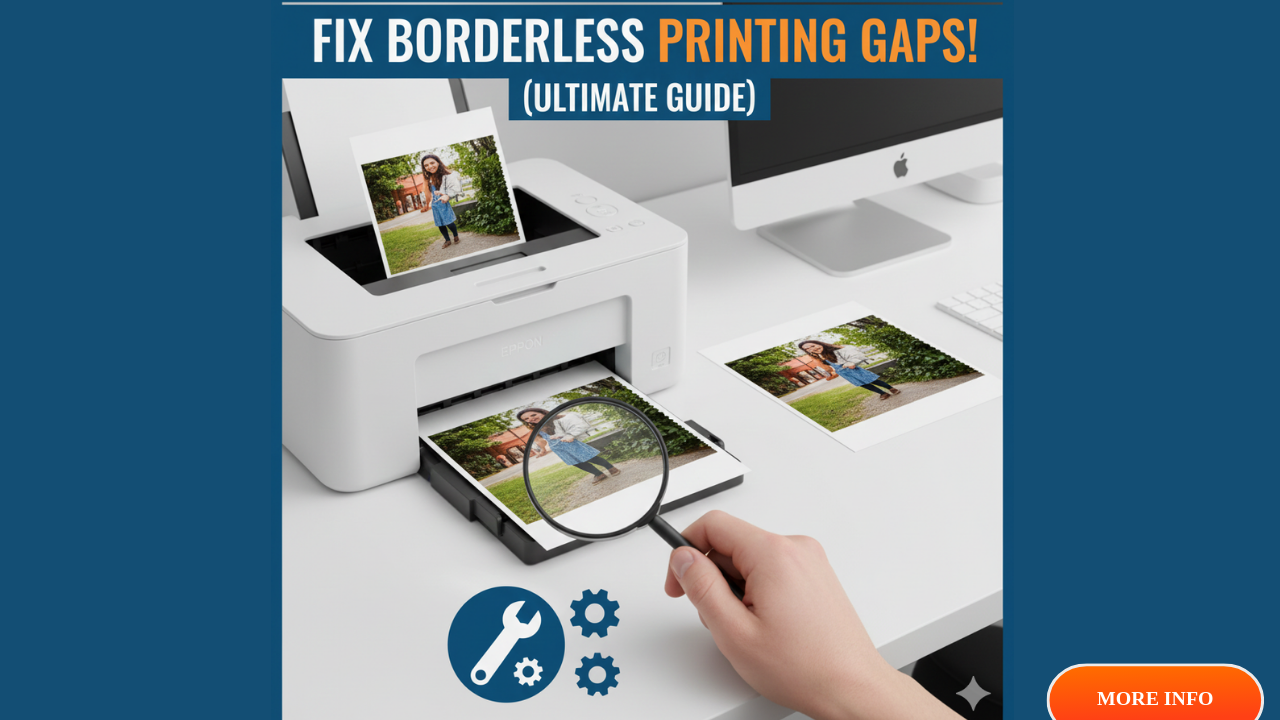
Borderless photo printing gaps ruin what should be perfect memories captured on paper. You carefully edit your photos, select the borderless printing option, and wait excitedly for your prints. Instead of edge-to-edge perfection, you get unwanted white borders, uneven edges, or streaks along the margins. These frustrating defects waste expensive photo paper and leave you with unprofessional-looking prints.
This comprehensive guide reveals exactly why borderless photo printing gaps occur and provides proven solutions to fix them permanently. Whether you’re experiencing white lines at the edges, ink bleeding beyond paper boundaries, or inconsistent print quality, you’ll discover step-by-step troubleshooting methods that work for all major photo printer brands including Canon, Epson, HP, and Brother.
What Are Borderless Photo Printing Gaps?
Borderless photo printing gaps are unwanted white spaces, uneven edges, or defects that appear along the margins of photos printed without borders. These issues prevent images from extending completely to the paper’s edge as intended.
Common types of borderless photo printing gaps include thin white lines running along one or more edges of the print. These lines range from barely visible hairline gaps to obvious borders several millimeters wide.
Edge bleeding occurs when ink extends beyond the paper boundary, creating smudged or blurred edges. This defect often accompanies gaps, where one edge has white space while another bleeds.
Uneven edges happen when the borderless print area isn’t consistent. One side might print perfectly edge-to-edge while another shows a noticeable gap.
Streaking or banding along margins creates horizontal or vertical lines near the edges. These artifacts appear darker or lighter than the rest of the image.
These defects stem from multiple causes: incorrect printer settings, paper alignment issues, worn printer components, incompatible photo paper, or software configuration problems. Understanding which type of gap you’re experiencing helps target the right solution.
Borderless printing works by slightly oversizing the image beyond the paper’s physical dimensions. The printer extends ink past the edge, which gets absorbed by support pads or trays. When this process fails, you get visible gaps instead of perfect edge-to-edge prints.
7 Proven Solutions to Fix Borderless Photo Printing Gaps
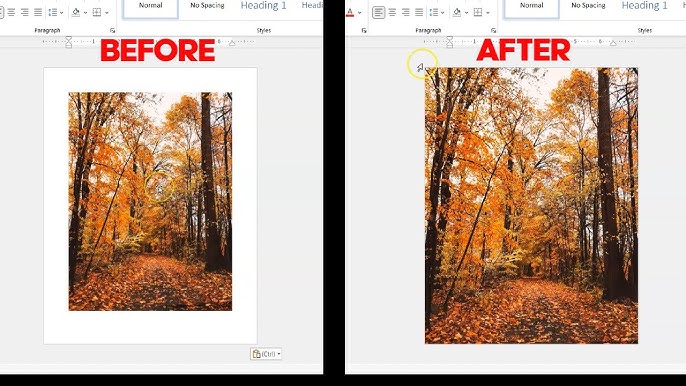
Step 1: Verify Borderless Photo Printing Settings Are Enabled
The most common cause of borderless photo printing gaps is simply forgetting to enable borderless mode in your printer settings.
Open your photo editing software or the application you’re printing from. Select “Print” from the file menu and look for printer preferences or properties.
Find the paper size selection dropdown menu. Instead of standard paper sizes like “4×6 inches” or “5×7 inches,” look for options labeled “4×6 borderless,” “5×7 borderless,” or similar designations with “borderless” explicitly stated.
Some printers list borderless options under a separate section. Check for checkboxes labeled “Borderless printing,” “Full bleed,” or “Edge-to-edge printing.”
In your printer driver settings, navigate to the page layout or finishing tab. Ensure “Margins” is set to “None” or “0” on all sides.
Select the correct paper type that matches your actual photo paper. Choose “Premium Glossy Photo Paper,” “Premium Matte Photo Paper,” or the specific paper brand you’re using. Generic settings like “Plain Paper” often prevent proper borderless printing.
Save these settings as a preset or default to avoid reconfiguring them for every print job.
Print a test photo to verify the settings work correctly before printing important images.
Step 2: Use Genuine Photo Paper Compatible with Borderless Photo Printing
Not all photo papers support borderless printing, and using incompatible paper is a major cause of borderless photo printing gaps.
Check your printer’s manual or manufacturer website for a list of approved borderless photo papers. Printer makers test specific papers with their devices and guarantee results only with those products.
Genuine manufacturer papers (Canon Photo Paper Pro, Epson Premium Glossy, HP Advanced Photo Paper) consistently produce the best borderless results. These papers are engineered to work with your printer’s specific ink formulation and feed mechanism.
Third-party photo papers vary widely in quality. Some work perfectly, while others cause gaps, bleeding, or poor color reproduction. Stick with well-known brands like Kodak, Fujifilm, or Ilford if not using manufacturer papers.
Verify the paper weight and thickness match your printer’s specifications. Paper that’s too thin may shift during feeding, causing alignment issues. Paper that’s too thick may not feed properly.
Check that the paper size exactly matches your printer’s borderless capabilities. Most photo printers support 4×6 borderless but may not support larger sizes like 8×10 or 11×17 in borderless mode.
Store photo paper properly in its original packaging in a cool, dry place. Humidity-damaged paper curls and doesn’t feed correctly, leading to misalignment and gaps.
Load paper with the correct side facing up. Most photo papers have a printable side (usually glossier or brighter white) and a backing side. Loading paper backwards produces terrible results.
Step 3: Clean Print Heads to Eliminate Borderless Photo Printing Gaps

Clogged print heads cause streaking, banding, and inconsistent ink coverage near edges, all contributing to borderless photo printing gaps.
Access your printer’s maintenance menu through the control panel or printer software on your computer. Look for options labeled “Print Head Cleaning,” “Nozzle Check,” or “Maintenance.”
Run a nozzle check pattern first to identify which colors have clogged nozzles. This diagnostic prints a pattern showing if any ink channels are blocked.
If the nozzle check shows gaps or missing lines, run a standard cleaning cycle. This process pumps ink through the print heads to clear minor clogs.
Wait 5-10 minutes after the first cleaning cycle, then run another nozzle check. If problems persist, run a deep cleaning cycle. This more intensive process uses more ink but clears stubborn clogs.
For severe clogs that don’t respond to automatic cleaning, consider manual print head cleaning. Remove the print head (if removable on your model) and gently clean it with distilled water and lint-free cloths following manufacturer instructions.
Some printers have separate maintenance cartridges or waste ink pads that absorb excess ink during borderless printing. When these fill up, print quality degrades. Check if your model requires waste pad replacement or resetting.
After cleaning, print a borderless test photo on plain paper first to avoid wasting expensive photo paper if gaps persist.
Step 4: Adjust Paper Feed and Alignment for Borderless Photo Printing
Paper misalignment during feeding is a primary cause of borderless photo printing gaps, especially gaps on just one or two edges.
Remove all paper from your printer’s input tray. Check for any debris, torn paper fragments, or foreign objects that might interfere with paper feeding.
Inspect the paper guides in your input tray. These adjustable plastic or metal guides should fit snugly against your photo paper without excessive pressure. If they’re too loose, paper shifts during feeding. If too tight, paper jams occur.
Load photo paper carefully into the tray. Fan the stack first to prevent sheets from sticking together. Load only 10-20 sheets at a time rather than filling the tray completely.
Push the paper all the way into the tray until it stops. Many printers have paper width and length guides that must align perfectly with your paper size.
Adjust the paper thickness lever if your printer has one. Set it to the appropriate position for photo paper (usually a “thicker” or “specialty media” setting).
Some printers have rear feed slots specifically designed for single-sheet photo paper feeding. These provide straighter paper paths and better results for borderless photo printing than front trays.
Run your printer’s paper feed alignment utility if available. This automatic process adjusts internal rollers for optimal paper handling.
If gaps appear consistently on the same edge, your printer may need professional roller adjustment or replacement.
Step 5: Update Printer Drivers to Fix Borderless Photo Printing Gaps

Outdated printer drivers lack optimizations for borderless photo printing and can cause various defects including gaps.
Visit your printer manufacturer’s support website. Navigate to the drivers and downloads section for your specific printer model.
Download the latest printer driver for your operating system (Windows 10, Windows 11, macOS, etc.). Make sure you select the exact driver for your printer model number.
Before installing the new driver, completely uninstall your current printer software. On Windows, go to Settings > Apps > Apps & features, find your printer software, and uninstall it. On Mac, use the manufacturer’s uninstaller or manually remove printer files from Library folders.
Restart your computer after uninstalling to clear all old driver files from memory.
Install the newly downloaded driver package. Follow the installation wizard carefully, selecting “Custom Installation” if available to ensure all components install properly.
Modern drivers often include profiles specifically optimized for borderless printing with various paper types. These profiles eliminate many common borderless photo printing gaps by applying precise ink density and placement adjustments.
After installation, reconfigure your borderless printing preferences as some settings may reset to defaults.
Check if your printer manufacturer offers firmware updates in addition to driver updates. Firmware upgrades improve the printer’s internal processing and can resolve hardware-level borderless printing issues.
Step 6: Calibrate Your Printer for Borderless Photo Printing
Printer calibration ensures accurate color reproduction and precise edge-to-edge printing without gaps.
Access your printer’s calibration utility through the control panel menu or printer software on your computer. Look for options like “Print Head Alignment,” “Color Calibration,” or “Printer Calibration.”
Run the automatic alignment process first. This prints a test pattern with various alignment marks. The printer scans these marks (or you manually select the best-aligned pattern) to determine optimal print head positioning.
Perform color calibration next. This process adjusts ink density and color mixing for accurate reproduction. Some printers use automatic optical sensors, while others require you to select the most color-accurate sample from printed options.
For advanced users, create an ICC color profile specific to your photo paper. ICC profiles tell your printer exactly how to render colors on particular paper types. Professional photographers consider this essential for consistent results.
Use calibration tools like ColorMunki or Spyder systems for professional-grade accuracy. These hardware devices measure actual print output and create custom profiles eliminating guesswork.
After calibration, print several test photos to verify improvements. Make notes of which settings produce the best borderless results for future reference.
Recalibrate every 3-6 months or whenever you notice color shifts or edge quality degradation. Environmental factors like temperature and humidity affect printer performance over time.
Step 7: Check for Hardware Issues Causing Borderless Photo Printing Gaps
When software solutions don’t eliminate borderless photo printing gaps, hardware problems may be responsible.
Examine your printer’s paper feed rollers. These rubber or silicone cylinders grip paper and pull it through the printer. Worn, dirty, or sticky rollers cause uneven feeding and alignment issues.
Clean rollers with a slightly damp lint-free cloth. Rotate them manually to clean all surfaces. Some manufacturers sell roller cleaning kits specifically for photo printers.
If rollers appear glazed, cracked, or have flat spots, they need replacement. Replacement rollers cost $15-$50 depending on your printer model and are usually easy to install following online tutorials.
Inspect the printer’s borderless printing tray or edge support pads. These components sit under the paper near the edges and absorb excess ink during borderless printing. When saturated or degraded, they cause bleeding or gaps.
Check your print head for physical damage. Look for bent nozzles, accumulated dried ink, or misalignment. Severely damaged print heads require professional repair or replacement.
Listen for unusual noises during printing. Grinding, clicking, or irregular sounds indicate mechanical problems with gears, motors, or sensors that affect paper handling.
If your printer is several years old and shows multiple hardware issues, the cost of repairs may approach the price of a new printer. Evaluate whether replacement makes more financial sense than fixing borderless photo printing gaps in aging equipment.
Additional Tools for Fixing Borderless Photo Printing Gaps

Several software tools and accessories help achieve perfect borderless prints consistently.
Photo editing software like Adobe Photoshop, Lightroom, or GIMP lets you precisely size images for borderless printing. Add a 2-3mm bleed area around your image to ensure critical content doesn’t get cut off during the oversize printing process.
Printer utility apps from manufacturers (Canon IJ Printer Utility, Epson Print Layout, HP Smart) provide specialized borderless printing controls not available in standard printer dialogs. These apps often include templates and guided wizards for common photo sizes.
Third-party RIP (Raster Image Processor) software like Qimage or Printfab offers advanced control over borderless printing. These professional tools excel at handling edge detail and preventing the color shifts that sometimes occur near borders.
Paper cutters and trimmers help salvage photos with minor borderless photo printing gaps. A precision trimmer can remove thin white edges, though this slightly reduces final photo dimensions.
The Imaging Science Foundation provides detailed color management guidance at <a href=”https://www.imaging.org/”>https://www.imaging.org/</a>, including best practices for borderless photo printing and color accuracy.
Print quality test images available online help diagnose specific problems. Search for “printer test page borderless” to find patterns designed to reveal edge printing defects.
Maintenance kits from printer manufacturers include replacement parts specifically for borderless printing: absorber pads, rollers, and cleaning solutions formulated for photo printer longevity.
Common Mistakes When Troubleshooting Borderless Photo Printing Gaps
Using Incorrect Image Sizing for Borderless Photo Printing Gaps Prevention
Many users crop photos to exact paper dimensions like 4×6 inches, then wonder why borderless photo printing gaps appear.
Borderless printing requires images slightly larger than paper size. The printer intentionally oversizes and extends ink beyond paper edges. If your image exactly matches paper dimensions, important content gets cropped.
Size images 2-3mm larger than paper on all sides. For a 4×6 inch print, prepare a 4.08×6.08 inch image. This bleed area ensures nothing important gets cut off and prevents gaps from appearing.
Most photo editing software includes preset sizes for common borderless dimensions with proper bleed already calculated.
Ignoring Paper Type Settings That Cause Borderless Photo Printing Gaps
Selecting the wrong paper type setting dramatically affects borderless print quality even when everything else is configured correctly.
“Plain Paper” settings don’t apply enough ink near edges, causing borderless photo printing gaps. “Transparency” settings apply too much ink, causing bleeding.
Always match your paper type setting to actual paper in the printer. If using Canon Pro Platinum, select that exact option rather than generic “Glossy Photo Paper.”
Paper type settings control ink density, drying time, and edge handling. Wrong settings guarantee poor results regardless of other factors.
Attempting Borderless Photo Printing Gaps Fixes on Low Ink
Trying to troubleshoot borderless printing issues when ink levels are low wastes time and materials.
Low ink causes inconsistent coverage, especially near edges where borderless printing demands maximum ink saturation. This creates gaps, streaks, and color shifts.
Check ink levels before troubleshooting. Replace any cartridges below 10-15% even if your printer allows continued operation.
Some printers automatically disable borderless printing when ink runs low to prevent quality issues.
Not Testing on Plain Paper Before Photo Paper
Wasting expensive photo paper on testing is unnecessary when plain paper reveals most borderless photo printing gaps problems.
Print test images on regular printer paper first when troubleshooting. While you can’t evaluate color accuracy or finish, you can easily see edge alignment, gaps, and general print quality.
Once plain paper tests show proper borderless behavior, then test on actual photo paper to verify final results.
This approach saves money and reduces frustration during the troubleshooting process.
Frequently Asked Questions About Borderless Photo Printing Gaps
Q: Why do borderless photo printing gaps only appear on certain edges?
Gaps on specific edges usually indicate paper feed misalignment or worn rollers on one side of the printer. The paper shifts during feeding, causing inconsistent edge coverage. Check that paper guides fit snugly against your photo paper without being too tight. Clean or replace feed rollers if they show uneven wear. Some printers have adjustable paper alignment settings in their maintenance menus that can compensate for one-sided gaps.
Q: Can I fix borderless photo printing gaps by adjusting image size in editing software?
Slightly oversizing your image by 2-3mm on all sides helps prevent gaps by ensuring sufficient image area extends to paper edges. However, this doesn’t fix underlying problems like clogged nozzles, misaligned paper feeds, or incorrect printer settings. Image sizing is preventive, not corrective. Always combine proper image preparation with correct printer configuration for best results.
Q: Why do borderless photo printing gaps happen with third-party ink but not original cartridges?
Third-party inks have different viscosity, drying times, and color formulations than manufacturer inks. These differences affect how ink spreads near paper edges. Some aftermarket inks perform well, but others cause edge bleeding, gaps, or color shifts in borderless mode. If gaps appeared after switching to third-party ink, return to original cartridges to verify whether ink quality is the issue. Quality third-party inks from reputable brands usually work fine for borderless printing.
Q: How often should I clean my printer to prevent borderless photo printing gaps?
Run nozzle checks monthly if you print frequently (weekly or more often). Run cleaning cycles only when nozzle checks show problems—unnecessary cleaning wastes ink. Clean paper feed rollers every 3-6 months or whenever you notice paper feeding issues. Replace absorber pads or maintenance cartridges according to manufacturer recommendations, typically after 3,000-5,000 borderless prints depending on your printer model.
Conclusion
Eliminating borderless photo printing gaps requires systematic troubleshooting rather than random trial and error. The seven proven solutions in this guide—from verifying correct settings to addressing hardware issues—resolve the vast majority of borderless printing defects. Start with the simplest fixes like confirming borderless mode is enabled and using compatible photo paper before moving to more involved solutions like driver updates or component replacement. Remember that borderless photo printing gaps often result from multiple small issues rather than one catastrophic problem, so addressing several factors together yields the best results. Maintain your printer regularly, use quality materials, and keep software updated to prevent gaps from recurring. Apply these troubleshooting methods today and start producing the perfect edge-to-edge photo prints you’ve been trying to achieve.
Biometric Authentication for Printer Access: Ultimate Security Setup Read More


