
Introduction
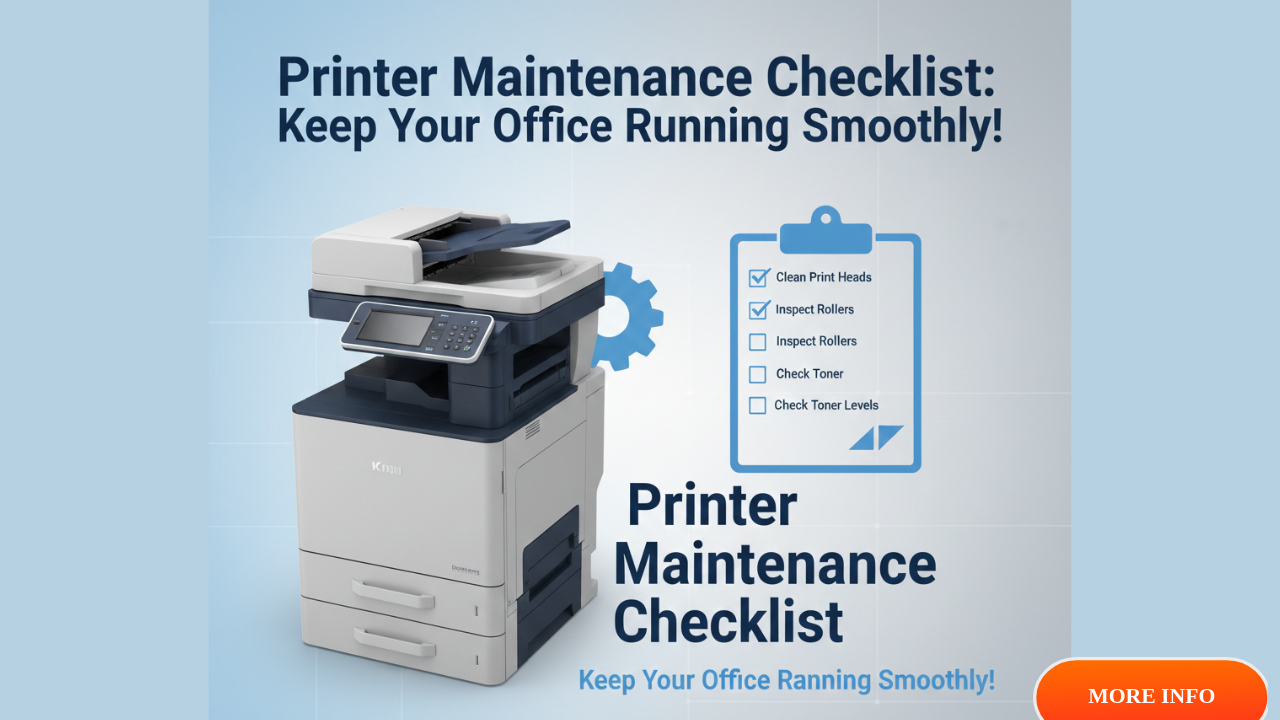
A preventative maintenance checklist for high-volume office printers is your secret weapon against costly breakdowns and wasted time. If you have ever faced a printer failure during a critical deadline, you know the pain it causes. High-volume printers work hard every day, printing thousands of pages for your business. Without proper care, these machines break down fast, costing you money and productivity.
This guide shows you simple steps to keep your office printers running smoothly. You will learn what to clean, when to replace parts, and how to spot problems early. Let’s dive into the complete maintenance plan that saves time and money.
What Is Preventative Maintenance for High-Volume Office Printers?
Preventative maintenance means taking care of your printer before problems happen. Instead of waiting for your printer to break, you clean it, check it, and replace worn parts on a schedule.
High-volume office printers need extra attention because they print so many pages. These printers have moving parts that wear out faster with heavy use. Dust builds up quickly. Rollers get dirty. Toner spills happen more often.
Think of it like taking your car for oil changes. You don’t wait for the engine to fail. You do regular maintenance to keep it running well. The same applies to your office printer.
Regular maintenance brings clear benefits. Your printer lasts longer, saving replacement costs. Print quality stays sharp and professional. Paper jams drop significantly. Best of all, you avoid sudden breakdowns during busy work periods.
Studies show that proper maintenance can extend printer life from the typical three to seven years up to ten years or more. That’s real money saved for your business.
7 Essential Steps in Your Preventative Maintenance Checklist for High-Volume Office Printers

Step 1: Daily Quick Checks
Start each workday with a fast visual check of your printer. This takes less than two minutes but prevents many problems.
Look for any loose paper or debris around the paper trays. Check that paper is loaded correctly and not overfilled. Wipe down the exterior with a dry cloth to remove dust and fingerprints.
Check your printer’s display panel for any warning messages. Address these right away before they become bigger issues. Make sure the printer is connected properly and ready to print.
For busy offices, this daily habit keeps your printer ready for action. It helps you catch small problems before they stop your workflow.
Step 2: Weekly Deep Cleaning
Every week, set aside 15 minutes for a deeper cleaning session. This is where you tackle dust and debris that daily checks miss.
Turn off and unplug your printer before cleaning. Use a soft, lint-free cloth slightly dampened with distilled water to wipe down all exterior surfaces. Avoid harsh chemicals like bleach or ammonia as these damage plastic parts.
Open all access doors and look inside the paper path. Remove any torn paper pieces you find. Use compressed air in short bursts to blow out dust from the paper path and internal areas. Keep the nozzle a few inches away from delicate parts.
Clean the scanner glass with a glass cleaner on a cloth, not directly on the glass. Run your printer’s built-in cleaning cycle through the settings menu. This cleans print heads and calibrates toner distribution.
Test print quality with a sample page. Look for streaks, fading, or other issues. If you spot problems, run another cleaning cycle.
Step 3: Monthly Internal Inspection
Once a month, perform a thorough inspection of your printer’s internal components. This catches wear and tear before it causes failures.
Check the paper pickup rollers for dust and glazing. Rollers that look shiny or glazed need replacement. Clean them with a cloth dampened with isopropyl alcohol or distilled water. Do the same for separation pads.
Inspect all cables and connections to ensure they are secure. Look for any visible damage to internal parts. Check the toner or ink levels and order replacements if running low.
For laser printers, inspect the fuser unit, ozone filters, and static eliminator teeth. These parts need attention in high-volume environments. Use isopropyl alcohol for cleaning, never ammonia-based cleaners.
Run a printer alignment calibration to keep output quality sharp. Update firmware and drivers if new versions are available. These updates often fix bugs and improve performance.
Step 4: Quarterly Professional Service
Every three months, schedule a more intensive maintenance session or bring in a professional technician. This is especially important for high-volume printers that work constantly.
A professional service includes flushing ink lines, testing all features, and checking for parts that need replacement soon. Technicians can spot issues that you might miss during routine cleaning.
Replace worn rollers, separation pads, and other consumable parts based on your printer’s page count. Most manufacturers provide guidance on when these parts typically wear out.
Deep clean the printer’s interior, including areas you cannot easily reach during monthly checks. Lubricate appropriate moving parts if needed, following manufacturer guidelines.
Review your printer’s duty cycle statistics. These numbers tell you how many total pages the printer has produced and help you plan for major service or eventual replacement.
Step 5: Use Quality Supplies
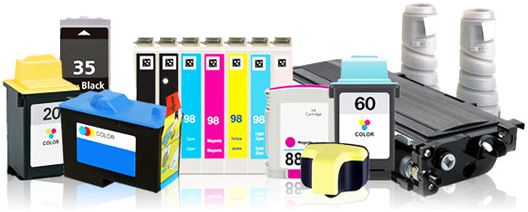
Your maintenance efforts fail if you use poor quality paper, toner, or ink. Cheap supplies cause more problems than they solve.
Always use paper recommended by your printer manufacturer. Low-quality paper creates excess dust and lint, clogs parts faster, and jams more often. Store paper in a cool, dry place in its original packaging until needed.
Use genuine or high-quality compatible toner cartridges. Cheap toner can leak, break, or produce poor print quality. These problems damage your printer and cost more in repairs than you save on supplies.
Replace ink or toner cartridges before they run completely dry. Running on empty causes unnecessary wear on your printer’s components. When your printer warns that supplies are low, order replacements right away.
Step 6: Monitor Environmental Conditions
Where you place your printer affects how well it runs and how often it needs maintenance. Environmental factors matter more than most people realize.
Keep your printer in a cool, dry location away from direct sunlight and heat sources. High temperatures and humidity damage internal components over time. Avoid placing printers near windows or heating vents.
Dusty environments require more frequent cleaning. If your office has dust issues, increase your cleaning schedule from monthly to every two weeks. Consider using air purifiers near your printer to reduce airborne particles.
Allow proper ventilation around your printer. Don’t place it in tight spaces or cover vents. Good airflow prevents overheating and extends the life of internal parts.
Step 7: Keep Detailed Maintenance Records
Document every maintenance task you perform. This creates a history that helps you spot patterns and plan future service.
Record the date of each cleaning, parts replaced, any issues found, and repairs made. Note your printer’s page count at each maintenance session. Track supply usage and costs.
Create a simple spreadsheet or use a maintenance log template. This record helps you stay on schedule and shows which maintenance tasks bring the best results. It also provides valuable information if you need warranty service or professional repairs.
Many businesses find that scheduled maintenance contracts work well for high-volume printers. A service provider handles all maintenance tasks on a regular schedule, ensuring nothing gets missed.
Additional Tools and Resources for Printer Maintenance

Having the right tools makes maintenance easier and more effective. Build a simple maintenance kit that includes these essential items.
Keep microfiber cloths, distilled water, and isopropyl alcohol (70%) on hand for cleaning. Add compressed air cans for blowing out dust. Include a small vacuum designed for electronics if your budget allows.
Stock spare parts like paper pickup rollers and separation pads specific to your printer model. Having these ready means you can replace worn parts immediately instead of waiting for orders.
Use your printer manufacturer’s resources. Most brands like HP, Brother, Xerox, and Canon offer detailed maintenance guides, video tutorials, and support forums. Check their websites regularly for updates and tips.
Consider managed print services if your business has many printers or lacks time for maintenance. These services monitor your printer fleet remotely, schedule maintenance automatically, and ensure supplies arrive before you run out. For businesses with high-volume needs, this professional support prevents disruptions and maximizes printer performance.
Download our free printable maintenance checklist to keep track of daily, weekly, and monthly tasks. This simple tool ensures you never miss important maintenance steps.
Common Mistakes to Avoid When Maintaining High-Volume Office Printers
Even with good intentions, many businesses make mistakes that hurt their printers. Avoid these common errors to get the most from your maintenance efforts.
Ignoring Warning Messages: Your printer’s display panel shows warnings for a reason. Don’t dismiss error messages or hope they go away. Address them immediately to prevent small issues from becoming expensive repairs.
Skipping Regular Use: Printers need to run regularly, especially inkjet models. If a printer sits idle too long, ink dries out and clogs print heads. Even if you don’t have printing needs, run a test page weekly to keep components working properly.
Overfilling Paper Trays: Loading too much paper causes jams and misfeeds. Follow the maximum fill line marked in your paper tray. Flex and fan paper before loading to prevent sheets from sticking together.
Using Harsh Cleaning Products: Avoid window cleaners, bleach, or harsh solvents on your printer. These chemicals damage plastic parts and void warranties. Stick to distilled water and isopropyl alcohol for safe, effective cleaning.
Touching Print Heads or Drums: Your fingers leave oils that damage sensitive components. Never touch print heads, imaging drums, or transfer rollers directly. If you must handle these parts, wear clean gloves.
Waiting Too Long Between Cleanings: A monthly schedule works for moderate use, but high-volume printers need more attention. If your printer produces thousands of pages weekly, increase cleaning frequency to every two weeks or weekly for best results.
Ignoring Environmental Factors: Placing your printer in a dusty, hot, or humid location creates constant problems. Pay attention to where your printer lives and adjust its location if needed.
Not Training Staff: Everyone who uses the printer should know basic care. Teach employees how to load paper correctly, clear simple jams, and who to contact for problems. This prevents damage from well-meaning but incorrect fixes.
Frequently Asked Questions
How often should I perform preventative maintenance on high-volume office printers?
High-volume office printers need daily quick checks, weekly cleaning, monthly internal inspections, and quarterly professional service. Increase frequency if your printer produces more than 10,000 pages monthly or operates in a dusty environment.
What are the signs my office printer needs immediate maintenance?
Watch for frequent paper jams, poor print quality with streaks or fading, unusual noises like squeaking, slow printing speeds, and error messages on the display. Any of these signals mean your printer needs attention now.
Can I use third-party supplies with my office printer?
Quality compatible supplies work fine and cost less than brand-name options. However, avoid the cheapest options as they cause problems. Choose reputable brands that match your printer’s specifications. Never use supplies that void your warranty during the coverage period.
How do I know when to replace my high-volume office printer?
Consider replacement when repair costs exceed 50% of a new printer’s price, your printer cannot keep up with current workload needs, or it has reached its expected duty cycle. Most high-volume printers last seven to ten years with proper maintenance.
Conclusion

A preventative maintenance checklist for high-volume office printers protects your investment and keeps your business running smoothly. The simple steps outlined in this guide take minimal time but deliver maximum results.
Start with daily quick checks to catch problems early. Add weekly cleaning to remove dust and debris. Perform monthly inspections of internal components. Schedule quarterly professional service for deep maintenance.
Use quality supplies, monitor environmental conditions, and keep detailed records of all maintenance activities. Avoid common mistakes like ignoring warnings or using harsh chemicals.
The time you invest in maintenance pays back many times over through extended printer life, consistent print quality, and avoided downtime. Your preventative maintenance checklist for high-volume office printers is the roadmap to reliable, cost-effective printing for years to come.
Start your maintenance routine today and experience the difference it makes for your office productivity.
Replace Printhead: Know Exactly When It’s Time + Save Money Read More


