
Introduction
Learning how to stop your printer from constantly asking for calibration can save you countless hours of frustration. You’re ready to print an important document, but your printer interrupts with yet another calibration request. You completed calibration yesterday, so why is it asking again today?
Excessive calibration prompts disrupt workflow and waste time in both home and office environments. These interruptions occur when sensors malfunction, software glitches persist, or settings need adjustment.
This comprehensive guide provides proven solutions to eliminate unnecessary calibration requests. You’ll discover why printers repeatedly ask for calibration, how to fix the underlying causes, and methods to prevent future interruptions. Whether you use an inkjet or laser printer, these strategies will restore smooth, uninterrupted printing.
What Does It Mean to Stop Your Printer From Constantly Asking for Calibration?
To stop your printer from constantly asking for calibration means eliminating unnecessary alignment and adjustment prompts that interrupt normal printing. Printer calibration aligns print heads, adjusts color accuracy, and ensures proper paper feeding.
Most printers need calibration only occasionally:
After installing new ink cartridges or toner.
When print quality degrades noticeably.
Following firmware updates.
After moving the printer to a new location.
However, some printers malfunction and request calibration after every print job or each time they power on. This excessive behavior indicates hardware issues, software bugs, or incorrect settings.
How calibration normally works:
The printer prints a test pattern with alignment marks.
Built-in sensors scan these patterns.
The printer adjusts internal settings based on sensor readings.
The system saves these adjustments for future use.
When calibration becomes problematic:
Prompts appear after every print job.
Calibration requests occur daily without reason.
Completing calibration doesn’t stop future prompts.
Error messages accompany calibration requests.
Understanding normal versus excessive calibration helps you effectively stop your printer from constantly asking for calibration.
7 Effective Methods to Stop Your Printer From Constantly Asking for Calibration
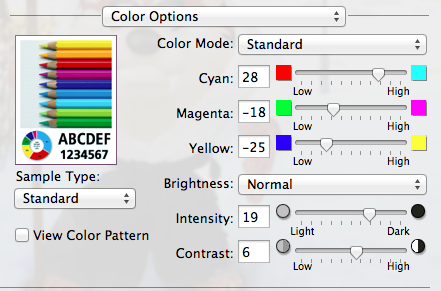
Method 1: Clean Calibration Sensors to Stop Printer Calibration Prompts
Dirty sensors are a leading cause when you need to stop your printer from constantly asking for calibration.
Locate the sensors:
Check your printer manual for sensor locations.
Common positions include near the print head carriage and paper path.
Look for small optical windows or metallic strips.
Cleaning process:
Power off and unplug your printer completely.
Open all access panels to reach internal components.
Use a lint-free microfiber cloth slightly dampened with distilled water.
Gently wipe sensor surfaces without applying pressure.
For stubborn residue, use isopropyl alcohol (90% or higher).
Let everything dry for 15 minutes before powering on.
Sensor-specific cleaning:
For optical sensors, avoid touching the lens directly.
For encoder strips (transparent plastic with lines), clean both sides.
Remove any dust, ink residue, or paper fibers.
Regular sensor maintenance helps stop your printer from constantly asking for calibration permanently.
Method 2: Update or Reinstall Printer Firmware and Drivers
Outdated software frequently causes issues that require you to stop your printer from constantly asking for calibration.
Update printer firmware:
Visit your printer manufacturer’s website (HP, Canon, Epson, Brother).
Navigate to support or downloads section.
Enter your exact printer model number.
Download the latest firmware version.
Follow installation instructions carefully.
Restart your printer after updating.
Reinstall printer drivers:
Press Windows key + X and select “Device Manager.”
Expand “Print queues” section.
Right-click your printer and select “Uninstall device.”
Check “Delete the driver software” box.
Restart your computer.
Download fresh drivers from the manufacturer’s website.
Install drivers and test printing.
For Mac users:
Go to System Preferences > Printers & Scanners.
Remove your printer from the list.
Download latest drivers from manufacturer.
Add printer again using updated software.
These updates often include fixes that stop your printer from constantly asking for calibration. Check HP Support for specific printer firmware updates and documentation.
Method 3: Adjust Printer Settings to Disable Automatic Calibration
Configuration changes can effectively stop your printer from constantly asking for calibration.
Access printer settings:
Open your printer’s control panel on the device itself.
Navigate to Settings or Setup menu.
Look for Maintenance, Tools, or Calibration options.
Disable automatic calibration:
Find “Auto Calibration” or “Automatic Alignment” settings.
Change from “Automatic” to “Manual” or “Off.”
Some printers label this “Calibrate Before Each Print” – disable it.
Save changes and exit settings menu.
Through printer software on computer:
Open printer preferences from Control Panel (Windows) or System Preferences (Mac).
Click “Maintenance” or “Utility” tab.
Look for calibration frequency settings.
Select “Manual” or reduce calibration prompts.
Apply and save changes.
Reset printer to factory defaults:
If settings seem corrupted, perform a factory reset.
Find “Restore Factory Settings” in your printer menu.
Confirm the reset (this removes custom settings).
Reconfigure only essential settings afterward.
These adjustments help stop your printer from constantly asking for calibration without compromising print quality.
Method 4: Replace Faulty Ink Cartridges or Toner
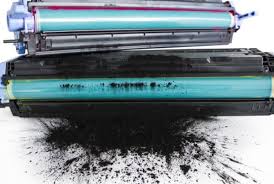
Defective cartridges often trigger the need to stop your printer from constantly asking for calibration.
Identify problematic cartridges:
Check if calibration prompts started after installing specific cartridges.
Look for error messages mentioning cartridge issues.
Verify cartridges are genuine manufacturer products, not third-party refills.
Test cartridge health:
Print a nozzle check or test page.
Look for missing colors or streaks.
Check ink levels through printer software.
Inspect cartridges for leaks or damage.
Replace suspicious cartridges:
Power off your printer before removing cartridges.
Install fresh, genuine cartridges from the manufacturer.
Remove protective tape and seals completely.
Ensure cartridges click firmly into place.
Run a single calibration after replacement.
Avoid third-party cartridges:
Off-brand cartridges often lack proper chips or sensors.
These can confuse the printer’s calibration system.
Stick with OEM cartridges when you need to stop your printer from constantly asking for calibration.
If problems persist with genuine cartridges, the print head may need replacement.
Method 5: Fix Mechanical Issues Causing Calibration Requests
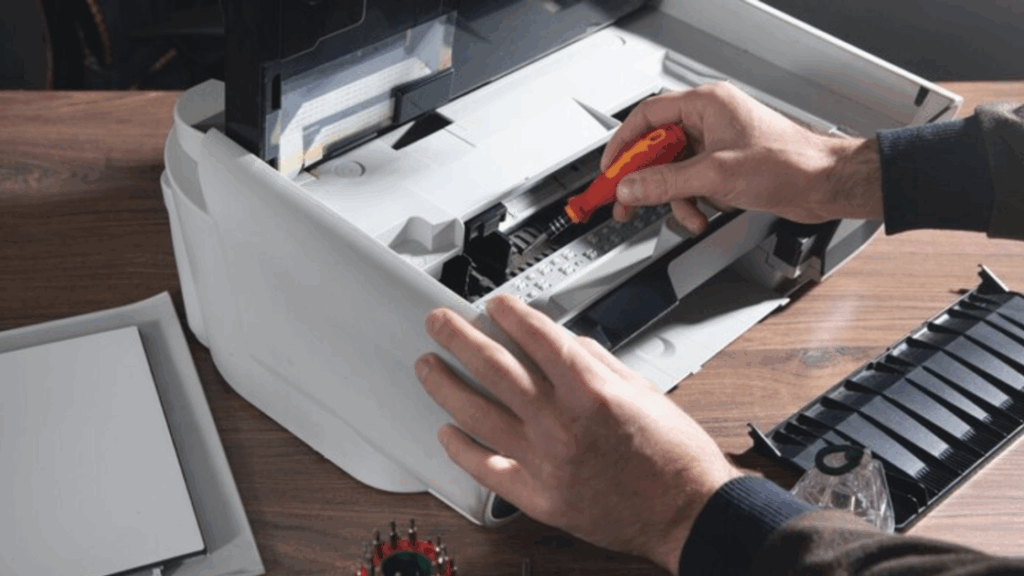
Physical problems require mechanical solutions to stop your printer from constantly asking for calibration.
Check print head alignment:
Open printer cover and visually inspect print head carriage.
Ensure it moves smoothly across the full width.
Remove any obstructions in the carriage path.
Listen for grinding or clicking noises during movement.
Inspect and clean encoder strip:
Locate the transparent strip with black lines above the carriage.
This strip must be clean and unobstructed.
Gently clean with microfiber cloth and isopropyl alcohol.
Ensure the strip isn’t loose or damaged.
Examine paper feed mechanism:
Remove any stuck paper or debris from rollers.
Clean rubber rollers with damp cloth.
Check that rollers grip paper properly.
Replace worn rollers if necessary.
Test carriage movement:
Manually slide the print head carriage (when powered off).
It should move smoothly without resistance.
Listen for unusual sounds when printer is running.
Lubricate carriage rail if manufacturer recommends it.
Addressing mechanical issues helps stop your printer from constantly asking for calibration at the hardware level.
Method 6: Disable Calibration Through Advanced Printer Utilities
Manufacturer utilities provide deeper control to stop your printer from constantly asking for calibration.
Access advanced utilities:
For HP printers, download HP Print and Scan Doctor.
For Epson, use Epson Printer Utility or Epson Status Monitor.
For Canon, download Canon IJ Printer Utility.
For Brother, use Brother Printer Utility.
Navigate calibration settings:
Open the utility and select your printer.
Find “Advanced Settings” or “Special Settings.”
Look for calibration-related options.
Modify calibration behavior:
Change “Calibration Frequency” from “Before Each Print” to “Manual.”
Disable “Automatic Color Adjustment” if available.
Turn off “Periodic Maintenance Reminders.”
Set “Alignment Check” to manual only.
Save utility configurations:
Apply all changes within the utility.
Close and restart the utility to confirm changes saved.
Test printing to verify calibration prompts stop.
These specialized tools offer options not available through standard printer settings when you need to stop your printer from constantly asking for calibration.
Method 7: Reset Print Spooler and Clear Print Queue
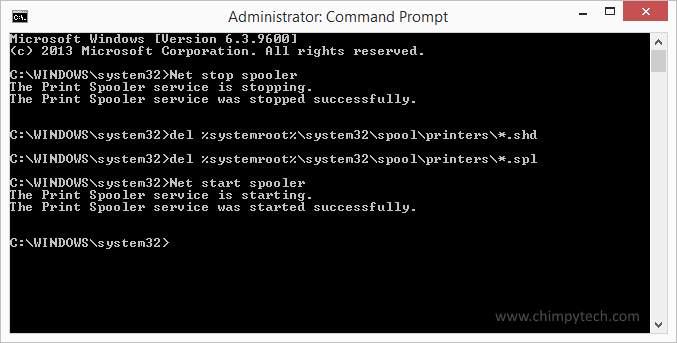
Software conflicts require you to stop your printer from constantly asking for calibration through system-level fixes.
Clear print queue completely:
Press Windows key + R and type services.msc.
Scroll down and find “Print Spooler.”
Right-click and select “Stop.”
Open File Explorer and navigate to: C:\Windows\System32\spool\PRINTERS
Delete all files in this folder.
Return to services and start Print Spooler again.
Reset printer settings on computer:
Go to Settings > Devices > Printers & Scanners.
Click your printer and select “Remove device.”
Click “Add a printer or scanner.”
Select your printer when it appears.
Follow setup prompts to reinstall.
For persistent issues:
Download and run Microsoft’s Print Troubleshooter.
This automated tool fixes common printing problems.
Follow on-screen recommendations.
Restart computer after troubleshooting completes.
These system-level resets often stop your printer from constantly asking for calibration by clearing corrupted settings.
Additional Tools to Stop Your Printer From Constantly Asking for Calibration

Several specialized tools assist when you need to stop your printer from constantly asking for calibration:
Printer manufacturer diagnostic tools identify specific problems. HP Print and Scan Doctor, Epson Print CD, and Canon My Printer automatically detect calibration issues and offer fixes.
Sensor cleaning kits include specialized swabs and cleaning solutions. These reach difficult internal components more effectively than standard cloths.
Replacement encoder strips cost $10-30 and solve problems when the original strip is damaged. These transparent strips with printed lines are available for most printer models.
Print head cleaning kits provide professional-grade solutions for stubborn blockages. They include syringes, tubing, and cleaning fluid for deep cleaning.
Firmware downgrade tools help if new firmware introduced calibration bugs. Some manufacturers allow reverting to previous stable firmware versions.
Third-party printer management software like PrinterLogic or PaperCut provides centralized control over multiple printers, including calibration settings.
Investing in proper maintenance tools prevents the need to constantly stop your printer from constantly asking for calibration.
Common Mistakes When Trying to Stop Your Printer From Constantly Asking for Calibration
Avoid these errors that complicate efforts to stop your printer from constantly asking for calibration:
Running calibration repeatedly without addressing root causes: Completing calibration multiple times doesn’t fix underlying sensor or software issues. Each calibration wastes ink and time without solving the problem.
Using harsh chemicals on sensors: Never use acetone, bleach, or ammonia-based cleaners. These damage delicate optical sensors and plastic components. Stick with distilled water or 90%+ isopropyl alcohol only.
Ignoring firmware updates: Manufacturers release updates specifically addressing calibration bugs. Skipping updates means missing critical fixes that stop your printer from constantly asking for calibration.
Installing incompatible third-party cartridges: Generic cartridges without proper chips confuse printer sensors. The printer requests constant calibration trying to detect cartridge status. Use OEM cartridges when troubleshooting.
Disabling calibration without investigating causes: Simply turning off calibration notifications doesn’t fix underlying problems. Print quality may degrade over time without proper alignment.
Moving printer frequently: Constant movement jostles internal components and requires legitimate recalibration. Place printers in stable, permanent locations.
Using printer on uneven surfaces: Tilted or shaky surfaces prevent accurate calibration readings. Ensure printers sit level on sturdy furniture or dedicated printer stands.
FAQs: How to Stop Your Printer From Constantly Asking for Calibration
Why does my printer keep asking for calibration after I just calibrated it?
When you need to stop your printer from constantly asking for calibration repeatedly, the issue typically involves dirty sensors, faulty cartridges, or software bugs. Clean optical sensors and encoder strips thoroughly. Verify you’re using genuine manufacturer cartridges. Update firmware to the latest version to resolve known calibration bugs.
Can I permanently disable printer calibration?
Yes, but it’s not recommended long-term. To stop your printer from constantly asking for calibration, change settings from “Automatic” to “Manual” in printer maintenance options. This prevents unsolicited prompts but requires you to manually calibrate when print quality actually degrades. Never disable calibration entirely.
How often should a printer need calibration?
Normal printers require calibration only when installing new cartridges, after firmware updates, or when noticing print quality issues. If you constantly need to stop your printer from constantly asking for calibration more than once weekly, something is wrong. Healthy printers go months between calibrations under normal use.
Will resetting my printer to factory settings stop calibration prompts?
Factory resets help stop your printer from constantly asking for calibration if corrupted settings cause the issue. Access Settings menu on your printer, select “Restore Factory Defaults,” and confirm. This clears problematic configurations but also removes custom settings like Wi-Fi passwords and paper preferences.
Conclusion
Learning to stop your printer from constantly asking for calibration eliminates one of the most annoying printing interruptions. By following these systematic solutions, you address root causes rather than just ignoring prompts.
Remember the key strategies: clean sensors and encoder strips regularly, keep firmware and drivers updated, adjust settings to disable automatic calibration, replace problematic cartridges with genuine parts, fix mechanical issues, use manufacturer utilities, and reset print spooler when needed.
When you stop your printer from constantly asking for calibration, prioritize identifying why prompts occur excessively. Random calibration requests indicate underlying problems that deserve attention. Address hardware issues before simply disabling notifications.
Start with the easiest solutions like cleaning sensors and updating software. If these don’t work, progress to mechanical inspections and component replacement. Most users successfully eliminate excessive calibration prompts within 30 minutes using these methods.
Document which solution works for your specific printer model. This knowledge helps if the problem recurs and assists others with identical printers.
With proper maintenance and configuration, you’ll stop your printer from constantly asking for calibration while maintaining excellent print quality. Your printer should calibrate only when truly necessary, not multiple times daily.
Resolving Printer Issues Caused by Windows Firewall: Ultimate Fix Guide Read More


