
Introduction
Have you ever clicked “Print” only to watch your printer wake up delay stretch into what feels like forever? You’re not alone. The printer wake up delay is one of the most common frustrations for home and office users alike. That annoying pause between hitting print and hearing your printer spring to life can waste valuable time during busy workdays.
Most modern printers enter a sleep mode to save energy, but this energy-saving feature often creates a sluggish startup experience. The good news? Understanding why this happens and learning simple fixes can dramatically reduce your wait time. In this guide, we’ll explore exactly what causes printer wake up delays, share seven practical solutions to speed things up, and help you troubleshoot common problems. Let’s get your printer responding faster.
What Is Printer Wake Up Delay?
Printer wake up delay refers to the time gap between sending a print command and when your printer actually begins printing. This delay happens because most printers automatically enter a low-power sleep mode after a period of inactivity.
When your printer sleeps, it powers down several internal components. The print head, motors, and processing systems all go dormant. When you send a print job, the printer must wake up these components, run system checks, and initialize the printing process. This startup sequence creates the delay you experience.
The length of this delay varies widely. Some printers wake up in 5-10 seconds, while others can take 30 seconds or more. Several factors influence this timing, including your printer model, age, connection type, and power settings.
Energy regulations and environmental standards encourage manufacturers to implement aggressive sleep modes. While this saves electricity, it can feel counterproductive when you need quick prints. The challenge is finding the right balance between energy savings and convenience for your specific needs.
7 Ways to Reduce Printer Wake Up Delay
1. Adjust Power Management Settings
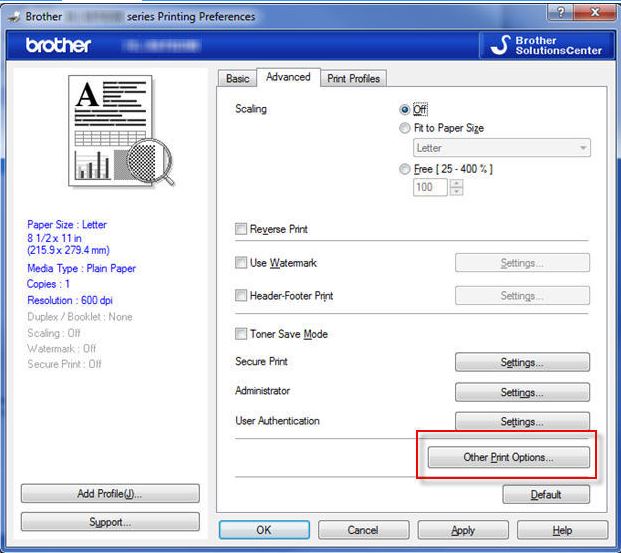
Your printer’s sleep timer controls how quickly it enters low-power mode. Access your printer settings through the control panel or companion software on your computer. Look for options like “Sleep Mode,” “Power Save,” or “Energy Settings.” Extending the sleep timer from 5 minutes to 30 minutes or even “Never” can eliminate frequent wake up delays. Keep in mind this uses more electricity when the printer sits idle.
2. Update Printer Firmware
Manufacturers often release firmware updates that improve performance and reduce startup times. Visit your printer manufacturer’s website and search for your specific model number. Download the latest firmware and follow the installation instructions carefully. Many modern printers can check for updates automatically through their settings menu. Updated firmware can shave precious seconds off your printer wake up delay.
3. Use a Wired Connection Instead of Wireless
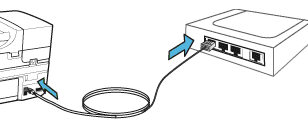
Wireless printers need extra time to reconnect to your network after sleeping. A USB or Ethernet connection eliminates this network handshake process. If possible, connect your printer directly to your computer or router with a cable. This simple switch often cuts wake up time in half. For printers that must stay wireless, ensure they’re close to your router with strong signal strength.
4. Keep Your Printer Powered On
If you print frequently throughout the day, consider leaving your printer powered on continuously. This prevents sleep mode entirely. While it consumes more energy, the time savings and reduced frustration may justify the cost. This approach works best in busy offices where printing happens regularly. For home users who print occasionally, this may not be practical or economical.
5. Install Printer-Specific Drivers

Generic printer drivers often lack optimization features that speed up printer response. Visit your manufacturer’s website and download the full driver package designed specifically for your printer model. These drivers include custom settings and performance tweaks that generic drivers miss. Proper drivers can significantly reduce initialization time and improve overall print quality.
6. Enable Quick Start Mode
Many printer models include a “Quick Start” or “Fast Resume” feature in their settings. This mode keeps certain components partially active even during sleep, allowing faster wake up times. Check your printer’s manual or settings menu for this option. Enabling it typically increases idle power consumption slightly but delivers noticeably faster response when you print.
7. Schedule Regular Print Jobs
Some printer management software lets you schedule automatic test prints or maintenance jobs. Scheduling a small print job every hour during work hours keeps your printer from entering deep sleep mode. This workaround maintains printer readiness without requiring continuous full power operation. It’s a middle ground between constant operation and aggressive power saving.
Additional Tools and Resources

Several software tools can help manage and optimize your printer’s performance beyond basic settings adjustments.
Printer Fleet Management Software: Programs like PaperCut, PrinterLogic, or Printer Properties Pro offer advanced controls for sleep settings, scheduled wake-ups, and performance monitoring. These enterprise-level tools work great for offices with multiple printers.
Network Monitoring Tools: Applications like Fing or Advanced IP Scanner help identify network connection issues that might slow printer response times. Strong network connections reduce wireless printer wake up delays.
Manufacturer Utilities: Canon, HP, Epson, Brother, and other brands offer proprietary software with optimization features. HP Smart, Epson Connect, and Canon PRINT are examples. These utilities often include performance modes not available through standard Windows settings.
Power Management Software: Windows Power Options and macOS Energy Saver provide system-level controls. You can create custom power plans that prevent USB devices (including printers) from sleeping.
For additional guidance on printer optimization, check out PCMag’s printer buying guide for expert recommendations on models with fast wake-up times.
Common Mistakes and Troubleshooting

Mistake 1: Setting Sleep Mode Too Aggressively
Many users never adjust default sleep settings. Manufacturers set conservative energy-saving defaults that prioritize power consumption over convenience. Take five minutes to customize these settings based on your actual usage patterns.
Mistake 2: Ignoring Firmware Updates
Outdated firmware can cause slow performance and compatibility issues. Manufacturers continuously improve printer efficiency through updates. Check for updates quarterly at minimum. Enable automatic updates if your printer supports this feature.
Mistake 3: Using Poor Quality USB Cables
Cheap or damaged USB cables create connection delays and communication errors. This forces your printer to retry connections, extending wake up time. Invest in quality cables rated for your USB version (USB 2.0, 3.0, etc.).
Mistake 4: Neglecting Printer Maintenance
Dirty print heads, low ink levels, and paper jams can all slow printer initialization. Regular cleaning and maintenance keep mechanical components responding quickly. Run built-in cleaning cycles monthly and replace cartridges promptly.
Troubleshooting Persistent Delays:
If delays continue after trying these fixes, check these common issues: outdated computer drivers, insufficient computer RAM, network congestion, or failing printer hardware. Test printing from a different computer to isolate whether the problem originates from your printer or computer. Consider professional service if your printer is older than five years and experiencing multiple problems.
Frequently Asked Questions
Q: Why does my wireless printer take longer to wake up than wired printers?
Wireless printers need extra time to reconnect to your WiFi network after sleeping. They must authenticate, obtain an IP address, and establish a stable connection. This process adds 10-20 seconds compared to wired connections that maintain constant connectivity.
Q: Will keeping my printer on constantly damage it?
Modern printers are designed to handle continuous operation. However, running constantly uses more electricity and may slightly increase wear on mechanical parts. For high-volume printing environments, the convenience usually outweighs minimal additional wear.
Q: Can printer wake up delay damage my documents?
No, the delay only affects timing, not print quality. Your print job waits in the queue until the printer fully initializes, ensuring proper output quality regardless of wake up time.
Q: Is printer wake up delay worse with age?
Yes, older printers typically experience longer delays. Aging components, outdated firmware, and accumulated wear all contribute. Regular maintenance helps, but significant delays may indicate it’s time for an upgrade.
Conclusion
The printer wake up delay doesn’t have to slow down your workflow. By understanding why this delay occurs and applying the seven strategies we’ve covered, you can dramatically reduce wait times and improve productivity. Whether you adjust power settings, update firmware, switch to wired connections, or enable quick start features, each solution offers real improvements.
Start with the easiest fixes first—updating drivers and adjusting sleep settings takes just minutes. For persistent problems, consider the more involved solutions like changing connection types or implementing management software. Remember that every printer model behaves differently, so experiment to find what works best for your situation.
Don’t let printer wake up delay frustrate you anymore. Take action today using these proven techniques, and enjoy faster, more responsive printing that keeps pace with your busy schedule.


