
Introduction
Using old printers on modern operating systems seems impossible when you upgrade to Windows 11 or the latest macOS. That perfectly functioning parallel port or USB 1.1 printer suddenly becomes incompatible with your new computer.
But here’s the truth: you don’t need to throw away that reliable old printer just because it doesn’t have plug-and-play drivers for modern systems.
With the right adapters, drivers, and settings, you can absolutely connect old printers on modern operating systems and keep using them for years. This saves money, reduces electronic waste, and lets you keep a printer you know and trust.
This comprehensive guide shows you exactly how to revive legacy printers on Windows 11 and macOS. Whether you have a parallel port laser printer from 2003 or a USB 1.1 inkjet from 2008, you’ll learn the adapters you need, where to find drivers, and troubleshooting steps when things don’t work immediately.
Let’s give that old printer a new lease on life.
What Does Using Old Printers on Modern Operating Systems Involve?
Using old printers on modern operating systems means connecting legacy hardware designed for Windows XP, Vista, or early Mac OS X to current systems like Windows 11 or macOS Sonoma.
The compatibility challenge:
Modern computers dropped legacy ports completely:
- No parallel ports (also called LPT ports)
- No serial ports
- USB ports are now USB 3.0 or USB-C
- Driver support ended for devices over 10-15 years old
What makes a printer “old” or “legacy”:
- Parallel port printers (used before 2000s)
- USB 1.1 printers (common 2000-2010)
- Printers without manufacturer support for Windows 8 or later
- Models discontinued over a decade ago
Why bother using old printers on modern operating systems?
There are several good reasons:
- The printer still works perfectly
- Replacement toner/ink is still available and affordable
- New printers with similar features cost $200-500
- Environmental benefits of reducing e-waste
- Some old laser printers are built better than modern budget models
The three components needed:
- Hardware adapter: Converts old connections to modern USB
- Compatible driver: Software that tells your OS how to communicate with the printer
- Configuration settings: Proper setup in your operating system
Success isn’t guaranteed for every old printer, but the methods in this guide work for most legacy models from major brands like HP, Canon, Epson, and Brother.
6 Steps to Connect Old Printers on Modern Operating Systems
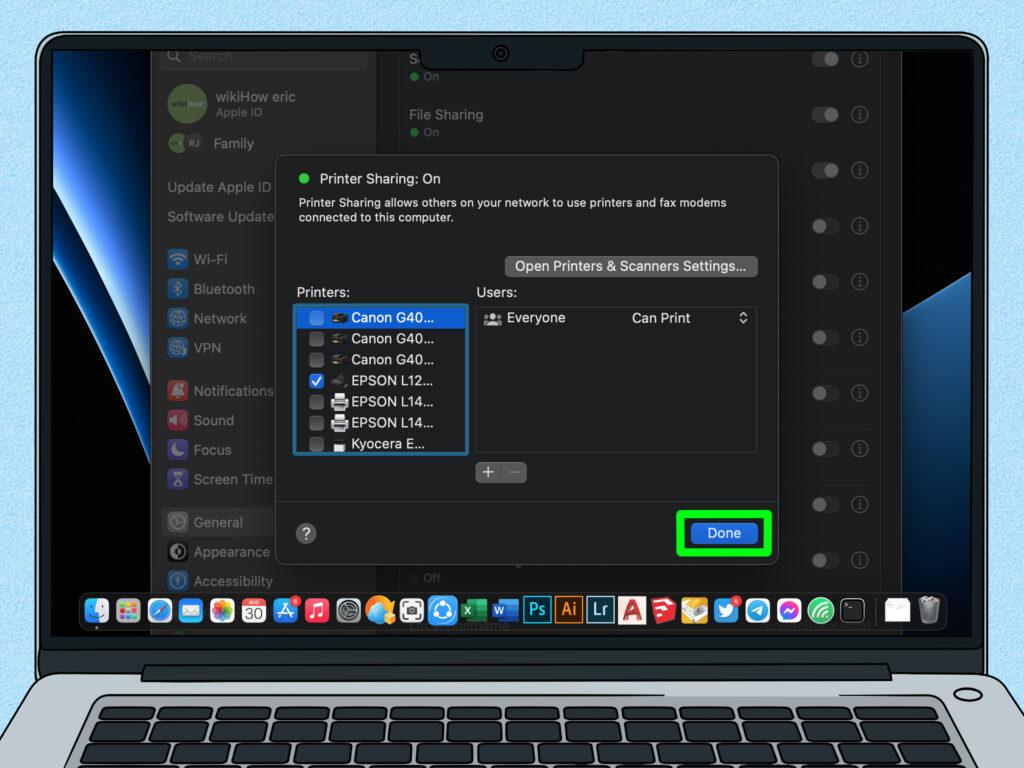
Follow these steps to successfully set up your legacy printer.
Step 1: Identify Your Printer’s Connection Type
Before buying any adapters, confirm exactly what connection your old printer uses.
Parallel port (LPT):
- Large 25-pin connector
- Trapezoid shape
- Usually pink or purple colored port
- Common on printers before 2005
USB 1.1:
- Standard rectangular USB-A connector
- Same physical shape as modern USB
- Electrically different from USB 2.0/3.0
- Common on printers from 2000-2010
How to check USB version: Look at your printer’s specifications in the manual or on the manufacturer’s website. If it says “USB 1.1” or just “USB” without specifying 2.0, assume it’s USB 1.1.
Step 2: Purchase the Right Adapter or Converter
This is crucial for getting old printers on modern operating systems to work.
For parallel port printers:
You need a parallel-to-USB adapter cable:
- Cost: $15-30
- Recommended brands: Sabrent, StarTech, IOGEAR
- Look for cables specifically labeled “printer cable” or “IEEE 1284”
- Avoid generic adapters—they often lack proper chipsets
Important: Not all parallel-to-USB cables work reliably. Read reviews specifically mentioning your OS version.
For USB 1.1 printers:
Most USB 1.1 printers work with modern USB ports without adapters because USB is backward compatible. However, you might need:
- A USB-A to USB-C adapter (if your computer only has USB-C ports)
- A powered USB hub (some old printers draw more power than modern ports provide)
Where to buy:
- Amazon (check recent reviews for your specific OS)
- Newegg
- Computer specialty stores
- StarTech.com (professional-grade adapters)
Step 3: Find Compatible Drivers for Your Operating System

This is the trickiest part of using old printers on modern operating systems.
Where to look for drivers:
Manufacturer website: Check your printer brand’s driver download page first:
- HP: support.hp.com
- Canon: canon.com/support
- Epson: epson.com/support
- Brother: brother-usa.com/support
Even if your exact model isn’t listed for Windows 11, try drivers from similar models or the “Universal Print Driver.”
Windows Update: Windows 11 includes many legacy drivers:
- Connect the printer
- Go to Settings > Windows Update
- Click “Check for updates”
- Windows may automatically find and install drivers
Generic printer drivers: If manufacturer drivers don’t exist, try generic PostScript or PCL drivers built into your OS.
Third-party driver repositories: Sites like DriverGuide.com archive old drivers, but use caution and scan downloads for malware.
According to Microsoft’s support documentation, Windows 11 maintains a database of legacy printer drivers that often work with discontinued models.
Step 4: Install Drivers Before Connecting the Printer
This order matters for successful setup of old printers on modern operating systems.
Windows 11 installation:
- Download the driver file
- Right-click and select “Run as administrator”
- Follow installation prompts
- Restart your computer
- Only then connect the printer
If the driver won’t install on Windows 11: Try compatibility mode:
- Right-click the driver installer
- Select Properties > Compatibility
- Check “Run this program in compatibility mode for:”
- Select “Windows 7” or “Windows 8”
- Click Apply and try installing again
macOS installation:
- Download the .dmg or .pkg driver file
- Double-click to mount/open
- Follow installation wizard
- Restart your Mac
- Connect the printer
Alternative: Manual driver installation (Windows): If automatic installation fails:
- Open Device Manager
- Find your printer under “Other devices” or “Unknown devices”
- Right-click > Update driver
- Choose “Browse my computer for drivers”
- Navigate to extracted driver folder
- Click Next to install manually
Step 5: Connect and Configure the Printer

Now physically connect your old printer to your modern computer.
Connection steps:
- Ensure printer is powered on
- Connect adapter cable to printer
- Connect USB end to computer
- Wait for Windows/Mac to detect the device
- Follow any on-screen setup prompts
Add printer manually if not auto-detected (Windows 11):
- Open Settings > Bluetooth & devices > Printers & scanners
- Click “Add device” or “Add a printer or scanner”
- If it doesn’t appear, click “Add manually”
- Select “Add a local printer or network printer with manual settings”
- Choose the port your printer uses
- Select the installed driver from the list
- Complete the setup wizard
Add printer manually (macOS):
- Open System Settings > Printers & Scanners
- Click the “+” button to add printer
- Your printer should appear in the list
- Select it and click “Add”
- Choose the correct driver if prompted
Step 6: Test and Optimize Print Settings
Confirm everything works correctly.
Print a test page:
- In Windows: Printers & scanners > your printer > Manage > Print test page
- In macOS: Printers & Scanners > your printer > Options & Supplies > Print Test Page
Common initial problems:
- Test page prints garbage characters: Wrong driver selected
- Nothing prints: Check cable connections and power
- Print quality issues: Run printer cleaning cycle or check ink/toner
Optimize settings:
- Set appropriate paper size defaults
- Configure print quality preferences
- Set as default printer if desired
- Test from actual applications (Word, PDF reader, etc.)
Additional Tools and Resources for Legacy Printer Setup

Beyond basic setup, these resources help with challenging situations.
PrinterShare software: This application can help bridge compatibility gaps for some old printers on modern operating systems. It creates a virtual printer that converts print jobs to formats old printers understand.
Virtualization option: For stubborn printers that won’t work natively:
- Install VirtualBox or VMware
- Create a Windows XP or Windows 7 virtual machine
- Install printer drivers in the VM
- Share the printer from the VM to your host OS
This is complex but works when nothing else does.
Network print servers: Devices like the TP-Link TL-PS110U turn USB printers into network printers:
- Connect old printer to print server
- Print server connects to your network
- All computers can print without direct connection
- Cost: $30-60
Driver compatibility databases: Websites like PrinterKnowledge.com and printer-focused forums often have community wisdom about which drivers work for specific old printers on modern operating systems.
USB power considerations: If your old printer isn’t recognized, it might draw too much power. Try:
- A powered USB hub (one with its own power supply)
- Different USB ports on your computer
- Connecting directly to computer rather than through hubs or docks
Common Mistakes When Setting Up Old Printers on Modern Operating Systems
Avoid these errors that waste time and cause frustration.
Mistake 1: Buying cheap, generic adapters
Not all parallel-to-USB adapters are equal. Generic $8 cables often lack proper chipsets and simply won’t work.
Solution: Invest in quality adapters from StarTech, Sabrent, or IOGEAR. The extra $10-15 makes the difference between success and failure when using old printers on modern operating systems.
Mistake 2: Connecting the printer before installing drivers
Modern operating systems try to automatically install drivers when they detect new devices. For old printers, this often installs wrong or generic drivers that don’t work properly.
Solution: Always install manufacturer drivers first, then connect the printer. If you already connected it, uninstall the device completely and start over.
Mistake 3: Using 64-bit drivers on 32-bit systems or vice versa
Driver architecture must match your operating system architecture.
Solution: Check your OS version (Settings > System > About in Windows). Download the matching driver version. Most modern systems are 64-bit, but verify before downloading.
Mistake 4: Giving up after first attempt fails
Legacy printer setup rarely works perfectly on the first try. Many people quit too soon.
Solution: Expect troubleshooting. Try different drivers, compatibility modes, and USB ports. Success often comes after 2-3 attempts with different approaches.
Mistake 5: Not checking if printer is actually functional
Sometimes the printer itself is broken, not the compatibility.
Solution: Before buying adapters and spending time on drivers, verify the printer works. If possible, test on an old computer with the original operating system it supported.
Mistake 6: Overlooking network printing as an alternative
Struggling with direct USB connection when network printing might be easier.
Solution: If your old printer has an ethernet port, try connecting it directly to your router. Network setup sometimes bypasses USB compatibility issues for old printers on modern operating systems.
Troubleshooting When Old Printers Won’t Work on Modern Systems
Try these solutions when standard setup fails.
Problem: Printer not detected at all
The computer doesn’t recognize anything is connected.
Solution: Check adapter quality first. Try a different USB port. Check Device Manager (Windows) or System Information (Mac) to see if an unknown device appears. If nothing shows up, the adapter or cable is likely faulty.
Problem: Printer detected but won’t print
Device appears in settings but print jobs fail or disappear.
Solution: This usually means driver issues. Try drivers from similar printer models. For example, if you have an HP LaserJet 4000, try HP LaserJet 4050 drivers. Similar models often share driver compatibility.
Problem: Prints garbage characters or random symbols
Classic symptom of wrong driver or communication error.
Solution: Verify you selected the correct printer model during driver installation. Try different driver versions (older ones sometimes work better). Check that parallel port settings match printer requirements if using parallel-to-USB adapter.
Problem: Extremely slow printing
Print jobs take 5-10 minutes per page.
Solution: Old USB 1.1 printers are slow by nature, but extreme slowness suggests problems. Try a different USB port. Update motherboard chipset drivers. Some old printers on modern operating systems benefit from printing at lower quality settings.
Problem: Works on Windows but not macOS (or vice versa)
Cross-platform compatibility differs significantly.
Solution: Mac is generally pickier about old printers. Use generic PostScript drivers if manufacturer drivers don’t exist for Mac. Some old printers simply won’t work with modern macOS—Windows compatibility is typically better for legacy hardware.
Frequently Asked Questions
Q: Will using old printers on modern operating systems damage my computer?
No, old printers cannot harm modern computers. The worst that happens is the printer doesn’t work. There’s no risk of hardware damage from connecting legacy printers, though you should use quality adapters to avoid electrical issues.
Q: Are parallel-to-USB adapters bidirectional for scanning?
Most basic parallel-to-USB adapters only support printing, not scanning, even on multifunction printers. True bidirectional adapters exist but are expensive ($50+) and still may not support scanning on modern systems due to driver limitations.
Q: How long will old printers continue working on modern operating systems?
As long as drivers remain compatible. Windows 11 currently supports many legacy printers, but future versions might drop support. If your printer works now, expect it to continue for at least 3-5 years until major OS architecture changes occur.
Q: Is it worth the effort to revive an old printer?
If your printer cost $300+ when new, still has available consumables, and prints well, yes. For old budget inkjets worth $50 originally, probably not—new printers with modern features cost similar amounts and work without adapters or driver hunting.
Q: Can I use old printers with Chromebooks or Linux?
Chromebooks have limited legacy printer support—mostly cloud-connected or network printers work. Linux often has better legacy support than Windows through CUPS printing system. Check OpenPrinting.org database for Linux driver availability for your specific model.
Conclusion
Using old printers on modern operating systems is definitely possible with the right adapters, drivers, and patience. While setup requires more effort than plug-and-play modern printers, successfully reviving a legacy printer saves money and keeps functional hardware out of landfills.
The key steps are: identify your connection type, buy quality adapters, find compatible drivers, install drivers before connecting, and don’t give up after first attempts.
Windows 11 generally offers better legacy printer support than macOS, but both can work with proper drivers. Parallel port printers need good quality adapters, while USB 1.1 printers often work with simple USB-C adapters.
Start by researching your specific printer model today. Search for drivers compatible with your current operating system. Check reviews of adapters if you need them. Join printer forums where others may have solved problems specific to your model.
Your old printer represents quality manufacturing from an era when devices were built to last. With a bit of technical effort, you can continue using old printers on modern operating systems for years to come. Don’t throw away perfectly good hardware—revive it instead.
Slow First Page Printout Issues: Quick Fixes That Actually Work in 2025 Read More


