
Introduction
Is your Canon printer flashing orange light and refusing to work? You’re not alone. This blinking orange indicator is Canon’s way of telling you something needs attention. But here’s the good news—most issues are fixable at home.
The Canon printer flashing orange light isn’t just one problem. Different blink patterns mean different things. Some are simple fixes like adding paper. Others need a bit more troubleshooting.
In this guide, you’ll learn exactly what each flash pattern means. We’ll walk through quick fixes you can try right now. Plus, you’ll discover how to prevent these errors from happening again.
Let’s get your printer working again.
What Is the Canon Printer Flashing Orange Light?
The orange light on your Canon printer is an alert system. When something goes wrong, the light blinks in specific patterns. Each pattern is a code that tells you what’s broken.
Think of it like Morse code for printers. Two quick blinks mean something different than five slow blinks. Canon uses this system across most of their printer models, including PIXMA, MAXIFY, and imageCLASS series.
The light usually sits near the power button. On some models, it’s labeled as “Alarm” or “Error.” When your Canon printer flashing orange light starts, count how many times it blinks before pausing. That number is your error code.
Most Canon printers flash between 2 and 21 times. The most common patterns are 2, 3, 5, 7, 8, 13, and 16 blinks. Each one points to a specific problem with your printer.
Understanding these codes saves you time and money. Instead of calling support immediately, you can diagnose and often fix the issue yourself in minutes.
Common Canon Printer Flashing Orange Light Error Codes
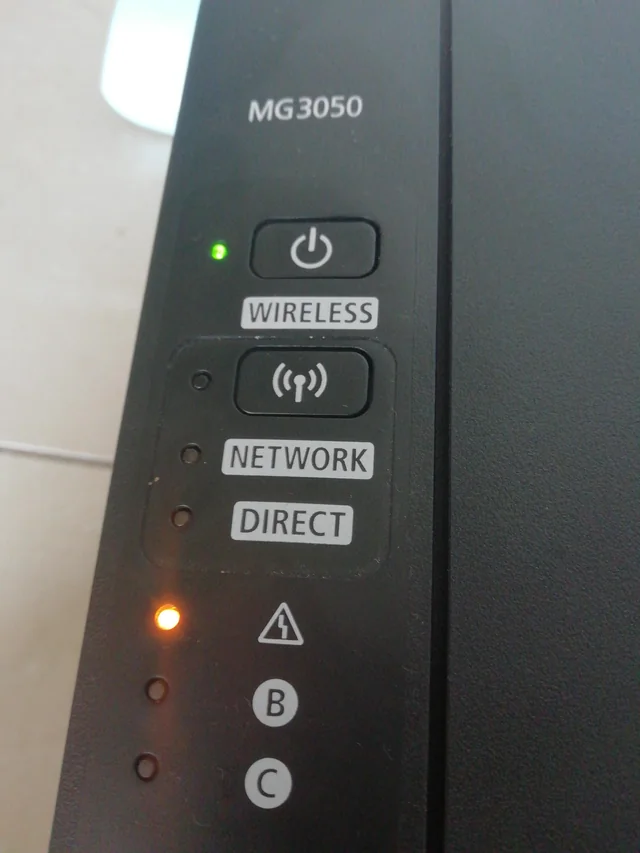
Let’s decode what your printer is trying to tell you. Here are the most common blink patterns and what they mean.
2 Blinks: Paper Jam or Feed Error
Two blinks is the most common Canon printer flashing orange light pattern. It means paper is stuck somewhere in the printer or the paper feed isn’t working properly.
What causes it:
- Paper jammed inside the printer
- Multiple sheets feeding at once
- Paper loaded incorrectly
- Torn paper pieces left inside
Quick fix: Open all printer doors and check for stuck paper. Look in the paper tray, output tray, and rear access panel. Remove any paper carefully without tearing it. Make sure the paper is loaded straight in the tray. Then press the Resume button (usually has a triangle icon).
3 Blinks: Paper Jam (Front or Rear)
Three blinks also indicates a paper jam, but specifically in the front or rear feed areas. Your Canon printer flashing orange light three times means paper is stuck in a different location than the 2-blink error.
Quick fix: Turn off the printer completely. Open the rear access panel (the back door). Remove any jammed paper by pulling it out slowly. Close the panel firmly until you hear it click. Turn the printer back on.
5 Blinks: Ink Cartridge Problem
Five blinks means your printer can’t recognize one or more ink cartridges. This Canon printer flashing orange light pattern is super common after changing ink.
What causes it:
- Cartridge not installed properly
- Protective tape still on new cartridge
- Wrong cartridge model installed
- Cartridge electrical contacts are dirty
Quick fix: Open the cartridge door. Remove each cartridge and check for orange protective tape. If you see tape, peel it off completely. Clean the gold contacts on the cartridge with a dry cloth. Reinstall cartridges firmly until they click. Close the door.
7 Blinks: Ink Cartridge Not Installed
Seven blinks means a cartridge is completely missing or not detected at all. Your Canon printer flashing orange light seven times is asking you to install or reseat the ink.
Quick fix: Open the ink cartridge holder. Check if all cartridge slots have cartridges installed. Remove and reinstall each one, pushing down until you hear a click. Make sure you’re using genuine Canon cartridges or compatible ones designed for your model.
8 Blinks: Ink Absorber Full
Eight blinks is a more serious issue. The ink absorber pad inside your printer is full. This pad catches excess ink during cleaning cycles. When it’s saturated, your Canon printer flashing orange light warns you it needs replacement or reset.
What to do: This usually requires professional service. However, some users reset the counter through service mode (search for your specific model’s reset procedure). Note that resetting without replacing the pad can cause ink overflow.
For genuine fixes, contact Canon support or visit a service center. The absorber pad costs $10-30 to replace professionally.
13 Blinks: Ink Cartridge Issue
Thirteen blinks indicates the cartridge is installed but the printer still can’t use it properly. This Canon printer flashing orange light pattern often happens with refilled or non-genuine cartridges.
Quick fix: Remove all cartridges. Check expiration dates printed on them. Inspect for any damage or leaks. Reinstall genuine Canon cartridges if possible. If using compatible cartridges, ensure they’re designed for your exact printer model.
16 Blinks: Ink Has Run Out
Sixteen blinks is straightforward—you’re out of ink. One or more cartridges are empty, and your Canon printer flashing orange light is demanding replacements.
Quick fix: Check which cartridge is empty (your printer display or computer should show this). Replace the empty cartridge with a new one. Remove protective tape from the new cartridge before installing.
Step-by-Step Troubleshooting for Canon Printer Flashing Orange Light
When your Canon printer flashing orange light appears, follow this systematic approach to fix it quickly.
Step 1: Count the Blinks
Watch the orange light carefully. Count how many times it blinks before pausing. Write this number down. This is your error code.
The pattern repeats every few seconds. Make sure you’re counting one complete cycle. Some people mistake 13 blinks for 3 blinks by counting too fast.
Step 2: Power Cycle the Printer
Before diving into fixes, try a simple restart. This solves many temporary Canon printer flashing orange light issues.
Press and hold the power button until the printer turns off completely. Unplug the power cable from the wall outlet. Wait 60 seconds. Plug everything back in and turn on the printer.
This clears the printer’s memory and resets minor glitches.
Step 3: Check for Paper Jams
Paper jams cause most Canon printer flashing orange light problems. Even tiny torn pieces can trigger the error.
Open every door on your printer—front, back, top, and bottom if accessible. Look inside with a flashlight. Check these spots:
- Paper input tray
- Paper output tray
- Rear access panel
- Under the cartridge holder
- Inside the duplex unit (if your printer has one)
Remove any paper by pulling gently in the direction it normally feeds. Never yank paper backward—it can damage rollers.
Step 4: Inspect Ink Cartridges
Remove each ink cartridge one at a time. Look for these issues:
- Orange or yellow protective tape (remove it completely)
- Dirty gold electrical contacts (wipe with dry cloth)
- Empty or low ink levels
- Expired cartridges (check date printed on them)
- Wrong cartridge model for your printer
Reinstall each cartridge firmly. You should hear a clear click sound. If a cartridge won’t click in, don’t force it—check if it’s the right model.
Step 5: Clean the Printer
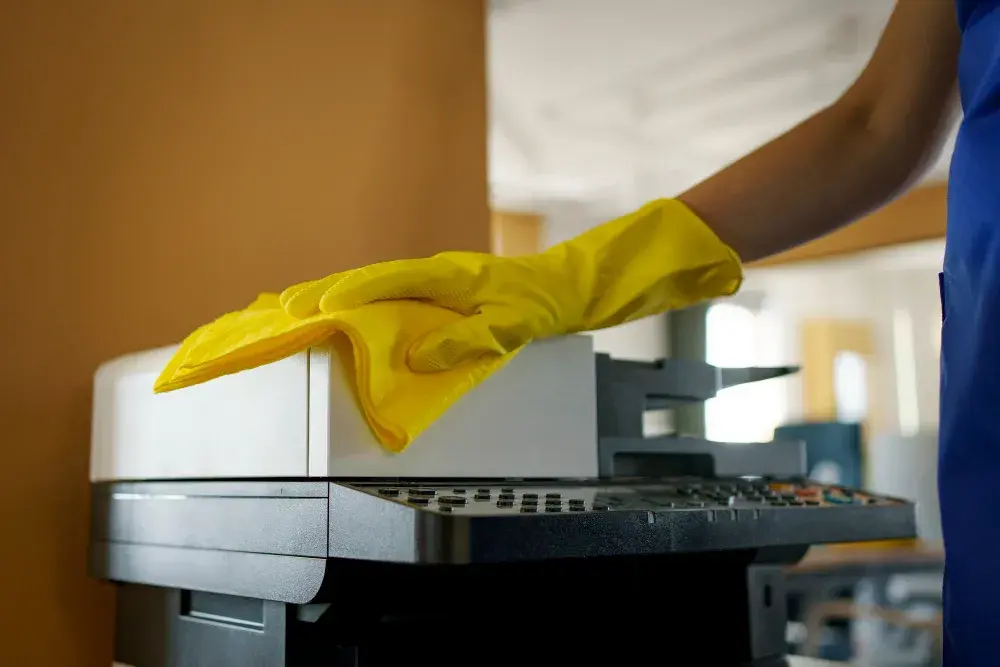
Dust and ink residue cause many Canon printer flashing orange light errors. Use a dry microfiber cloth to clean:
- Paper feed rollers (gently)
- Inside the cartridge holder area
- Electrical contacts where cartridges connect
- Paper tray and guides
Never use water or cleaning solutions inside the printer unless your manual specifically recommends it.
Step 6: Update or Reinstall Printer Drivers
Sometimes the Canon printer flashing orange light appears because of software issues. Visit the official Canon support website at support.usa.canon.com and download the latest drivers for your exact model.
Uninstall your current printer software completely. Restart your computer. Install the fresh drivers. This often fixes communication errors between your computer and printer.
Step 7: Reset the Printer
If nothing else works, try resetting your printer to factory settings. The exact method varies by model, but usually involves:
- Turn off the printer
- Hold the Resume button (triangle icon)
- Press and hold the Power button
- Release the Resume button while still holding Power
- Press Resume twice quickly
- Release the Power button
Check your printer manual for model-specific reset instructions.
Additional Tools and Resources for Canon Printer Issues

Beyond basic troubleshooting, these tools help maintain your printer and prevent Canon printer flashing orange light errors.
Canon Print App
Download the official Canon Print app for your smartphone. It shows detailed error messages that are more specific than just blinking lights. The app also lets you check ink levels, run maintenance tasks, and print test pages remotely.
Printer Diagnostic Tools
Canon includes diagnostic software with their printer drivers. Open your printer settings on your computer and look for “Maintenance” or “Troubleshooting” options. Run these built-in tests:
- Nozzle check pattern
- Print head alignment
- Print head cleaning
- Roller cleaning
These automated tools fix many issues without manual intervention.
Genuine Canon Supplies
Using authentic Canon ink cartridges and paper reduces Canon printer flashing orange light problems significantly. Genuine supplies are calibrated for your printer model and include smart chips that communicate properly with the printer.
Compatible cartridges work for many people, but they’re more likely to trigger error codes. If you use them, buy from reputable brands with good reviews.
Common Mistakes That Trigger Canon Printer Flashing Orange Light

Avoid these errors that cause unnecessary Canon printer flashing orange light problems.
Mistake 1: Forcing Paper Jams
When paper jams, people often yank it out roughly. This tears the paper, leaving small pieces inside that cause repeated jams. It also damages the paper feed rollers.
Always pull jammed paper slowly and steadily. If it resists, open another access panel and push it from the other side. Remove torn pieces completely before closing panels.
Mistake 2: Ignoring Protective Tape
New ink cartridges have orange or yellow tape over the print head and air vents. People forget to remove all the tape pieces. This blocks ink flow and triggers the 5-blink Canon printer flashing orange light error.
Before installing new cartridges, examine them carefully. Peel off all tape completely. Check both the bottom and sides of the cartridge.
Mistake 3: Using Expired Ink
Ink cartridges have expiration dates printed on the packaging. Expired ink dries out and clogs print heads. This causes quality issues and error lights.
Check dates before buying or installing cartridges. Don’t stockpile ink for years—buy what you’ll use within 12-18 months.
Mistake 4: Skipping Regular Maintenance
Printers need regular cleaning, especially if you print infrequently. Dried ink clogs nozzles. Dust gums up paper rollers. These issues lead to Canon printer flashing orange light errors.
Run a cleaning cycle monthly even if you’re not printing much. Print a test page weekly to keep ink flowing. Clean dust from the exterior and paper trays.
Mistake 5: Turning Off During Updates
Never unplug or turn off your printer during firmware updates. This corrupts the software and can cause permanent Canon printer flashing orange light problems that require professional repair.
If an update is taking a long time, be patient. Some updates take 15-20 minutes. Wait until the printer confirms the update is complete.
Frequently Asked Questions About Canon Printer Flashing Orange Light
Q: Why is my Canon printer flashing orange light 2 times?
Two blinks means there’s a paper jam or paper feed error. Open all printer panels and remove any stuck paper. Check that paper is loaded correctly in the tray. Press the Resume button to clear the error.
Q: Can I still print when the orange light is blinking?
No, the Canon printer flashing orange light stops all printing until you fix the error. The printer is in a locked state to prevent damage. Resolve the issue indicated by the blink pattern, then try printing again.
Q: How do I reset my Canon printer after fixing the error?
After fixing the problem, press the Resume button (usually marked with a triangle) once. This tells the printer to check if the issue is resolved. If the orange light stops blinking, the printer is reset and ready to use.
Q: What if the Canon printer flashing orange light won’t stop after troubleshooting?
If you’ve tried all fixes and the light still blinks, you may need professional service. Contact Canon support or visit an authorized service center. Write down the exact blink pattern to help technicians diagnose the issue quickly.
Q: Does the Canon printer flashing orange light mean my printer is broken?
Not usually. Most orange light errors are fixable at home—paper jams, cartridge issues, or simple resets. Only errors like 8 blinks (absorber pad full) typically require professional help. Try the troubleshooting steps before assuming it’s broken.
Conclusion

The Canon printer flashing orange light is frustrating but usually fixable. By counting the blinks and following the right steps, you can diagnose and solve most problems yourself.
Remember these key points: Two and three blinks mean paper jams. Five and seven blinks indicate cartridge issues. Eight blinks means you need professional service. Sixteen blinks is just empty ink.
Most Canon printer flashing orange light errors happen because of simple issues—stuck paper, improper cartridge installation, or empty ink. Regular maintenance prevents many problems. Clean your printer monthly. Use quality supplies. Update your drivers.
If basic troubleshooting doesn’t work, don’t hesitate to contact Canon support. Sometimes professional help is the fastest solution. But in most cases, you can get your printer working again in just a few minutes.
Keep this guide handy for next time your printer acts up. You’ll save time, money, and frustration.
Port 9100 Network Printing Guide: What IT Pros Must Know Read More


