
Introduction
Setting up a VPN for printer access might sound complicated, but it’s easier than you think. Whether you work from home or manage a small office, securing your printer connection protects sensitive documents from prying eyes.
A VPN creates a private tunnel between your device and your printer. This keeps your print jobs safe from hackers on public networks. It also lets you print from anywhere as if you were sitting right next to your printer.
This beginner’s guide walks you through everything step by step. No technical jargon, just simple instructions anyone can follow. By the end, you’ll have a secure printing setup that works from home, coffee shops, or anywhere with internet.
What Is a VPN for Printer?
A VPN for printer is a secure connection that lets you access your printer over the internet safely. VPN stands for Virtual Private Network. Think of it as a private tunnel connecting your computer to your home or office network.
Without a VPN, printing remotely exposes your documents to risks. Public WiFi networks are especially dangerous. Hackers can intercept print jobs and see everything you’re sending to the printer.
A VPN encrypts all data traveling between your device and printer. Even if someone intercepts the connection, they can’t read what you’re printing. It’s like sending mail in a locked box instead of a postcard.
This setup is perfect for remote workers who need to print at the office. Small business owners benefit too. You can give employees secure access to office printers without complicated IT setups.
There are two main approaches. You can set up a VPN on your router to protect all devices, including printers. Or you can use VPN software on your computer and configure printer access through it. Both work well for different situations.
Why You Need a VPN for Printer Setup
Security is the biggest reason. Printers are often forgotten in network security plans. Yet they store print job histories and sometimes even copies of documents. Hackers target unsecured printers to steal sensitive information.
Privacy protection matters too. When you print over a regular internet connection, your ISP can see what you’re doing. A VPN hides this activity completely. Your internet provider only sees encrypted data, not your actual print jobs.
Remote access is incredibly convenient. With a proper printer VPN setup, you can print from anywhere. Traveling for business? Send documents to your office printer. Working from a coffee shop? Print at home for pickup later.
Cost savings add up over time. Cloud printing services charge monthly fees. A VPN lets you use your existing printer from anywhere for free. You only pay for the VPN service, which costs less than specialized printing solutions.
Business compliance is another factor. Many industries require encrypted data transmission. Healthcare, legal, and financial sectors especially need secure printing. A VPN helps meet these requirements without expensive enterprise solutions.
6 Steps to Set Up a VPN for Printer Access
Step 1: Choose the Right VPN Service

Not all VPN services work well for printer access. You need one that supports local network connections and has stable performance.
Top VPN options for printers:
- NordVPN (best for beginners)
- ExpressVPN (fastest speeds)
- Surfshark (budget-friendly)
- Private Internet Access (highly configurable)
Look for these features:
- Port forwarding support
- Split tunneling capability
- No bandwidth limits
- Multiple device connections
- Router compatibility
Free VPNs rarely work for printer setups. They limit bandwidth and block the ports printers need. Paid services cost around 3-10 dollars monthly. That’s less than ink cartridge costs.
Sign up for your chosen VPN. Download the software for your computer or router. Most services offer apps for Windows, Mac, iOS, and Android. You can find detailed comparisons at PCMag’s VPN reviews.
Step 2: Configure Your Home Network
Your printer needs a static IP address for reliable VPN access. This ensures it always has the same network address.
Setting a static IP:
- Log into your router (usually 192.168.1.1 or 192.168.0.1)
- Find DHCP settings or LAN settings
- Locate your printer in the device list
- Assign it a fixed IP address
- Save the changes
Write down this IP address. You’ll need it later for the VPN printer configuration.
Enable port forwarding if your router requires it. Check your printer’s manual for which ports it uses. Common printer ports are 9100, 515, and 631. Forward these ports to your printer’s static IP address.
Make sure your printer is connected to the network. Wired ethernet connections work more reliably than WiFi for VPN setups. If you must use WiFi, ensure the signal is strong where the printer sits.
Step 3: Install VPN on Your Router (Method 1)

This is the easiest method for multiple devices. Once configured, everything on your network gets VPN protection automatically, including your printer.
Router VPN setup:
- Check if your router supports VPN clients
- Log into router admin panel
- Find VPN or WAN settings
- Choose OpenVPN or WireGuard option
- Upload configuration file from your VPN provider
- Enter your VPN username and password
- Save and enable the VPN connection
Not all routers support VPN clients. Budget routers often lack this feature. If yours doesn’t, consider upgrading to a VPN-compatible router. ASUS, Netgear, and Linksys make good options.
After enabling the VPN on your router, all devices connect through it automatically. Your printer becomes accessible through the VPN without any special configuration. Test by printing from your computer on the same network.
This method protects your entire network. Every device gets VPN encryption, not just the computer you’re printing from. It’s perfect for home offices where multiple people need secure printer access.
Step 4: Install VPN Software on Your Computer (Method 2)
If your router doesn’t support VPNs, install the software directly on your computer. This works for most situations.
Computer VPN installation:
- Download VPN app from provider’s website
- Run the installer
- Log in with your account credentials
- Choose a nearby VPN server
- Connect to the VPN
Once connected, you need to add your printer through the VPN connection. This is trickier than the router method but still manageable.
Adding printer through VPN:
- Open Control Panel (Windows) or System Preferences (Mac)
- Go to “Devices and Printers” or “Printers & Scanners“
- Click “Add a printer”
- Choose “Add a network printer”
- Enter your printer’s IP address manually
- Install necessary drivers
- Name your printer and set as default if desired
The printer appears as a network printer. You can print to it anytime the VPN is active. Remember to connect the VPN before sending print jobs.
This method uses more computer resources than router VPN. Your device needs to run the VPN software constantly while printing. But it works with any router and gives you control over when VPN is active.
Step 5: Set Up Remote Access

To print from outside your home network, you need remote access configured properly. This is where secure printer connection setup becomes crucial.
For router-based VPN: Most VPN services provide a dedicated VPN server address. Connect to this address from remote locations. Your home network appears local even when you’re miles away.
For computer-based VPN: Use remote desktop software alongside your VPN. TeamViewer or Chrome Remote Desktop work well. Connect to your home computer remotely, then print through it.
Alternative: Cloud VPN services: Some VPN providers offer cloud relay services. These create a secure bridge between locations without complex configuration. Check if your VPN includes this feature.
Test your remote access before you need it urgently. Try printing from a friend’s house or using mobile data. Make sure documents print correctly and formatting stays intact.
Step 6: Test Your VPN for Printer Setup
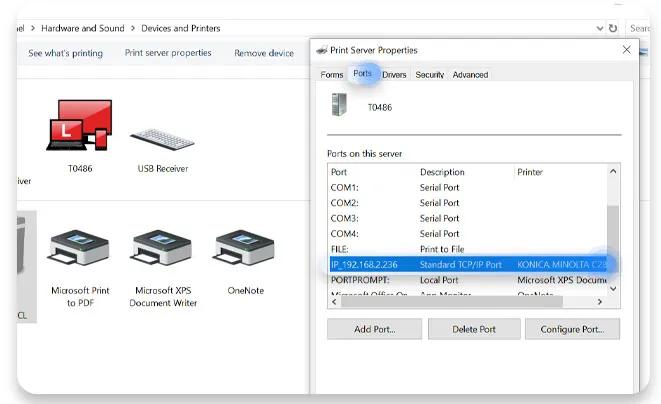
Testing ensures everything works correctly before you rely on it for important documents.
Testing checklist:
- Print a test page from same network
- Print from computer with VPN active
- Print from outside your home network
- Check print quality and speed
- Verify encryption is working
Use online tools to confirm your VPN is active. Websites like “What Is My IP” show your VPN server location instead of your real location. This confirms the connection is encrypted.
Print a multipage document with images. This tests whether your connection can handle larger files. Slow printing might mean you need a faster VPN server or better internet speed.
Try printing from different devices if possible. Test from your phone, tablet, and laptop. Each might need slight configuration differences. Document what works for future reference.
Additional Tools and Advanced Tips
VPN router firmware upgrades improve functionality. DD-WRT and Tomato are popular custom firmware options. They add VPN features to routers that don’t support them natively. Only do this if you’re comfortable with technical tasks.
Print server software can bridge VPNs and printers more easily. Google Cloud Print was popular but discontinued. Alternatives include:
- PrinterShare
- PaperCut Mobility Print
- Printix
These services create a middle layer between your VPN and printer. They handle connection complexities automatically.
Split tunneling is a helpful VPN feature. It lets you route printer traffic through the VPN while other internet activity goes direct. This improves speed for non-sensitive browsing while keeping prints secure.
Mobile printing apps work with VPN setups too. Most printer manufacturers offer apps that support VPN connections. HP Smart, Canon Print, and Epson iPrint all work through properly configured VPNs.
Keep your VPN software updated. Providers release security patches regularly. Outdated software has vulnerabilities that hackers exploit. Enable automatic updates when possible.
Monitor your VPN connection quality. Some services offer connection quality indicators. If you experience frequent disconnections, try different VPN servers. Closer servers usually perform better.
Common Mistakes to Avoid with VPN Printer Configuration
Mistake 1: Using Free VPNs
Free VPN services seem tempting but cause problems. They block ports printers need. Bandwidth limits make printing slow or impossible. Some inject ads into your traffic. Never use free VPNs for sensitive printing.
Mistake 2: Forgetting to Set Static IP
Dynamic IP addresses change periodically. Your printer might work today and fail tomorrow if you skip this step. Always assign a static IP to ensure consistent connectivity.
Mistake 3: Not Testing From Remote Location
Everything works on local network but fails remotely. This is the most common complaint. Test your setup from outside your home before you need it. Fix issues when there’s no pressure.
Mistake 4: Choosing Wrong VPN Protocol
Some VPN protocols don’t play nice with printers. OpenVPN and WireGuard work best. Avoid PPTP and L2TP for printer connections. They have compatibility issues and security weaknesses.
Mistake 5: Ignoring Firewall Settings
Firewalls block printer communications even through VPNs. Check both router and computer firewalls. Add exceptions for printer ports and VPN connections. Otherwise nothing will work despite correct setup.
Mistake 6: Overcomplicating the Setup
Don’t mix methods unnecessarily. Choose either router VPN or computer VPN, not both. Multiple VPN layers cause conflicts and slow everything down. Simpler is better.
Mistake 7: Not Documenting Settings
You’ll forget exactly how you configured everything. Write down IP addresses, ports, and VPN settings. Take screenshots of important configuration screens. Future troubleshooting becomes much easier.
Troubleshooting Your VPN for Printer Connection
Problem: Printer not found through VPN
Check that your VPN is actually connected. Verify the printer’s static IP hasn’t changed. Make sure you’re connecting to the right VPN server. Some multi-server VPNs require specific server selection for local network access.
Problem: Printing is extremely slow
VPN encryption adds overhead. Try a closer VPN server for better speeds. Check your internet upload speed. Printing requires good upload speeds since you’re sending data to your network. Consider compressing large documents before printing.
Problem: Connection drops during large print jobs
Your VPN might have timeout settings that disconnect idle connections. Adjust these settings in the VPN app. Some routers also have aggressive power-saving that disconnects inactive devices. Disable these features for your printer.
Problem: Prints come out garbled or incomplete
This suggests packet loss or protocol incompatibility. Try switching VPN protocols. Enable TCP instead of UDP if available. Check that your VPN supports the full MTU size your printer needs.
Problem: Can’t print specific file types
Some VPNs or firewalls filter certain traffic types. Check your VPN’s content filtering settings. Disable any web filtering features that might interfere with print data.
Problem: Works at home but not remotely
Your remote network might block VPN ports. Try different VPN servers or protocols. Some corporate networks block VPN entirely. In these cases, you might need to wait until you have unrestricted internet access.
Frequently Asked Questions About VPN for Printer Setup
Q: Do I need a VPN for my home printer?
If you only print from devices on your home network, you don’t need a VPN. VPNs are necessary for printing remotely or when using your printer over public WiFi. They also help if you want to share your printer with family members in other locations securely.
Q: Will a VPN slow down my printing?
Yes, slightly. VPN encryption adds processing time. You might notice 10-30% slower print speeds. For most documents, this difference is barely noticeable. Large image files or complex graphics take more time. Choose a fast VPN service to minimize slowdowns.
Q: Can I use my existing printer with a VPN?
Almost all network printers work with VPNs. Older printers designed only for USB connections won’t work. Any printer that connects to WiFi or ethernet supports VPN access. Check that your printer has network printing capability.
Q: Is VPN printer access legal?
Yes, completely legal for personal and business use. You’re just securing your own network connection. Some countries restrict VPN use generally, but accessing your own printer through VPN is allowed everywhere VPNs are legal.
Q: What if my printer doesn’t have an IP address?
USB-only printers don’t have IP addresses. You need a network-capable printer for VPN setup. Consider a print server device that connects to USB printers and gives them network capability. These cost around 30-50 dollars.
Q: How much does VPN for printer setup cost?
VPN services range from 3-12 dollars monthly. No other costs are necessary if you already have a network printer. If you need a VPN-compatible router, expect to spend 50-150 dollars. This is a one-time expense.
Conclusion
Setting up a VPN for printer access gives you security and convenience. You can print safely from anywhere without worrying about data theft or privacy breaches. The setup takes less than an hour for most people.
Start by choosing a reliable VPN service. Configure either your router or computer based on your technical comfort level. Set your printer to a static IP address and test thoroughly from different locations.
Remember that simpler setups work better. Don’t overcomplicate things with unnecessary features. Focus on getting basic functionality working first. You can always add advanced options later.
A secure printer connection protects your sensitive documents. Whether you’re printing tax returns, medical records, or business contracts, VPN encryption keeps everything private. The small monthly cost is worth the peace of mind. Follow this guide and you’ll have professional-grade printer security that just works.
Clean Printer Printhead: The Ultimate Guide to Perfect Prints Read More.


