
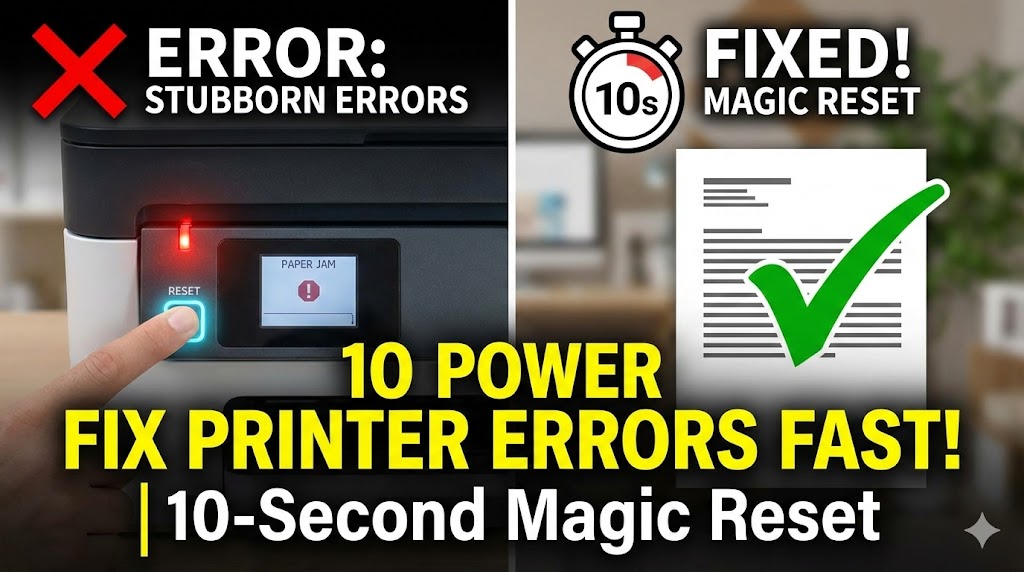
The 10-second printer reset is the secret weapon tech experts use to fix printer problems instantly. This simple trick solves more printer issues than any other method. Yet most people don’t know it exists. When your printer shows strange errors, refuses to print, or acts completely frozen, this reset works like magic.
You don’t need technical skills or special tools. This printer reset fix takes less than a minute and costs nothing. It clears your printer’s memory, resets internal systems, and gives your device a fresh start. The results often feel miraculous. Printers that seemed broken suddenly spring back to life.
In this guide, you’ll learn exactly how to perform the 10-second printer reset correctly. You’ll understand why it works and when to use it. Most importantly, you’ll discover which printer errors this technique fixes instantly. Let’s unlock this powerful solution that saves time, money, and frustration.
What Is the 10-Second Printer Reset?
The 10-second printer reset is a power cycle technique that completely clears your printer’s temporary memory. Unlike a normal shutdown, this method forces your printer to dump all cached data and reset its internal computer systems.
Your printer contains a small computer that manages printing tasks. This computer uses RAM memory to store print jobs, settings, and system states. Sometimes this memory gets corrupted with bad data. Errors pile up, commands conflict, and your printer stops working properly.
A simple power button press doesn’t clear this memory completely. Your printer saves certain states even when turned off. The 10-second reset breaks this cycle. By disconnecting power for exactly ten seconds, you force the printer’s capacitors to discharge fully. This wipes all temporary memory and resets microprocessors to their default state.
Think of it like restarting your phone when it freezes. Except more thorough. The 10-second wait ensures complete power drainage. Your printer literally forgets everything wrong and starts fresh. This printer power cycle technique works on nearly every brand including HP, Canon, Epson, Brother, and Samsung.
Professional technicians use this reset printer errors method as their first troubleshooting step. It’s that effective. The technique costs nothing but saves expensive repair calls in most cases.
How to Perform the 10-Second Printer Reset Correctly
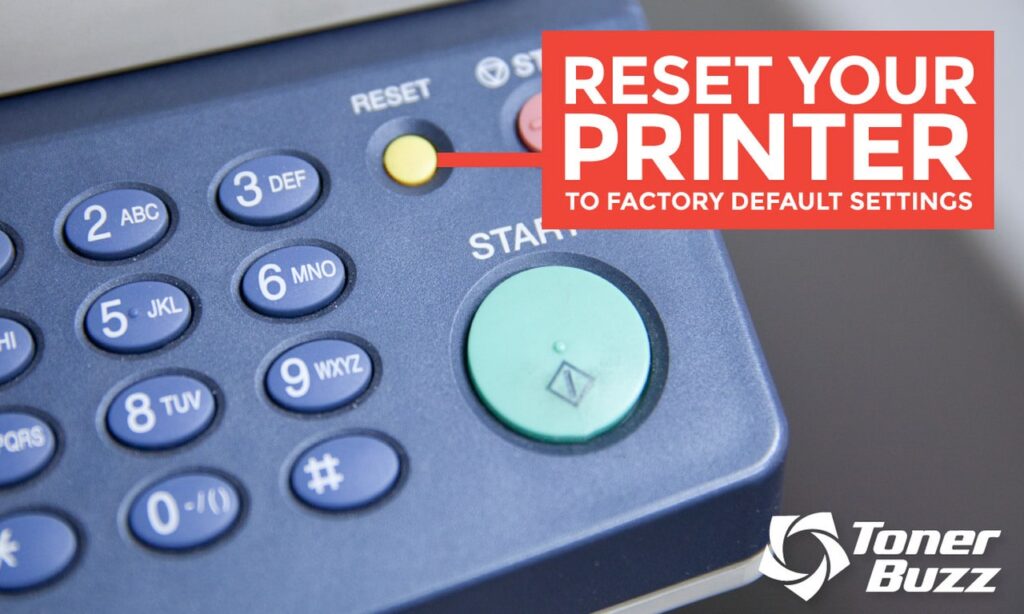
Step 1: Turn Off Your Printer Using the Power Button
Press your printer’s power button normally to shut it down. Wait for all lights to turn off and all sounds to stop. Your printer’s display should go completely dark. Don’t skip this step by just unplugging a running printer.
Some printers take several seconds to shut down completely. They need time to park print heads safely and finish internal processes. Forcing a shutdown by unplugging during operation can damage mechanical parts.
Watch for any error lights or warnings on your printer’s display before turning it off. Note these error codes for future reference. They might be useful if the reset doesn’t solve your problem.
Make sure no print jobs are actively running when you power down. Cancel any pending jobs from your computer first. This prevents corruption of the print queue during the reset process.
Step 2: Unplug the Power Cable from Your Printer
Remove the power cable from the back of your printer, not from the wall outlet. This ensures complete disconnection. Some power strips have switches that don’t fully cut power. Unplugging from the printer guarantees total power loss.
Pull the plug firmly but gently. Don’t yank the cable harshly as this might damage the connector. The plug should come out smoothly with steady pressure.
For wireless printers with batteries, remove the battery if possible. Some portable printers maintain memory through battery backup. Removing all power sources ensures a complete 10-second printer reset.
Check that the printer’s power light is completely off after unplugging. Even a dim light means residual power remains in the system. Wait for all indicators to go dark before proceeding.
Step 3: Wait Exactly 10 Seconds (Count Slowly)
This step is crucial for the printer reset fix to work properly. Count slowly to ten or use your phone’s timer. Don’t rush this step or the reset won’t be complete.
During these ten seconds, electrical capacitors inside your printer discharge. These components store energy even after power disconnection. The ten-second wait ensures they release all stored charge completely.
Some technicians recommend waiting 30 seconds for older printers. Older models use larger capacitors that hold charge longer. When in doubt, waiting longer never hurts the reset process.
While waiting, keep the power cable unplugged. Don’t reconnect early thinking the time is enough. Full discharge requires the complete duration. Patience here pays off with better results.
Step 4: Press and Hold the Power Button for 5 Seconds
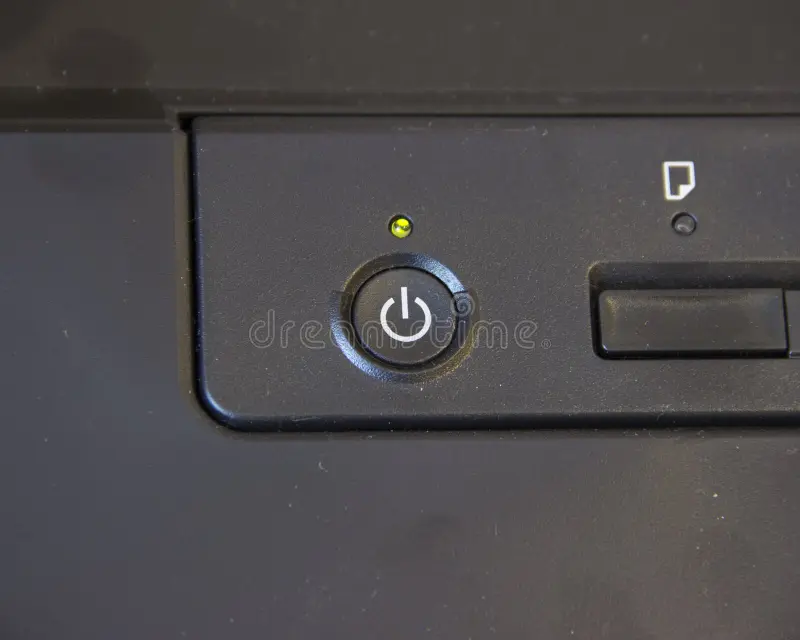
While your printer remains unplugged, press and hold the power button for five seconds. This step seems strange but it’s important. Pressing the button while unplugged drains any remaining residual charge trapped in the circuits.
This technique is called “residual power drain.” It forces any lingering electricity to dissipate through the power circuits. Electronic devices can hold surprising amounts of residual charge. This step ensures absolutely zero power remains.
You won’t see any lights or activity during this step. That’s normal and expected. The button press simply provides a path for trapped energy to escape. Think of it as squeezing out the last drops of water from a sponge.
After five seconds, release the power button. Your printer is now completely reset at the hardware level. All temporary memory is cleared and systems are back to factory defaults.
Step 5: Reconnect Power and Turn On Your Printer
Plug the power cable firmly back into your printer. Make sure the connection is secure. A loose connection causes intermittent power issues that create new problems.
Press the power button to turn your printer back on. Watch your printer boot up. You’ll notice it takes slightly longer than usual. The printer is rebuilding its basic systems and checking hardware components.
During startup, your printer runs self-diagnostic tests. You might hear motors moving, printheads sliding, and alignment procedures running. These sounds indicate your 10-second printer reset worked correctly. The printer is initializing fresh.
Wait for your printer to show “Ready” status before trying to print. Don’t interrupt the startup sequence. Let your printer complete all initialization steps. This ensures all systems are properly reset and functional.
Step 6: Test Your Printer with a Simple Print Job
Send a test page to verify the reset printer errors process worked. Use a simple document first, not a complex photo or large file. A basic text page is perfect for testing.
If the test page prints successfully, your problem is solved. The 10-second printer reset cleared whatever issue was causing errors. You can now resume normal printing activities.
If problems persist, try the reset process one more time. Occasionally, a second reset clears stubborn issues the first attempt missed. Electronic systems sometimes need multiple resets for complete memory clearing.
Check your computer’s print queue too. Sometimes the problem isn’t your printer but stuck jobs on your computer. Clear any pending jobs and try printing again after the reset.
Advanced Tips for Maximum Reset Effectiveness

Multiple Resets: For persistent problems, perform the 10-second printer reset three times in a row. Some complex errors require multiple memory clears. Wait two minutes between each reset to let systems fully stabilize.
Network Printer Considerations: For network printers, also restart your router during the reset process. Unplug your router when you unplug your printer. This clears network connection data that might be causing communication errors. Plug everything back in together for a complete network reset.
Driver Reset: After the printer power cycle, restart your computer too. This clears the printer driver cache and print spooler. The combination of printer reset and computer restart solves even more problems than printer reset alone.
Firmware Check: After resetting, check for firmware updates from your manufacturer’s website. Sometimes errors indicate outdated firmware. The reset gives you a clean slate to install updates properly. Updated firmware prevents recurring issues.
Regular Maintenance: Don’t wait for problems to use this technique. Perform a 10-second printer reset monthly as preventive maintenance. This keeps memory clean and systems running smoothly. Prevention beats troubleshooting every time.
Tools and Resources for Printer Maintenance
Manufacturer Support Apps: HP Smart, Canon Print, and Epson Connect apps provide diagnostic tools. These free applications guide you through resets and troubleshooting. They often include step-by-step reset instructions specific to your printer model.
Print Spooler Manager: Windows includes a print spooler service that benefits from resets too. After performing your printer reset fix, restart this service. Open Services.msc, find Print Spooler, and click Restart. This combination maximizes results.
Online Diagnostic Tools: Websites like PrinterTechHelp and FixMyPrinter offer free diagnostic tools. These web-based utilities scan your system and identify common printer problems. They complement the 10-second reset by finding related issues.
Maintenance Mode: Most printers have a built-in maintenance mode. Access it through button combinations during startup. Check your printer manual for specific instructions. Maintenance mode provides deeper diagnostic capabilities beyond standard resets.
Common Mistakes That Reduce Reset Effectiveness
Not Waiting Long Enough: The biggest mistake is skipping the full ten-second wait. People unplug and immediately replug their printer. Five seconds isn’t enough for complete capacitor discharge. Always wait the full duration for best results.
Unplugging from Wall Only: Unplugging from the wall outlet instead of the printer leaves cables that might carry residual power. Always disconnect directly from the printer to ensure complete power loss. This guarantees the reset works properly.
Skipping the Button Press: Many people forget to press the power button while unplugged. This step drains residual charge and is essential for a complete reset. Don’t skip it even though it seems unnecessary.
Interrupting Startup: Sending print jobs immediately after powering on interrupts initialization. Your printer needs time to complete startup sequences. Wait for “Ready” status before printing. Patience prevents creating new errors during recovery.
Ignoring Error Patterns: If you need to reset printer errors constantly, you have a deeper problem. The 10-second printer reset is a solution, not a Band-Aid. Frequent resets indicate hardware failure, driver problems, or environmental issues. Investigate the root cause instead of resetting endlessly.
Not Updating After Reset: A fresh reset is the perfect time to update printer firmware and drivers. These updates fix bugs that cause errors. Skipping updates means problems will likely return. Always check for updates after successful resets.
Forgetting Computer Restart: Your computer’s print system also needs resetting sometimes. The printer reset fix works better when you restart your computer too. This clears driver caches and print spooler issues simultaneously.
Frequently Asked Questions
Will the 10-second printer reset delete my saved settings?
No, this reset clears only temporary memory and active errors. Your printer keeps permanent settings like Wi-Fi passwords, paper preferences, and custom configurations. These settings are stored in non-volatile memory that survives power loss. You won’t need to reconfigure your printer after the reset. Only cached print jobs and error states are cleared.
How often should I perform a printer reset?
For prevention, reset your printer monthly. If you experience errors, use the 10-second printer reset immediately as your first troubleshooting step. There’s no harm in resetting frequently. Think of it like restarting your computer. Regular resets prevent minor issues from becoming major problems. Heavy users might benefit from weekly resets.
Does this reset work on all printer brands and models?
Yes, the printer power cycle technique works universally. HP, Canon, Epson, Brother, Samsung, and all other brands benefit from this reset. The method relies on basic electrical principles common to all electronic devices. Some industrial printers might require longer wait times, but the concept remains the same. Check your manual for brand-specific variations.
What if the reset doesn’t fix my printer error?
Try the reset process two more times first. If three resets don’t solve the problem, you likely have a hardware issue or need driver updates. Check for firmware updates from your manufacturer. Clear your computer’s print queue and restart your PC. If problems persist, the issue might be physical damage, empty ink cartridges, or paper jams requiring manual intervention.
Conclusion
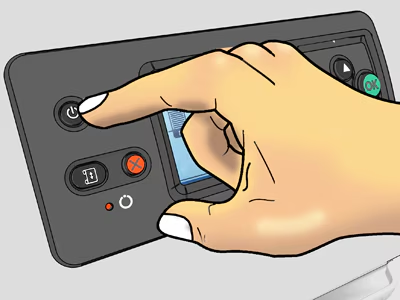
The 10-second printer reset is your most powerful troubleshooting tool. This simple printer reset fix solves communication errors, memory issues, and mysterious printer freezes instantly. The technique costs nothing and takes less than a minute. Yet it’s more effective than complex troubleshooting or expensive service calls.
Remember the key steps: power off, unplug, wait ten seconds, press the power button while unplugged, reconnect, and restart. Follow this sequence exactly for best results. The process clears corrupted memory and gives your printer a genuine fresh start.
Use this reset printer errors method whenever your printer misbehaves. Make it your first response to printing problems. Save time and frustration by mastering this technique today. Your printer will thank you with reliable, error-free performance. Share this knowledge with friends and colleagues who struggle with printer issues. The 10-second printer reset truly is magic that everyone should know.
Printer Keeps Canceling Jobs: Simple Fixes That Actually Work Fast Read More.


